


5 Best PDF to Word Converters
Find out which are the best PDF to Word converters for Windows, Mac, or online to simplify turning PDFs into Word files. Whether using desktop applications or browser-based tools, you can easily transform PDFs into editable Word files.
SwifDoo PDF
Best for: Students, professionals, freelancers, and office users who need fast, accurate PDF to Word conversion.
Supported OS: Windows, macOS, iOS, Android, and Web service (online).
SwifDoo PDF, one of the best PDF converters, makes turning PDFs into editable Word documents simple and precise. Its intuitive interface ensures seamless conversion, even for large files. Users can rely on the SwifDoo PDF Online Converter to transform PDFs anytime, anywhere, providing convenience for work or study. In addition to conversion, SwifDoo PDF helps manage various PDF-related tasks to improve organization.
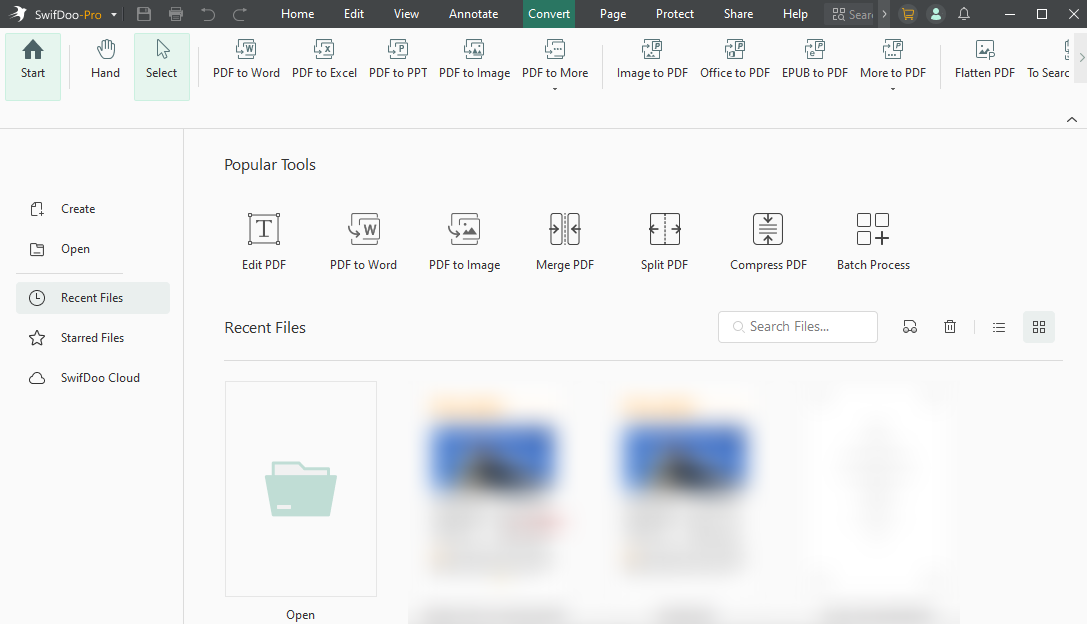
Other Outstanding Features of SwifDoo PDF:
- Helps convert PDF to Word with OCR, preserving original formatting, plus many other formats (Excel, PowerPoint, images, CAD).
- Add/delete text, modify images, change font styles, and insert hyperlinks.
- Assists with PDF summarization, translation, chat assistance, and proofreading.
- Supports OCR (optical character recognition) for scanned PDFs, compression, and merge/split pages.
- Highlight, add notes/stamps, protect privacy, and e‑sign PDFs.
- Features SwifDoo AI for PDF summarization, translation, proofreading, analysis, and conversational interaction.
Pros:
- Combines conversion, editing, annotation, OCR, signing, and AI tools in one place.
- Allows users to batch convert PDF to Word to save time and effort.
- Intuitive interface and quicker performance with a small install size.
- Works across Windows, Mac, mobile, and the web, good for hybrid workflows.
- Includes smart tools such as PDF summarization and translation.
Cons:
- The Mac and online versions of SwifDoo PDF have fewer features than the Windows version.
Pricing:
Offers a free trial with full feature access. The price plan starts at US$16.99/month, and the Quarterly Plan starts at US$16/month. You can get the Yearly Plan at US$4.5/month, a 2-Year Plan at US$2.88/month, and the Perpetual Plan at US$96.75.
Adobe Acrobat
Best for: Professionals, legal teams, and enterprises that demand high-quality PDF to Word conversion with comprehensive editing tools.
Supported OS: Windows and Mac computers, iOS, Android, and Web (online).
Adobe Acrobat is another reliable choice for converting PDFs quickly while keeping formatting and layout intact. As one of the best PDF to Word converter software, Adobe Acrobat provides professionals the ability to convert PDFs into editable Word files rapidly while keeping the formatting intact.

Key Features of Adobe Acrobat:
- Quickly convert PDF to Word without losing formatting, keeping fonts, images, and the original layout intact.
- Add, remove, or modify text and images, plus comment, highlight, and mark up PDFs.
- Comes with password protection, redaction, and digital signature options to keep documents confidential.
- Accessible on Windows, Mac, and mobile, with full cloud integration.
Pros:
- Quickly convert scanned PDF to Word using OCR technology accurately.
- Offers robust PDF management features beyond conversion (editing, signing, and organization).
- Provides powerful security features that ensure confidentiality during conversions.
- Excels at maintaining fonts, images, and layout during conversion to Word.
Cons:
- Expensive compared to lightweight alternatives with a steep learning curve.
- Can be overwhelming for casual users with fewer PDF needs.
- Subscription-based licensing may not suit occasional users.
Pricing:
Offers a free trial. The price plan starts at US$12.99/month (Acrobat Standard) and US$19.99/month (Acrobat Pro) for individual users.
JOPDF
Best for: Small teams, educators, and casual users wanting a straightforward, lightweight solution to convert PDFs to Word.
Supported OS: Windows, Mac, and Linux computers.
Trusted as one of the best free PDF to Word converters, JOPDF makes converting PDFs to editable Word documents simple and precise. Functioning as a free Adobe Acrobat alternative, it delivers an easy-to-use interface along with batch conversion support. This, in turn, makes it ideal for anyone looking to save time on document editing and workflow management.
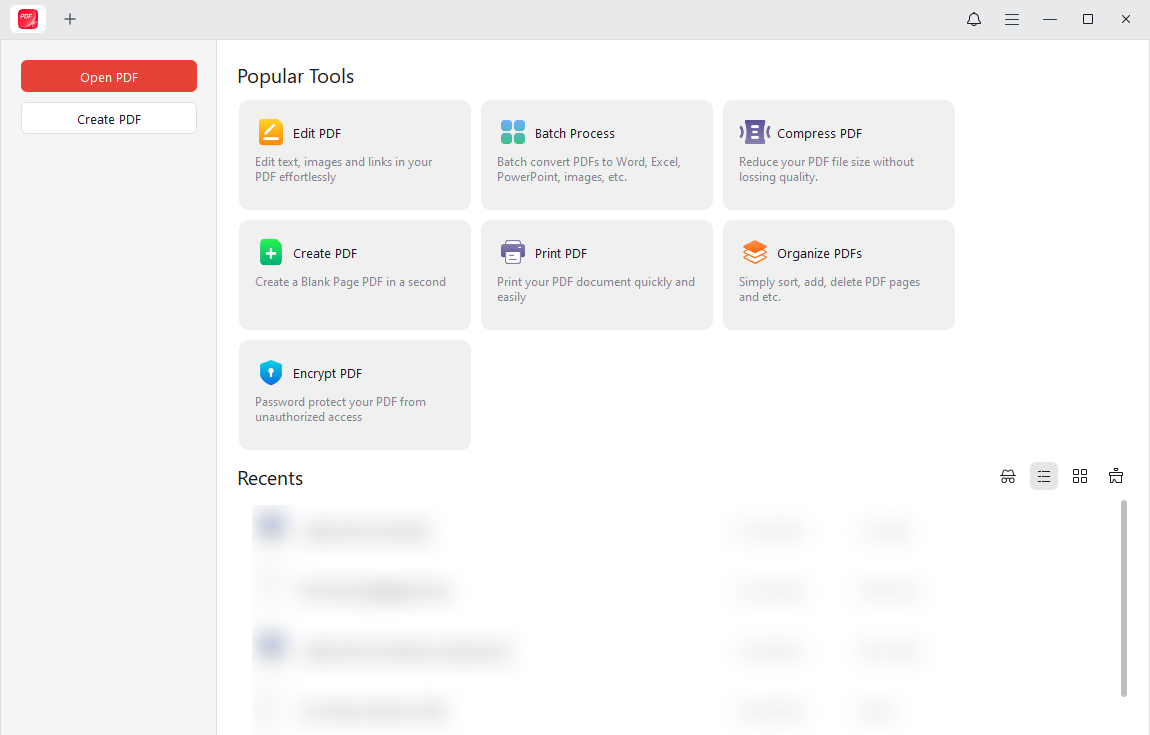
Key Features of JOPDF:
- Helps convert PDF to DOCX, DOC, or RTF without any hassle.
- Edit, annotate, merge, split, compress, protect, and organize PDFs along with conversion.
- Convert PDFs to Word, Excel, PowerPoint, and images with batch support.
- Modify text and images, add links, and rearrange pages.
- Set passwords and permissions to keep your documents secure.
Pros:
- Completely free, featuring an easy-to-use interface suitable for users of any technical experience.
- Requires no registration and has no hidden fees or subscriptions.
- No watermarks or ads—fully unlocked tools immediately.
- Batch conversion support for multiple files at once.
Cons:
- At present, JOPDF works only on Windows, macOS, and Linux systems.
Pricing:
Fully free software with no ads, watermarks, or sign-up needed.
Smallpdf
Best for: Remote workers, online users, and anyone who needs quick PDF to Word conversion without installing software.
Supported OS: Web-based tool; works on all devices and browsers.
Smallpdf is a fast, user-friendly online PDF to Word converter that lets you convert PDFs to editable Word documents quickly. It processes PDFs quickly, making document conversion effortless for anyone needing instant results.
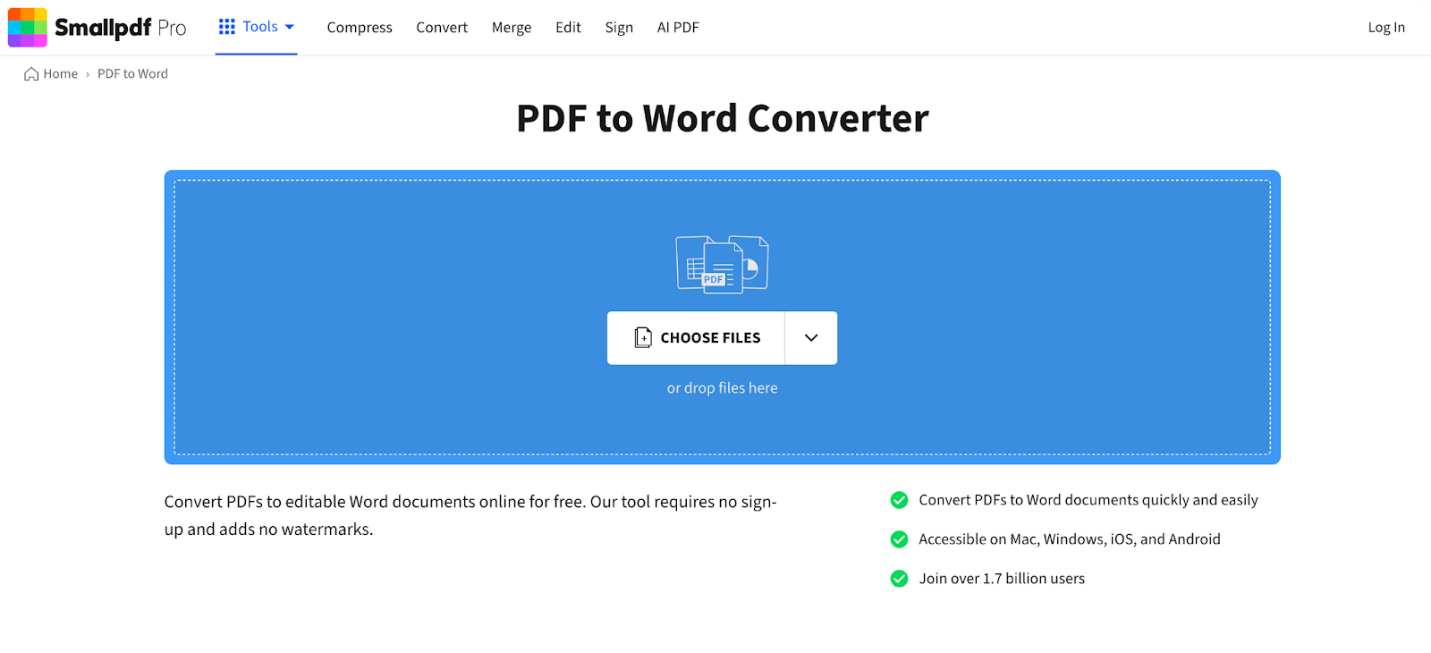
Key Features of Smallpdf:
- Helps convert PDFs to Word in bulk (only with the pro version) to save time.
- Support numerous editing features to modify PDF documents.
- Quickly convert PDF to Word, Excel, PPT, JPG, PNG, HTML, ePub, etc.
- Transform scanned documents into editable, searchable text.
- Enables customization of your forms with text fields, checkboxes, and buttons.
Pros:
- An extremely user-friendly, intuitive interface requires no technical skills.
- Works entirely in the cloud, compatible with all devices without installation.
- Converts and manages PDFs quickly for everyday tasks.
- Offers many tools (compress, merge, edit, sign) beyond just conversion.
- Uses bank-level encryption (256-bit TLS) and is ISO 27001 certified.
Cons:
- Strict daily task limits and restricted features can frustrate frequent users.
- May encounter formatting issues, misplaced elements, or errors in complex files like tables and formulas, affecting document quality.
- Requires a constant internet connection; lacks offline access, which hinders use when traveling or offline.
Pricing:
Offers a free version with limited functionality (e.g., no bulk conversion). Subscription rates begin at US$12/month for solo users and US$10/month for teams.
Nitro PDF
Best for: Professionals, managers, and businesses needing advanced PDF editing, conversion, and workflow tools.
Supported OS: Windows and Mac computers, and iOS devices.
Lastly, Nitro PDF functions as an excellent PDF to Word converter, designed to streamline document workflows. Users can handle multiple PDFs at once, streamlining repetitive editing tasks. You can access your documents on any device thanks to cloud integration.
Key Features of Nitro PDF:
- Efficiently convert PDF to Word without losing formatting, including converting scanned PDFs.
- Convert PDFs to Word, Excel, PPT, and images with batch support.
- Provides advanced AI tools to streamline tasks, gather insights, and enhance productivity.
- Enables the effortless creation, editing, conversion, combining, and signing of PDFs.
- Sync and share via Nitro Cloud (optional).
Pros:
- User-friendly interface, easy for beginners, and familiar to Microsoft Office users.
- Excellent at keeping original formatting when converting PDFs into Word, Excel, and other file types.
- Offers a full suite of tools for editing, creating, merging, and signing PDFs.
- Works well with cloud storage services.
- Saves time for daily document tasks and workflows.
Cons:
- Might lag or slow down when processing large, complex PDFs.
- Occasional font or text corruption after conversion.
- Some users report poor or unavailable technical support, especially for complex issues.
- Difficult reactivation after machine upgrades or reimaging.
Pricing:
Free trial available for 14 days. The price plan starts at US$17.70/month.
How to Choose the Best PDF to Word Converter
Choosing the right PDF to Word converter can save you time, preserve document integrity, and improve productivity. Given the many choices, prioritize key features that suit your workflow, from casual edits to professional tasks.
When choosing the best PDF to Word converters, pay attention to these important criteria:
- Formatting/Layout Accuracy: Ensures text, tables, images, and fonts remain intact after conversion.
- OCR Support: Lets users turn scanned PDFs or images into Word documents for editing.
- Batch Conversion: Supports batch conversion of PDFs to speed up workflow.
- Speed and Performance: Quick and reliable, with no crashes or delays for sizable files.
- Platform Compatibility: Runs on Windows, Mac, mobile, or online, adapting to your workflow.
- Editing and Annotation Tools: Extra features include editing text, adding comments, and signing PDFs.
- Security and Privacy: Password protection, file encryption, and secure processing, especially for sensitive documents.
- Ease of Use: Simple interface and quick learning curve for effortless use.
- Pricing and Licensing: Evaluating free plans, subscription tiers, one-time purchases, and advantages for regular users.
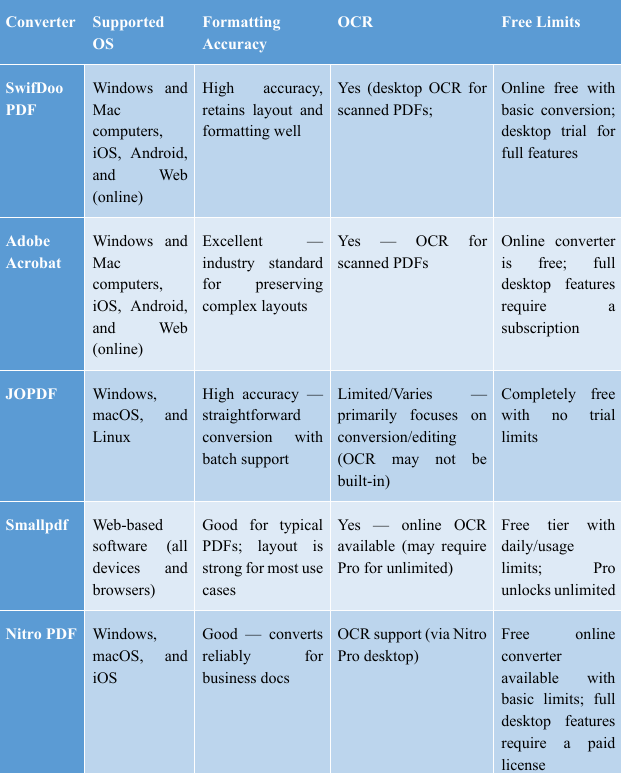
Quick Comparison of the 5 Best PDF to Word Converters
Check out this comparison table of the 5 best PDF to Word converters, detailing supported OS, formatting accuracy, OCR support, and free limits. Let's look.
Exact Steps to Convert PDF to Word for Free
Converting PDF to Word is quick and easy, even for beginners. Using SwifDoo PDF as an example, you can turn your PDFs into editable Word documents in just a few simple steps.
Learn how to convert a PDF to Word using SwifDoo PDF.
Step 1. Download and install SwifDoo PDF on your computer. Then, launch the program to proceed.
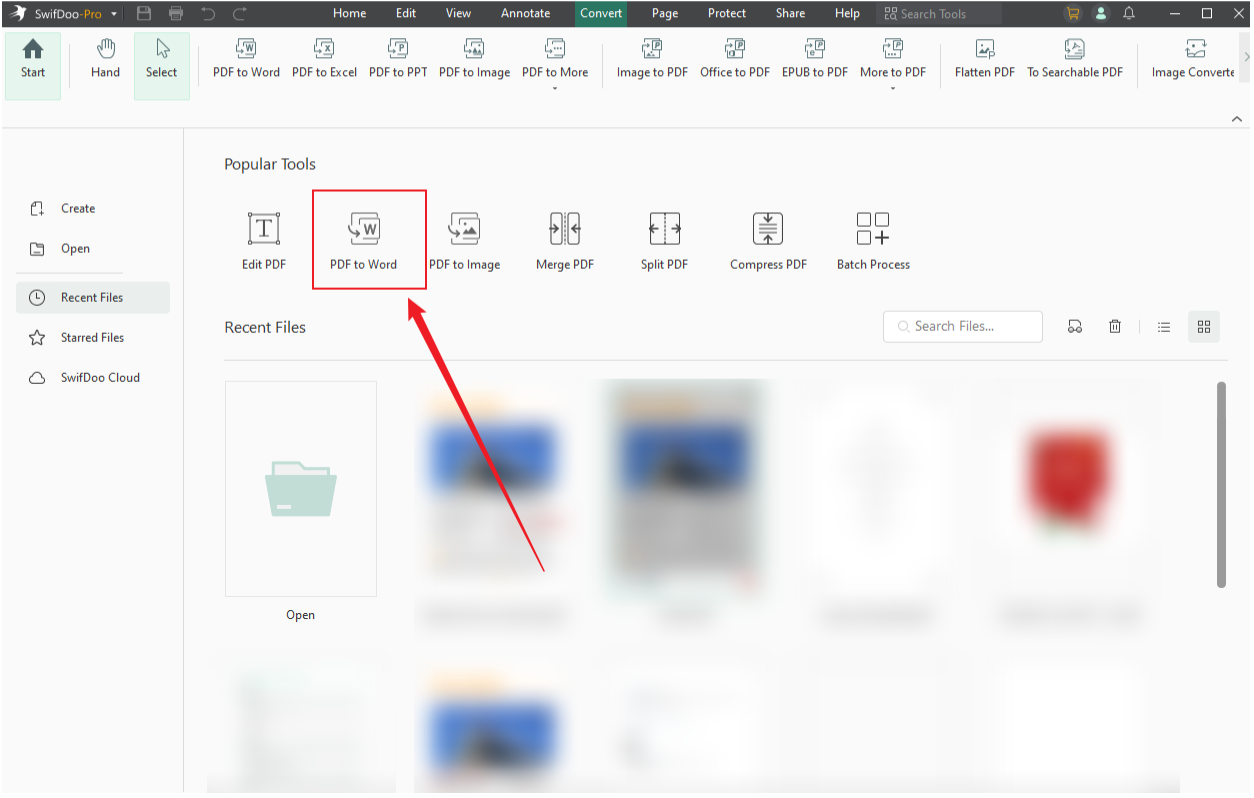
Step 2. Tap the Convert tab in the menu bar, then select the PDF to Word option on the main interface.
Step 3. Click + Add Files to import the PDF file you need to convert. Another option is to drop the PDF file into the SwifDoo PDF operating area.
Step 4. Open the Format dropdown and select the Word(.docx) option. Optionally, you can specify the PDF page range to convert. Next, tailor the output path.

Additionally, you can tap the Settings option to customize other settings for the PDF conversion task, like the annotation and image settings. If you have made any changes, click OK to confirm them.
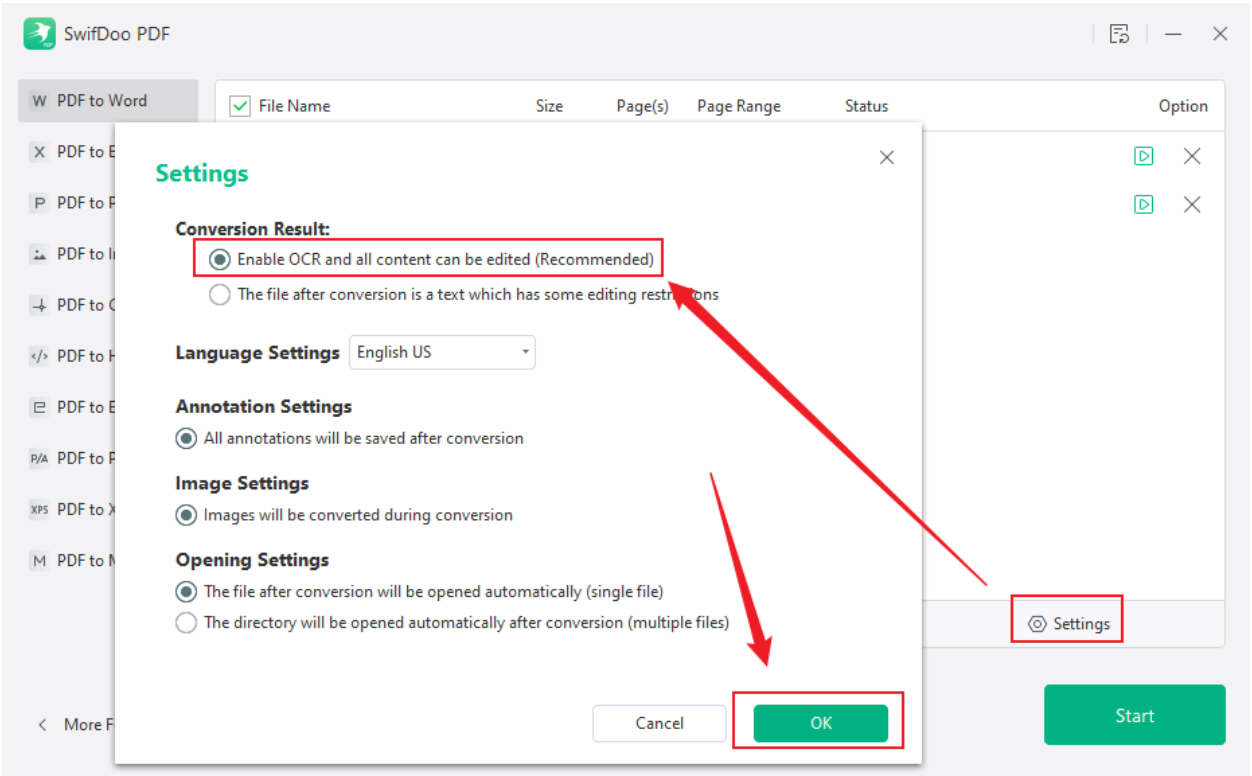
Click the Start button to start the PDF to Word conversion.
To Wrap Things Up
Choosing the best PDF to Word converter allows for efficient and effortless document edits. By using the proper application, you can convert PDF to Word without losing formatting, maintaining all text, images, and the original design. For work, study, or personal projects, these leading converters simplify PDF management and make it more efficient.



