


1. Convert Word to PDF on Mac in Microsoft Word
On a Mac, converting a Word document to PDF through Microsoft Word is one of the easiest and most reliable ways. Because Word is designed to retain formatting, ensuring that all text, images, and layouts stay exactly as intended in the final PDF. This option is perfect for users who already use Microsoft Word and want a rapid, polished PDF result.
Here’s how to export Word to PDF on Mac for free using the built-in solution.
Step 1. Open the Word document you desire to convert to PDF in Microsoft Word on your Mac.
Step 2. Navigate to the top left-hand corner and click File in the top main menu bar. Scroll halfway down and select Save As…
Step 3. In the dialog box that opens, choose a name in the Save As section.
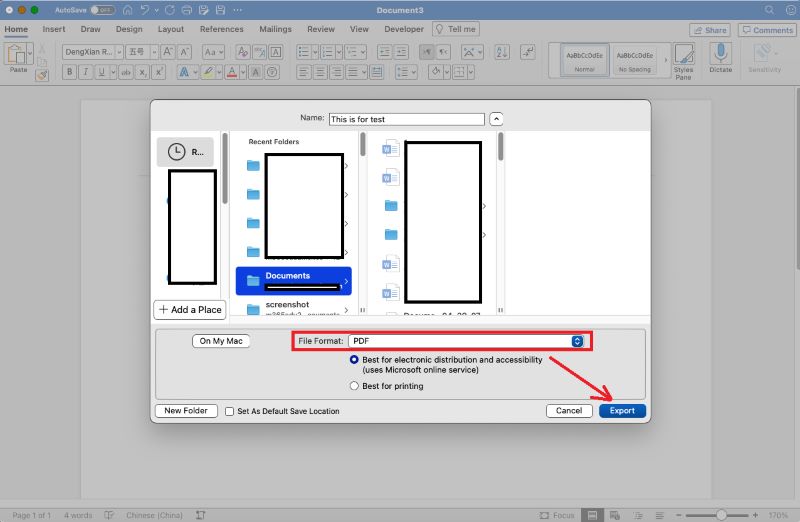
If needed, you can also add a tag. And then, select the storage location for your file. Also, from the File Format dropdown menu, select PDF under the Export Format section. Choose your quality: "Best for electronic distribution and accessibility" (smaller file, good for web) or "Best for printing" (higher quality).
Step 4. Then, click Export. The conversion will automatically begin in a couple of moments.
2. Use the Print Feature to Convert Word to PDF
This approach requires no additional apps or features on nearly all macOS versions. By exporting the document as a PDF from the print dialog, you can easily generate a shareable, high-quality PDF that preserves the original layout and formatting.
Learn how to change Word to PDF on Mac for free using the Print feature in a few clicks.
Step 1. Open the Word document you want to save as a PDF on your Mac. Next, choose File and click Print.
Step 2. Click the PDF button or click the dropdown arrow icon to open the PDF pop-up menu. Then choose Save as PDF.
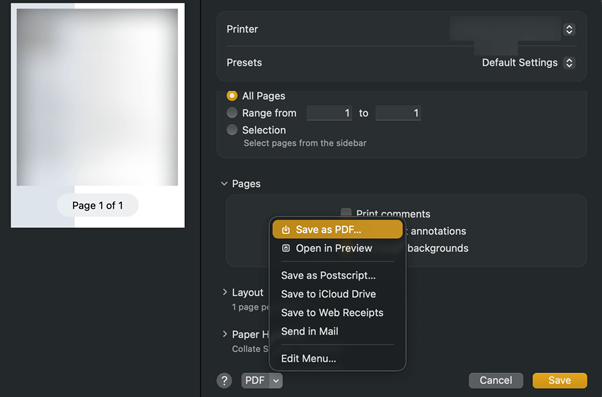
Step 3. Pick a file name and location where you want the PDF document to be saved.
Step 4. Confirm all settings and click Save.
3. Convert Word to PDF with Online Converter
Beyond free built-in solutions, online converters let you easily create PDFs from Word documents without needing extra software. These tools work on any device, reduce local storage usage, and are great for quick, mobile conversions.
Learn a quick method for how to convert Word to PDF on Mac with the help of iLovePDF’s online tool.
Step 1. Launch your web browser and navigate to iLovePDF to start using its features.
Step 2. Next, select the Word to PDF option on the main page to start the conversion process.
Step 3. To begin, click Select WORD files and upload your Word documents to the interface. Or, you can drop the Word documents directly into the program.
Step 3. After your Word files have been uploaded to the tool, click Convert to PDF to start the conversion process.
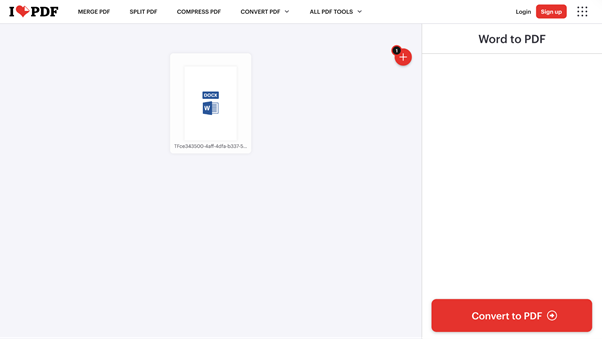
Step 4. Your Word files will be processed automatically by iLovePDF in a matter of moments. Then, press the Download button to save as a PDF on Mac.
Bonus Tip: How to Edit and Manage PDFs After Conversion
While several Word to PDF converters are available in the market, you’ve seen the three effective and free methods to export Word to PDF on Mac. But what if you need to edit or manage the PDF after conversion? That’s the point where SwifDoo PDF can make managing PDFs much easier.
SwifDoo PDF is a versatile and intuitive PDF solution that enables text and image editing, annotations, page management, and PDF conversion—making it a dependable tool for more than just viewing PDFs. With its intuitive layout and comprehensive feature set, SwifDoo PDF is considered one of the best PDF editors for Mac for professionals who require total control of their PDFs.
Key Features of SwifDoo PDF
- Quickly edit text, change font styles and colors, add or remove content, crop, and organize pages easily.
- Convert PDFs to Word, Excel, PPT, TXT, CAD, HTML, images, and vice versa.
- Highlight, underline, strike through, add notes, text boxes, shapes, and custom stamps.
- Merge, split, rotate, compress, protect, encrypt, and add digital signatures to a PDF file.
- Includes an AI chatbot for PDF assistance, summarization, and translation (features can vary by platform).
- Makes scanned PDFs editable and searchable, and performs multiple conversions or tasks simultaneously.
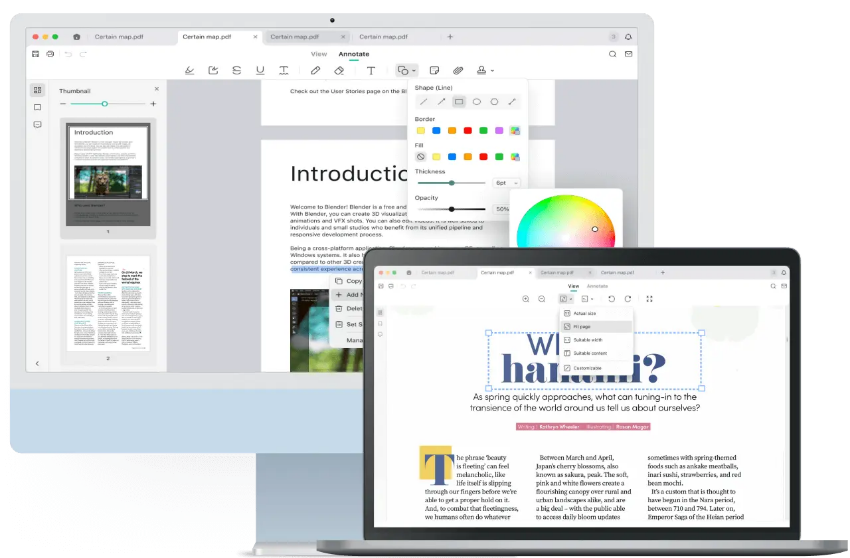
Whether you want to create a PDF on Mac or edit a PDF after conversion, SwifDoo PDF does it all with ease. It handles everything from creating, editing, and converting PDFs to organizing and protecting documents, acting as an all-in-one PDF solution. Give SwifDoo PDF a try today and make managing PDFs on your Mac easier and more efficient.
A Quick Wrap Up
Knowing how to convert Word to PDF on Mac gives you greater flexibility when sharing, printing, or securing documents. Whether you choose Microsoft Word, the Print option, or an online converter, all provide a free and dependable way to create PDFs. When it comes to editing or handling PDFs after conversion, a tool like SwifDoo PDF can make managing the workflow far easier. Hope this guide is helpful!



