Many PDF editors now support OCR technology, which makes image-only PDFs editable and searchable. In the following content, we will provide detailed tips and information to teach you how to convert scanned PDFs to Word.
What is OCR?
To put it simply, OCR (Optical Character Recognition) is a technology used to scan and analyze scanned documents or images and extract the text content to convert them into a machine-readable form. Using OCR, scanned documents can be modified as easily as Word documents.
How to Convert Scanned PDF to Word Offline
In general, you can’t edit or annotate scanned PDFs since they don’t contain any recognizable text, and all text is embedded in images. To make scanned PDFs editable, you need to OCR them or convert them to other file formats. In that case, SwifDoo PDF is a necessary tool.
SwifDoo PDF is a professional scanned PDF to Word converter, offering an OCR feature with high accuracy and rapid word recognition. You can use it to recognize text in PDFs with ease. Additionally, SwifDoo PDF lets you edit scanned PDFs thanks to its OCR technology.
How can you convert a scanned PDF to Word in SwifDoo PDF? Just refer to the steps below.
Step 1. Download and install SwifDoo PDF on your computer.
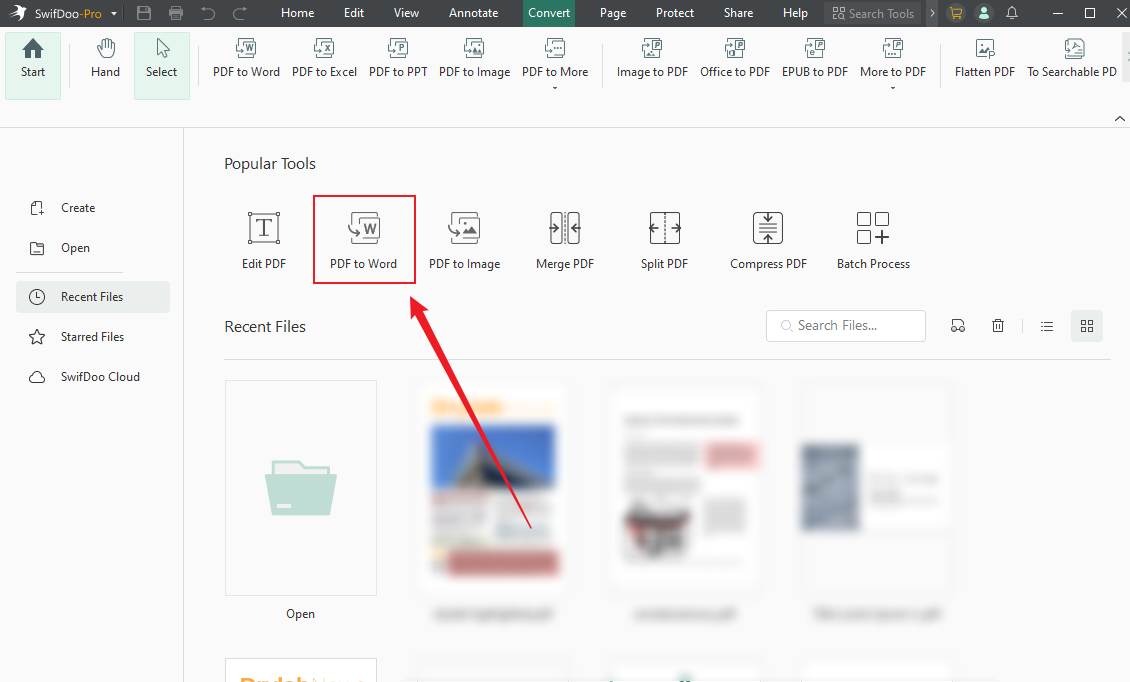
Step 2. Launch this PDF converter and click the PDF to Word option.
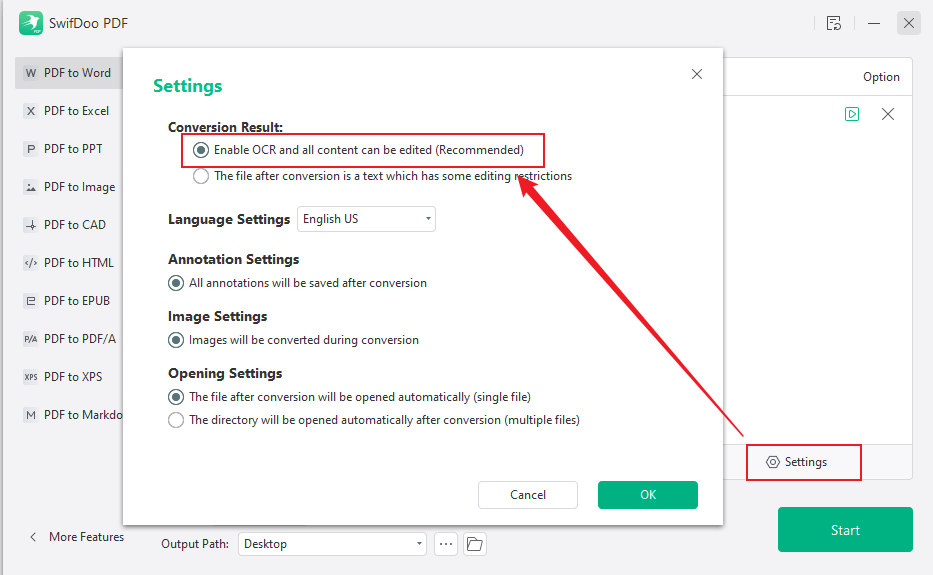
Step 3. Click + Add Files to import your scanned or image-based PDF file. Then, click the Settings icon and ensure the OCR option is enabled.
Step 4. Specify the saving path and click the Start button to activate the conversion process.
SwifDoo PDF only takes several seconds to help you convert files. Besides converting scanned PDF to Word, SwifDoo PDF also enables you to convert PDF to many other file formats and vice versa, such as converting PDF to Excel, HTML, CAD, etc.
How to Convert Scanned PDF to Word Online
In addition, if you prefer to convert files online, you can use SwifDoo PDF’s online converter.
Let’s see how to convert scanned PDF to Word online for free:
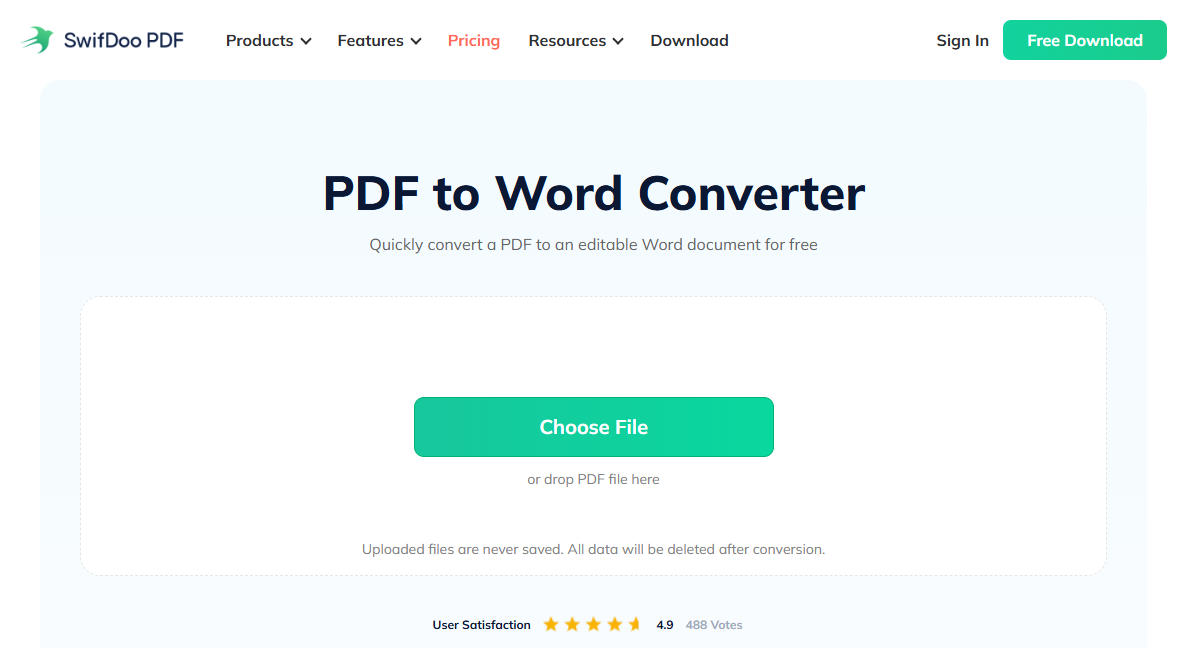
Step 1. Open SwifDoo PDF’s website. Hover your mouse on Products and choose PDF to Word.
Step 2. Choose the image-only PDF on your computer. The online converter will start converting scanned PDF to Word documents automatically after opening.
Step 3. Download the converted Word document.
You’ll find no difference in the converted files no matter what method you use. In addition, all the formatting in the original files is well-contained even after converting. More crucially, SwifDoo PDF doesn't display any advertisements on the homepage, so you won’t get disturbed by unnecessary information on the whole process.
What Is a Scanned PDF?
Usually, PDFs are classified into three types: real PDFs or digitally created PDFs, scanned PDFs, and searchable PDFs.
Real PDFs are born to be PDFs. They are created by Microsoft Word, Excel, dedicated PDF creators, and many other office programs. Real PDFs contain recognized text and pictures and can be easily selected, edited, deleted, resized, and moved.
Scanned PDFs, or image-only PDFs, are created by scanning hard-copy documents or converting images to PDF documents. These PDFs only contain images without any recognizable text content. However, these files can be converted from non-readable text into readable text with an OCR engine. In fact, the OCR engine just simply adds an underlying text layer to the document, so the converted file still can’t be taken as a real PDF.
As the name has suggested, searchable PDFs are PDF documents whose text content can be searched, copied, pasted, and annotated. It’s almost indistinguishable between searchable PDFs and real PDFs. However, searchable PDFs come from using OCR technology to scan image-only PDFs, so these PDFs contain both text and image layers.
Is SwifDoo PDF Free & Safe?
In a word, yes, SwifDoo PDF is indeed a free and safe tool for converting scanned PDFs to Word.
SwifDoo PDF provides a free trial with full access to all its features so you can test the program out before purchasing it. A 7-day free trial is offered for all users. This period is enough for most people to gauge whether SwifDoo PDF suits their needs.
Additionally, SwifDoo PDF uses 256-bit SSL encryption to secure users’ documents. Consequently, the file will be deleted automatically from the server once the conversion is completed. You don’t have to worry about any information leakage.
If you wonder how to convert scanned PDF to Word for free, SwifDoo PDF is definitely the best choice, and you should never miss it.

- Convert any file format to PDF, and vice versa
- Convert files without spending a penny
- An inbuilt OCR feature supported
Windows 11/10/8.1/7/XP
The Bottom Line
With the guide above, you can convert scanned PDF to Word documents easily! SwifDoo PDF is a feature-rich and well-designed PDF editor. Besides serving as a PDF converter, SwifDoo PDF can also be used to solve all common PDF issues. No doubt, you’ll be surprised by its powerful features. Download and use it right now!