


Way 1. Convert JSON to PDF Using Microsoft Excel
Microsoft Excel makes it simple and reliable to convert JSON data into a clean, organized PDF. By opening JSON files in Excel, users can easily organize and structure complex data into tables.
After formatting, the file can be saved as a PDF, making it ideal for sharing, reporting, and creating official documentation. This method is especially useful when you need to convert Excel to PDF with clarity.
Here’s how you can convert JSON to PDF with Microsoft Excel in just a handful of clicks.
Step 1. Open a new blank sheet in Microsoft Excel on your computer.
Step 2. Navigate to the Data tab and click on the Get Data option. Then, select From File and choose From JSON. Then, select the JSON file and click on the Import button.
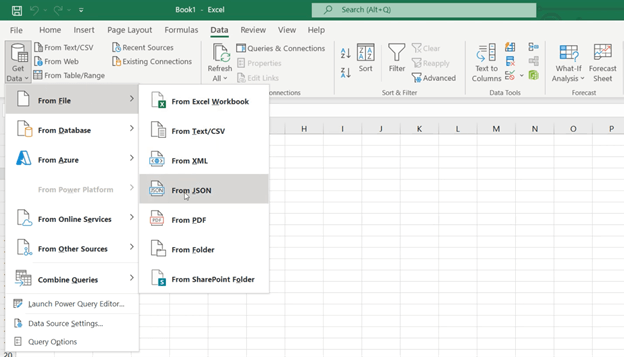
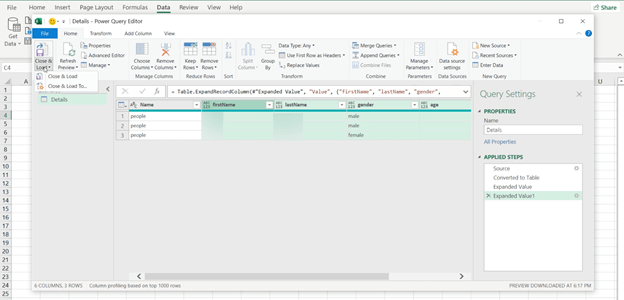
Step 3. Now, click the To Table option. After that, click on the Close & Load button. The JSON table will be loaded on your worksheet.
Step 4. Next, go to File and hit Save As from the menu. In the Save As menu, select PDF (Save as type) and click Save to save the Excel sheet as a PDF file.
Way 2. Convert JSON to PDF Using Online Converters
As a further option, online converters make it quick and hassle-free to convert JSON to PDF online for free without installing additional software. These online tools let users upload a JSON file and generate a PDF in a few clicks.
Tools like Aconvert can help with conversion by quickly transforming JSON data into a readable PDF. This method is ideal for fast, one-time conversions and hassle-free use. Discover how to use the Aconvert tool.
Step 1. Using your browser, navigate to the Aconvert JSON to PDF conversion page.
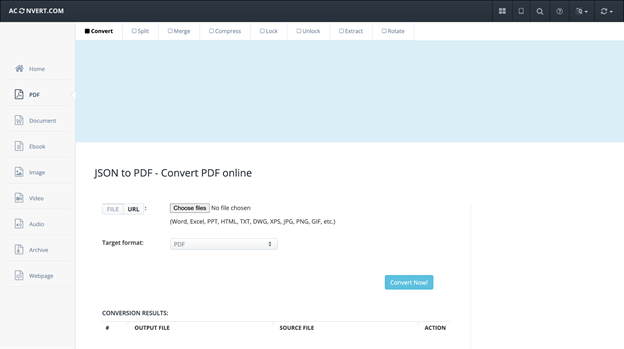
Step 2. Click Choose Files, then select the JSON file you need to convert from local storage. In the Target Format section, ensure PDF is selected.
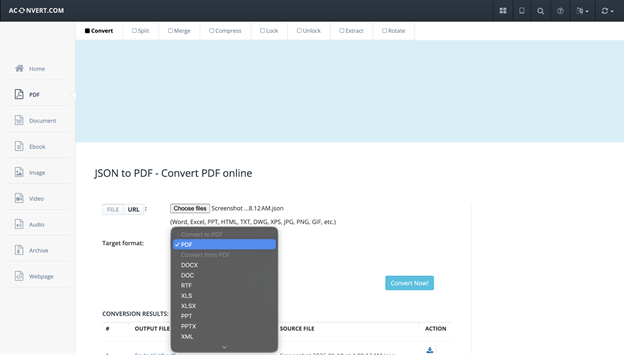
Step 3. After finishing the setup, click the Convert Now! tab to convert your file immediately. You can view all output files in the “Conversion Results” area after conversion.
Step 4. Click the dropdown icon to show the file QR code. You may choose to save the converted file to cloud storage options like Google Drive or Dropbox.
Bonus Tip: How to Edit and Manage PDFs After Conversion
Once you understand how to convert JSON to PDF through free online tools or built-in methods, the next step is handling those files. After your data is saved as a PDF, you might need to edit text, restructure pages, or get the files ready for sharing. Selecting the best PDF editor ensures that your converted files remain flexible, editable, and easy to manage.
SwifDoo PDF is a powerful, intuitive tool for managing all your PDF files after conversion. It provides users with the ability to edit text and images, rearrange layouts, add annotations, and manage pages with ease. With its clean interface and robust features, SwifDoo PDF makes editing and managing converted JSON PDFs simple and efficient.
Key Features of SwifDoo PDF
- Effortlessly combine PDFs into one for better organization and easier sharing.
- Edit PDF text, including font size, style, and color, as well as images, all with precise control.
- Convert PDFs to and from multiple formats, including Word, Excel, and PowerPoint, while preserving the layout.
- Annotate and comment on PDFs using highlights, notes, shapes, and drawing tools.
- Manage pages easily by adding, deleting, rotating, or reordering pages.
- Add digital signatures and safeguard your documents with passwords and permission controls.
- Leverages AI to accurately summarize, translate, proofread, rewrite, analyze, and chat with PDF files.
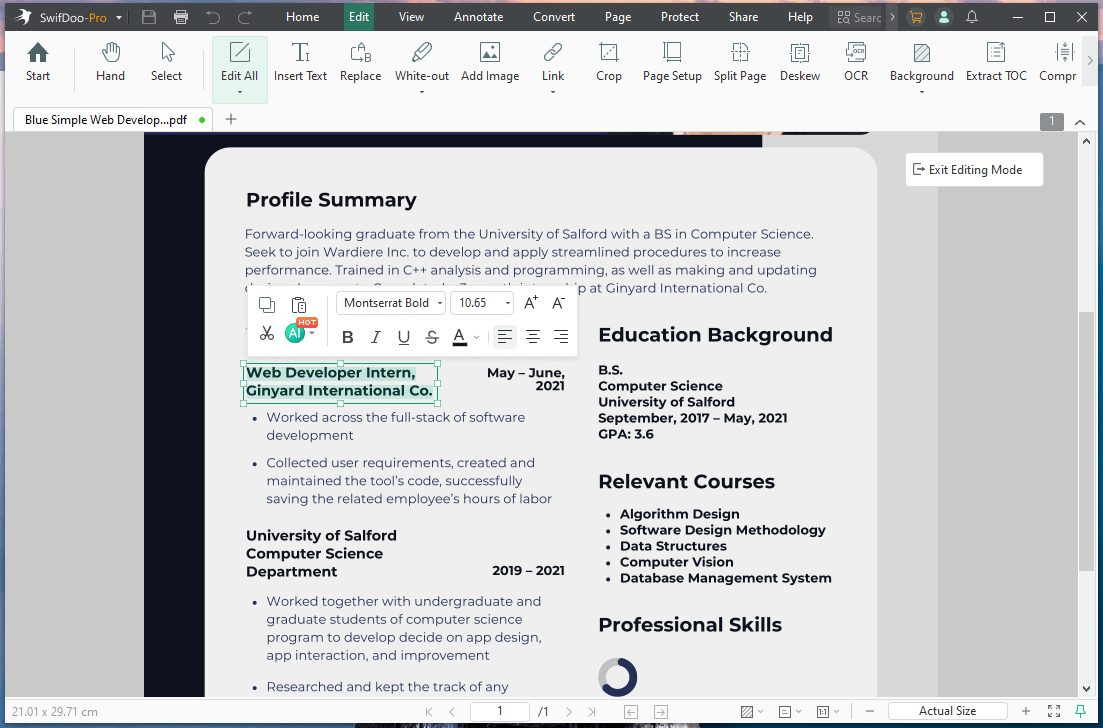
Ready to take full control of your PDFs after conversion? Get SwifDoo PDF now to edit, manage, and personalize your documents quickly and effortlessly. Whether you need to change text in PDF, edit pages, or optimize layouts, SwifDoo PDF gives you all the features required to work effectively.
A Quick Wrap Up
Turning data into a format that is easy to read and understand is crucial in today’s digital world. Learning how to convert JSON to PDF helps you make structured data readable and shareable.
Whether you use built-in tools like Excel or free online converters, the process is simple and effective. After conversion, use a reliable PDF editor like SwifDoo PDF to refine, manage, and secure your documents with ease. Hope this guide is helpful!



