


Introducing HEIC and JPG Formats
What is a HEIC file? HEIC (High Efficiency Image Container) is an image format developed by Apple that offers high-quality images at a smaller file size, which is used by default on iPhone and iPad. However, when you try to open HEIC files on a Windows PC or on certain websites, you may find they don’t open properly. That’s because HEIC is still less universally supported than JPG or PNG.
JPG (also called JPEG) is one of the most widely used digital image formats worldwide. It uses lossy compression to get a small file size, making it great for web, email, and storage. More importantly, JPG is universally compatible and can be opened on Windows, macOS, Android, iOS, web browsers, legacy software, and more.
Why convert HEIC to JPG on Windows? The primary reason is to achieve universal compatibility and be properly opened on Windows. Additionally, HEIC has limited and inconsistent native support on Windows. You need to install codec extensions from the Microsoft Store since Windows 10 and 11 don’t support HEIC files out of the box. How to convert HEIC to JPG on Windows 10/11? Keep reading.
Built-in Way to Convert HEIC to JPG with the Windows Photos App
The Windows Photos app is a built-in tool on Windows for viewing, organizing, editing, and sharing your photos and videos. It enables you to export images as JPG files. To convert HEIC to JPG in the Photos app, you need to install HEIF Image Extensions in advance. How to convert HEIC to JPG with the Windows Photos app? Follow the steps below.
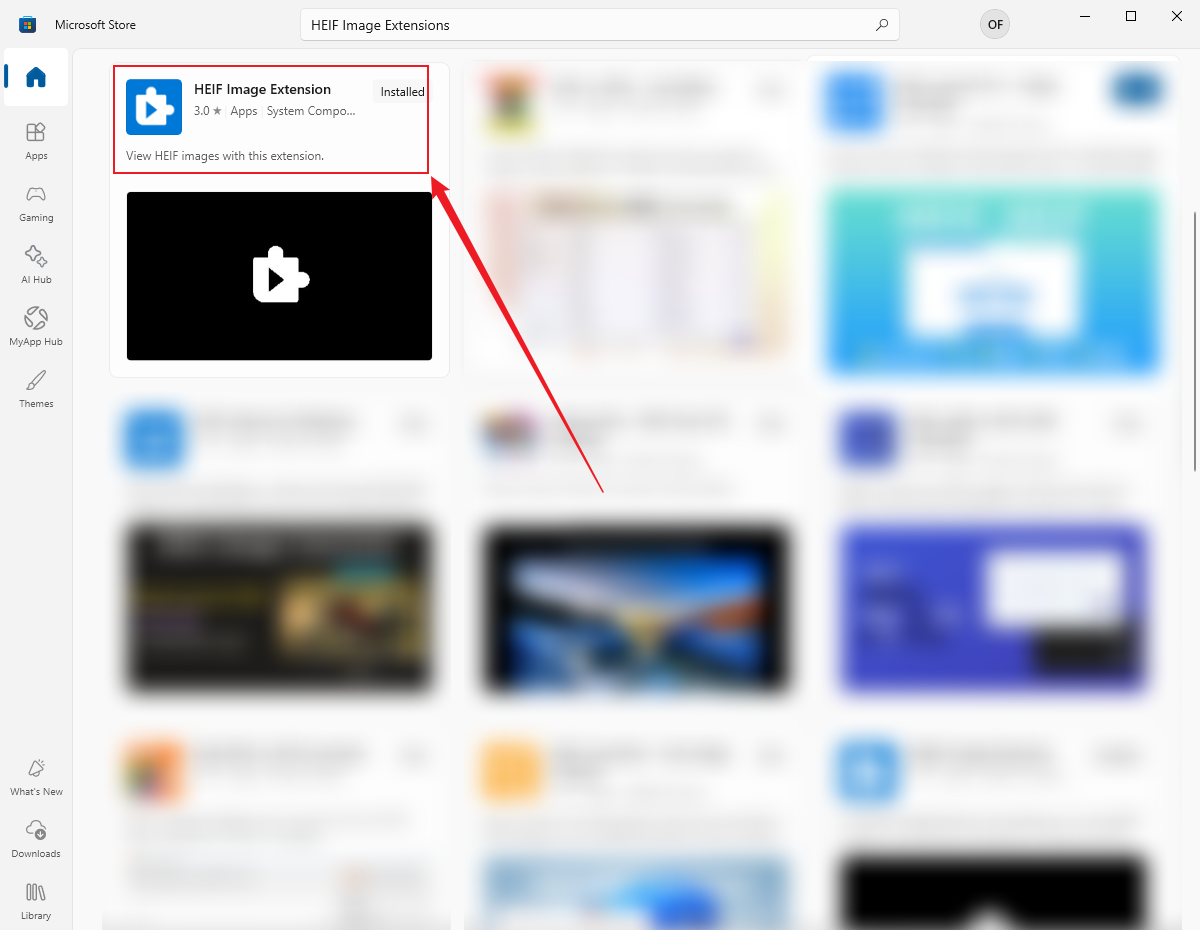
Step 1. Open Microsoft Store, search for HEIF Image Extensions, and install it for free. Once this extension is installed, you can open HEIC images in Photos.
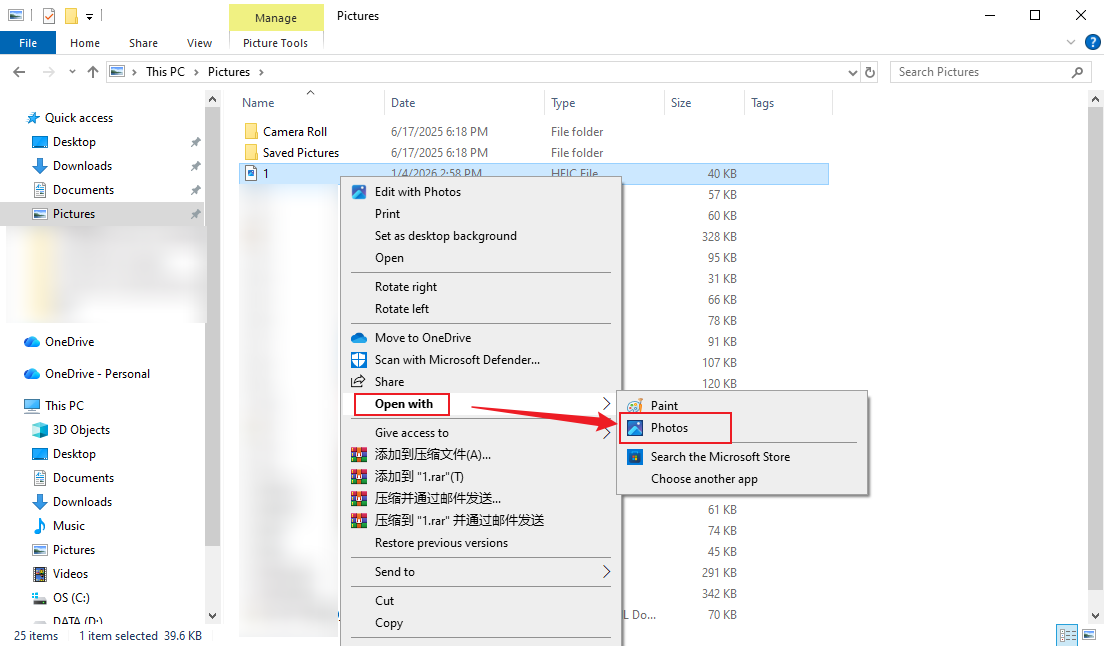
Step 2. Locate your HEIC image, right-click it, move to “Open with”, and click Photos.
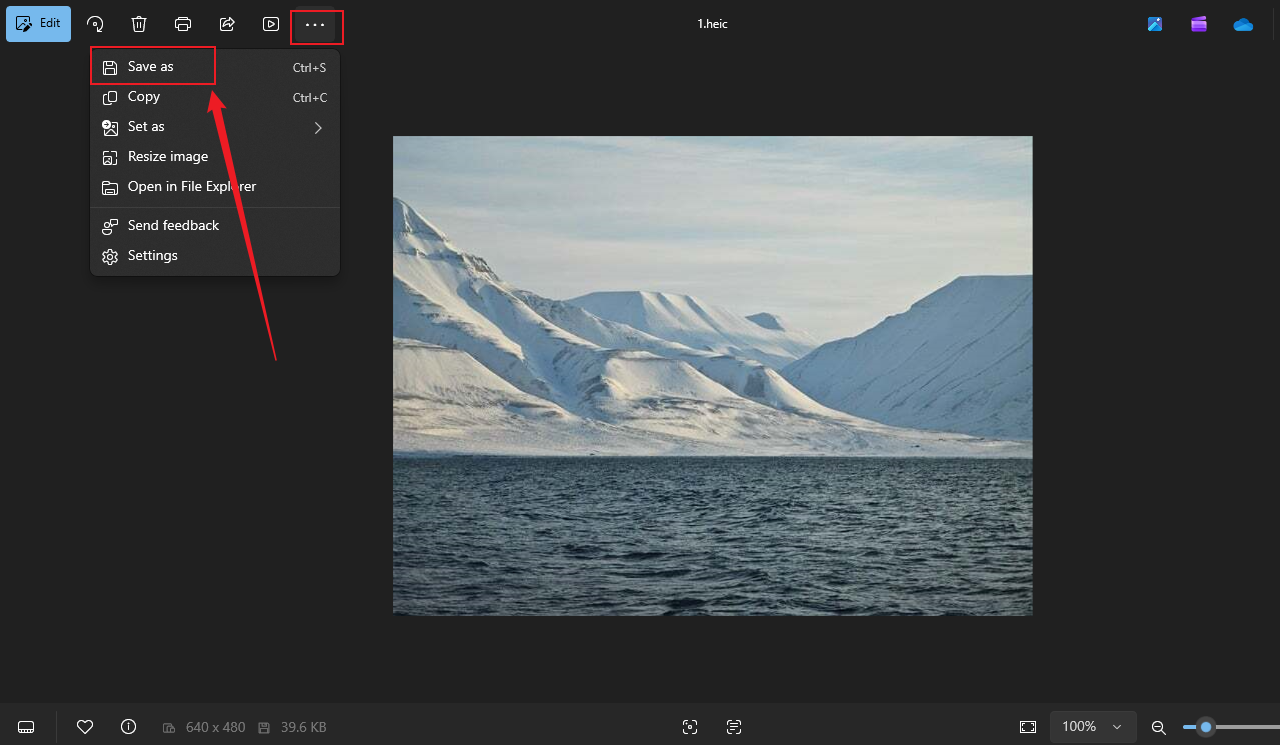
Step 3. Click the three-dot icon in the top toolbar, select “Save as”, and choose JPG as the output format. At last, click Save.
This method lets you convert HEIC to JPG on Windows for free, without requiring third-party software. However, if you need to batch convert HEIC to JPG, this method doesn’t have the feature.
How to Batch Convert HEIC to JPG on Windows with SwifDoo PDF
What can you do if you need to handle multiple HEIC files at once? A reliable HEIC to JPG bulk converter should be your choice. Among various converters, I strongly recommend SwifDoo PDF.
SwifDoo PDF is one of the best HEIC to JPG converters for Windows. You can use it to convert multiple HEIC images to JPGs at once. Additionally, it enables you to combine several HEIC images into one JPG file. Furthermore, it supports combining images into a single PDF. Here, let’s learn how to batch convert HEIC to JPG on Windows with SwifDoo PDF.
Step 1. Hit the download button below to download and install SwifDoo PDF on your Windows PC. Then, launch this HEIC to JPG bulk converter.
Step 2. Click Batch Process, select Image Converter, and choose HEIC to Image.
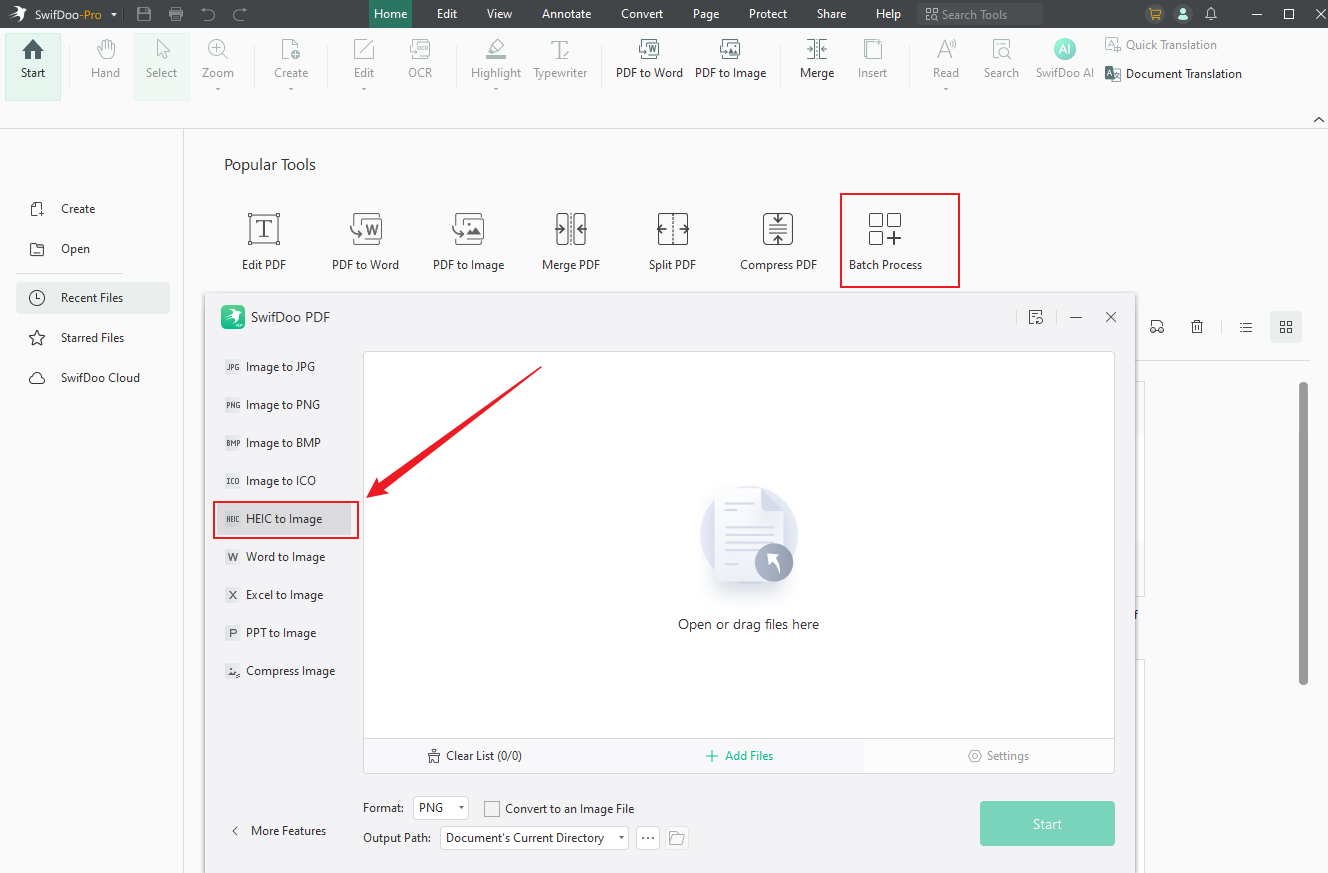
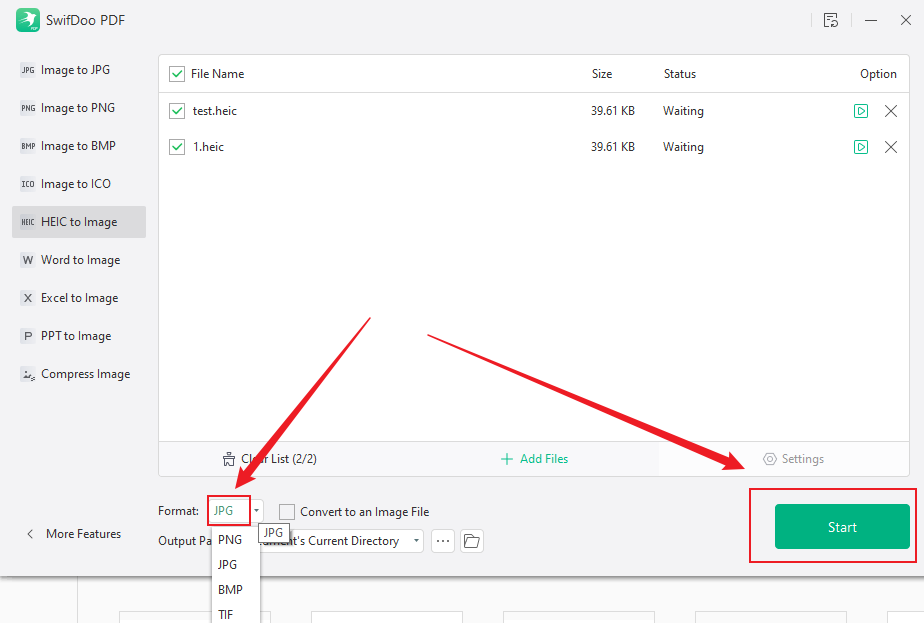
Step 3. Click + Add Files to import the HEIC images you need to convert.
Step 4. Next, open the Format list and choose JPG. Meanwhile, you can customize other settings as needed. Finally, click Start to perform the conversion.
How to Convert HEIC to JPG Online via Xodo
Are you looking for a way to convert HEIC to JPG without installing software? Though the Windows Photos app allows you do that, it doesn’t support batch conversion. In that case, an online HEIC to JPG converter can be your choice. Xodo, FreeConvert, Canva, and other online tools can give you a hand. Here, I’d like to introduce Xodo to convert HEIC to JPG online. Below are the steps to convert HEIC to JPG online with Xodo.
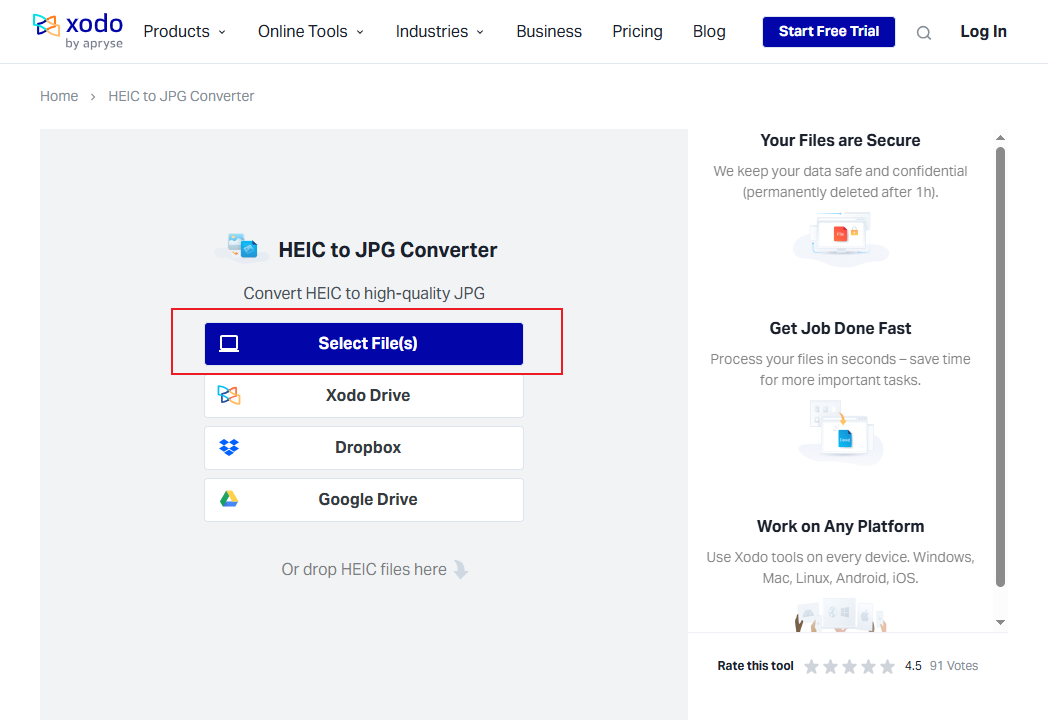
Step 1. Open your browser and visit Xodo’s HEIC to JPG website.
Step 2. Click Select File(s) to upload the HEIC image from your local storage. Alternatively, you can select upload HEIC from Xodo Drive, Dropbox, or Google Drive.
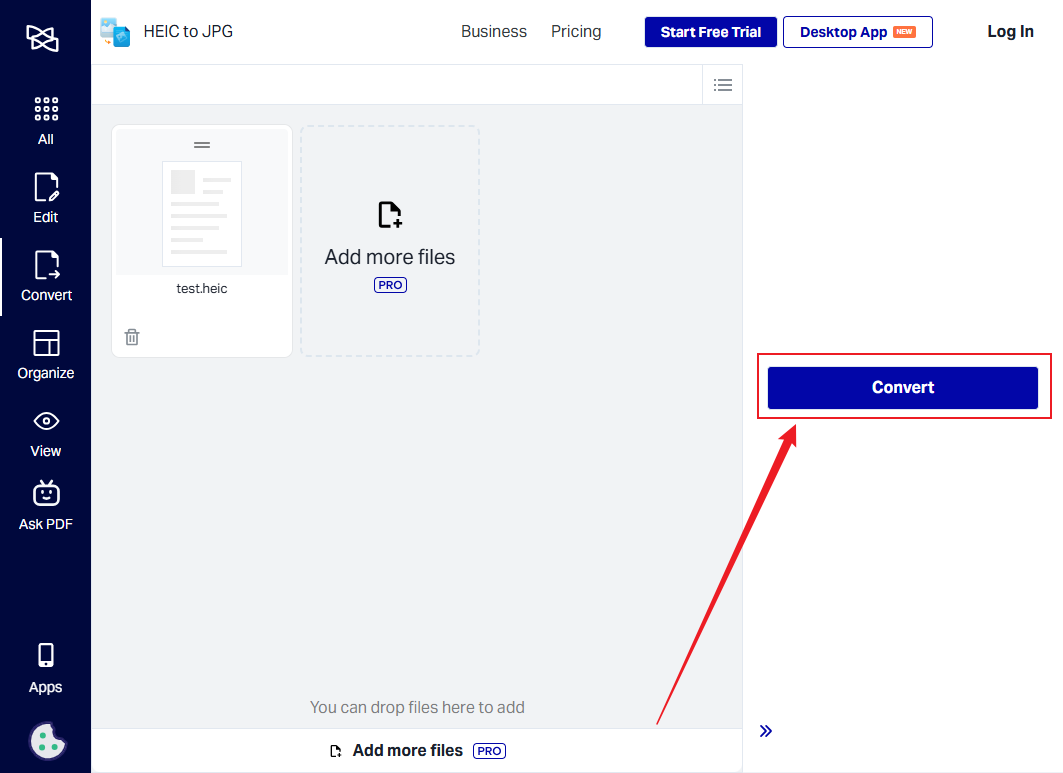
Step 3. Once the HEIC image is uploaded, click Convert to enable the conversion. When the conversion is over, click Download to save the JPG image.
Conclusion
How to convert HEIC to JPG on Windows? It is not a difficult task as long as you have the right converting tool. In this article, I introduce you to several reliable options, ranging from the built-in Photos app to SwifDoo PDF and online Xodo. If you have installed the HEIF Image Extensions and only need to convert a few HEIC images, the Windows Photos app works fine. However, if you need a secure way to batch convert HEIC to JPG, SwifDoo PDF should be your choice.




