


Why Do You See the Network Error?
When using ChatGPT, a network error may appear while generating long responses. This typically occurs because of network or system-related problems that disrupt the response generation.
Here’s a list of the common reasons.
- Unstable or slow internet connection.
- Server overload or temporary outages.
- Unavailability of context.
- Very long prompts or responses.
- Browser cache or extension conflicts.
- VPN or firewall restrictions.
- Session timeout or page refresh issues.
How to Fix ChatGPT Network Error on Long Responses
With the common causes identified, finding the right solution is simpler. This usually involves checking your connection, adjusting prompts, or resolving browser issues.
By taking a few easy steps, you can fix the error. It helps maintain uninterrupted interactions and more reliable responses in ChatGPT.
Fix #1. Check OpenAI Server Status
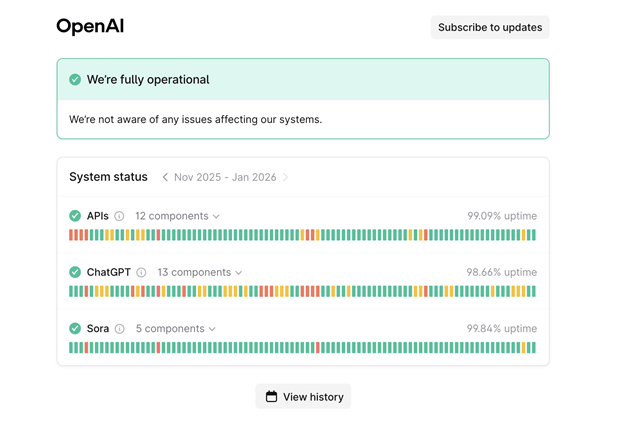
Prior to other solutions, confirm whether the issue is due to OpenAI server problems. Sometimes, the ChatGPT network error on long answer occurs because of temporary server outages or scheduled maintenance. By checking the status page, you can see if ChatGPT is down and decide to wait or troubleshoot. Let us see how.
Step 1. Locate the OpenAI Status page.
Step 2. Verify whether the status is Operational (green graph). If the graph is red, wait a while before applying any other fix.
Fix #2. Clear Your Browser Cache
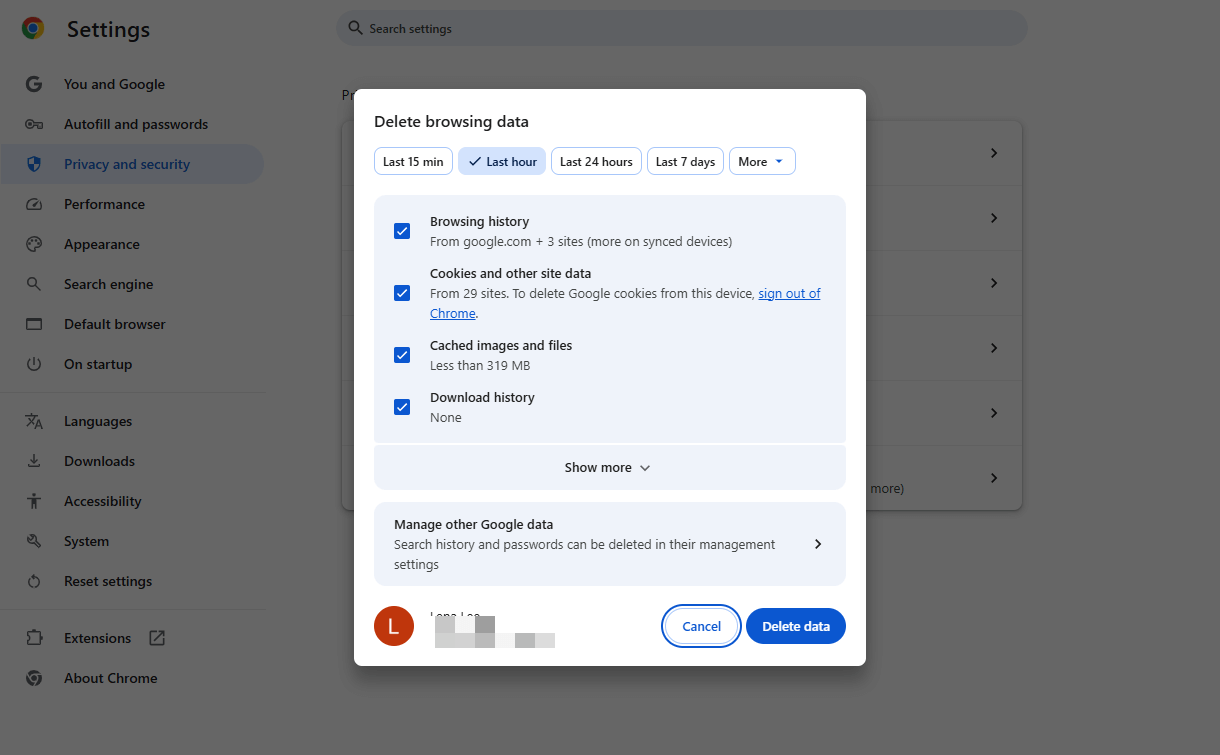
A cluttered browser cache can also cause the ChatGPT network error. By removing temporary files, cookies, and cached data, you can resolve loading issues and improve performance.
After clearing your cache, refresh the page to ensure ChatGPT runs smoothly and reduces interruptions during long responses. Here’s how.
Step 1. Open your Chrome browser and tap the three dots in the top right corner.
Step 2. Go to Settings > Privacy and Security > Delete browsing data.
Step 3. Select More > All Time. And check the Cached images and files option.
Step 4. Then tap Delete data.
Fix #3. Limit ChatGPT Response Length
Another effective solution is to limit the length of your prompts and expected responses. Very long replies can trigger the ChatGPT network error, especially during complex queries. Breaking your content into parts or posing brief questions reduces disruptions and ensures seamless use of ChatGPT.
Fix #4. Check Your Internet Connection
An unreliable internet connection often results in the ChatGPT network error on long responses. Ensure you have a strong, consistent connection, preferably via Wi-Fi or wired network. To maintain continuous interactions, try restarting your router or connecting to a more stable network while using ChatGPT.

Fix #5. Try a Different Browser
Sometimes, browser compatibility issues cause the problem. Switching to a different browser can resolve these problems, as some browsers handle scripts and large responses better than others. Updated browsers like Chrome, Edge, or Firefox provide more reliable performance while using ChatGPT.

Fix #6. Other Fixes
In addition to the primary fixes, you can take extra measures to enhance performance and reduce the likelihood of the ChatGPT network error on long responses. These measures help address less common issues, optimize response handling, and ensure smoother interactions when generating lengthy replies in ChatGPT.
- Disable your VPN or proxy.
- Specify the language (especially for code).
- Check the OpenAI Discord.
- Avoid high traffic times.
- Ask for no comments in code.
- Ask for no empty lines in code.
- Ask for a subset of lines for code.
- Try a different platform (mobile/tablet/etc.)
- Contact the OpenAI support team.
Bonus Tip: Handle a Long PDF Document with Ease
The causes and remedies for the ChatGPT network error on long answer are now clear. However, sometimes ChatGPT may be unavailable or ChatGPT unable to load site, which can interrupt your workflow. For streamlined PDF management, consider using SwifDoo PDF as an effective alternative.
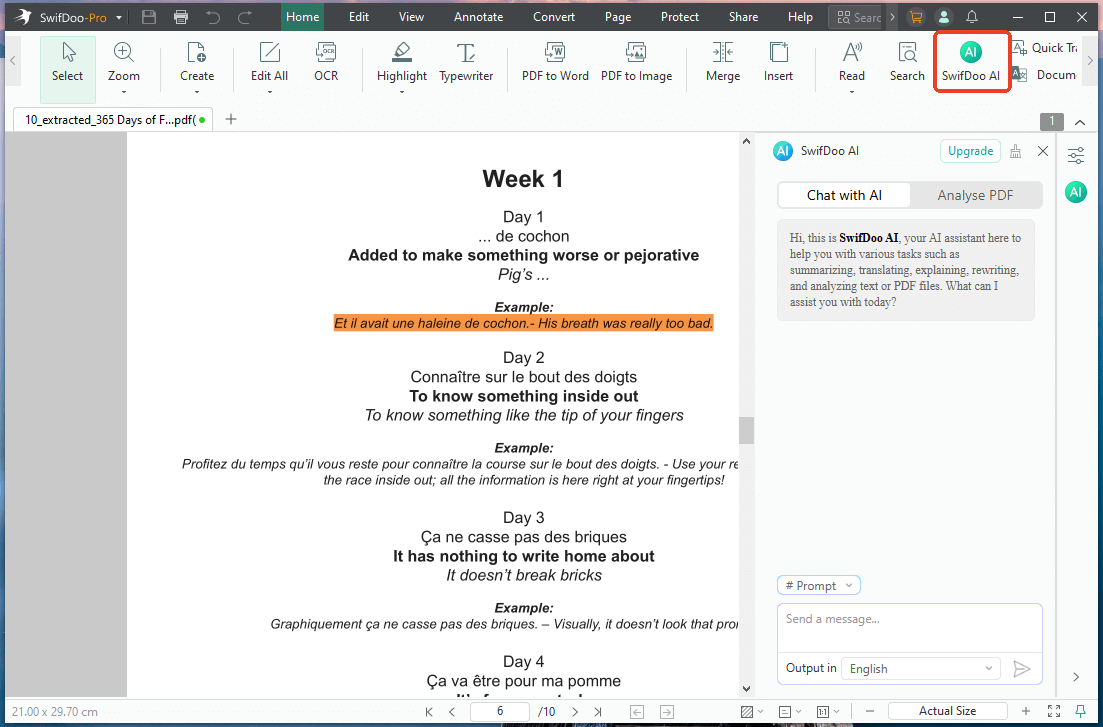
SwifDoo PDF is a powerful PDF management tool designed to simplify document handling. It includes SwifDoo AI, a built-in AI PDF summarizer that quickly analyzes long PDF documents, extracts key points, and generates concise summaries. This helps users read, understand, and manage large PDFs more efficiently without relying solely on ChatGPT.
Key Features
- Allows users to summarize, translate, and proofread PDFs with AI, and ask questions about long, complex documents to quickly locate information.
- Directly edit text, images, fonts, and layouts, which is crucial for updating large, multi-page reports.
- Easily split large PDFs into smaller files, merge multiple documents, or reorder, delete, and rotate pages.
- Reduce file size significantly while maintaining quality, which is ideal for sharing large, image-heavy PDFs.
- Converts scanned or image-only long documents into editable, searchable text.
- Optimized for speed, the application processes sizable files quickly and without performance issues.
Follow these steps to use SwifDoo AI for seamless handling of long PDFs.
Step 1. Download and launch SwifDoo PDF on your computer.
Step 2. Once opened, import your long PDF document into the program.
Step 3. Now, go to the SwifDoo AI option in the toolbar.
Step 4. In the window that appears, click Chat with AI to enter prompts to summarize, translate, rewrite, explain, or proofread the uploaded PDF.
Alternatively, click Analyze PDF, then click Analyze to let SwifDoo AI read the PDF and provide thoughtful insights.
If you often work with long documents, try SwifDoo PDF to simplify your workflow. With SwifDoo AI, you can chat with PDFs, summarize lengthy files, and quickly find key information. Download SwifDoo PDF now to handle, read, and work with your PDFs faster and smarter.
A Quick Wrap Up
The ChatGPT network error on long responses can be frustrating. However, knowing the causes and applying the correct fixes can help ensure smoother, uninterrupted interactions. Checking server status, optimizing prompts, and adjusting browser settings all help ensure smooth, efficient, and stress-free use of ChatGPT. Hope this guide is helpful!



