


Why Is My ChatGPT History Not Showing?
Before trying any fixes, it is helpful to understand why the problem happens. Your ChatGPT chats are saved on OpenAI’s servers and tied to your account, not stored locally on your device.
When you see ChatGPT unable to load site errors, it usually means there may be technical, network, or account-related issues. If you experience ChatGPT conversation history not showing, it is often caused by the following reasons:
❌ Browser cache problems can also cause issues. Corrupted cache files can affect history visibility, even though your information is safely stored on the server.
❌ Login failures can occur due to session or authentication issues. Logging out and signing back in can usually help resolve it.
❌ Network connectivity problems can also disrupt communication between your device and the server. A weak or unstable internet connection may prevent your history from loading.
❌ System updates from OpenAI can temporarily affect features such as chat history while improvements or maintenance work are underway.
How to Fix ChatGPT History Not Showing
When your ChatGPT chat history not showing up, a systematic approach to troubleshooting will usually resolve the problem quickly. Start with the simplest solutions and work your way through the list of 10 quick methods.
Method 1: Check Internet Connection
A slow or unstable network can cause ChatGPT to experience site errors when loading. Test your speed, restart your router, or switch networks if needed.
Method 2: Refresh the ChatGPT Page
Temporary glitches can stop history from loading. Refresh using Ctrl + R (Windows) or Cmd + R (Mac). Try opening ChatGPT in Incognito mode to avoid cache problems.
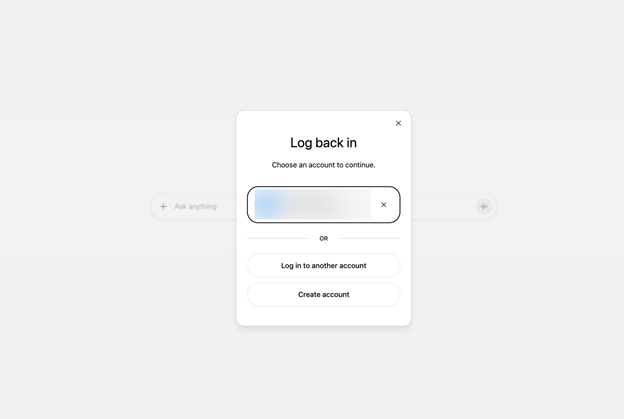
Method 3: Log Out and Log Back In
Your history visibility may be limited due to session issues. To fix this, sign out, close the browser, reopen it, and then log in again.
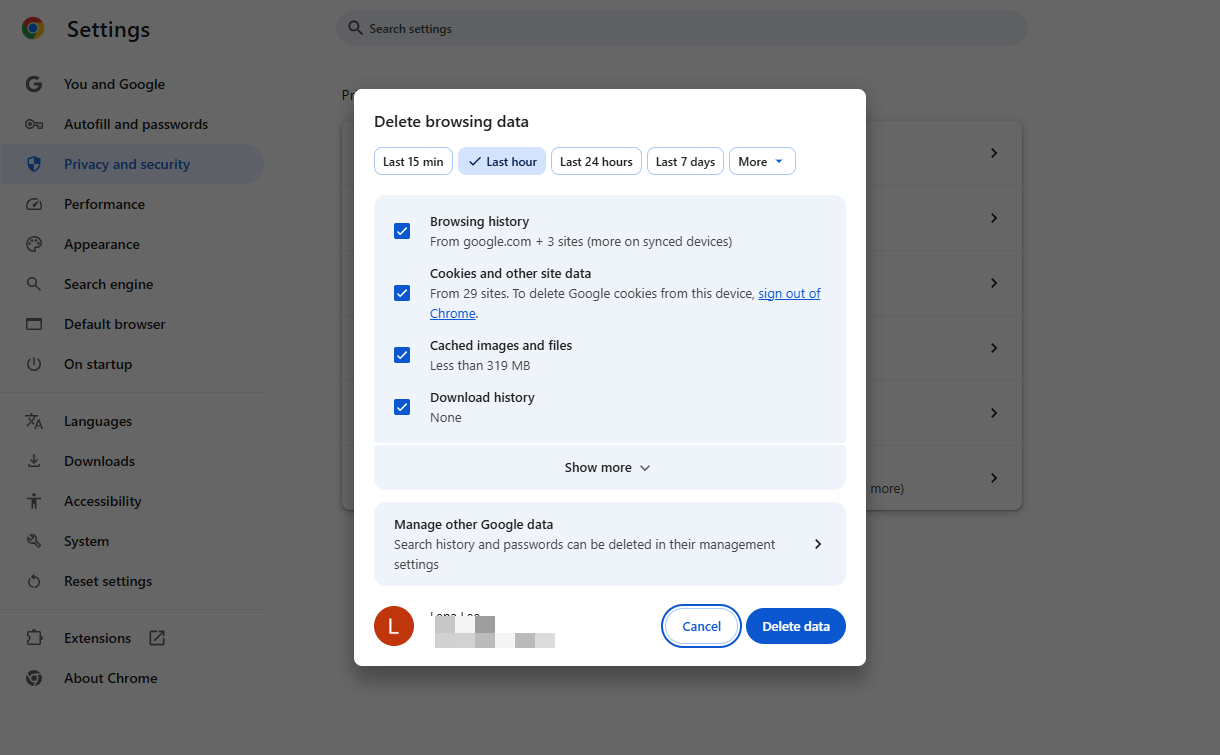
Method 4: Clear Browser Cache and Cookies
Access browser settings, remove cache and cookies, restart the browser, and sign in again.
Method 5: Try a Different Browser
Browser compatibility issues may occur. Try opening ChatGPT in another browser, such as Chrome, Edge, or Safari, to see if your history appears.
Method 6: Disable Browser Extensions
Privacy tools and ad blockers may cause problems with ChatGPT. Remove or disable the extensions, then try opening the site in private mode.
Method 7: Update Your Browser
Older browser versions can cause history loading problems. Download and install the newest browser version, restart the browser, and open ChatGPT again.
Method 8: Check System Updates
Update your operating system to avoid compatibility issues that affect ChatGPT's performance. Restart your device after updates.
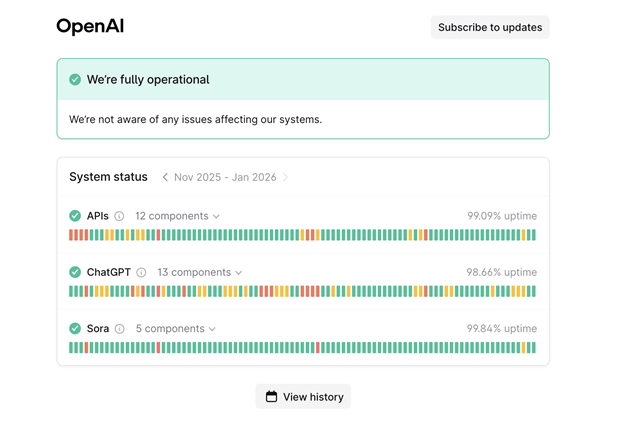
Method 9: Check OpenAI Server Status
If OpenAI servers face outages, the chat history feature may stop functioning properly. Open the OpenAI status page to check for any service outages or technical issues. If there is a problem, wait until it is resolved.
Method 10: Contact OpenAI Support
If the problem persists, contact support and provide your account information, a description of the error, and screenshots.
Bonus Tip: How to Analyze, Summarize, and Translate PDF Using AI
These practical fixes help you resolve the ChatGPT not showing history issues. If needed, you can use AI-based solutions to help you chat with PDFs and manage documents more effectively. This is when you can take advantage of SwifDoo PDF’s AI functions.
As a complete AI PDF analyzer, SwifDoo PDF helps users quickly analyze and understand documents. It uses AI tools to simplify content analysis, summarization, translation, rewriting, and proofreading.
Moreover, SwifDoo PDF is designed with a lightweight structure and an easy-to-use interface for smooth PDF editing. With cross-platform support, you can quickly work on and manage your documents without a fuss.
Key Features of SwifDoo AI
- Quickly summarize a PDF with ChatGPT-style advanced AI assistance.
- Accurately translate PDF content into multiple languages.
- Extract key points from long documents.
- Provide quick explanations for complex paragraphs.
- Enable users to interactively chat with your PDF files.
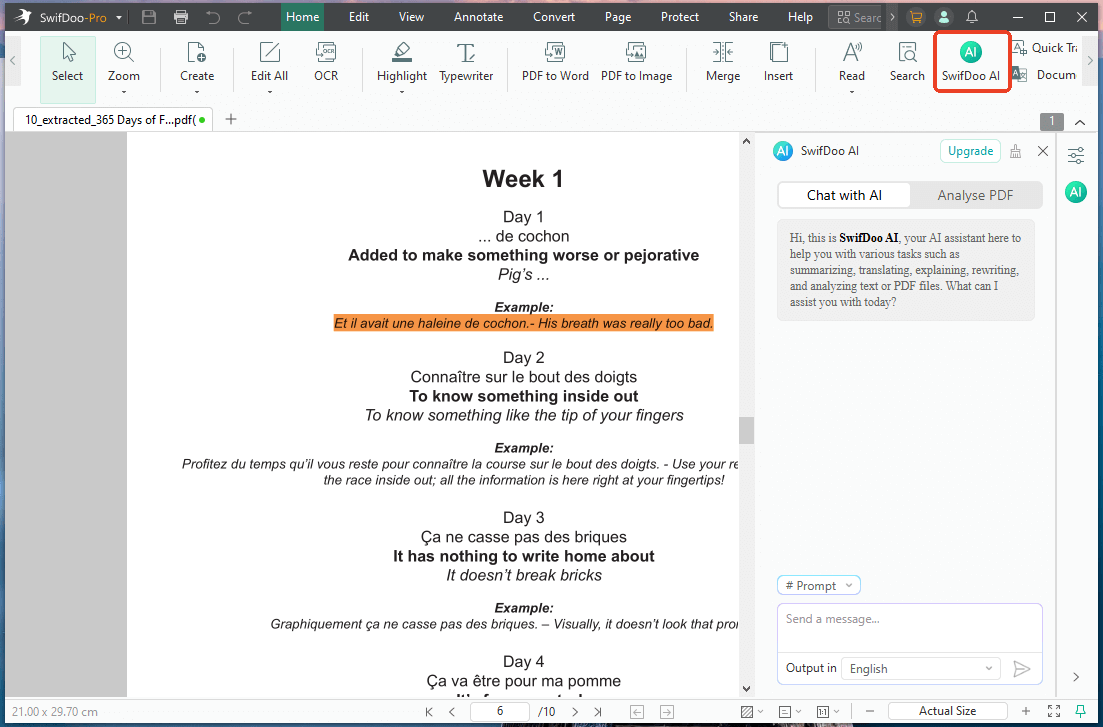
Here are the steps to access SwifDoo AI to summarize, translate, and analyze PDF files.
Step 1. Download and set up SwifDoo PDF on your computer.
Step 2. Start the program and access your PDF file.
Step 3. Click the SwifDoo AI tab located in the main toolbar to open the dialog box.
Step 4. Select Analyze PDF and click Analyze to enable SwifDoo to review the document and provide insights. Alternatively, choose Chat with AI to provide prompts and improve your interaction with the PDF.
Final Overview
ChatGPT history not showing is a common issue. Thankfully, you now have a list of reasons to check and apply the most appropriate fix promptly. These practical solutions can quickly fix most history display issues. Keeping your browser updated and reviewing privacy settings can help avoid problems.
In addition, you can use SwifDoo AI as a smart alternative to ChatGPT to summarize, translate, analyze, and work more efficiently with your documents. You don't need to upload the document. It's very convenient. Why not give it a try?



