


What Is Error Code 1020 in ChatGPT?
ChatGPT error 1020 is displayed when a Cloudflare firewall rule is breached. This restricts access to OpenAI’s secure platform. This generally arises when an IP is marked as suspicious, unsafe, or spam-like.
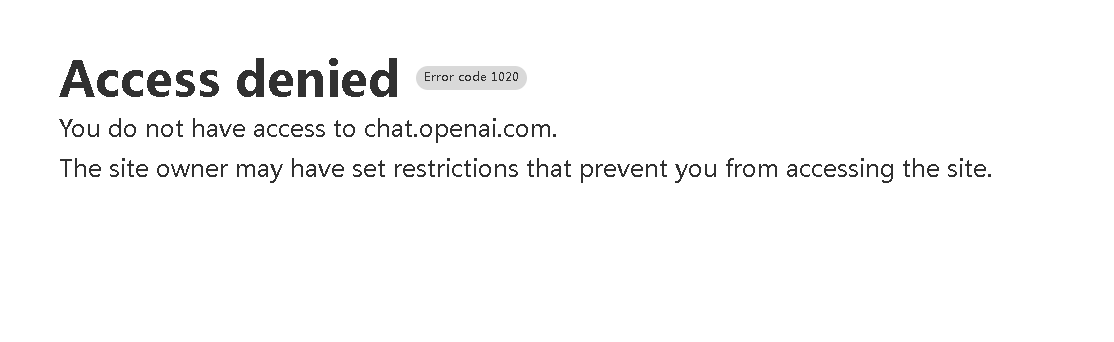
Users may receive a message saying they cannot access chat.openai.com, causing ChatGPT unable to load site. Typical signs include being unable to log in, limited functionality, and repeated “Access Denied – Error code 1020” alerts.
Why Do You See the 1020 Error Code?
You may see the ChatGPT access denied error code 1020 when the platform restricts your access for security reasons. This message often appears unexpectedly, stopping users from using ChatGPT without interruptions. Here are the potential causes.
❌ Misconfigured Internet Settings. Misconfigured network settings can activate ChatGPT’s firewall and display an “Access Denied” message.
❌ Heavy Website Traffic. When traffic is high, the system may restrict user access to ChatGPT.
❌ Flagged VPN or Proxy Server. A VPN or proxy flagged by ChatGPT’s security system can cause the error to appear.
❌ Wrong Login Credentials. Entering an incorrect username or password can sometimes display the 1020 error.
❌ Suspicious Browser Session. Browser extensions or unusual settings may appear suspicious, causing ChatGPT to block access.
❌ Multiple Requests at the Same Time. Sending multiple queries in a short period can flag your account as spam and block access.
❌ Unsafe or Fraudulent Activity From Your IP Address. Using an unsecured network or engaging in unsafe activity can prompt the firewall to block your IP.
❌ Technical Issues and Glitches. Temporary glitches within ChatGPT’s system may incorrectly result in an access denied notice.
❌ Old Software Version. Access errors may occur if your browser or ChatGPT isn’t up to date.
How to Fix ChatGPT Error Code 1020
Since you’ve reviewed the causes, it’s easier to choose the right solution. Let us find out how to fix ChatGPT error code 1020, with practical solutions to restore smooth access to ChatGPT.
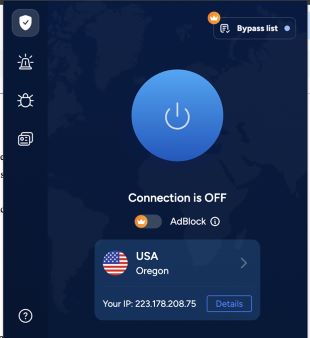
Fix 1. Disconnect the VPN Connection
A VPN may sometimes cause ChatGPT error 1020 if its IP address is flagged as suspicious. Turning off your VPN allows the system to identify your real IP and restore access. This easy step usually fixes access problems and allows smoother use of ChatGPT.
Fix 2. Clear ChatGPT Cache Data and Cookies
Removing your browser’s cached data and cookies can help fix the 1020 error and restore access. This often restores smooth access to ChatGPT quickly. Check out how.
Step 1. Go to Settings > Privacy and Security.
Step 2. Head to Third Party Cookies.
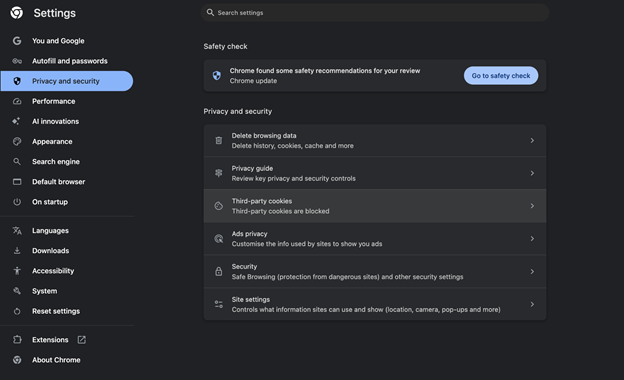
Step 3. Move down to See all site data and permissions.
Step 4. Search for openai.com.
Step 5. Click the trash icon next to it.
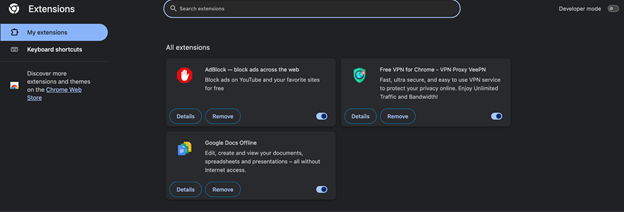
Fix 3. Disable Chrome Extension
Some browser extensions can interfere with ChatGPT and trigger error 1020. Disabling them often restores normal access. Here’s how.
Step 1. Open the Chrome browser.
Step 2. Go to the three dots menu on the top right corner of the screen.
Step 3. Click the Extensions option > Manage Extensions. If you don’t find the Extensions options directly, click the More Tools > Extensions.
Step 4. Click Remove to disable all the extensions on your browser.
Fix 4. Check Your Router
Error 1020 can occur if ChatGPT temporarily flags the IP of your router. Resetting or rebooting your router updates your IP, allowing access to be restored and connectivity fixed. This quick measure typically resolves network-related blocks without modifying any device settings.

Fix 5. Check Security Permissions on Your Browser
Error 1020 can occur when browser security settings or firewalls prevent ChatGPT access. You can review and update settings— allow cookies, JavaScript, and site access— to prevent access problems and restore functionality.
Fix 6. Check the OpenAI Server
At times, ChatGPT error code 1020 can occur due to server-side issues on OpenAI’s platform. Verifying OpenAI’s server status helps determine whether the problem is affecting others. You may have to wait to access ChatGPT again if the servers are offline or undergoing maintenance.
Bonus Tip: How to Easily Chat with a PDF Using AI
Even after fixing ChatGPT error code 1020, you might still need a strong alternative for smooth AI use. Thankfully, SwifDoo PDF offers AI features to help you proofread PDFs with AI and maximize document efficiency.
SwifDoo PDF offers SwifDoo AI, an intelligent tool that lets users chat directly with PDFs. Emerging as an AI PDF summarizer, it helps extract information, answer questions, summarize content, and more. This makes document management, research, and learning faster and more efficient. Thanks to its beginner-friendly design, users can utilize AI to handle PDFs without hassle.
Primary Features of SwifDoo PDF/AI
- Quickly annotate, edit, merge/split, add e-signatures, and compress PDFs.
- Convert PDFs to/from other file formats, including Word, Excel, PowerPoint, and more.
- Analyze and chat with PDFs to let the generative AI explain the obscure text.
- Accurately summarize, swiftly translate, rewrite, proofread, and explain PDF documents.
- Effortlessly define and explain specific keywords, text, or concepts from a PDF.
Check out how to access SwifDoo AI to easily chat with a PDF in just a handful of clicks.
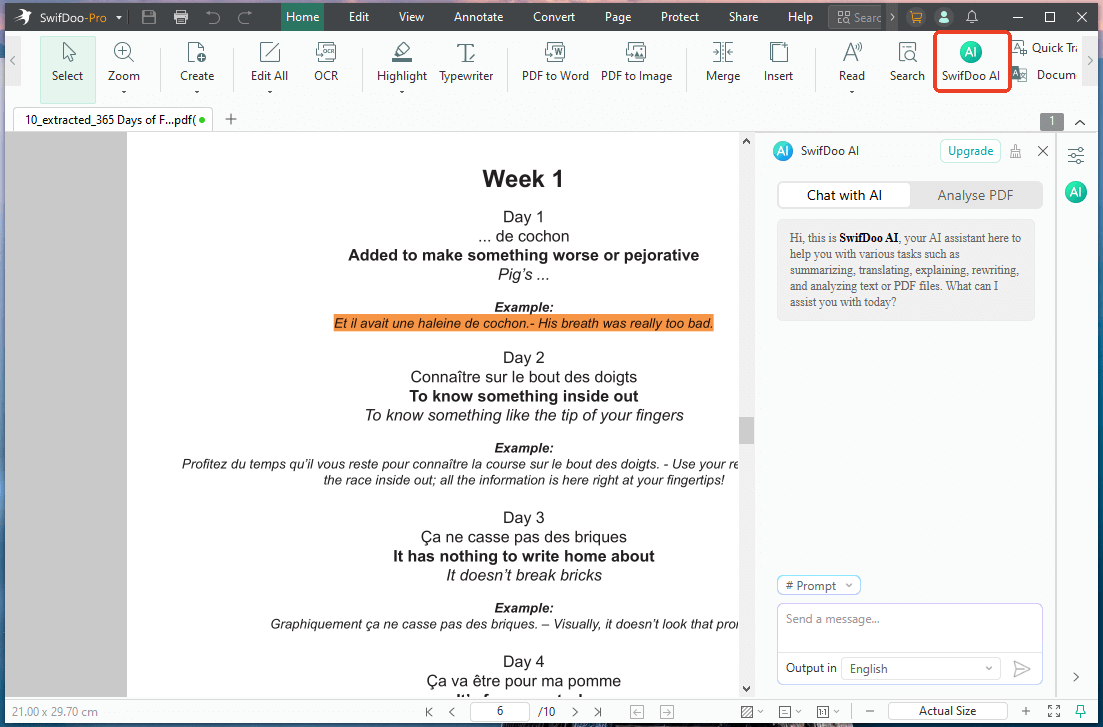
Step 1. Download SwifDoo PDF and set it up on your Windows computer. Launch the program, then choose “Open” to import your PDF file.
Step 2. After uploading, select SwifDoo AI in the top bar to open the PDF chatbot and analyze your file.
Step 3. Click Chat with AI in the dialog box on the right side. Type a command, message, or prompt/query in the text field at the bottom of the opened window.
Step 4. Finally, press the Send icon to let SwifDoo answer your specific questions or prompts.
Ready to simplify your PDF tasks? Download SwifDoo PDF today and harness the full power of SwifDoo AI. Chat with PDFs, summarize content, extract key info, and proofread PDFs using AI. This allows you to manage documents more quickly, intelligently, and easily than ever.
Final Thoughts
Dealing with ChatGPT error code 1020 can be irritating, but identifying the causes and applying solutions quickly restores access. You can disable VPNs or browser extensions, clear ChatGPT cache data and cookies, or check the OpenAI server.
Additionally, using a dependable alternative like SwifDoo PDF lets you carry on with AI tasks seamlessly. Staying prepared ensures smoother AI interactions and uninterrupted productivity. Hope this guide is helpful!



