


Why ChatGPT Download Links Not Working?
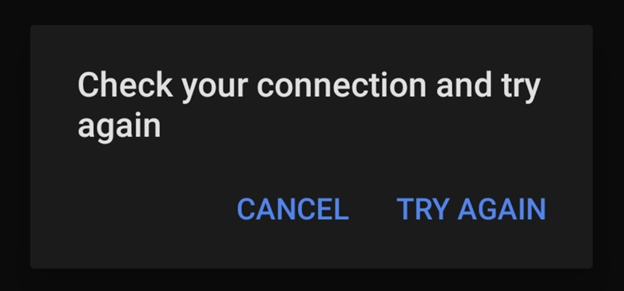
Before implementing any fixes, it’s essential to understand what causes the problem. Frequently, download problems coincide with platform errors like ChatGPT unable to load conversation, pointing to session or connection problems.
Similarly, ChatGPT file download links not working usually point to server issues, browser conflicts, or temporary glitches that disrupt normal use.
Common Causes Include:
- Temporary OpenAI server issues or high traffic on ChatGPT.
- Problems are triggered by cache, cookies, or browser extensions such as ad blockers.
- Unstable or slow internet connection.
- Device storage can prevent successful downloads.
- Session timeouts or expired download links.
- Files with large sizes or unsupported file types.
- Operating system or account restrictions and usage limits.
- Some browsers auto-block file downloads or pop-ups.
- Some features may be limited or broken in the mobile app.
- Incognito may block session cookies or downloads.
- Corrupt browser data can break file links or display.
How to Fix ChatGPT Download Links Not Working
Having identified the possible causes, it is now easier to determine and apply the correct solution. Here, we will walk you through practical solutions to restore smooth downloads and workflow.
A. Basic Troubleshooting Methods
As an initial measure, using simple troubleshooting methods often helps resolve ChatGPT file download links not working quickly. Here are all the ways that you can follow:
Ensure your internet is stable so downloads can complete without interruptions.
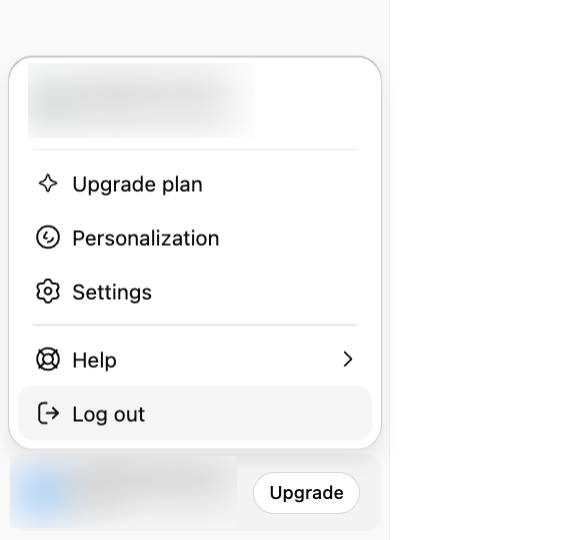
Log Out and Log Back In
Signing out and back in can fix temporary connection or account glitches.
Refresh Your Browser
Refresh the page to clear minor errors affecting downloads.
Enable Pop-ups and Downloads
Allow pop-ups in your browser to ensure the file link opens properly.
Clear Cache and Cookies
Remove stored data that might be causing conflicts with download links.
Try a Different Browser
Using a different browser, such as Chrome, Safari, Firefox, or Edge, may resolve extension-related download issues.

Check Your Device’s Storage
Verify that there’s sufficient storage to save the PDF file.
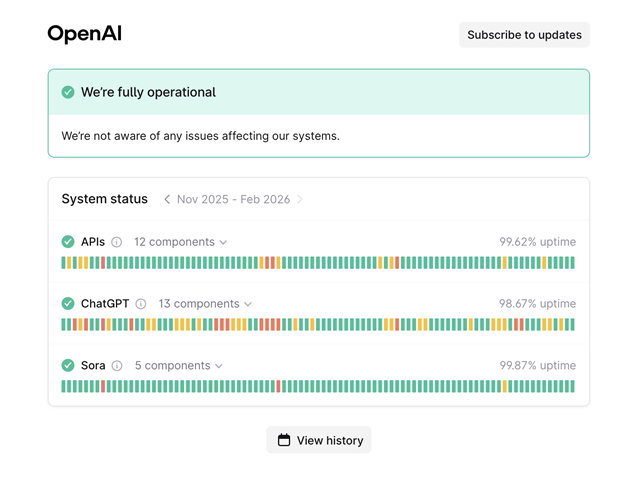
Visit OpenAI’s Status Page
Visit the OpenAI Status Page to see if ChatGPT servers are down or having issues in real time.
B. ChatGPT-Targeted Methods
When standard fixes fail to resolve the ChatGPT download link not clickable error, following these ChatGPT-focused steps can restore download functionality.
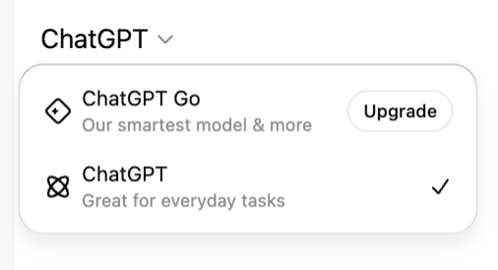
Switch Models
Use alternative GPT models to generate the file correctly.
Use Explore GPTs
If you need advanced file-upload features, see whether “Explore GPTs” offers a more specialized solution.
Enable the Code Interpreter or Data Analysis Tool
Ensure your custom GPT settings have the options for Web Search, Canvas, and Code Interpreter & Data Analysis checked to process certain files properly.
Check for Redacted or Incomplete Links
If the download link appears truncated, make sure it’s complete, regenerate the file, or begin a new thread.
Try Other File Formats
When DOCX links don’t work, try downloading the file as TXT, CSV, or PDF instead.
Regenerate the File
As ChatGPT to recreate the file with the same prompt to resolve temporary issues with the original link.
Use the ChatGPT App
The official app often handles file downloads more smoothly than a web browser.
C. Advanced Troubleshooting Methods
Having applied the basic fixes and ChatGPT-specific solutions, you can now perform advanced troubleshooting to solve continued download problems. Here's what you can follow.
Switch to a Different Network
Try switching to mobile data or another Wi-Fi network, as a faster or more stable connection can fix download issues.
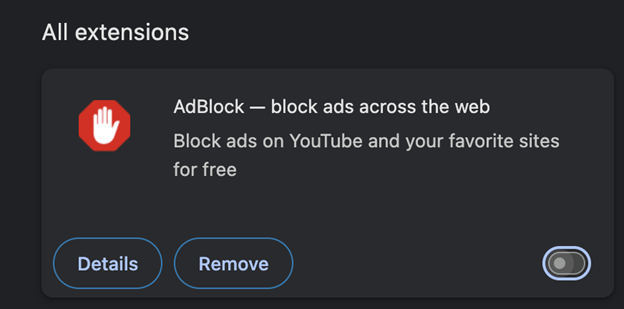
Turn Off Browser Extensions
Certain extensions, such as ad blockers, VPNs, and script blockers, may interfere with downloads; turn them off.
Check OS-Level Security Settings
Firewalls, antivirus programs, or Windows Attachment Manager may block unfamiliar downloads, so make sure they allow the file.
Retry Later
Short-term server delays or network glitches may resolve without intervention, so giving it time can help.
D. Alternative/Temporary Solutions
If all of the above methods fail, you can use these alternative or temporary solutions to keep accessing and managing your files.
- Ask ChatGPT to show the content in the chat so you can copy it manually.
- Download or share files through Google Docs, Dropbox, or similar tools.
- If the file is too large, ask ChatGPT to divide it into smaller parts.
- Save charts, diagrams, or images using screenshots.
- Try using a different OpenAI account, as certain download problems may affect only some accounts.
Bonus Tip: How to Efficiently Handle PDF Files with AI
So far, we’ve covered the main causes and fixes for the ChatGPT PDF download link not working. However, problems may persist even after applying these fixes, leaving you frustrated when working with essential PDF files. If you need a dependable tool to handle PDFs efficiently, SwifDoo PDF provides a smart solution.
SwifDoo PDF includes an AI-powered tool, SwifDoo AI, designed to simplify PDF tasks. It is a powerful AI PDF summarizer, and also includes capabilities such as text extraction, translation, proofreading, and editing.
This enables users to quickly understand and process PDF content without relying on ChatGPT downloads. Whether you need summaries, insights, or fast file management, SwifDoo AI helps save time and improve productivity.
- Edit, annotate, convert, compress, merge/split, print, and sign documents.
- Handles multiple PDF files simultaneously to boost productivity.
- Convert scanned documents into text that you can edit and search.
- Leverages AI to analyze, explain, rewrite, and chat with PDF with the power of GPT.
Here are the steps to access SwifDoo AI to analyze and chat with a PDF with ease.
Step 1. Download and launch SwifDoo PDF on your computer.
Step 2. Tap Open to import the PDF document you need to analyze.
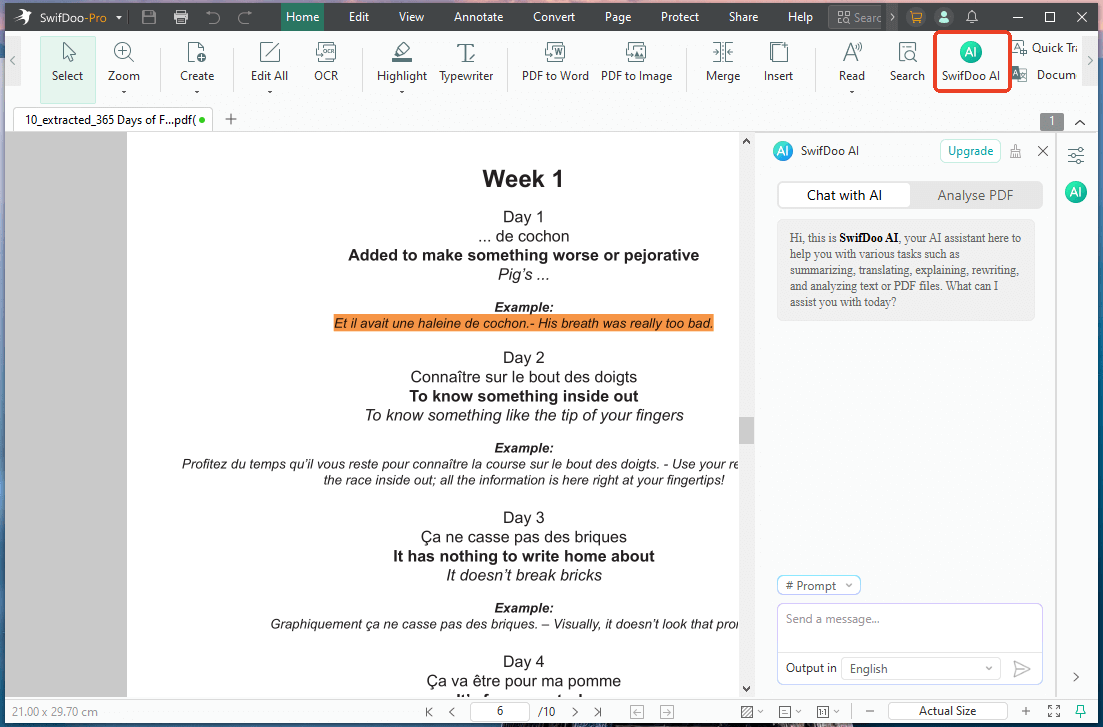
Step 3. Next, click SwifDoo AI on the Home tab in the top menu bar. This will open the PDF chatbot window.
Step 4. Select the Analyse PDF tab and click Analyse to analyze your PDF.
Alternatively, click Chat with AI, type a message/query/prompt in the text field at the bottom of the window. And send it to interact with the PDF.
Ready to simplify your PDF workflow? SwifDoo PDF lets you proofread PDFs with AI, summarize content, edit, and organize files easily—all without worrying about ChatGPT download issues. Don’t let faulty links slow your workflow—get SwifDoo PDF today and experience quicker, smarter, and more effective PDF handling for every task.
Final Wrap Up
Experiencing issues with ChatGPT download links not working can disrupt your workflow, but most problems are fixable. We have explored the main causes of the error and provided actionable solutions to fix it as soon as possible.
By performing troubleshooting, adjusting settings, or using alternative solutions such as SwifDoo PDF, you can achieve smooth downloads and efficient file management, keeping productivity uninterrupted. Hope this guide is helpful!



