


What Is a ZIP to PDF Converter
A ZIP to PDF converter is a tool or workflow that helps you convert files stored inside a ZIP archive into PDF documents. Since ZIP is a compressed file format rather than a document format, most ZIP to PDF converters work by extracting the archive and processing its contents.
A ZIP to PDF conversion process typically involves three steps:
- Extract files from the ZIP archive.
- Convert the supported files into PDF format.
- Merge or organize the resulting PDFs if necessary.
Some online ZIP to PDF converters may accept ZIP archives directly, but their supported file types, file size limits, and conversion options vary. If a converter does not support ZIP uploads, extracting the files manually is usually the simplest solution.
Tool 1: Windows Built-in ZIP to PDF Tools
If you're using Windows 10 or Windows 11, you don't necessarily need a third-party ZIP to PDF converter. Windows can extract ZIP archives natively, and many supported file types can be converted to PDF through applications already installed on your computer.
This method works particularly well for images, text files, and documents that can be opened in Microsoft Office or other compatible applications.
Pros:
- No additional ZIP extraction software is required.
- No need to upload files to an online service.
- Works well for supported documents and images.
- Suitable for occasional file conversion.
Cons:
- You may need to convert files one at a time.
- The process varies between file formats.
- Some file types require compatible applications.
- Combining multiple files into one PDF may require additional software.
How to Convert ZIP Files to PDF on Windows 11
Step 1: Locate the ZIP file in File Explorer and right-click the ZIP file.
Step 2: Choose Extract All, choose a destination folder, and click Extract.
Step 3: Open the file you want to convert. Depending on its format, you can use Microsoft Word, Excel, PowerPoint, Photos, or another compatible application.
Step 4: Then click File > Save As and select PDF as the output format.
Step 5: Choose a destination to save the PDF files.
Tool 2: SwifDoo PDF Converter Offline
If your ZIP archive contains multiple documents or images that you want to convert, organize, or combine into PDFs, a dedicated PDF editor can make the process more convenient.
SwifDoo PDF is a desktop PDF software that supports creating PDFs from various file formats, including Word, Excel, PowerPoint, and images. After extracting the ZIP archive, you can use it to create PDF documents from supported files and organize them for further editing or sharing.
Pros:
- Supports creating PDFs from multiple supported file formats.
- Offers options for creating PDFs from existing files and images.
- Useful for combining multiple images into one PDF.
- Provides additional PDF editing and page management features.
- Suitable for users who regularly work with PDF documents.
Cons:
- Requires installing desktop software.
- ZIP files still need to be extracted first.
- Conversion support depends on the source file format.
How to Convert ZIP Files to PDF with SwifDoo PDF
Step 1: Locate the ZIP file on your computer, right-click it, and select Extract All.
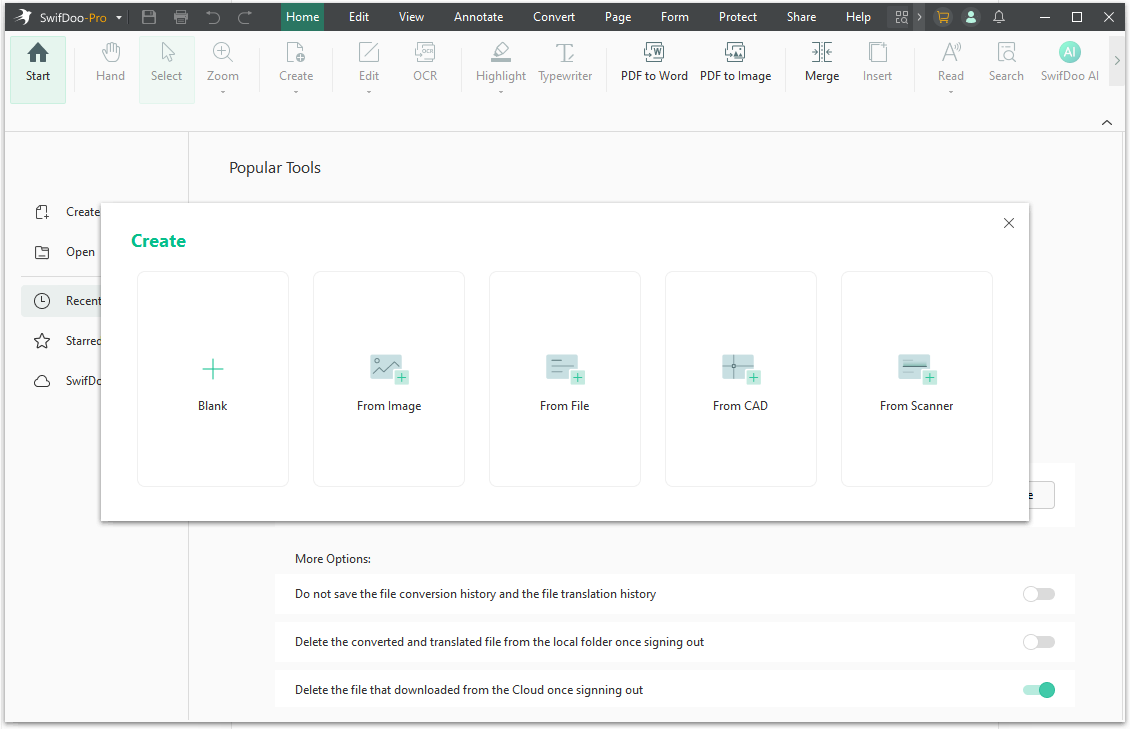
Step 2: Open SwifDoo PDF and, depending on the files you need to convert, you can use the PDF creation options:
- Create > From File: Import supported documents and files to create a PDF.
- Create > From Image: Import images and create a PDF from them.
For multiple images, you can import the images and create a single PDF document, making it easier to organize image-based materials.
Step 3: After creating the PDF, review the document to ensure the pages are in the correct order and that the content is displayed properly. If necessary, you can use PDF page management or editing tools to adjust the document.
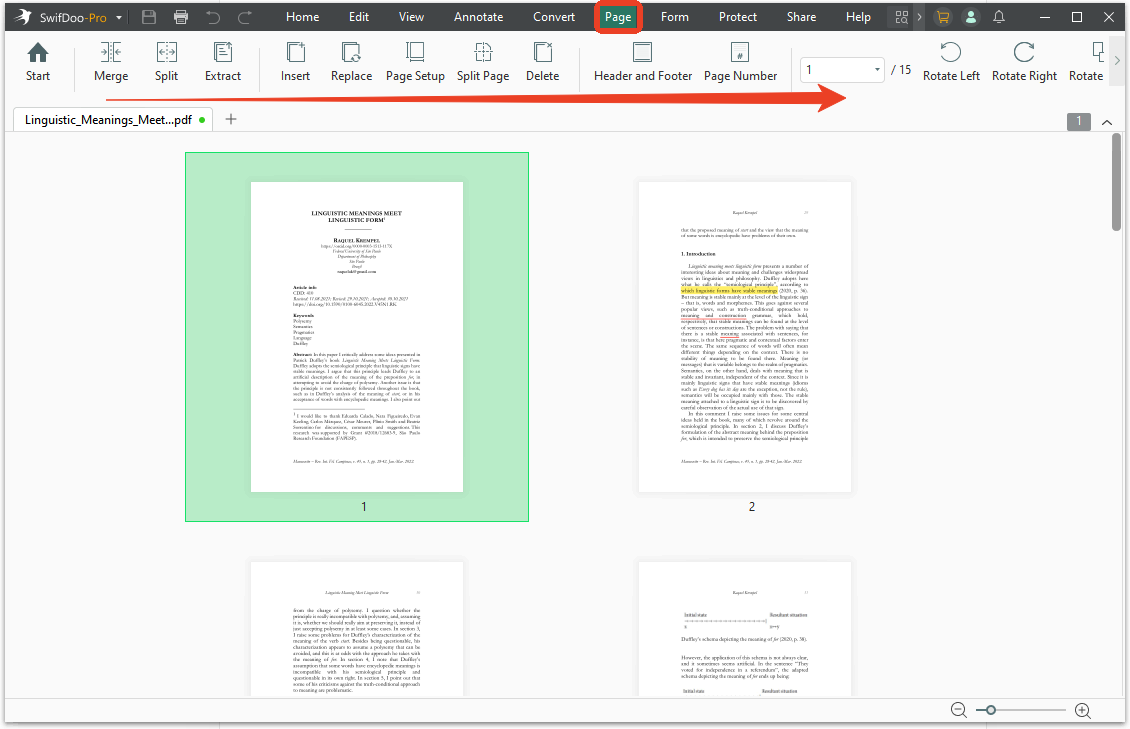
Step 4: Save the resulting PDF to your preferred location. You can then open, edit, annotate, organize, or share the document as needed.
Tool 3: Online ZIP to PDF Converter
Smallpdf is a popular online PDF platform that provides a range of tools for converting, editing, compressing, and managing PDF documents. If your ZIP archive contains documents or images that you want to convert to PDF, Smallpdf can be a convenient ZIP to PDF converter for processing supported files online.
Pros:
- Online access without installing desktop software.
- Supports PDF conversion for various common document and image formats.
- Provides additional PDF tools, including merging and compression.
- Convenient for occasional document conversion.
Cons:
- Some features or usage may be subject to limits or paid plans.
- Requires an internet connection.
- Uploading sensitive documents to an online service may pose privacy concerns.
How to Convert ZIP to PDF Free Online Using SmallPDF
Step 1: Go to SmallPDF’s ZIP to PDF converter and upload your ZIP files.
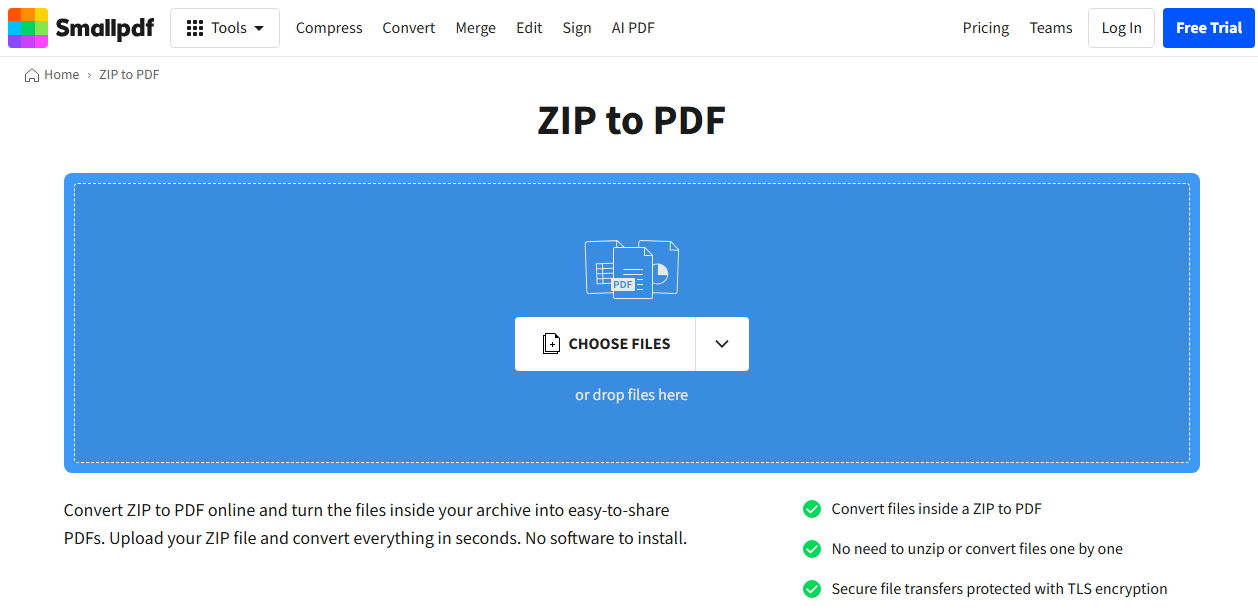
Step 2: Then it will automatically extract files from the ZIP archive and convert the files into PDF. This process takes seconds, but it may be affected by the file size and Internet connection.
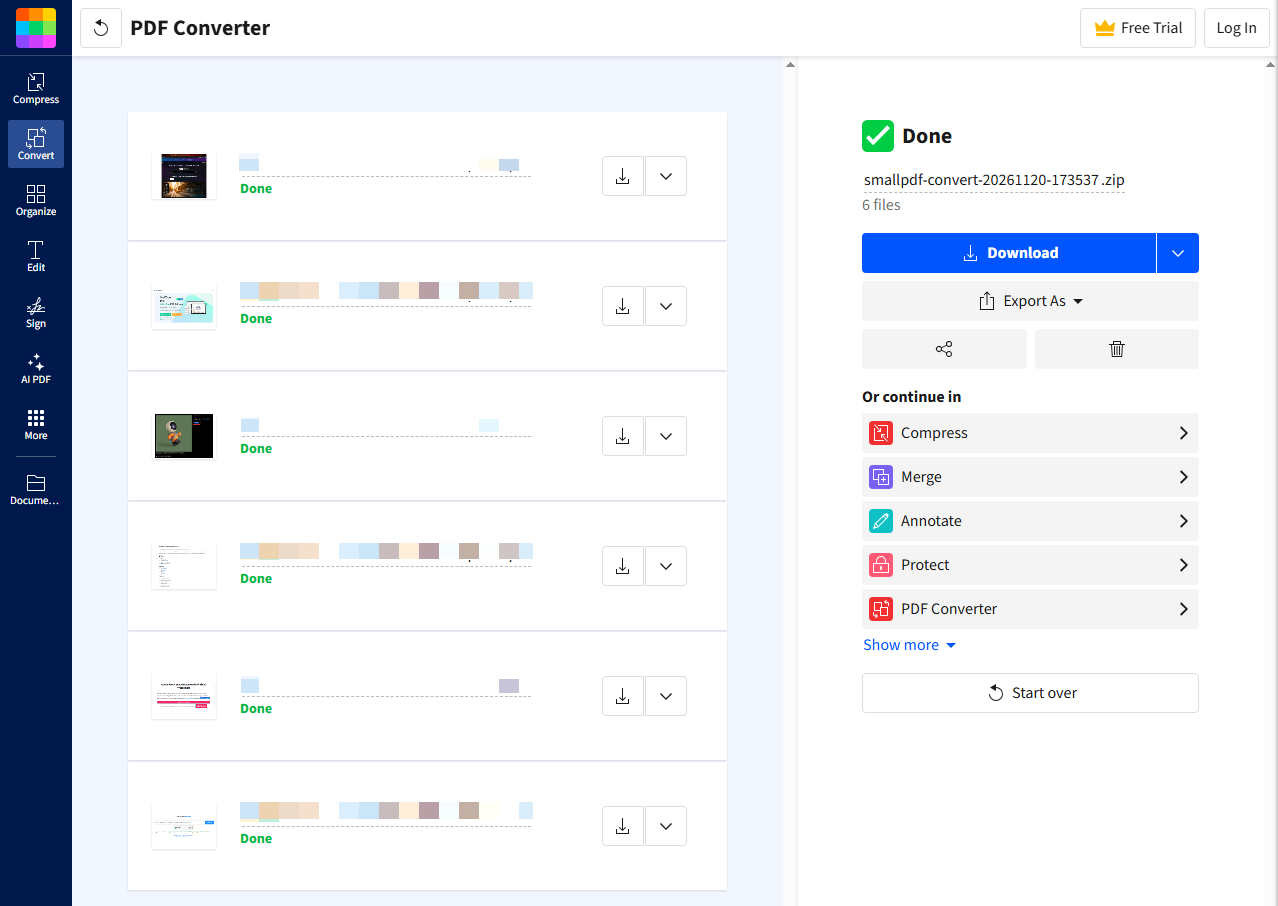
Step 3: After it converts ZIP files to PDF, choose to download them directly or export them in different formats.
How to Convert Images in a ZIP File into One PDF
ZIP archives frequently contain JPG, PNG, BMP, or other image files. If you want to convert these images into one PDF rather than creating a separate PDF for each image, you can use a dedicated image-to-PDF tool.
Step 1: Extract the ZIP file using File Explorer and arrange images in the order you want them to appear in the PDF.
Step 2: Open an image-to-PDF converter, like SwifDoo PDF, and select the images you want to include.
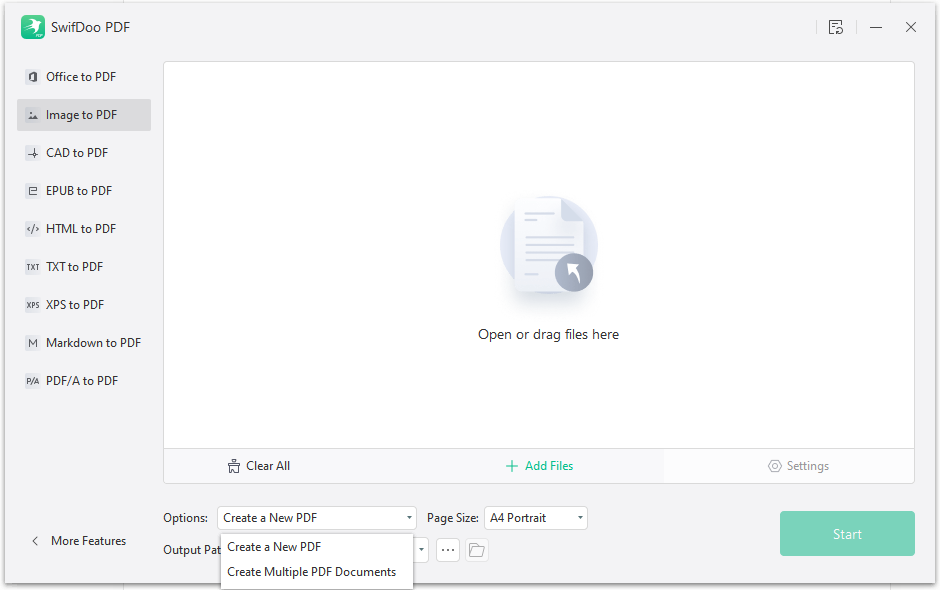
Step 3: Choose how to create a PDF and the desired page size. Then click Start to convert images to PDF.
Can You Convert ZIP to PDF Without Extracting
In most cases, you need to extract the files from the ZIP archive before converting them into PDF. ZIP is a compressed container, and the files inside it may have different formats that require different conversion methods.
Some online conversion services may support ZIP uploads and automatically process the files inside the archive. However, this depends on the specific service and the file types contained in the ZIP file.
If your converter doesn't support ZIP uploads, the most reliable approach is to extract the archive first, identify the supported files, and convert them individually or in batches.
How to Choose the Best ZIP to PDF Converter
When choosing a ZIP to PDF converter, consider the following factors:
- File format support: Make sure the tool supports the formats contained in your ZIP archive.
- Batch conversion: If you have multiple documents or images, batch processing can save time.
- PDF merging: Check whether the tool can combine multiple files into one PDF.
- Conversion quality: Review the layout, formatting, image quality, and page size of the converted documents.
- Privacy: Consider whether you want to upload files to an online service or process them locally.
- Ease of use: Choose a tool that fits your workflow and doesn't require unnecessary steps.
- Additional PDF features: Editing, page organization, compression, OCR, and annotation features can be useful if you frequently work with PDF files.
Make PDF Conversion and Editing Easier with SwifDoo PDF
Converting files from a ZIP archive into PDF is only the first step. If you regularly work with multiple documents, images, or scanned files, you may also need a PDF tool to organize pages, edit content, combine documents, or make PDFs easier to share.
SwifDoo PDF offers a range of PDF-related features for creating, converting, editing, annotating, and organizing PDF files. After extracting your ZIP archive, you can create PDFs from supported documents and images, combine multiple images into a PDF, and make further adjustments to your documents.
With SwifDoo PDF, you can:
- Create PDFs from multiple file types: Create PDF documents from supported Word, Excel, PowerPoint, and image files.
- Combine images into a PDF: Import multiple images and create a single PDF document.
- Edit PDF content: Modify text and images in supported PDFs.
- Organize PDF pages: Manage, rearrange, extract, or delete pages as needed.
- Convert PDF files: Convert PDFs into supported formats such as Word, Excel, PowerPoint, and images.
- Use OCR: Make scanned PDFs searchable and, where supported, editable.
Whether you're converting documents extracted from a ZIP archive, organizing image collections, or managing PDFs for work and study, SwifDoo PDF provides a range of tools to handle common PDF-related tasks.
Visit SwifDoo PDF to explore its PDF creation, conversion, editing, and document management features.