
How to Save a Signature in a PDF Using SwifDoo PDF
SwifDoo PDF is a PDF tool wrapper for Windows that lets you save your signature in a PDF without a sweat. If your company or client needs a handwritten or digital signature, the software is always capable. It allows you to draw the signature with your cursor, upload a signature image, or scan a signature on paper. It also supports digital certificate signing.
Here is how to save a signature in a PDF:
Step 1: Download and launch the SwifDoo PDF editor, then open your PDF.
Step 2: Choose the Signature tool, and select a signing method to sign the PDF electronically.
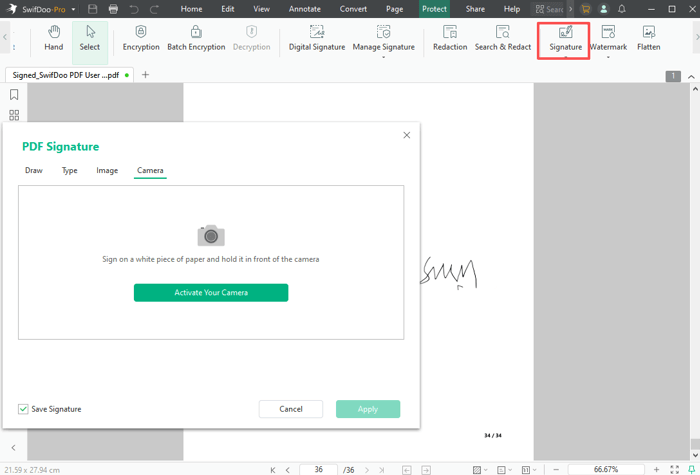
Step 3: Go to the Save as option to save the signed PDF, then close the PDF and reopen it.
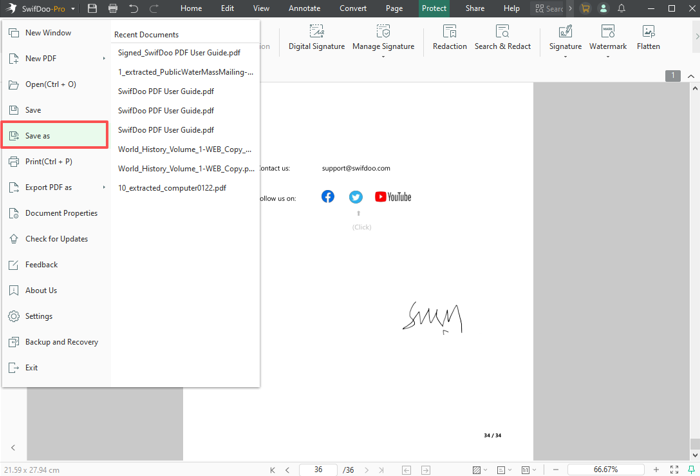
Step 4: Right-click the signature and select Save as Image to save the signature on the PDF as an image file.

Download SwifDoo PDF for your PC or laptop to try for free to save a signature in a PDF to use in other places or documents. SwifDoo PDF can add images to a PDF to apply saved signatures.
- Check the “Save Signature” box in the signing window. SwifDoo PDF will automatically save and remember the signatures you used and display them for choosing next time.
- On top of extracting a signature as a separate file, you can also copy a signature from a PDF as an image.
- It can edit, watermark, and password-protect PDFs. If needed, you can convert the signature image to a PDF to save.
How to Save a PDF Signature as an Image in Adobe Acrobat
A reliable way to create and save a signature in a PDF is to use the Adobe Acrobat software. You can annotate, redact, and copy and paste a signature to a PDF or other files. The program lets you digitally sign a PDF with a digital ID and validate the signature for security. It also allows for adding stamps and initials.
Learn how to save an e-signature in a PDF in Adobe Reader or Pro.
Step 1: Open the Adobe PDF in which you want to save a signature.
Step 2: Choose Fill & Sign in the All tools list, and click Add signature to create a signature.
Ticking the Save signature in the window will save the signature in the PDF in Adobe for future use.
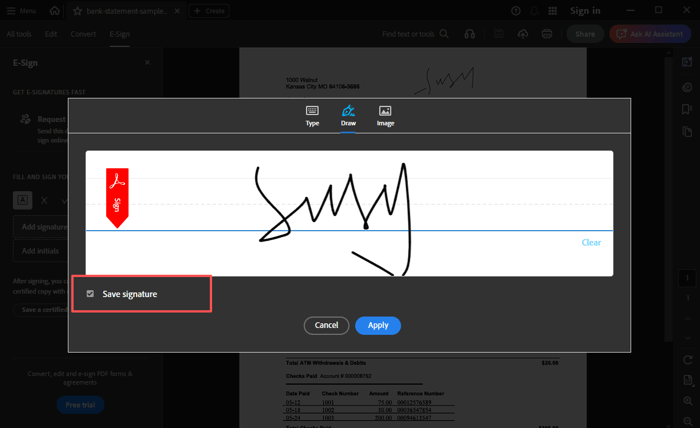
Step 3: Apply the signature, then save the file with it. Close and open the file again in Adobe.
Step 4: Select the signature, right-click it to choose Copy image, and paste it into Word.

Step 5: Right-click the image in Word to save the signature image for reuse.
How to Save a Digital Signature in a PDF
The demonstrated methods to extract a signature from a PDF are to extract the electronic signature. You must also wonder how to create and save a digital signature in Adobe Acrobat or SwifDoo PDF. When you save a signature in a PDF, the fundamental logic is to save it as a standalone file. Mostly, it is an image.
However, a digital signature is created with a digital certificate and often contains real-time information. It needs to be verified to edit documents. Saving digital signatures doesn’t make sense. However, if you really need to, you can crop a signature from a PDF to save it as an image.
That is, select the Snapshot (Alt + S) tool under the View tab in SwifDoo PDF, capture and crop the signature, and save the signature from the PDF document as an image.
Conclusion
This guide focuses on how to save a signature in a PDF as an image to use in more documents. No complicated process, but only a few clicks. Whether you are an Adobe or SwifDoo PDF user or new to them, download and try them for free. If you are also confused about why your signature won't save on your PDF, scroll down to read the FAQs section.