


How to Disable Adobe Updater on Windows 10/11
Method 1: Turn off Adobe Updater via Preferences
This method works for Adobe Acrobat Pro or older Classic versions that still expose update controls in the interface. It's the simplest approach for how to turn off Adobe Acrobat automatic updates without touching system settings. If you have the free Reader DC, skip to Method 2.
Step 1: Open Adobe Acrobat. Click Edit > Preferences (Windows) or Acrobat > Preferences (Mac).
Step 2: Select the Updater category from the left sidebar.
Step 3: Uncheck Automatically install updates. If additional options appear, select Do not download or install updates automatically for the most restrictive setting.
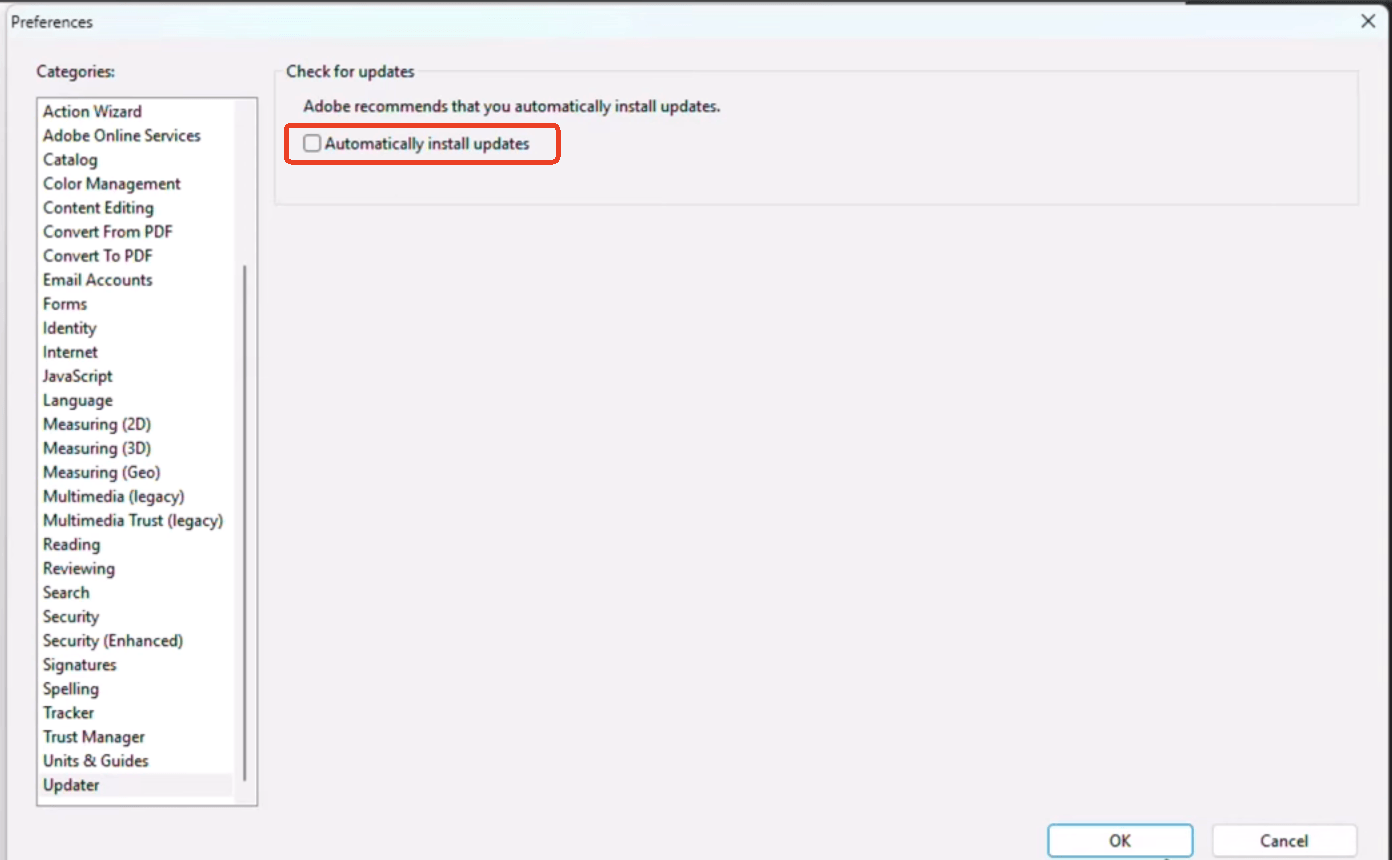
Step 4: Click OK to save changes.
If the Updater category doesn't appear, Adobe has removed the toggle for your version. Proceed to Method 2.
Adobe Reader vs. Adobe Acrobat – Differences
Adobe Reader vs. Adobe Acrobat, what’s the difference between them? Check the detailed analysis in this post.
READ MORE >Method 2: Disable Adobe Updater via Services and Task Scheduler
This is the most reliable method for how to disable Adobe Updater Windows 10 and 11 when the Preferences option is unavailable. It stops the Adobe Acrobat update service at the system level and prevents the scheduled task from re-enabling it.
Many users report that simply disabling the service isn't enough. Adobe updates can re-enable it. This two-part approach prevents that.
Part A: Disable the Adobe Acrobat Update Task
Step 1: Press Win + R, type taskschd.msc, and press Enter to open Task Scheduler.
Step 2: In the left pane, click Task Scheduler Library.
Step 3: In the right pane, locate Adobe Acrobat Update Task. Right-click it and select Disable.
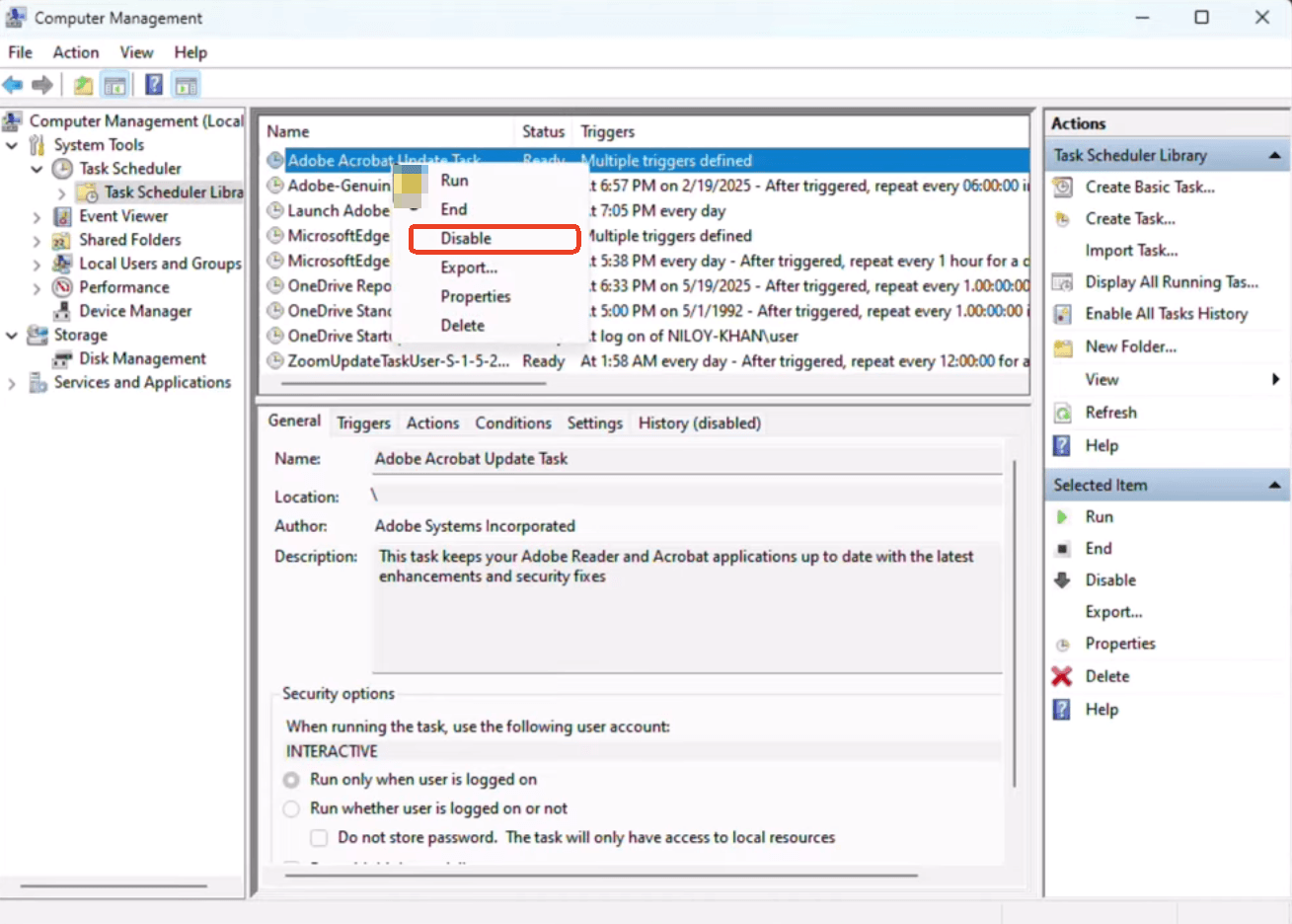
Step 4: Close Task Scheduler.
Part B: Disable the Adobe Acrobat Update Service
Step 1: Press Win + R, type services.msc, and press Enter to open Services.
Step 2: Scroll down to find Adobe Acrobat Update Service (its service name is AdobeARMservice).
Step 3: Right-click it and select Properties.
Step 4: Click Stop to halt the currently running service. Then change Startup type to Disabled.
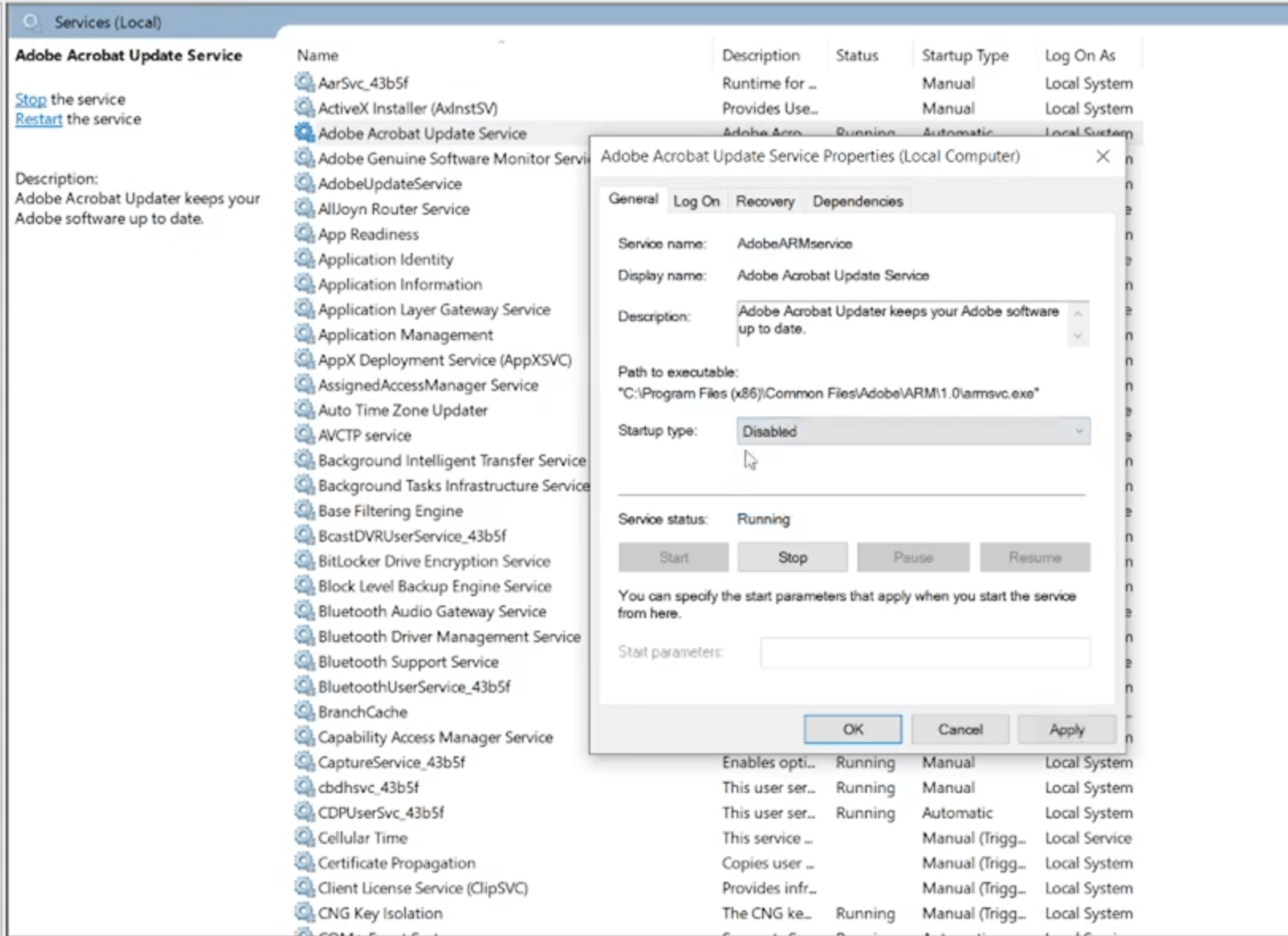
Step 5: Click OK and restart your computer.
These two steps together stop Adobe Updater from running at startup and prevent background update checks. However, some users on the Wintips forum report that the service re-enables itself after a manual Adobe update or Windows update.
If you experience the Adobe updater keeps turning back on problem, use the Registry method (Method 3) below for a more permanent solution.
Method 3: Disable Auto Update Adobe Acrobat via Registry Editor
The Registry method creates a policy-level block that Adobe software respects at the application level. This is the most effective approach for disabling auto update Adobe Acrobat DC when the service keeps re-enabling itself. This method directly modifies the Adobe auto update registry key and locks it so the application cannot reverse the change.
Step 1: Press Win + R, type regedit, and press Enter to open Registry Editor.
Step 2: Navigate to:
HKEY_LOCAL_MACHINE\SOFTWARE\Policies\Adobe\Adobe Acrobat\DC\FeatureLockDown
If any of these keys don't exist, create them by right-clicking the parent folder and selecting New > Key.
Step 3: In the right panel, right-click on empty space and select New > DWORD (32-bit) Value.
Step 4: Name the new value bUpdater. Double-click it and set Value data to 0. This disables the update mechanism.
Step 5: Create another DWORD value named bUpdaterLock. Set its Value data to 1. This locks the setting, preventing the application or other processes from changing it back.
Step 6: Close Registry Editor and restart your computer.
Adobe PDF to Word: How to Convert PDF to Word With Adobe Acrobat
Turning PDF into Word documents helps make PDF editable. This post will walk you through the process of Adobe PDF to Word conversion. Just click on and read it.
READ MORE >Method 4: Disable Aobe Updater via PowerShell
PowerShell provides the fastest way to disable the Adobe Updater across multiple machines in a single command. This method is ideal for IT administrators who need to stop Adobe Updater from running at startup on remote systems or include the command in deployment scripts.
Step 1: Open PowerShell as Administrator by right-clicking Start > Windows PowerShell (Admin).
Step 2: Run the following command to identify all Adobe-related services:
Get-Service -Name "adobe"
Step 3: Locate AdobeARMservice in the output. Disable it with:
Set-Service -Name AdobeARMservice -StartupType Disabled
Step 4: Confirm the service status:
Get-Service -Name AdobeARMservice | Select-Object Name, Status, StartType
How to Disable Adobe Updater on Mac
Method 1: Disable Adobe Acrobat Updater Mac via Terminal
macOS uses Launch Agents and Launch Daemons to trigger Adobe ARM processes in the background. This is the most reliable method to disable Adobe Acrobat Updater Mac.
Step 1: Press Cmd + Space, type Terminal, and press Enter.
Step 2: Run the following to see all active Adobe processes:
launchctl list | grep -i adobe
Step 3: Locate the .plist files that control Adobe updates:
ls /Library/LaunchAgents | grep -i adobe
ls /Library/LaunchDaemons | grep -i adobe
Step 4: Look for entries containing com.adobe.ARMDC. These are the Adobe Reader Mobile Data Collection and update agents. Unload them with:
sudo launchctl bootout system /Library/LaunchDaemons/com.adobe.ARMDC..plist
sudo launchctl bootout gui/$(id -u) /Library/LaunchAgents/com.adobe.ARMDC..plist
Step 5: To make the change permanent but reversible, move the .plist files to a disabled folder:
sudo mkdir -p /Library/LaunchAgents/disabled
sudo mkdir -p /Library/LaunchDaemons/disabled
sudo mv /Library/LaunchDaemons/com.adobe.ARMDC*.plist /Library/LaunchDaemons/disabled/
sudo mv /Library/LaunchAgents/com.adobe.ARMDC*.plist /Library/LaunchAgents/disabled/
Step 6: Restart your Mac.
This prevents the updater from launching at startup or on any schedule. To re-enable updates, move the .plist files back to their original directories and restart.
Adobe PDF Compare: Compare Two PDFs with Adobe Acrobat
How can I compare two PDF files with Adobe? If you're also wondering. Read this blog, it'll show you how you can do Adobe PDF compare with a step-by-step guide.
READ MORE >What to Do After Disabling Adobe Updater
Disabling the updater shifts update responsibility to you. Here's how to stay secure without automatic updates:
-
Check for updates manually once a month: Open Acrobat and go to Help > Check for Updates. This lets you review what's being patched and install updates on your schedule rather than Adobe's.
-
Download updates from Adobe's website: If the in-app check is disabled by the Registry method, download the latest version directly from Adobe's official download page.
-
Monitor security bulletins: Adobe publishes security advisories at helpx.adobe.com/security. Check monthly for patches affecting your version, especially critical vulnerabilities that allow arbitrary code execution.
-
Consider a staged rollout for enterprise: IT administrators can test updates on a small group of machines before deploying organization-wide, balancing security with operational stability.
An Alternative to Adobe: SwifDoo PDF for Your PDF Workflow
Actually, the most effective solution is changing your primary document editor entirely. Instead of constantly managing your system parameters to figure out how to disable Adobe Updater, SwifDoo PDF allows you to edit files in a clean workspace environment.
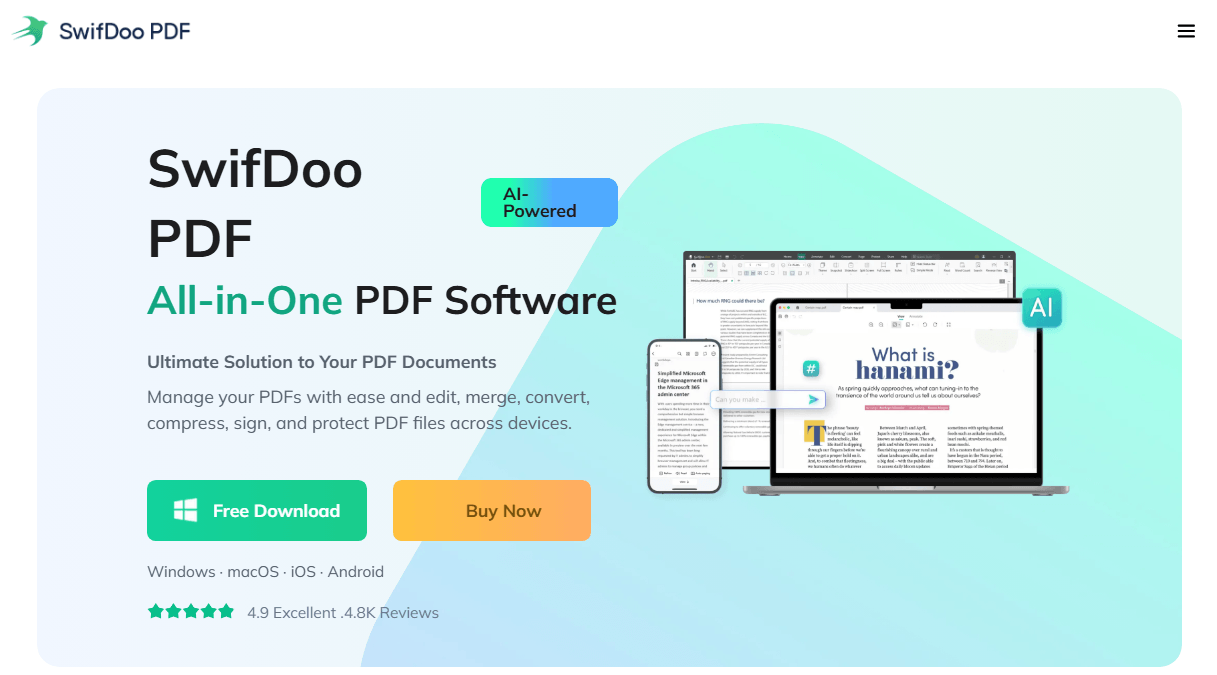
SwifDoo PDF is a comprehensive PDF editor available for Windows, Mac, iOS, and Android. It handles the full PDF workflow, including editing, converting, compressing, annotating, merging, splitting, and protecting, without the update interruptions that prompt users.
How SwifDoo PDF simplifies your PDF work:
-
Edit text and images directly: Modify PDF content as easily as a Word document. Fix typos, update dates, replace images, or adjust formatting without returning to the source file.
-
Convert PDFs to other formats: Transform PDFs into Word, Excel, PowerPoint, or image formats with original formatting preserved. Batch conversion handles multiple files at once.
-
Compress PDFs for sharing: Reduce file size at low, medium, or high compression levels while maintaining visual quality, useful for emailing large documents.
-
Annotate and markup: Highlight, underline, strikethrough, add sticky notes, and draw freehand on any PDF, perfect for document review and team collaboration.
-
Merge and split documents: Combine multiple PDFs into one organized file, or extract specific pages for separate use.
-
OCR for scanned documents: Convert scanned PDFs into searchable, editable text with high accuracy.
-
Protect sensitive documents: Add password encryption and set permissions for viewing, editing, and printing.
Download SwifDoo PDF at swifdoo.com to handle all your PDF tasks without update interruptions.
SwifDoo PDF vs Adobe Acrobat: A Side-by-Side Comparison
Wondering which software is best for your PDF handling needs? Here, we have thoroughly compared SwifDoo PDF vs Adobe Acrobat to help you choose the best one.
READ MORE >Conclusion
Knowing how to disable Adobe Updater gives you control over when and how your PDF software updates. After disabling updates, stay proactive about security with monthly manual checks. And if you're looking for a PDF editor that handles editing, conversion, compression, and annotation without Adobe's update interruptions, download SwifDoo PDF.


