


Canva is known as an online graphic design platform, and you can use it to create social media posts, presentations, videos, websites, print materials, and even PDFs. Can you make a fillable PDF in Canva? In the following content, let’s discuss the question and find the answer. Meanwhile, the main target of this post is to show how to create a fillable PDF in Canva. Now, let’s delve into this comprehensive post.
Can You Make a Fillable PDF in Canva
Can you create a fillable PDF in Canva? No, you can’t. Canva doesn’t natively support creating fillable PDFs with interactive form fields, like text boxes, checkboxes, or dropdowns that users can directly type into and save.
However, Canva allows you to design the layout and content of your PDF file. To make the Canva PDF fillable, you can use an external tool to add the fillable elements. How to create a fillable PDF in Canva? Please read on!
How to Create a Fillable PDF in Canva
In Canva, you can choose to create a PDF from scratch or use a template. How to make a Canva PDF fillable? An external PDF form generator is essential. In this part, let’s learn how to make a fillable PDF in Canva.
Additionally, you can also use SwifDoo PDF to create and layout PDF forms.
Stage 1. Make and Design Your PDF Form in Canva
Step 1. Open your browser, visit Canva's official website, and log in with your account.
Step 2. Click the Templates tab, type “form” into the search box, and press Enter.
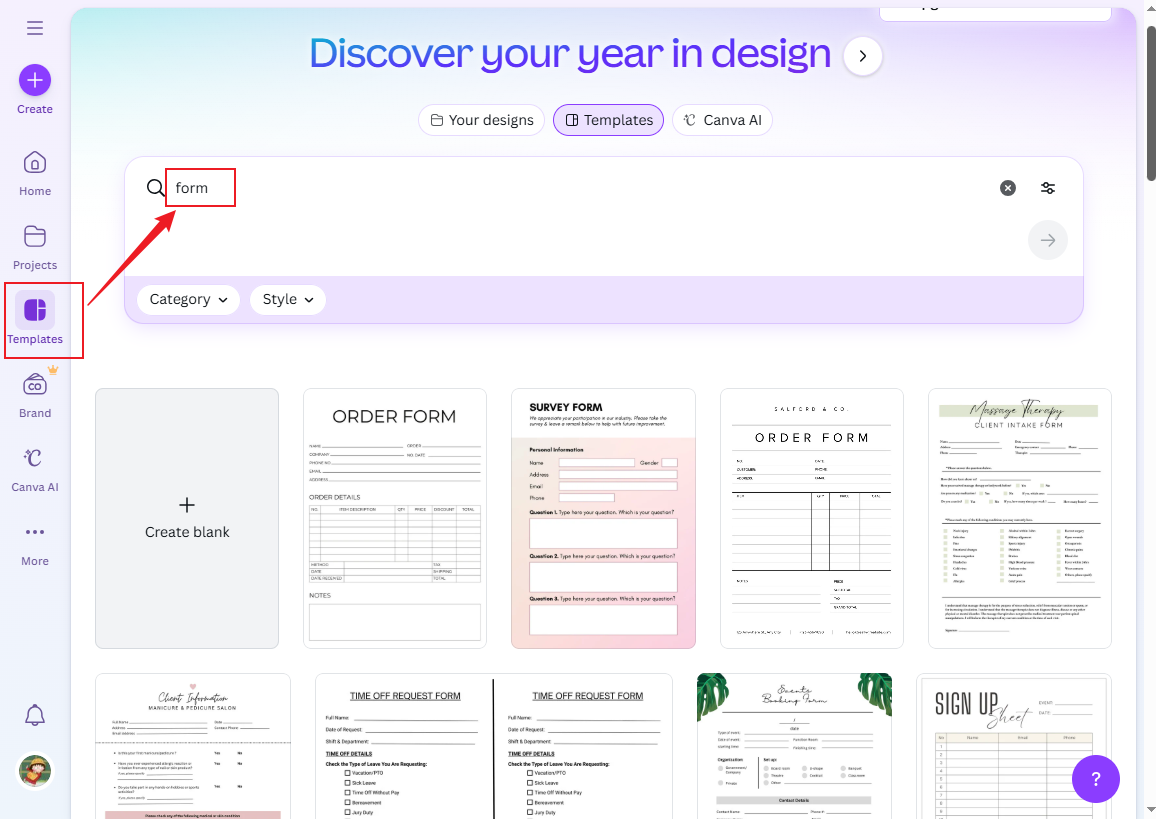
Alternatively, click the Create blank option.
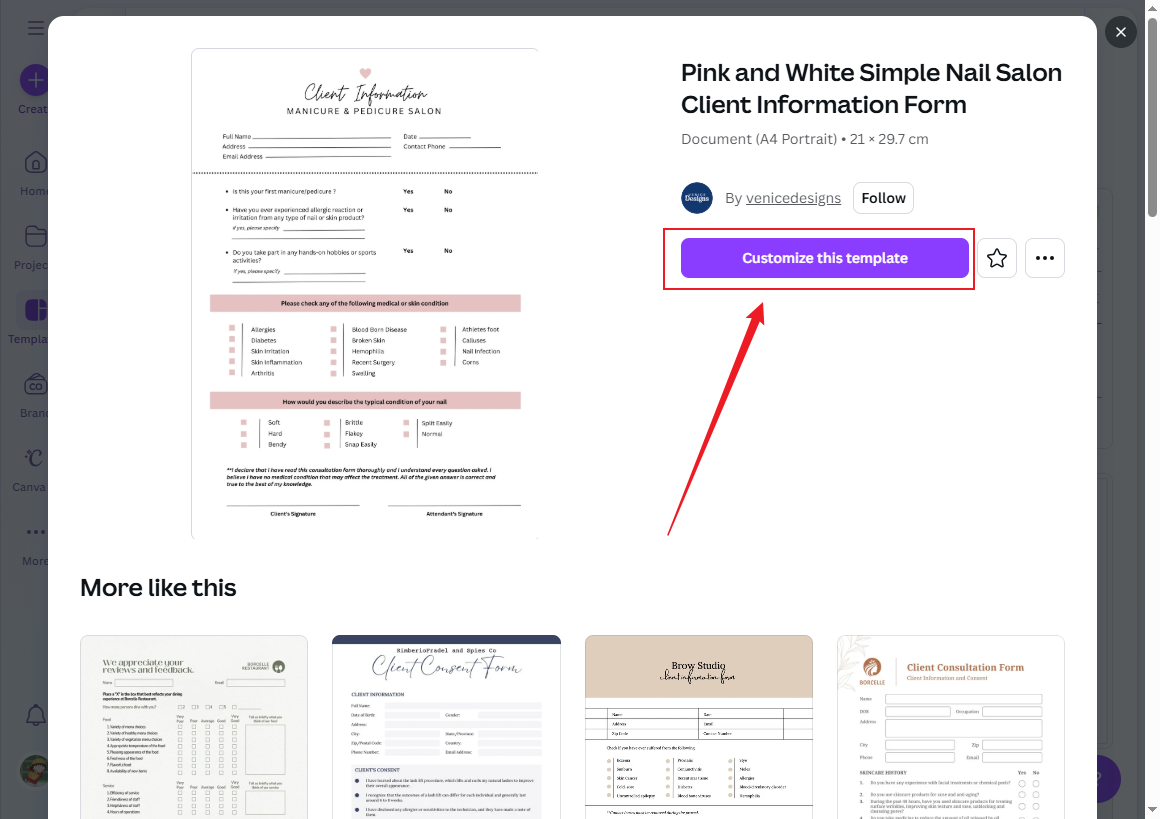
Step 3. Here, I take a template as an example. Once you’ve selected a desired form template, click the Customize this template button.
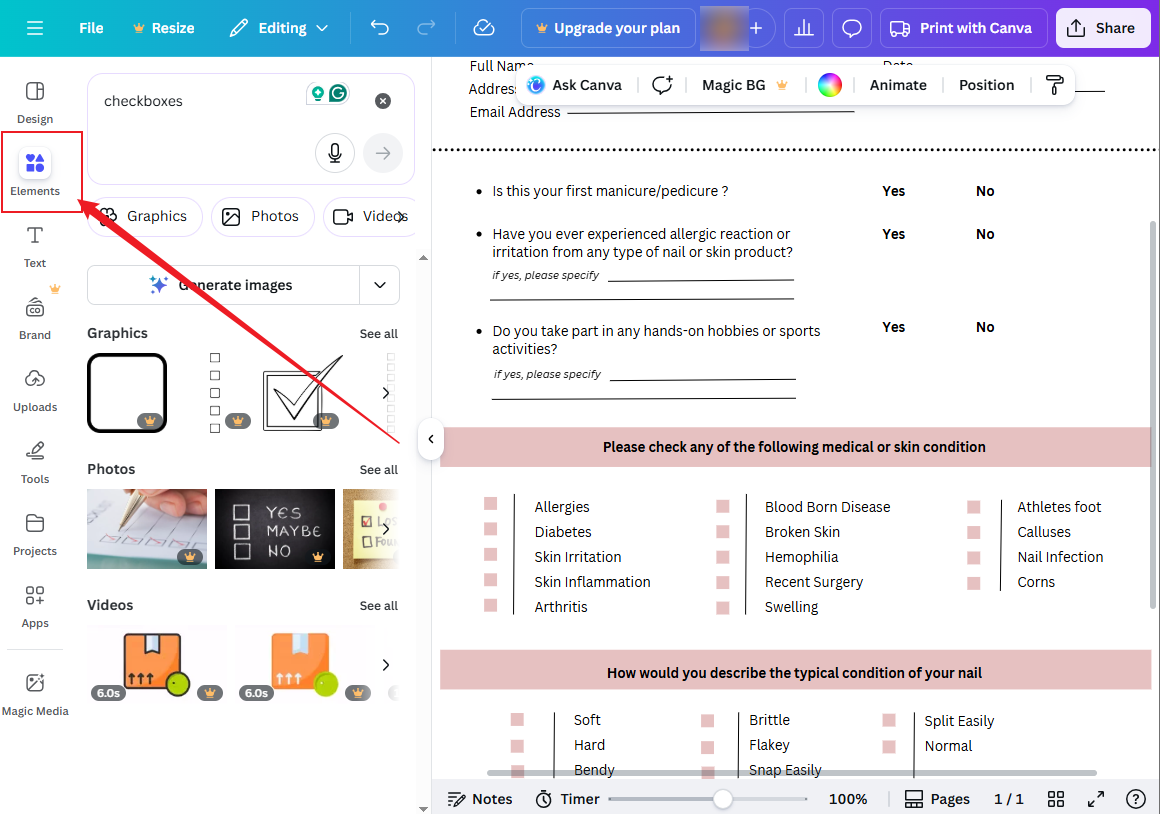
Step 4. Next, you will enter the Edit interface. You can click on the text to change it. Furthermore, click the Elements tab from the left sidebar to add the needed elements, such as shapes, checkboxes, tables, and more.
Stage 2. Download your Canva Design as a PDF
Step 1. Click the Share button in the upper-right corner and click the Download option.
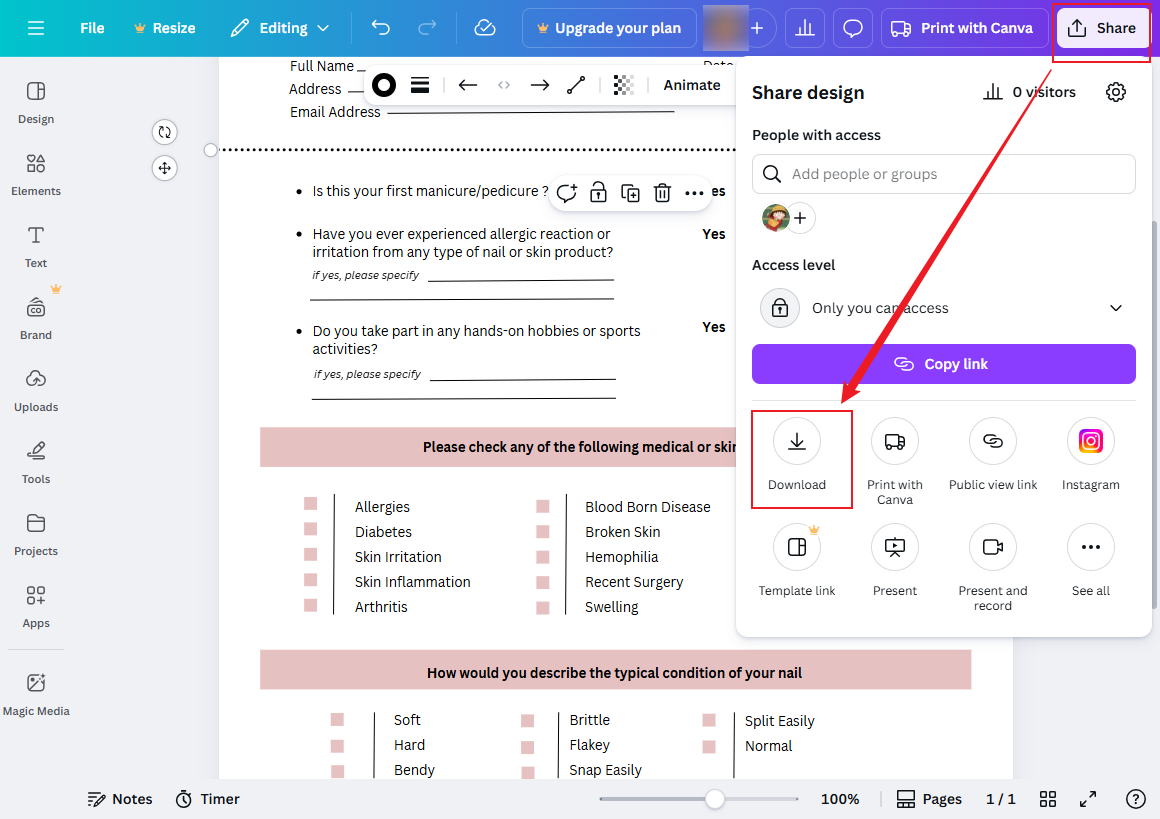
Step 2. Open the File type list and choose the PDF Standard or PDF Print option. The PDF Standard option has a smaller file size and faster uploads. While PDF Print offers better quality. You can choose one according to your needs.

Step 3. Finally, click the Download button to get the Canva PDF form file.
Stage 3. Add Fillable Fields with a PDF Editor
In this guide, I take PDFescape as an example. For more fillable PDF creators, proceed to the next section to learn more.
Step 1. Visit the website of PDFescape and select the Free Online option.
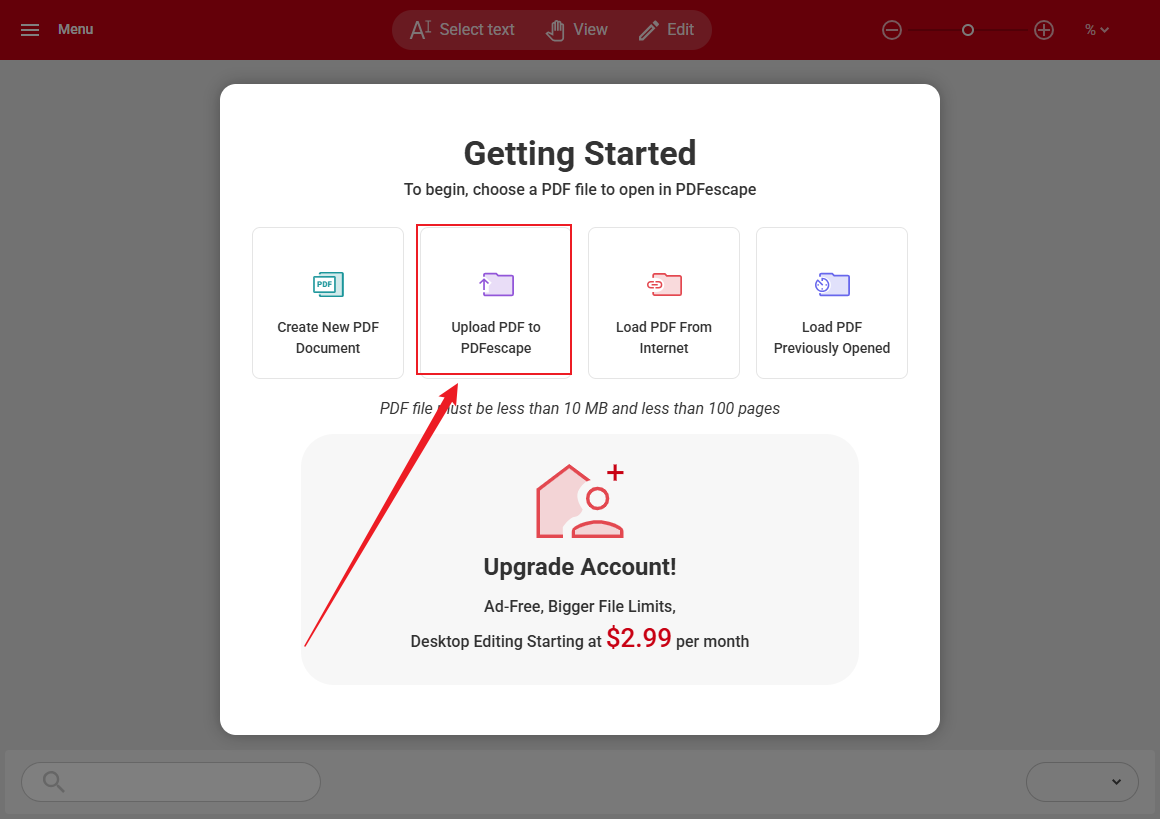
Step 2. Click the Upload PDF to PDFescape option to import your Canva PDF form.
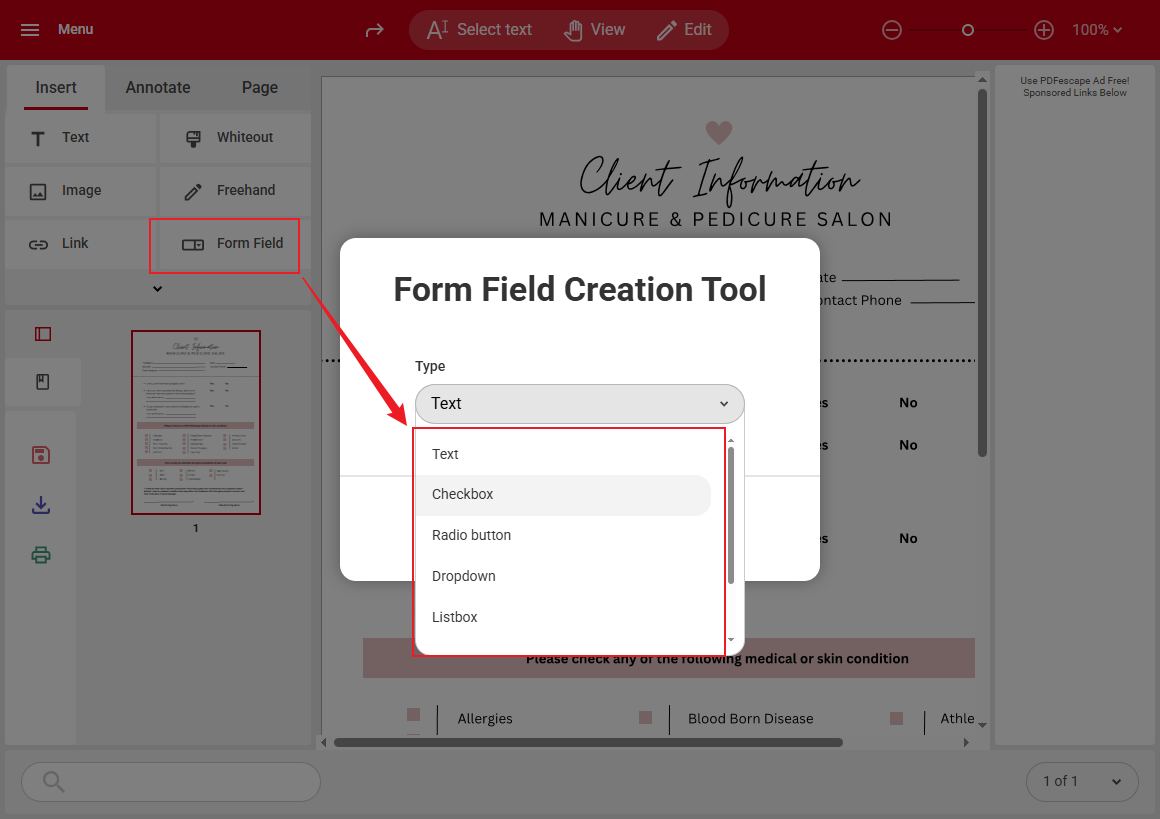
Step 3. Click the Form Field option, select the interactive element you need, and click the SELECT button. Then, add the selected interactive element to your Canva form.
Step 4. At last, click the Download icon to save the fillable PDF form.
Useful Tools to Make Canva PDFs Fillable
In addition to using PDFescape, there are other tools that can create fillable PDF forms. I will introduce them in the following content. Here, let’s check them one by one.
#PDFescape
In the content above, I’ve shown how to use it to add interactive form fields. Some of you may want to have a better understanding of this post. Hence, I write this part. PDFescape is a lightweight online and desktop PDF tool that lets you create, edit, and add form fields to PDFs. Its online version enables you to use its basic editing features for free.
Pro of PDFescape:
- No installation required
- Easy to use with its user-friendly interface
- Good for simple edits and small PDFs
Cons of PDFescape:
- Its free version has file size and page limits
- Lacks professional form features
#Adobe Acrobat
Adobe Acrobat is a professional and industry-leading PDF editor with various powerful tools. In addition to adding form fields, it supports advanced formatting, field validation, digital signature, and more. You can also use it to create a fillable PDF form from Excel.
Pros of Adobe Acrobat:
- Offer a variety of form creation tools
- Available on multiple platforms
- Integrate with Adobe Sign for excellent security and e-signature
- Advanced field types and automation options
Cons of Adobe Acrobat:
- Expensive subscription price
- Requires a steep learning curve
#Foxit PDF Editor
Foxit PDF Editor is a lightweight and cost-effective alternative to Adobe Acrobat. It offers professional PDF editing, customizable form fields, and collaboration tools. You can use it to create a fillable PDF form with Adobe Acrobat.
Pros of Foxit PDF Editor:
- Supports custom form fields and calculations
- Available on Windows, Mac, and mobile
- Good for team collaboration
Cons of Foxit PDF Editor:
- It is not friendly to beginners
- Some advanced features require higher-tier plans
#Jotform
Jotform is an online PDF form creator that lets you add interactive form fields. Moreover, it allows you to convert web forms into fillable PDFs.
Pros of Jotform:
- Provide a large template library
- Integrate with Google Drive, Dropbox, and more
- Generate fillable PDF versions of online forms automatically
Cons of Jotform:
- Limited editing features for PDFs
- The free version has limited features
![8 Must-Know Jotform Alternatives for You [Comprehensive Intro]](https://img.swifdoo.com/image/jotform-alternatives.png)
8 Must-Know Jotform Alternatives for You [Comprehensive Intro]
Many users look for Jotform alternatives when the platform doesn’t fully meet their needs. Discover the 8 best options and choose the one that meets your needs.
READ MORE >Conclusion
Can you make a fillable PDF in Canva? After reading this post, we know that Canva only supports creating PDFs and PDF forms. To make a PDF fillable, we need to use a PDF form creator to add form fields. How to create a fillable PDF in Canva? In the content above, I’ve provided detailed steps. Now, it’s your time to have a try.



