


The Microsoft Edge PDF Reader lets users open, annotate, and work with PDFs directly in the browser. “PDF reader has been disabled in Microsoft Edge” appears when the feature is blocked by browser settings, group policies, or system conflicts. In the following sections, you’ll discover how to enable PDF reader in Microsoft Edge and nine effective fixes to get it working again.
Why does the PDF Reader Stop Working in Microsoft Edge
The Microsoft Edge PDF Reader can unexpectedly stop functioning because of software, system, or configuration problems. When this happens, users often see error messages or find that PDFs no longer open in the browser. Understanding the underlying reasons helps you apply the proper troubleshooting steps more efficiently.
Check out the potential causes for your Microsoft Edge PDF Reader not opening PDFs.
- PDF Reader Feature Disabled in Edge Settings.
PDF files won’t load in Edge if the built-in PDF reader is turned off in settings or experimental flags.
- Corrupted or Outdated Microsoft Edge Installation.
Corrupted or outdated Edge files can prevent PDFs from rendering correctly.
- Browser Extensions Causing Conflicts.
PDF and security add-ons can sometimes prevent Edge from opening PDFs using its native viewer.
- Windows or Group Policy Restrictions.
Organizational settings or admin controls can prevent the PDF reader from working in Microsoft Edge.
- Corrupted or Unsupported PDF Files.
Edge may not open or display PDFs that are damaged, encrypted, or have unusual formatting.
- Conflicts with Third-Party PDF Software.
Programs like Adobe Acrobat or other PDF tools may change default file associations or block Edge from opening PDFs.
- Cached Browser Data or Damaged User Profile.
Corrupted cache, cookies, or a damaged Edge profile can prevent the PDF reader from functioning normally.
- Hardware Acceleration Issues.
PDFs may fail to load properly in Edge due to hardware acceleration-related glitches.
- Missing or Pending Windows Updates.
Browser functions, including the PDF reader, can be disrupted by outdated system components or missing updates.
Fix “PDF Reader Has Been Disabled in Microsoft Edge”
With the reasons identified, it’s time to focus on fixing the PDF reader. We’ve outlined nine effective fixes to help you get the Microsoft Edge PDF reader running properly again.
Fix 1. Enable the Built-in PDF Viewer in Edge Settings
Begin by confirming that the Microsoft Edge PDF Reader is not disabled in your browser. With the feature off, PDFs won’t open in Edge on their own, even if the browser is otherwise fine. Re-enabling the built-in viewer often restores instant access to your documents.
Check out how to enable PDF reader in Microsoft Edge in a few clicks.
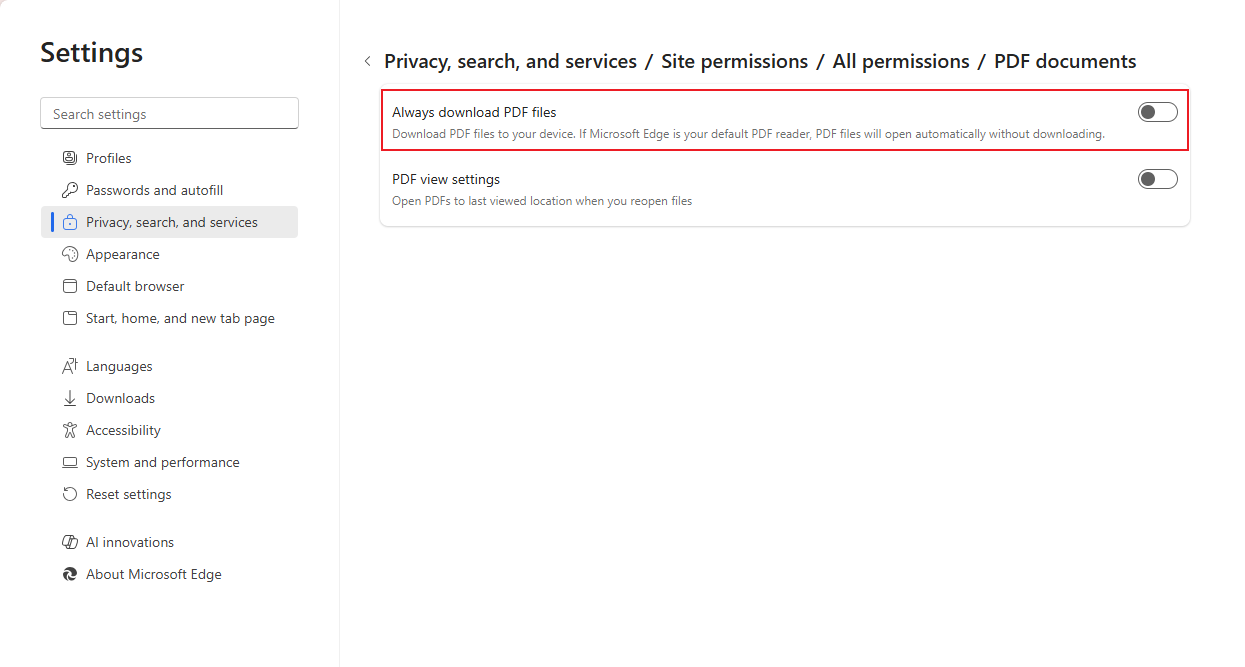
Step 1. Open Microsoft Edge. And tap the three-dot menu at the upper-right corner.
Step 2. Next, select Settings. And go to Privacy, search, and services option in the left pane.
Step 3. Tap Site permissions and select All Permissions. Then, click PDF Documents.
Step 4. Finally, turn off the toggle for Always download PDF files. Once done, toggle on the PDF view settings.
Fix 2. Use a Full-Featured Alternative to View PDFs
If you need a reliable alternative to Microsoft Edge, SwifDoo PDF is an excellent choice. This tool allows you to view PDFs and act as a PDF reader with translator, simplifying work with multilingual files. It can also read PDFs aloud, offering greater convenience for hands-free reading. Thanks to its robust features, SwifDoo PDF ensures effortless reading and editing, even when Edge’s viewer has issues.
Learn how to view a PDF in SwifDoo PDF in a few clicks.
Step 1. Launch SwifDoo PDF.
Step 2. And click Open to import a PDF into the workspace from a local folder.
View the PDF in the best PDF reader.
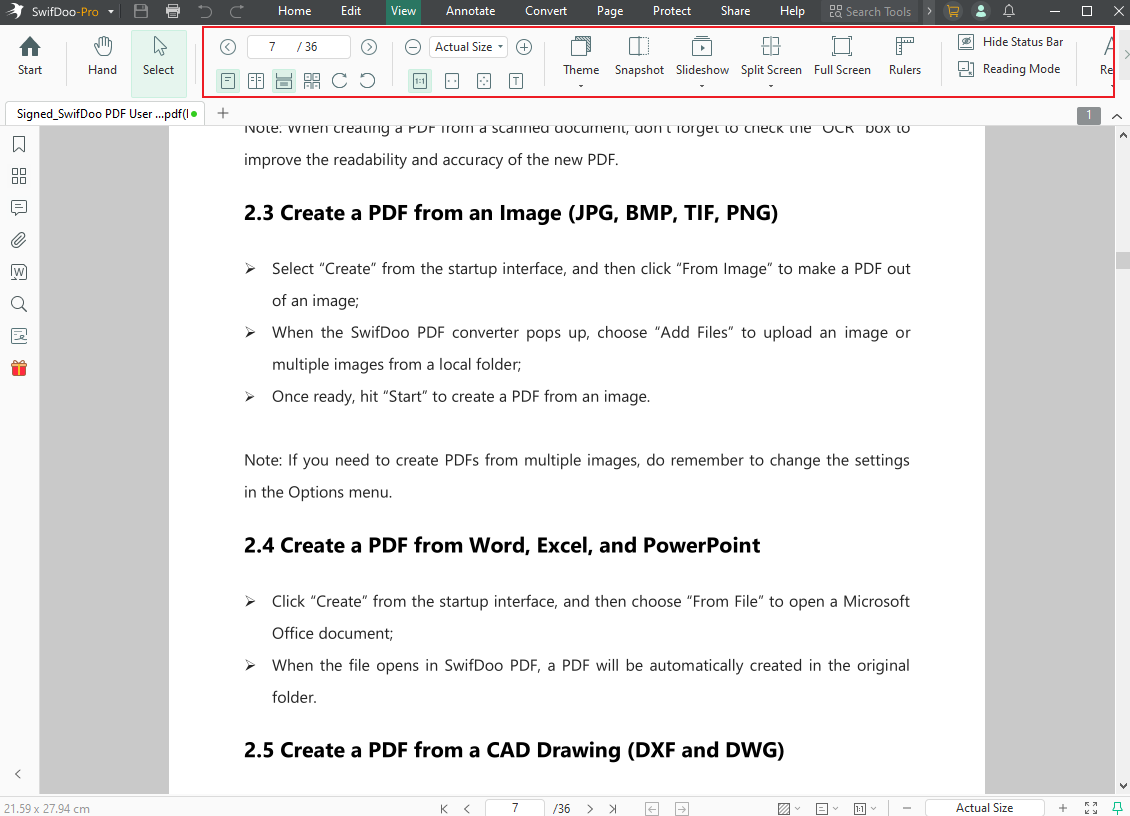
Step 3 (Optional). Choose a display mode that you prefer.
Fix 3. Clear Cache and Cookies
Corrupted or excessive browser data can commonly disrupt PDF loading in Microsoft Edge. Deleting cached data and cookies helps resolve conflicts and restore proper browser functionality. This reset frequently eliminates display errors and helps PDFs load seamlessly in Edge.
Here’s how to clear the cache and cookies of Microsoft Edge.
Step 1. Launch Microsoft Edge. And click the three-dot menu.
Step 2. Navigate to Settings and select Privacy, search, and services in the left pane.
Step 3. Click Clear browsing data. And tap Choose what to clear.
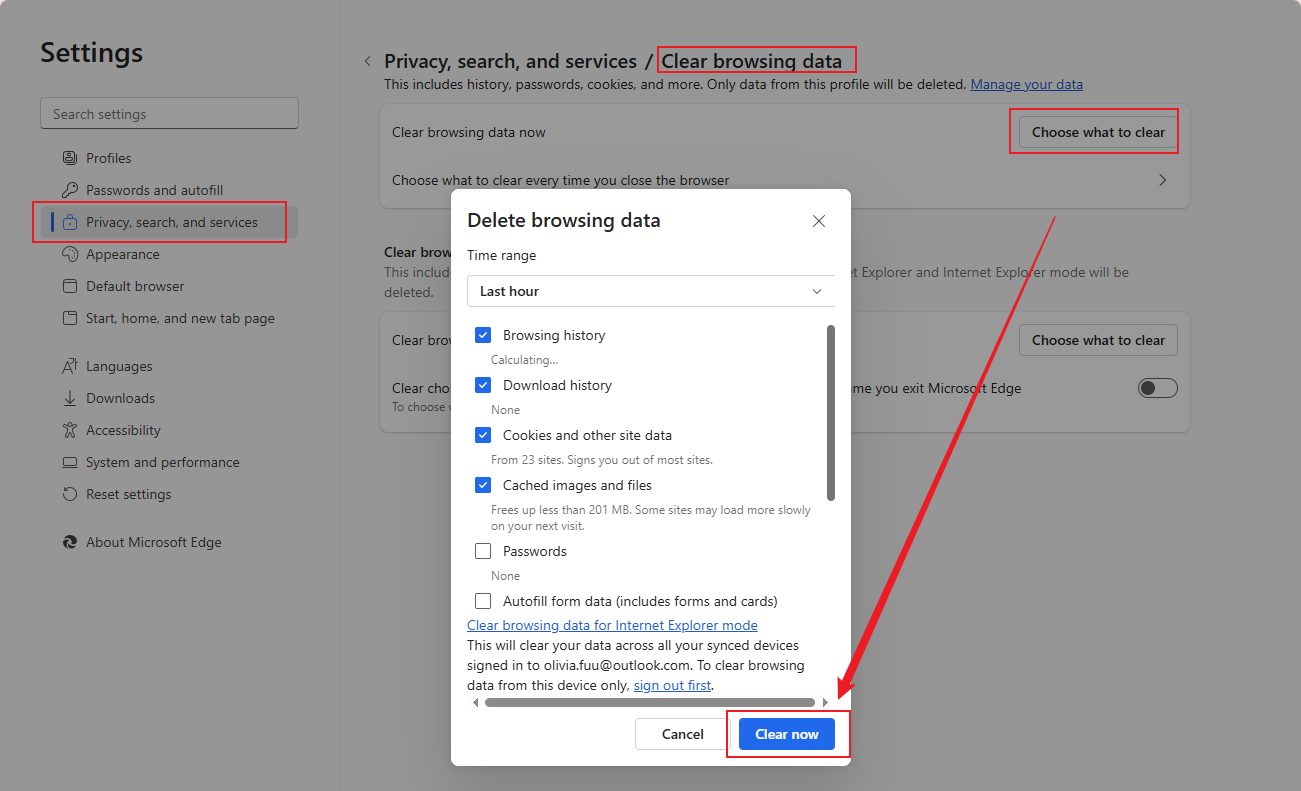
Step 4. After that, check the Cookies and cached files to clear them. Finally, tap Clear now.
Fix 4. Disable Conflicting Extensions
Edge’s built-in PDF viewer can be affected by conflicting PDF or security extensions. Disabling these conflicting tools helps determine whether an extension is blocking PDFs. Doing so often fixes loading issues and ensures PDFs display correctly.
Learn how to disable extensions that interfere with PDFs in Microsoft Edge.
Step 1. Start Microsoft Edge.
Step 2. Next, type edge://extensions/ in the address bar. Then, press Enter.
Step 3. Disable any PDF-related extensions or security plugins that conflict. Or, tap Remove under the extension’s name.

Fix 5. Set Microsoft Edge as the Default PDF Viewer
Setting Microsoft Edge as the default PDF viewer ensures your files open directly in the browser rather than in another application. If another application takes over PDF handling, Edge may appear unresponsive. Restoring the default control often resolves the issue.
Find out how to set Microsoft Edge as default PDF reader in a few clicks.
Step 1. Hold the Win+I keys to open the Settings window. Alternatively, click the Start menu and press Settings.
Step 2. Navigate to Apps and choose Default Apps. Next, select Choose default apps by file type.
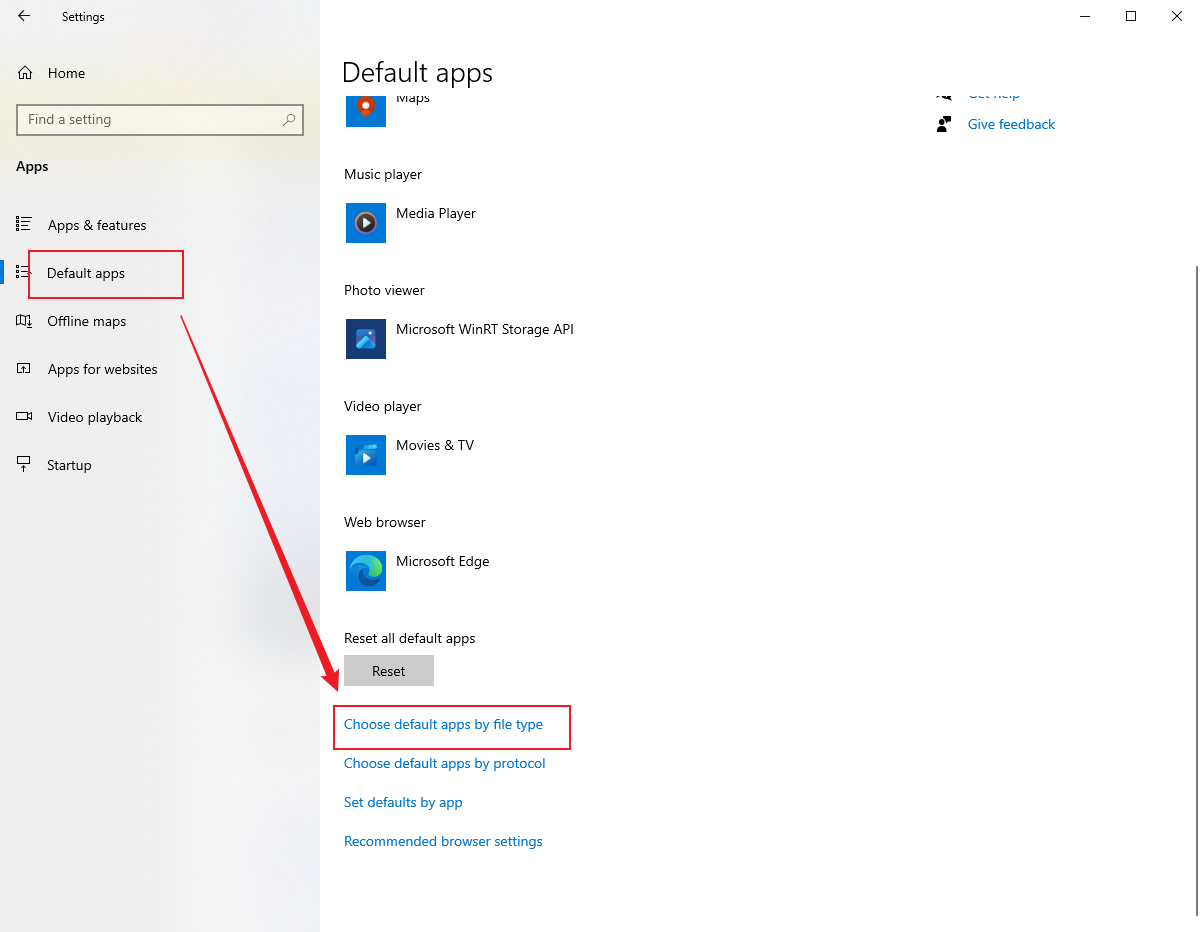
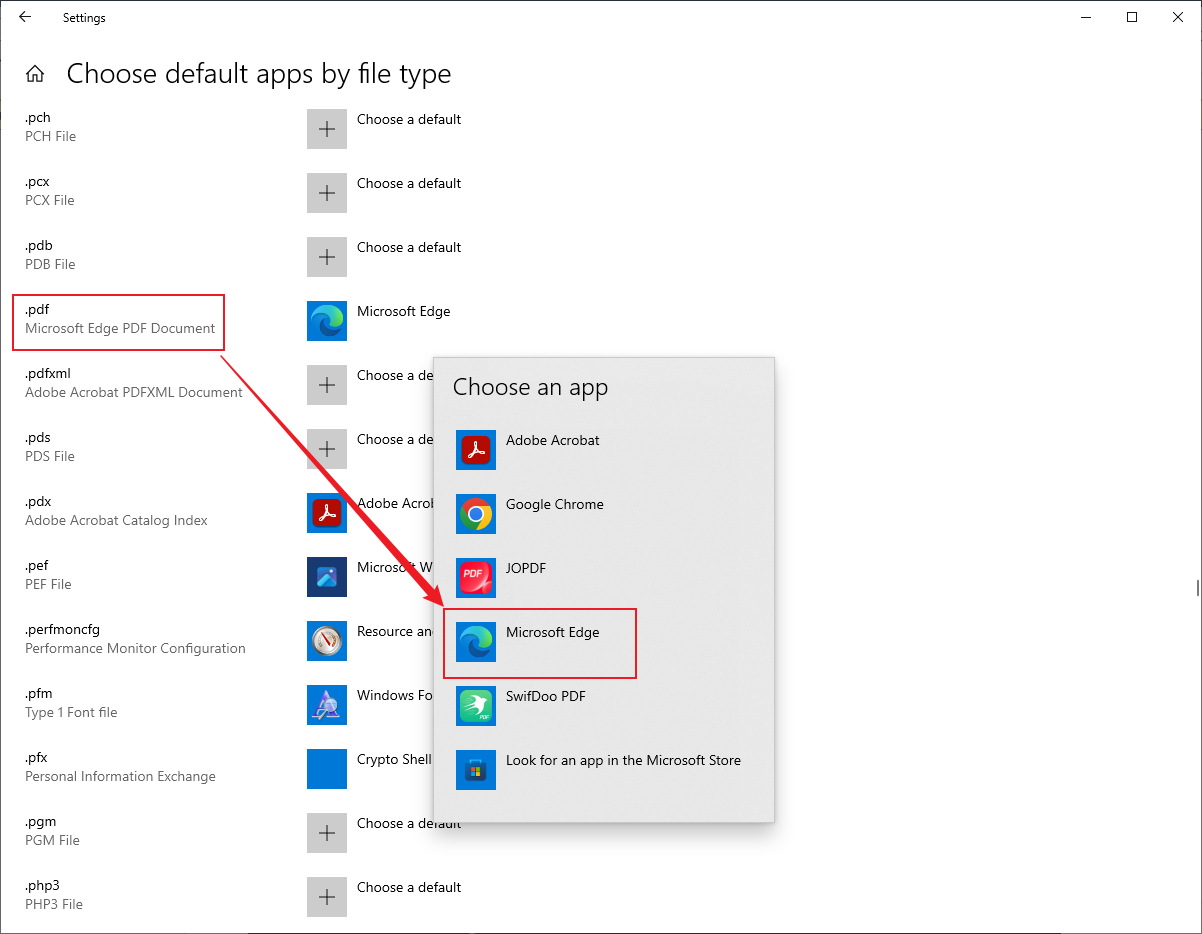
Step 3. On the left side, scroll to find .pdf.
Step 4. Finally, click the PDF app icon and choose Microsoft Edge from the pop-up.
Fix 6. Update Microsoft Edge to Fix Viewer Bugs
Bugs in outdated Edge versions often disrupt PDF viewing. Keeping your browser updated provides the latest security patches and performance improvements. This often resolves glitches and restores proper PDF functionality.
Learn how to update Microsoft Edge to fix viewer bugs.
Step 1. Open Microsoft Edge. And tap the three dots in the upper-right corner.
Step 2. Select Settings and go to About Microsoft Edge at the bottom-left corner.
Microsoft Edge will automatically check for updates.
Step 3. If an update is available, click Download and install.
Step 4. After the update is complete, restart your browser.

Fix 7. Reset Microsoft Edge Settings
Resetting Microsoft Edge returns the browser to its default settings, eliminating any misconfigurations or conflicts. This usually fixes problems that stop the PDF reader from functioning properly.
Here’s how to reset Microsoft Edge settings in a few clicks.
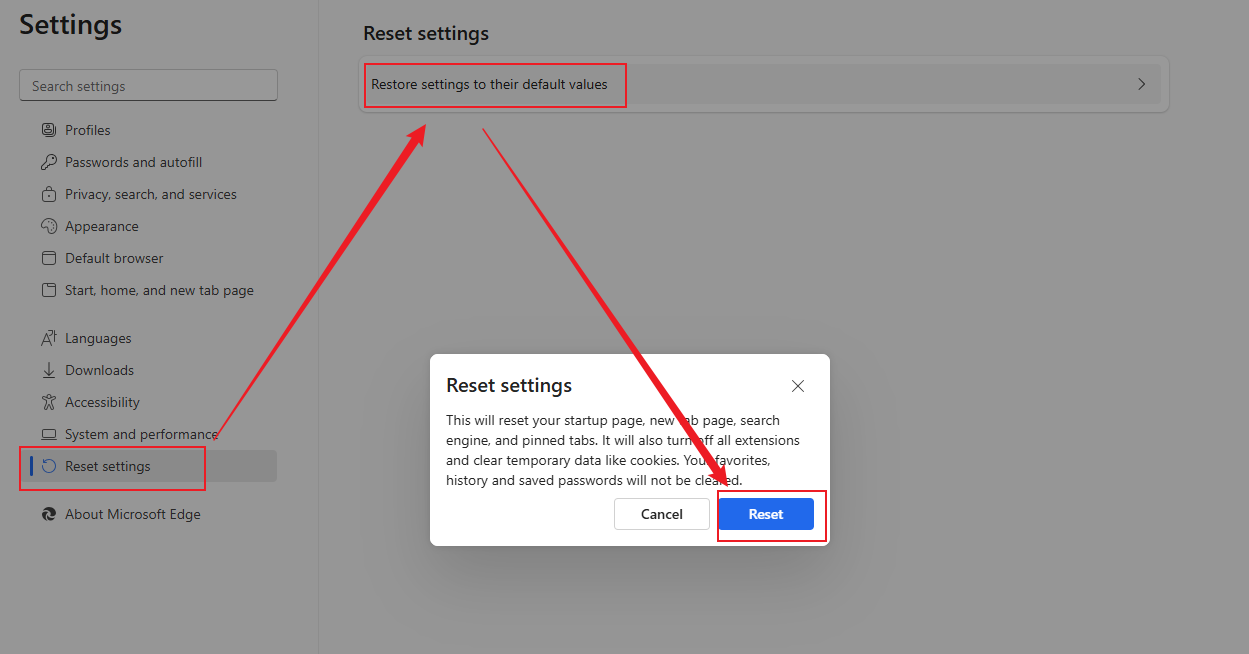
Step 1. Open Microsoft Edge and navigate to Settings.
Step 2. Select Reset Settings in the left pane.
Step 3. Click Restore settings to their default values.
Step 4. Click Reset.
Fix 8. Repair Microsoft Edge
If Microsoft Edge files are corrupted, the PDF reader may fail to load. Repairing the browser restores damaged components without affecting your data, often fixing persistent issues and ensuring smooth PDF access.
Here’s how to repair Microsoft Edge in a few clicks.
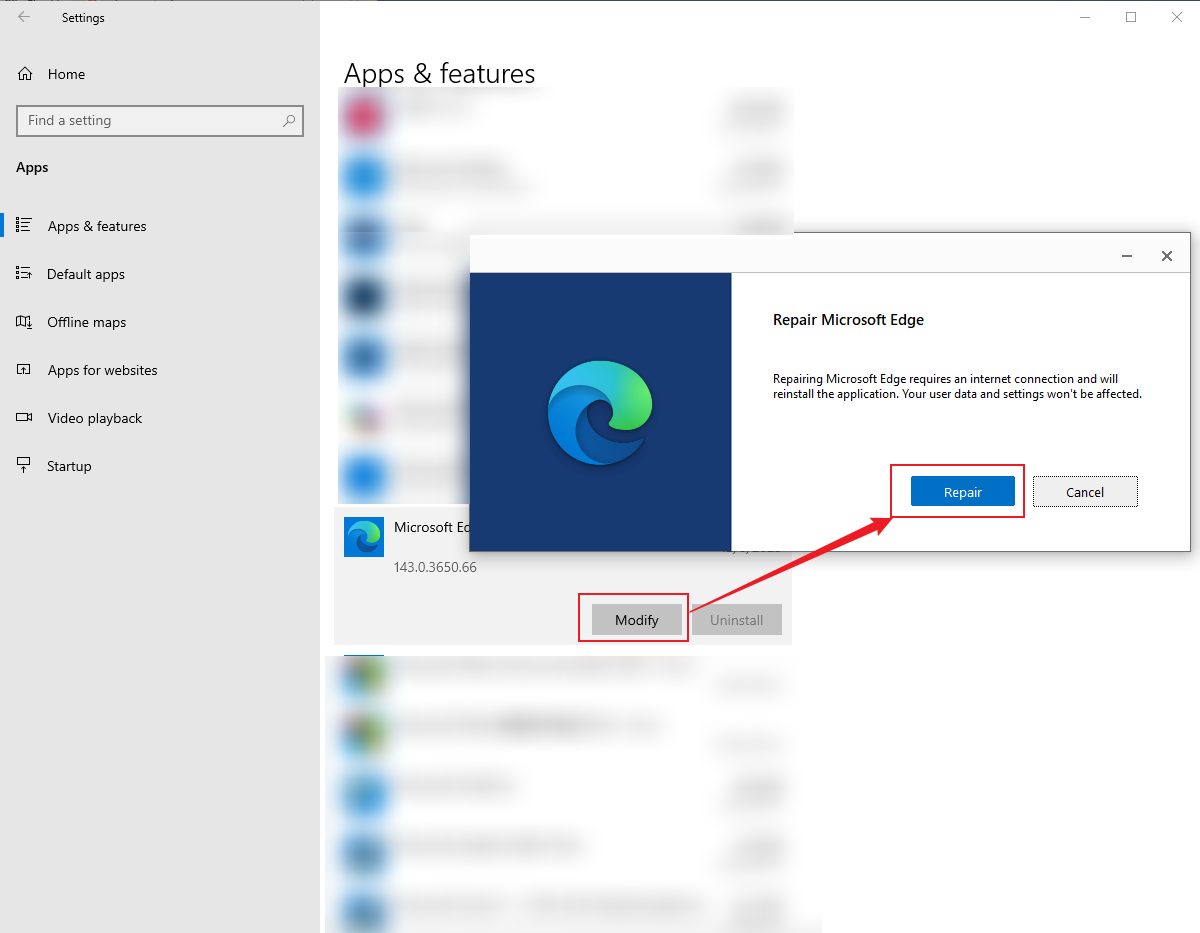
Step 1. Press the Win+I keys to open Windows Settings.
Step 2. Click Apps and click Apps & Features.
Step 3. Find Microsoft Edge in the list. And click Modify.
Step 4. Then, select Repair. And the system will automatically attempt to repair the Edge installation issue.
Fix 9. Check for Admin or Group Policy Restrictions
System administrators or group policies can block the Microsoft Edge PDF reader on managed devices. Checking these restrictions can reveal if they are blocking PDF access. Adjusting or deleting the restrictions can recover full PDF access.
Below is a guide to checking for administrative or group policy limitations.
Step 1. Press Win+R and type gpedit.msc. Next, press Enter (requires Pro or Enterprise edition).
Step 2. Navigate to Computer Configuration. Select Administrative Templates and tap Microsoft Edge.
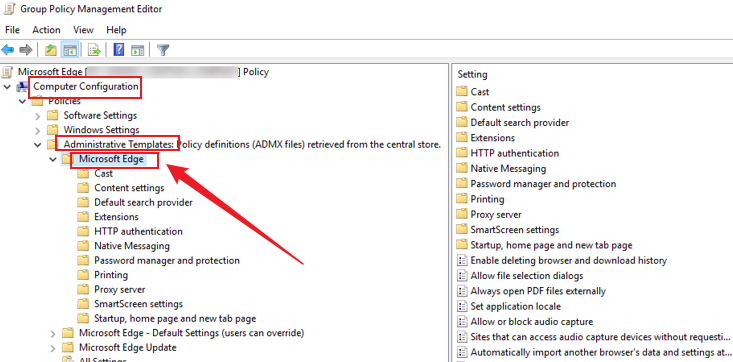
Step 3. Look for Configure default PDF viewer. Or, locate Always open PDF externally. And then set to Not Configured or Disabled.
Step 4. If there’s no access, contact your admin.
Note. As an alternative, try a third-party viewer like SwifDoo PDF.
Bottom Line
A PDF reader has been disabled in Microsoft Edge message may interrupt tasks and create unnecessary stress. Following these nine solutions will help you troubleshoot the problem and understand how to enable Microsoft Edge PDF reader. This will restore smooth and reliable access to all your PDF files.



