


What Does “PDF Signature Invalid” Mean?
A digital signature encrypts and authenticates a document, proving it hasn’t been tampered with and identifying the signer. Ensuring the file hasn’t been tampered with and confirming the signer’s identity, it acts as a vital security measure for contracts, invoices, official letters, and important PDFs.
An invalid signature warning appears when Acrobat or another PDF reader cannot fully verify the signer’s certificate or trust chain. This may happen if the certificate is expired, revoked, untrusted, or missing required validation data. You may also see this warning if the document was modified after signing or if the system lacks the necessary root certificates to confirm the digital signature.
What Makes a Signature Invalid in PDFs
Knowing what makes a signature invalid in PDFs allows you to identify why your document isn’t considered trustworthy. Typically, invalid signatures result from certificate problems, system trust settings, or edits made after the document was signed.
Below are the potential causes that commonly trigger invalid PDF signature warnings and disrupt verification.
#Cause 1. The PDF was Modified After Signing
A PDF’s signature loses validity if the document is edited after it has been signed. Digital signatures lock a PDF’s content. So any edits—even minor ones like text changes or page removals—can break the signature. The reader will flag the signature as invalid whenever changes are detected, preventing potential tampering.
#Cause 2. The Certificate is Not Trusted
Signatures show as invalid when the system cannot verify or trust the signer’s certificate. This occurs if the certificate is untrusted, issued by an unknown source, or uses custom PKI protocols. Signature validation fails and the signature appears unverified if the certificate is unrecognized.
#Cause 3. The Certificate Has Expired or Been Revoked
A PDF signature is flagged as invalid if the signer’s certificate is no longer valid or has been revoked. Accordingly, the PDF reader flags the signature as invalid.
#Cause 4. PDF Reader Compatibility Issues
PDF signatures can be flagged as invalid because different PDF readers handle validation differently. Adobe Acrobat uses the Adobe Approved Trust List (AATL), whereas Microsoft Edge and other browsers may not support all signature formats. As a result, a signature that shows as valid in one program may appear invalid in another.
How to Fix an Invalid Signature in PDF
We’ve seen some possible causes of a PDF signature invalid warning. Once the problem is identified, applying the proper fix is far simpler. You can use a few practical approaches to verify the document and regain trust.
Below, we’ll show you practical steps on how to fix invalid signature in PDF effectively.
Fix 1. Check Whether the PDF was Modified After Signing
A simple way to fix an invalid PDF signature is to verify whether the document was changed after signing. In Adobe Acrobat, every change made after a digital signature is applied can break its integrity. Understanding whether alterations occurred helps determine if the signature itself is compromised. This method is beneficial when you add a digital signature in Adobe and want to ensure it remains valid.
Learn how to check whether the PDF was modified after signing in Adobe Acrobat.
Step 1. Open the PDF. Go ahead and open the Signatures panel.

Step 2. Expand the signature details.
Step 3. Locate the message, “Document has been altered or corrupted.” Or, seek the message, “Signed document modified.”
Note. If the document was modified, you cannot restore the signature. Contact the sender to acquire the original signed document.
Fix 2. Validate the Signature
Signature validation in a PDF confirms the signer’s certificate is trusted and that no alterations have been made. It confirms the authenticity of the signer and ensures the file remains trustworthy.
For an easier process, use SwifDoo PDF to validate signatures quickly and reliably. It allows you to sign a PDF, check certificate trust, and verify the signature status, making it a convenient tool for both professional and personal use.
Check out how to validate a signature in a PDF using SwifDoo PDF.
Step 1. Download and install SwifDoo PDF on your Windows computer.
Step 2. Open the signed PDF in the workspace.
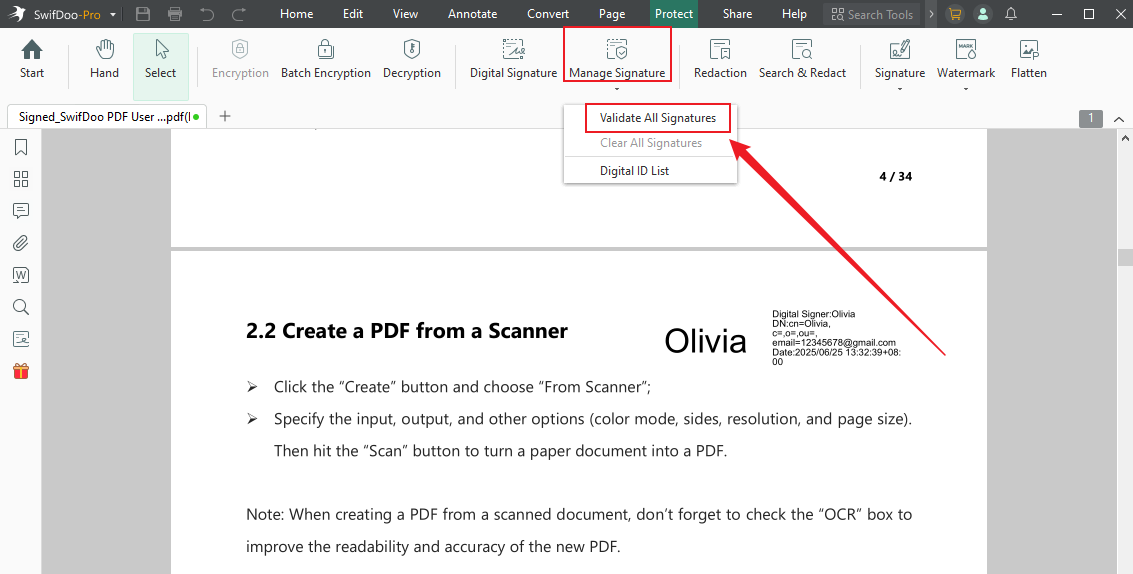
Step 3. Click Protect in the top navigation bar. Then, in the secondary menu bar, click Manage Signature, then click Validate All Signatures.
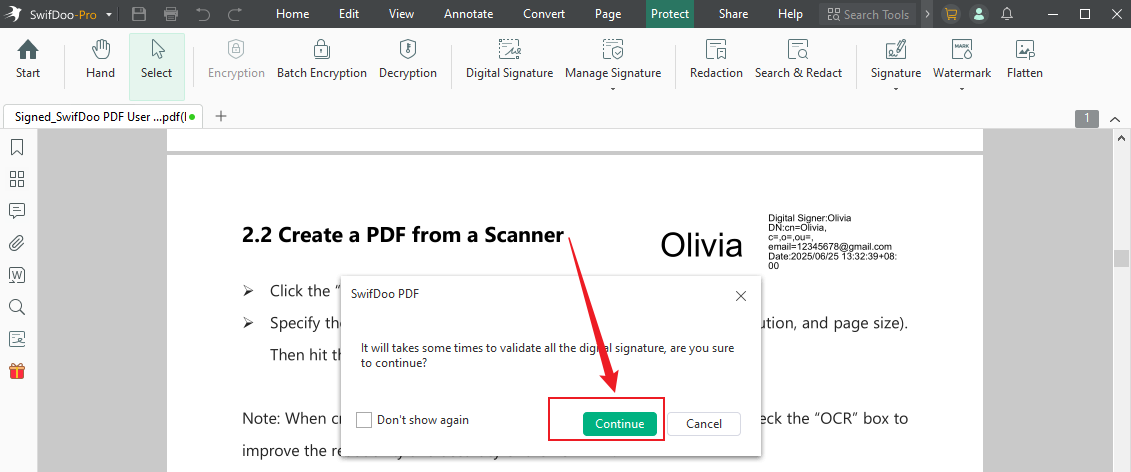
Step 4. Hit Continue in the following notice window. SwifDoo PDF will automatically start verifying the digital signatures in your PDF.
Click Signature Properties to view the signature details.
Fix 3. Add or Trust the Signer’s Certificate
When Acrobat doesn’t recognize the signer, adding or trusting their certificate is a vital fix for an invalid PDF signature. When the certificate is imported into Acrobat’s Trusted Certificates, the software can validate the signature and verify the document’s authenticity. Especially useful for documents from clients, partners, government agencies, or organizations relying on custom PKI, this solution ensures signature trust.
Check out the steps to use Adobe Acrobat to add or trust the signer’s certificate.
Step 1. Right-click the signature in a PDF. Then, click Signature Panel/Properties and select the Show signer’s certificate button.

Step 2. Browse to the trust tab, then click Add to Trusted Certificates. Or, tap Add as a Trusted Root (if available).
Then, enable:
- Use this certificate as a trusted root.
- Certified documents.
Step 3. Finally, tap OK (or Accept). Then, revalidate the signature.
Fix 4. Install the Missing Root Certificate
Installing the missing root certificate fixes invalid PDF signatures when Adobe Acrobat cannot trace the signer’s certificate back to a trusted authority. Adding the appropriate root certificate to your system or Acrobat’s trust store re-establishes a complete, verifiable trust chain. This is particularly important for documents signed using enterprise, government, or international certificate authorities.
Find out how to install missing root certificates on Adobe Acrobat.
Step 1. Open Adobe Acrobat on your device.
Step 2. Move to Preferences and select Signatures.
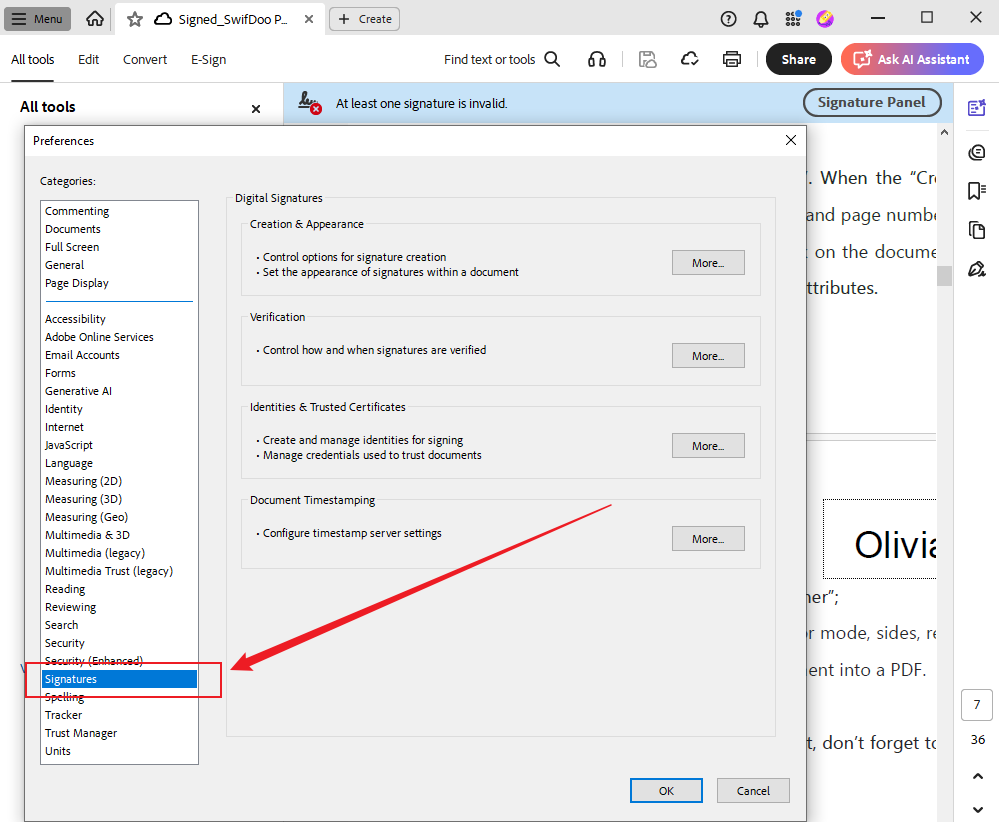
Step 3. Under Trust Manager, tap Update AATL.
Step 4. Turn on the EUTL if it’s relevant to your PDF signatures. After that, restart Acrobat and reopen the PDF.
How to Prevent PDF Signatures from Becoming Invalid
It’s simpler to prevent a PDF signature invalid alert than to repair it later. By following best practices when signing and managing PDFs, you can ensure that your documents remain authentic, trustworthy, and tamper-proof, avoiding unnecessary verification issues in the future.
Follow these tips to prevent PDF signatures from turning invalid.
- Use a Reliable Digital Signature Provider.
Proper certificate management, secure encryption, and reader compatibility from a trusted provider minimize the risk of invalid PDF signatures.
Some well-known digital signature providers are:
- Adobe Sign
- DocuSign
- HelloSign
- SignNow
- Nitro Sign
- Do Not Modify Signed PDFs
Avoid editing the PDF post-signing to maintain signature integrity. Tiny edits like changing text, repositioning images, or filling forms can break a digital signature. This may trigger the 'PDF signature invalid' warning and undermine document trust.
- Use Certified Signatures Instead of Approval Signatures
In contrast to approval signatures, certified signatures secure the document and authenticate who signed it. Detecting changes after signing helps keep the PDF signature valid and the document credible.
Final Thoughts
A PDF signature invalid notification can be alarming. Grasping the underlying issues—from edits to certificate problems—makes correcting the problem simple. By checking modifications, validating certificates, and following best practices like using reliable digital signature providers, you can ensure your PDFs remain secure and verifiable. These fixes help keep signed documents trustworthy while maintaining their integrity.



