Way 1: Extract Font from PDF Using ExtractPDF.com
ExtractPDF.com is an online PDF font extractor and identifier that can extract embedded fonts from a PDF for free. It can extract TrueType TTF fonts, images, text, and metadata from PDFs. You can get started without installation or registration. This tool allows for uploading a file up to 25 MB. It is also a font finder that helps identify and find fonts from a PDF and presents sample text for each extracted font file.
How to extract fonts from a PDF with ExtractPDF.com online for free:
Step 1: Visit the tool website and click Choose file to upload the PDF you need to extract fonts from.
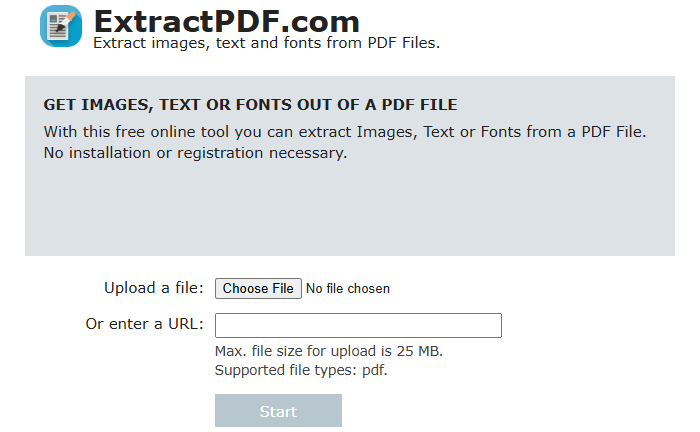
Step 2: Click the Start button to start processing the file and extracting everything it can.
Step 3: Click the Fonts tab on the Result page to check all the fonts and extracted font files listed below.
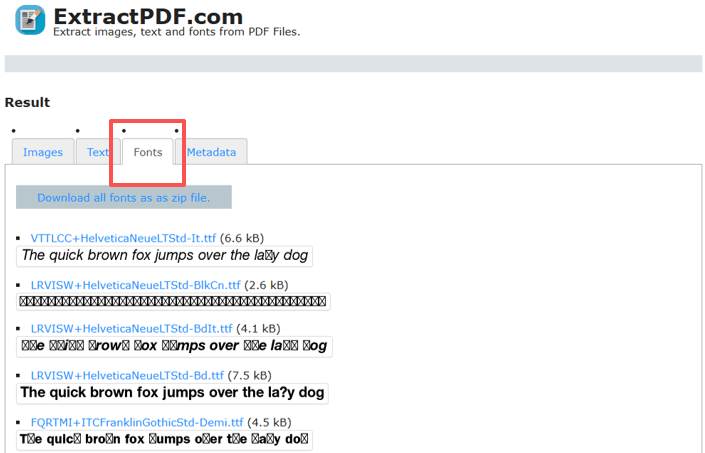
Step 4: Click the file link to download and save the font files.
Way 2: Extract Fonts from a PDF with i2PDF
One of the most widely used methods to extract fonts from a PDF, regardless of whether on Mac, Windows, or Linux, is i2PDF. This online software provides a series of PDF editing, organizing, and converting tools. It can recognize and extract True Type fonts for personal use only. Most fonts are copyrighted, so you need a license to use them. It can also OCR PDFs, making scanned or image PDFs editable for font extraction.
Step 1: Open the online font extractor, and click the Choose Files button to upload your PDF.
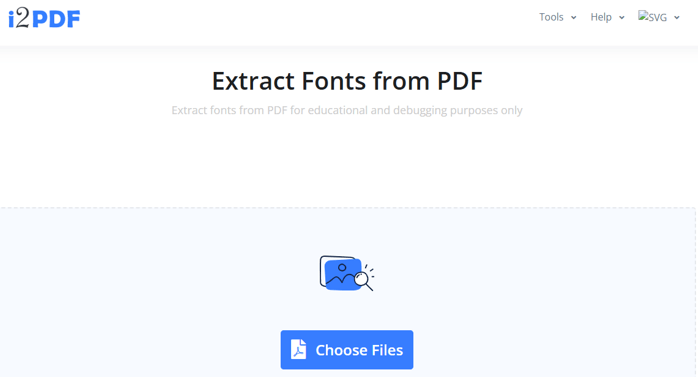
Step 2: The PDF-to-TTF converter will begin processing and list the fonts in the PDF for download.
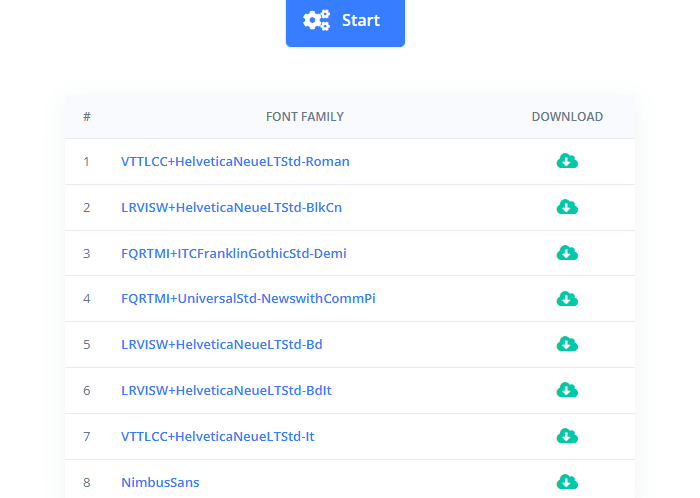
Step 3: Download to extract the embedded subset fonts from the PDF individually, or click Start to extract and save them all in a zip file.
Way 3: Extract a Font from a PDF with FontForge
FontForge explains how to easily extract fonts from a PDF. It is free and open-source software designed for font editing. It can handle various font formats, such as TrueType (TTF), TrueType Collection (TTC), PostScript Type 1, OpenType (OTF), and Web Open Font Format (WOFF). It can also convert font formats from one to another. The application is available for Windows, Mac, and Linux.
Discover how to extract font information from a PDF using the FontForge program.
Step 1: Open the PDF font extractor and font editor on your computer.
Step 2: On the initial interface, click the Filter drop-down and select Extract from PDF.
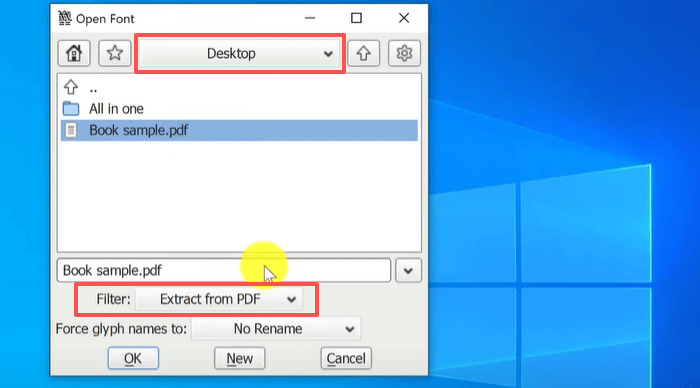
Step 3: Select a file location at the top, select the PDF file, and click OK.
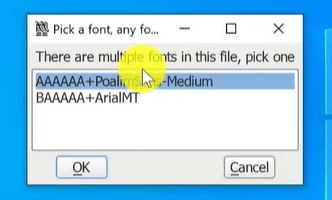
Step 4: Choose a font in the new window, click OK, and go to File > Generate Fonts.
Step 5: Select your font saving location, set the font file name, font type to TrueType, and uncheck the Validate Before Saving box.
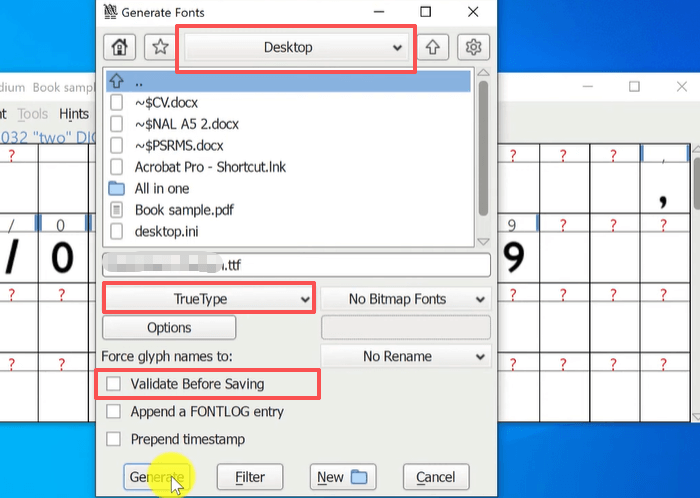
Step 6: Click Generate > Yes > OK, and repeat clicking Generate until the window auto-closes and the font file appears on the desktop. That will finally extract the PDF font.
Way 4: PDF Font Extraction with Mupdf
Another method to extract fonts from a PDF file is using Mupdf. It is a free and open-source PDF viewer with a utility called pdfextract. It offers a few command-line options that can extract fonts and images from PDFs. The software framework can also edit and sign PDFs. If you’re good at running command lines, try the command below.
c:\> pdfextract.exe c:\path\to\filename.pdf # (on Windows)
$> pdfextract /path/tofilename.pdf # (on Linux, Unix, Mac OS X)
Bonus: Best PDF Editor to Find Font from PDF and Edit Text
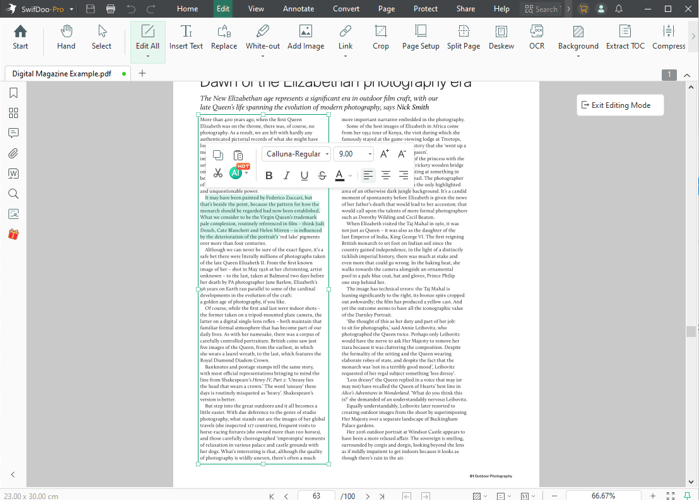
The tutorials above show you how to extract fonts from a PDF and save them as reusable font files. If you want to find a font to make text additions in other files, SwifDoo PDF is a simple editor to choose. The Windows and Mac software lets you directly edit a PDF to check text formatting and change or insert existing text. Go to “Edit”, > “Edit All”, click into a text box to select text, and the font will be displayed.
Where SwifDoo PDF editor benefits you:
- One-stop comprehensive PDF solution;
- Edit, convert, read, annotate, and secure PDFs;
- Intuitive and beginner-friendly interface;
- Translate, chat with, and summarize PDFs with AI.
Conclusion
If you need to work out which fonts are used in a PDF document, online font extraction tools come first. They are convenient and free, but come with downsides such as pop-up ads and potential privacy concerns. A popular offline workaround is FontForge. In conclusion, all 4 ways are introduced and take you no more than a minute to read. If you're unable to or cannot extract the embedded font in a PDF, consider the PDF an image or a scanned document.