


Method 1: Use SwifDoo PDF to Convert HTML to Word or PDF
SwifDoo PDF is a comprehensive, all-in-one PDF editor that makes document conversion effortless. With its Microsoft-like interface, SwifDoo PDF feels familiar and easy to use. While many tools struggle to convert HTML to Word without losing formatting, SwifDoo PDF uses a smarter approach.
SwifDoo PDF doesn't convert HTML directly to Word, but it does something better. It uses PDF as a bridge format, preserving your HTML's visual layout perfectly before converting to an editable Word document. If you want to convert HTML to Word without losing formatting when dealing with complex pages, try SwifDoo PDF HTML to Word converter.
-
Excellent format preservation
-
Local processing keeps files private
-
Batch conversion supported
-
One tool handles the entire PDF and Word workflow
-
Requires two steps (HTML → PDF, then PDF → Word)
How to convert HTML to PDF or Word?
Step 1: Download and install SwifDoo PDF from its official website.
Step 2: Launch it and click Batch Process > Convert to PDF.
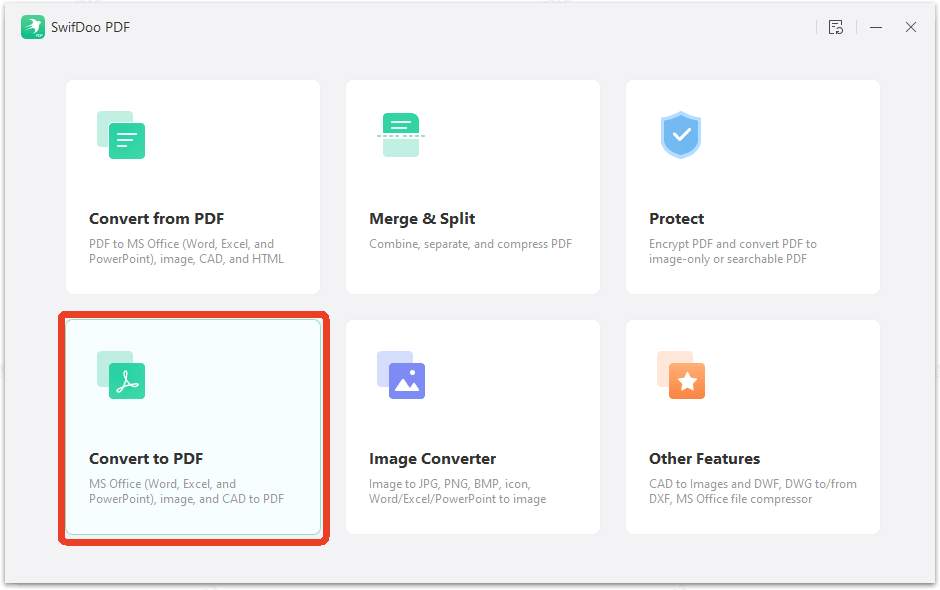
Step 3: Click HTML to PDF and upload your HTML file.
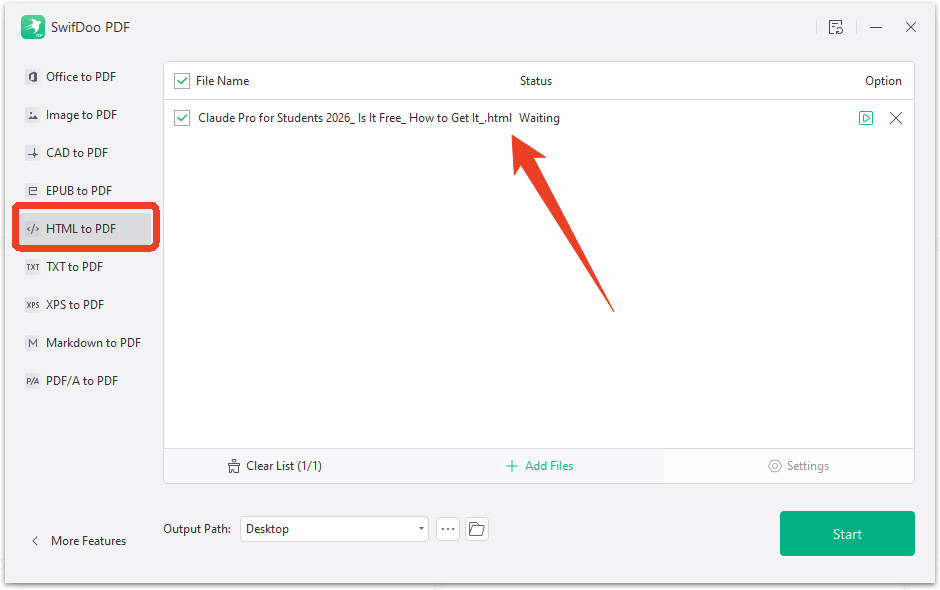
Step 4: Choose your output path and click Start to convert HTML to PDF. In this process, you'll get a converted PDF file from HTML without losing formatting. If you want a Word format, continue with the next steps.
Step 5: When the process finishes, switch to the Convert from PDF function and choose PDF to Word.
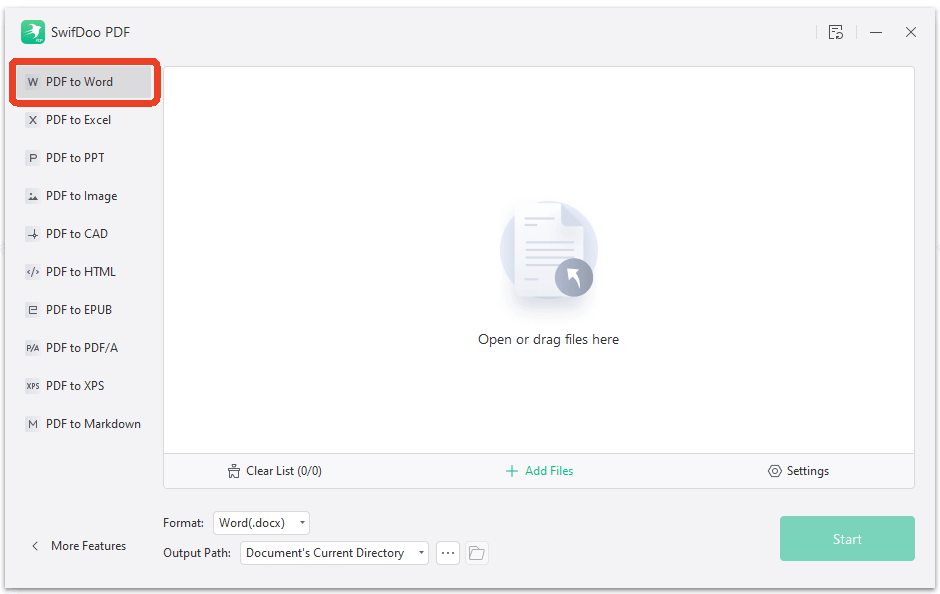
Step 6: Upload your converted PDF file and choose the format. SwifDoo PDF supports DOCX, DOC, and RTF.
Step 7: Choose your output path and click Start to convert PDF to Word.
Within seconds, you can convert HTML to Word format by simply uploading the file. No matter whether you want to convert Word to HTML or vice versa, SwifDoo PDF can do both.
SwifDoo PDF also provides HTML to Word converter online free tool. You can finish this HTML to Word conversion without installing any software. It supports a wide range of format conversions, including HTML to Word, PDF to Word, and more. The online tool is designed with both security and convenience in mind. For more advanced needs, SwifDoo PDF desktop remains a better choice.
3 Easy Ways to Convert PDF to RTF
Looking for easy ways to convert PDFs to RTF files individually or in batches? This post shares 3 PDF to RTF converters for Windows, Mac, and online devices.
READ MORE >Method 2: Save HTML as Word Document in Microsoft Word
Word has a built-in HTML parser that can translate these into corresponding Word styles. That's why Microsoft Word can open HTML files natively. Also, this is the fastest way to convert HTML to Word document when you already have Word installed and the HTML is relatively simple.
-
Fast
-
No extra software needed
-
Handles basic HTML well
-
Preserves semantic structure
-
Struggles with complex CSS
-
Requires Word installation
-
JavaScript content won't convert
Step 1: Open Microsoft Word and click File > Open.
Step 2: In the new window, click File > Open and select All Web Pages or HTML Files in the file type dropdown. In this step, Word will automatically process the HTML and display it as an editable document when you open HTML document from Word.
Step 3: After the HTML to Word conversion, review if there are any sections that need manual adjustment.
Step 4: Click File > Save As and choose Word Document (.docx) as the file type. Save your file.
Method 3: Use an HTML to Word Converter Online FREE
For quick conversions without installing anything, online tools offer a convenient HTML to Word converter online free experience. CloudConvert, Zamzar, and FreeConvert all handle direct HTML to DOCX conversion.
-
No installation
-
Cross-platform
-
Fast for small files
-
Free tiers available
-
Files upload to third-party servers
-
File size limits on free plans
-
Complex HTML may not convert cleanly
-
Daily usage caps
To convert HTML to Word online, just upload an HTML file or paste a URL, and the service returns a Word document. We'll take CloudConvert as an example to show you how to convert HTML to Word online free.
Step 1: Go to cloudconvert.com and choose Select File to upload your HTML file.
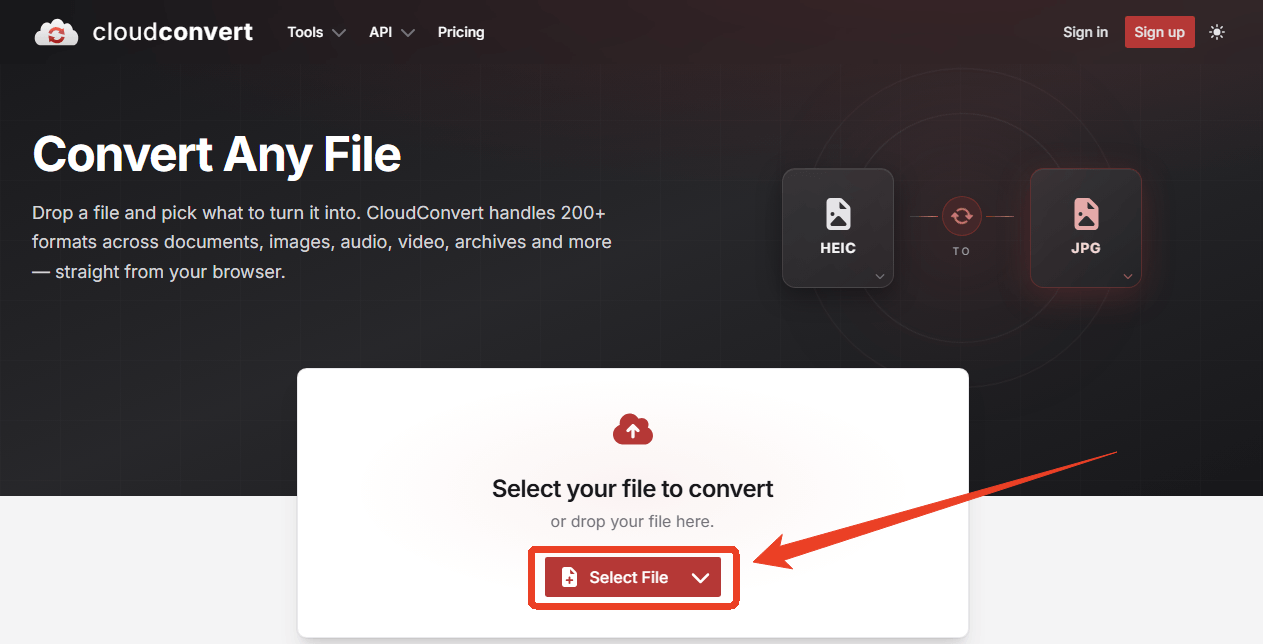
This online HTML to Word converter will automatically detect your file format. You just need to choose which file format to convert to.
Step 2: Click Select Format and choose Document. You can convert HTML to DOC or DOCX.
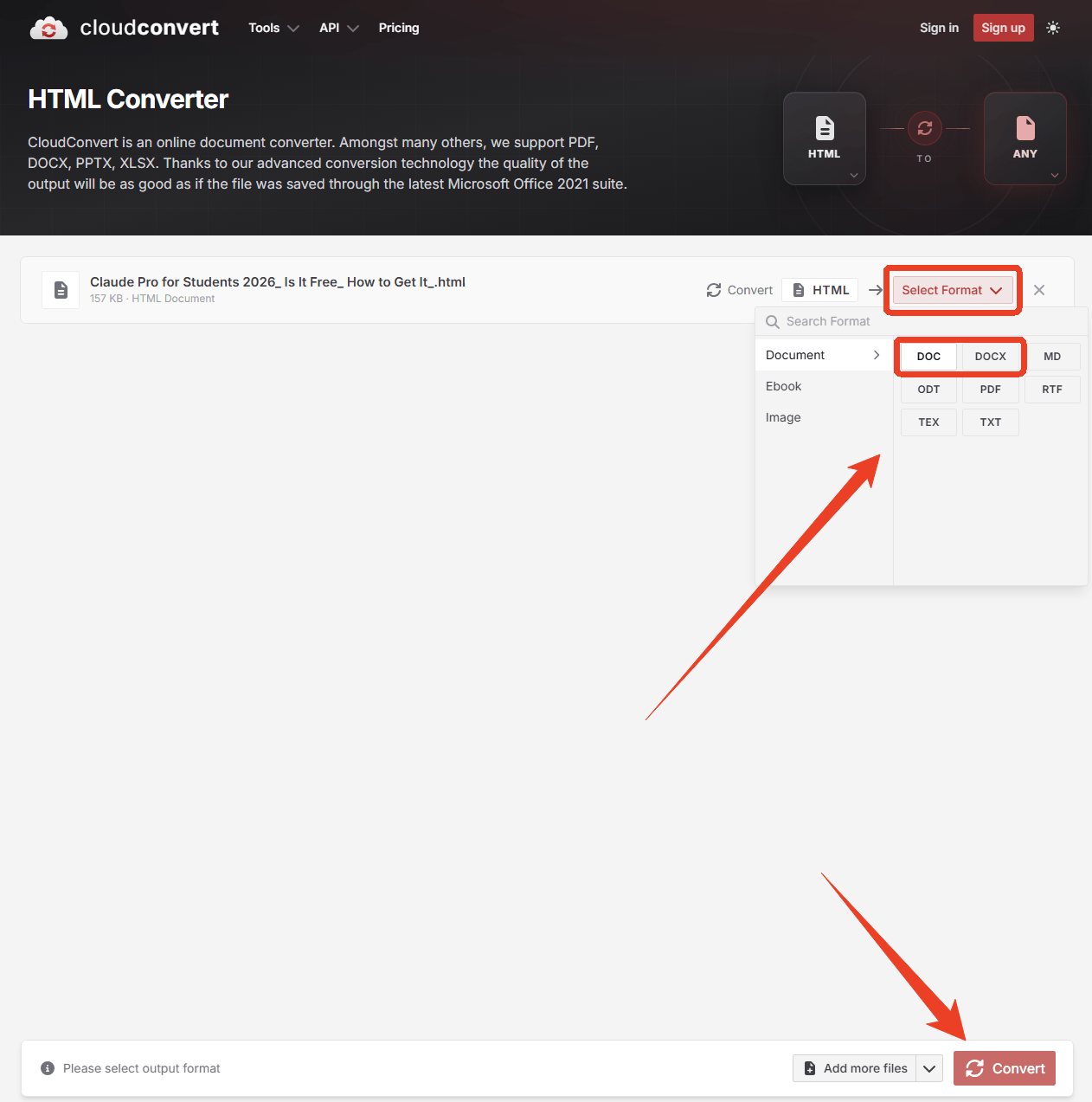
Step 3: Click Convert to finish this online conversion.
Method 4: Convert Chrome HTML to Word via Print-to-PDF
Chrome doesn't have a direct "Save as Word" button, but you can convert Chrome HTML to Word via Print to PDF. However, this method requires the help from other tools we introduced above, like SwifDoo PDF or WORD.
Step 1: Open the webpage in Chrome and press Ctrl + P.
Step 2: Set the Destination as Save as PDF and adjust other settings.
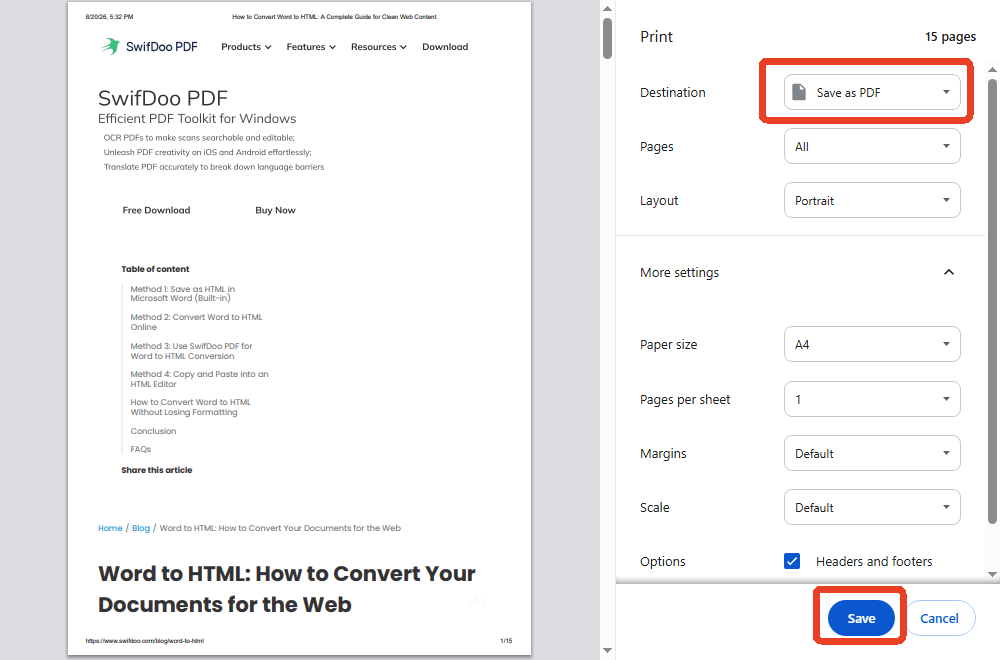
Step 3: Click Save to download the HTML to PDF file.
Step 4: Open SwifDoo PDF and go to the PDF to Word converter.
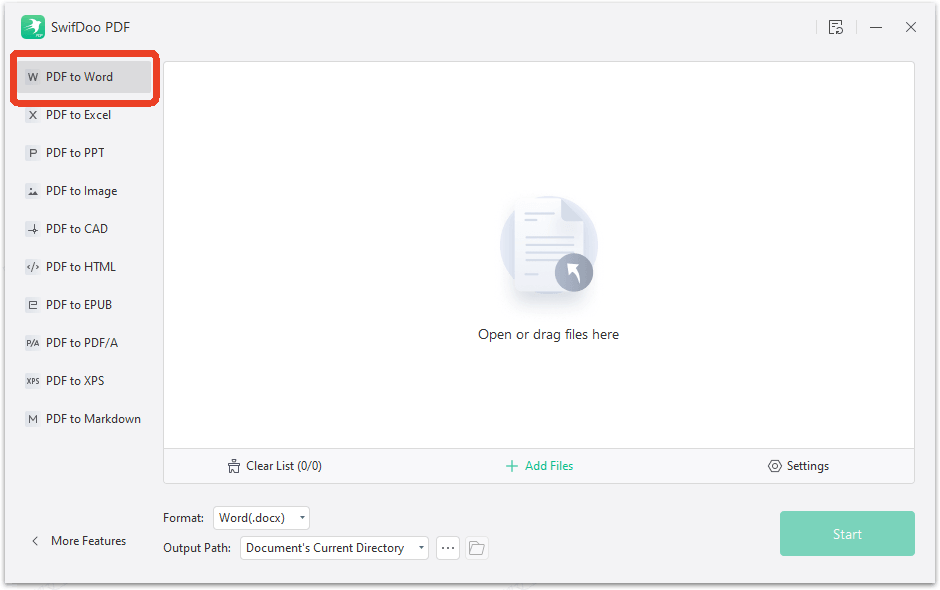
Step 5: Upload the PDF file converted from Chrome HTML and click Start. Now, you can get the HTML to .docx file.
![How to Save an HTML as a PDF [4 Proven Ways]](https://img.swifdoo.com/image/save-html-as-pdf.png)
How to Save an HTML as a PDF [4 Proven Ways]
Saving HTML as PDF is good for offline reading. This post explains four ways to change HTML to PDF readily.
READ MORE >Method 5: Convert HTML to Word on Mac via Pages
Mac users have several built-in and free options for HTML to Word conversion. Pages, TextEdit, and LibreOffice all handle the task without purchasing additional software. Among them, Pages is Apple's free Word processor with excellent HTML import capability.
Step 1: Open your HTML file in a browser and select all content to copy.
Step 2: Open Pages and create a new document where you need to paste the content.
Step 3: Click File > Export To > Word to save the .docx file.
Tips: How to Convert HTML to Word Without Losing Formatting
Preserving formatting is the hardest part of any HTML to Word conversion. These tips help you get cleaner results no matter which method you choose.
-
Clean up your HTML before converting.
-
Choose "Keep Source Formatting" when pasting.
-
Check tables and images separately.
-
Use Word's style tools to restore consistency.
-
Test with a small section first.
Conclusion
Choosing how to convert HTML to Word depends on what matters most to you. If speed and simplicity are key, an HTML to Word converter online free tool gets the job done in seconds. If you need offline access and already have Word, the built-in convert HTML to Word document option works for simple files.
But if you want to convert HTML to Word without losing formatting, SwifDoo PDF is the method we recommend. It gives you clean, accurate results without the headache of broken layouts or missing images.
Try the free version of SwifDoo PDF and compare the output with other methods. You’ll see the difference.


