


Why Compress PDF to 1000KB?
The requirement to compress PDF to 1000KB is more common than you might think:
|
Reason |
Explanation |
|---|---|
|
Email attachment limits |
Many email providers cap attachments at 1-2MB |
|
Job applications |
Resume submission portals often restrict to 1MB |
|
Academic submissions |
Universities and journals frequently impose file size limits |
|
Faster uploads |
Smaller files transfer more quickly on slow connections |
|
Storage optimization |
Reducing file size saves space on cloud storage |
For a document with images, achieving compress PDF to 1000KB is challenging because images take up most of the file size. However, with the right tools and techniques, it is achievable.
Related Articles:
Compress PDF to 1000KB with SwifDoo PDF
SwifDoo PDF is a Windows desktop PDF editor that gives you the most precise control over PDF compression. Unlike online tools that offer one or two generic compression levels, SwifDoo PDF lets you choose the exact balance between file size and visual quality. For anyone who needs to reliably compress PDF to 1000KB free, this is the tool that gets the job done without guesswork.
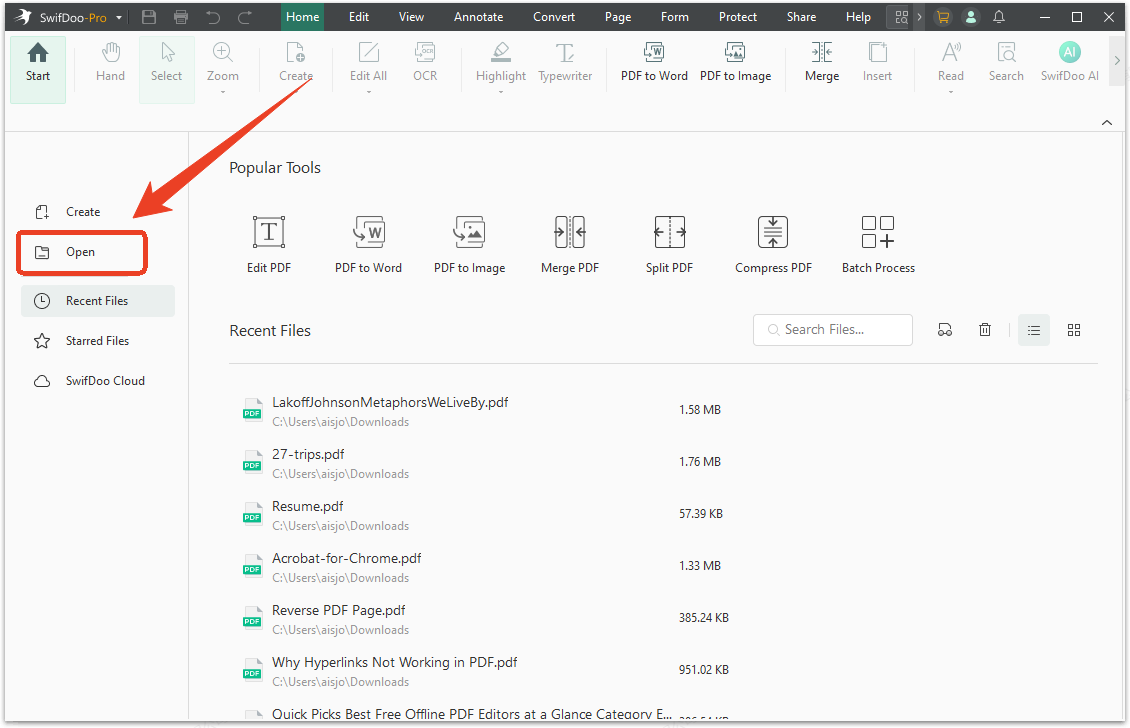
Step 1: Launch SwifDoo PDF on your Windows PC and click Open to choose your PDF file.
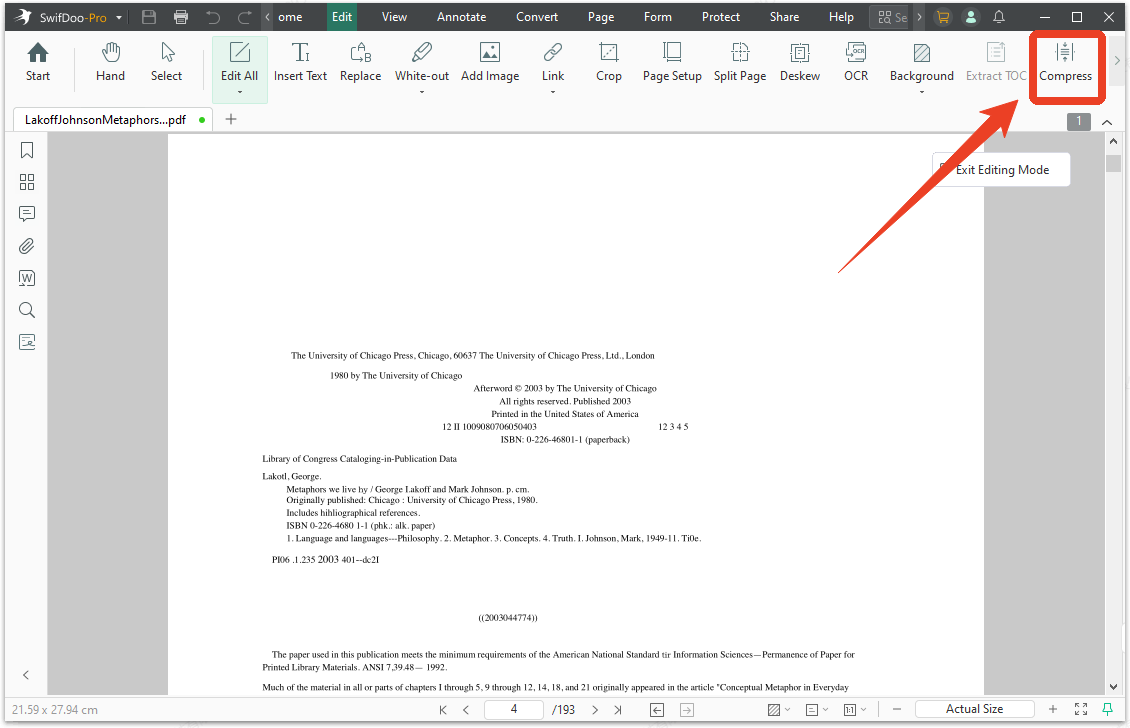
Step 2: In the Edit tab, choose Compress in the top toolbar.
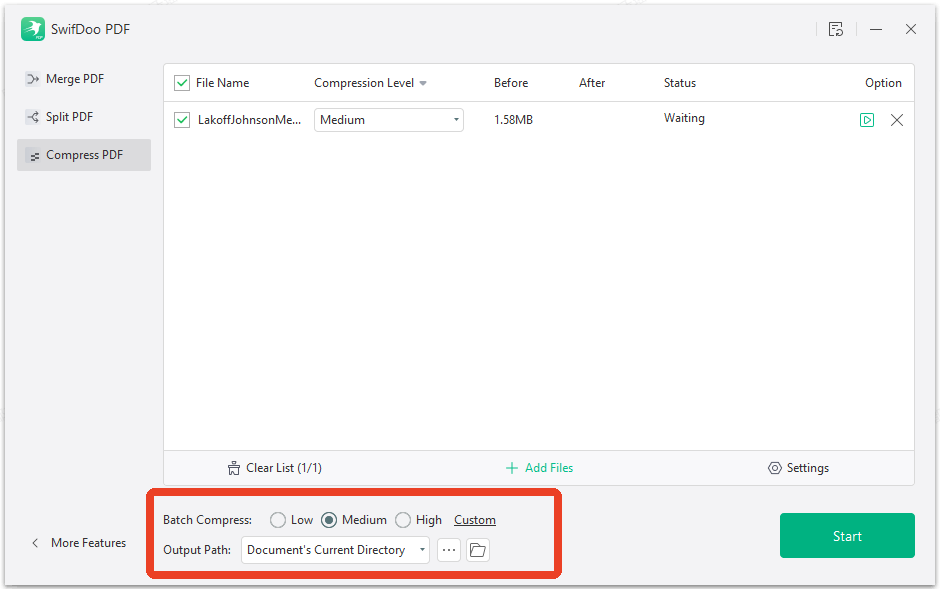
Step 3: Choose your compression level. SwifDoo PDF offers three tiers.
-
"High Quality" preserves near-perfect visuals while moderately reducing size, best for image-rich documents.
-
"Medium" balances quality and compression, ideal for most business documents.
If there is no compression level that can reduce the file size to 1000KB, just try the Custom setting. Here, you can set the right resolution and quality you want and click OK.
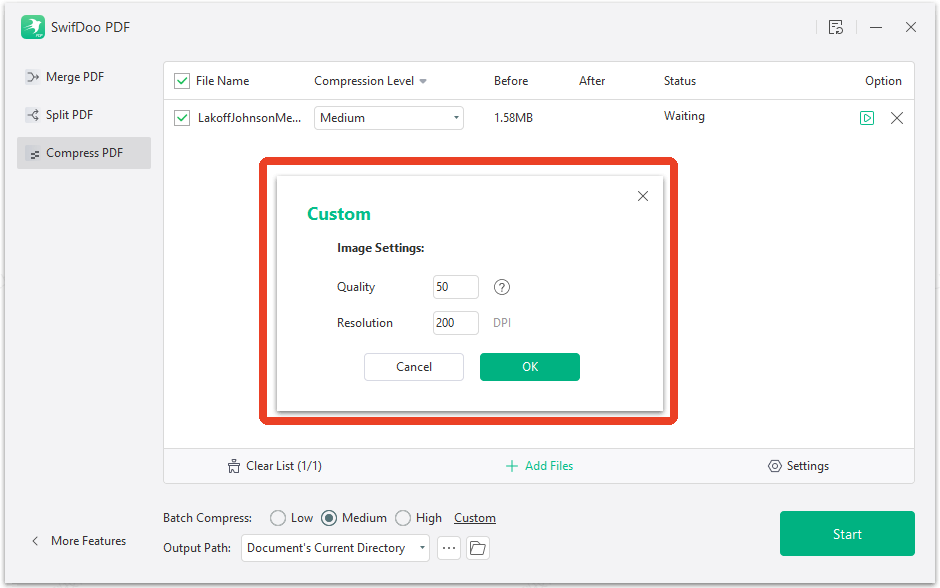
"High Compression" aggressively reduces file size. It's the right choice when you need to compress PDF to 1000KB from a much larger original. This is also the best PDF compressor to 1000kb option for files that need maximum size reduction.
Step 4: Click Start and let the software process your file.
Check the new file size. If it's still slightly above 1000KB, undo the compression and try the next higher compression level. SwifDoo PDF lets you experiment until you hit the exact target size.
Compress PDF to 1000KB Using Preview on Mac
Mac users can use the built-in Preview app for basic PDF compression. It's free, requires no installation, and helps you simply compress PDF to 1000KB free.
Step 1: Open your PDF in Preview and click File > Export in the menu bar.
Step 2: In the export dialog, click the Quartz Filter dropdown and select Reduce File Size.
Step 3: Choose a save location and click Save.
Check the new file size. If it's still above 1000KB, Preview has no further compression options. In this way, you'll need a tool like SwifDoo PDF for more aggressive compression. For users who specifically need to reduce PDF to 1000KB, Preview alone is rarely sufficient.
Compress PDF to 1000KB Using Adobe Acrobat
Adobe Acrobat Pro DC includes a PDF Optimizer with granular compression controls. If you already have an Adobe subscription, this built-in tool reduces PDF size to 1000kb tasks with professional precision.
Step 1: Open your PDF in Adobe Acrobat Pro DC.
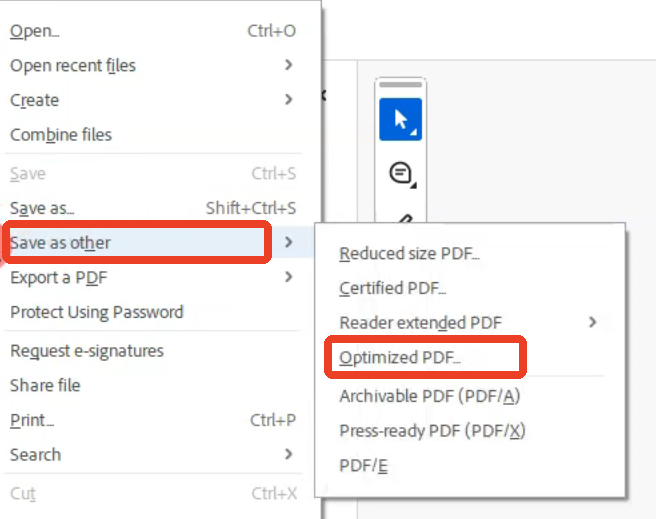
Step 2: Go to File > Save As Other > Optimized PDF. The PDF Optimizer window opens with detailed settings.
Step 3: Click Audit space usage to see exactly what's consuming your file size.
Step 4: Adjust compression settings.
-
Downsample color images to 150 dpi or lower.
-
Enable font subsetting to embed only the characters actually used in your document.
Step 5: Save the optimized file and verify it falls under the 1000KB limit.
The PDF Optimizer offers the most detailed control of any method, but it's locked behind Adobe's subscription paywall. For users without an existing Acrobat Pro license, SwifDoo PDF provides comparable control at a one-time purchase price.
Compress PDF to 1000KB Online
Online PDF compressors offer the quickest path to compress PDF to 1000KB online when you don't want to install software. They work entirely in your browser and handle basic compression tasks well.
Tool 1: HiPDF
HiPDF is a free online PDF compressor from Wondershare that can compress PDF to 1000KB without registration. It is ideal for one-off, quick compressions and works entirely in a browser.
Step 1: Go to the HiPDF Compress PDF page.
Step 2: Upload your PDF file by dragging it in or selecting it from your device or cloud storage.
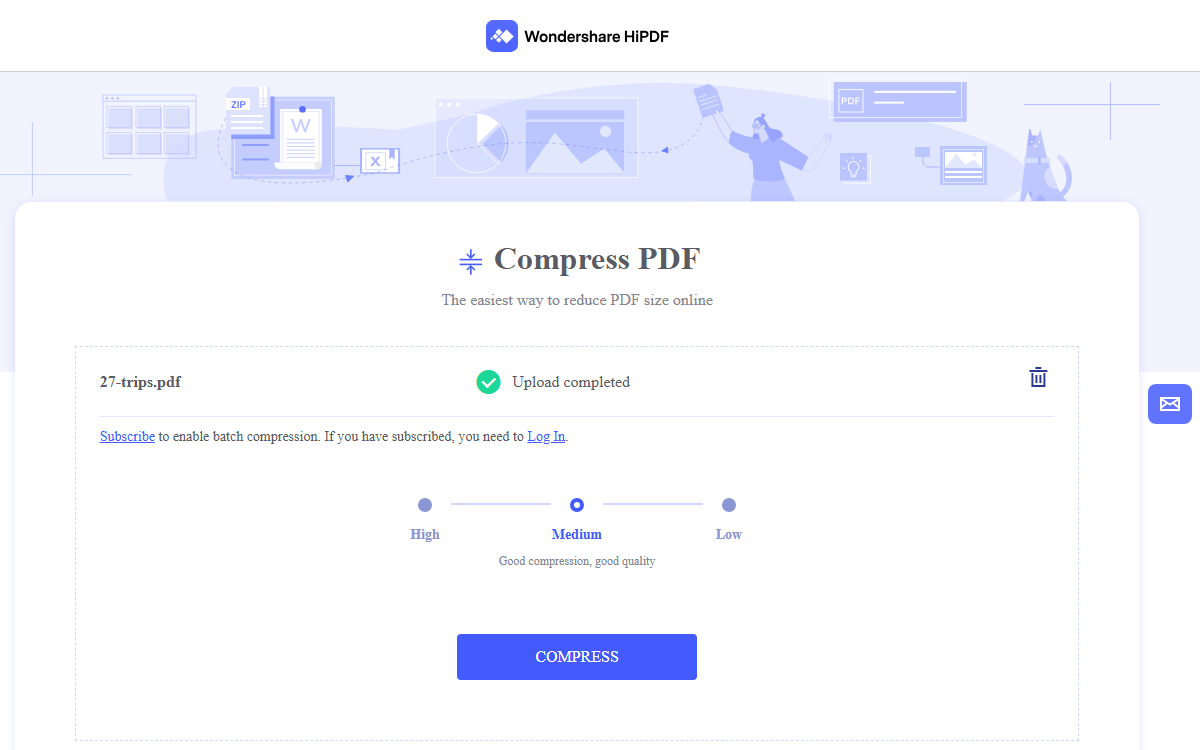
Step 3: Choose a compression level: Low, Medium, or High.
Step 4: Click COMPRESS and download the compressed file.
Tool 2: SmallPDF
SmallPDF is a popular online suite of PDF tools with a straightforward PDF compressor. It supports uploading large files (up to 5GB) and is known for fast processing.
Step 1: Go to the SmallPDF Compress PDF page.
Step 2: Upload your file and choose the Basic Compression level (the free compression plan option).
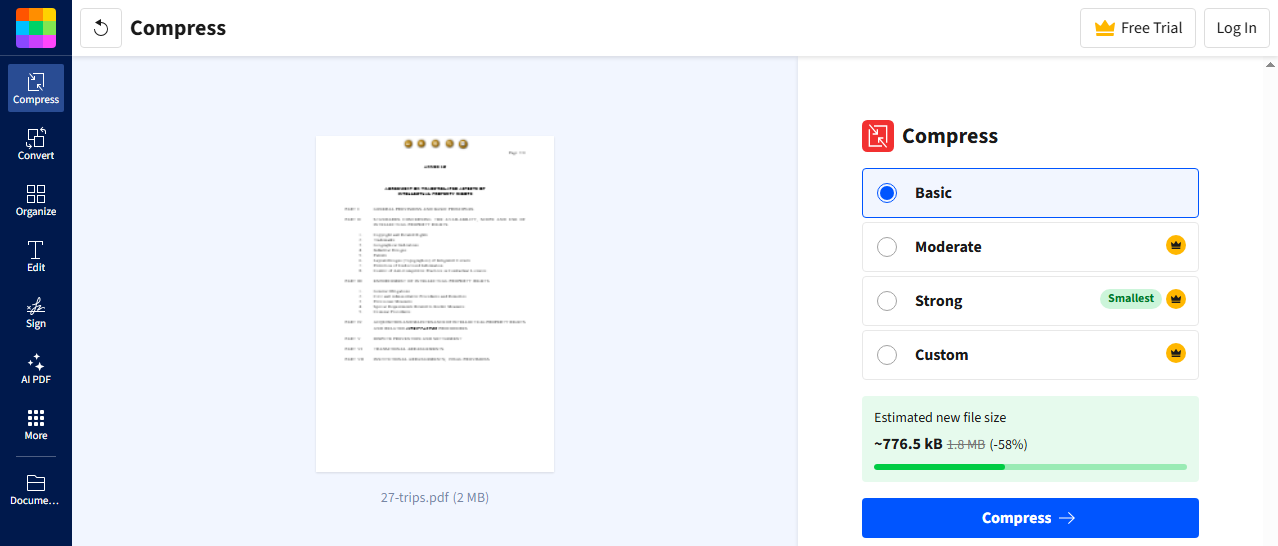
Step 3: Click Compress and download your file.
Tool 3: Sejda
Sejda offers a unique free compression tool that gives you more granular control over compression settings, such as image resolution and quality.
Step 1: Visit the Sejda Compress PDF page.
Step 2: Upload your file and click More Options to adjust image resolution, quality, and color settings.
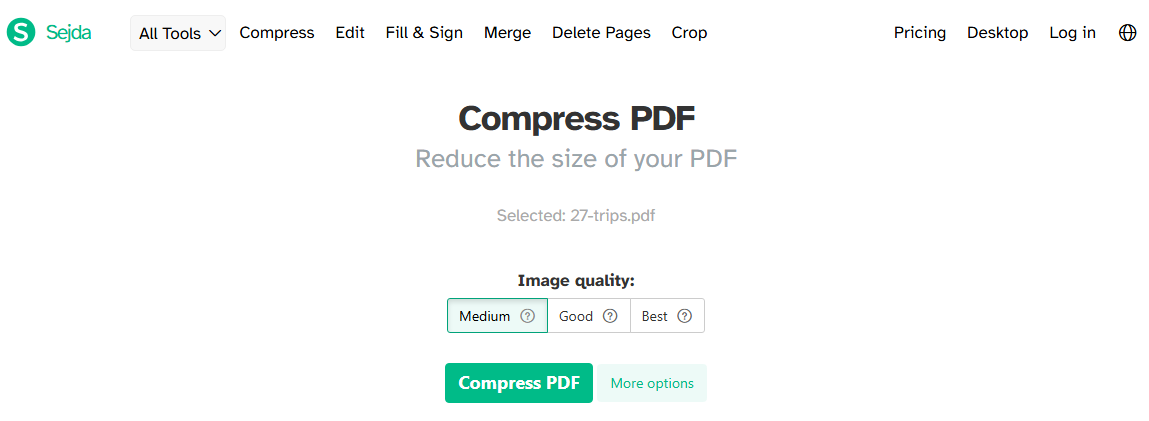
Step 3: Click Compress PDF and download the compressed file.
Tips to Compress PDF to 1000KB Without Losing Quality
How to compress PDF to 1000KB without losing quality? Follow these six tips to hit your size target while keeping your document sharp and professional.
-
Target images first. They're the biggest space consumers. A single 300-dpi photograph can account for several megabytes in your PDF. Downsampling images from 300 dpi to 150 dpi cuts image size by roughly 75% with no visible difference on screen.
-
Use the right compression level for your document type. A text-heavy report compresses differently than a photo-filled brochure. Choose High Compression when you need aggressive size reduction to reach the 1000KB threshold. Choosing the wrong level either wastes quality or misses the size target.
-
Remove hidden data and metadata. PDFs accumulate invisible bloat, such as editing history, deleted content remnants, embedded thumbnails, and redundant metadata. When you need to compress PDF under 1mb, cleaning hidden data can push you past the finish line without touching your visible content.
-
Protect text - it's already lightweight. Aggressive text compression can make fonts look jagged. Text stays sharp while images bear the compression load, exactly when you need to compress PDF without losing quality.
-
Convert images to efficient formats. JPEG 2000 and JBIG2 compress significantly better than standard JPEG for certain image types. This automatic format optimization is why a dedicated best PDF compressor produces better results than generic file compression tools.
Conclusion
How to compress PDF to 1000KB? This article includes six methods that cover different use cases. For most professional users, SwifDoo PDF offers the best balance of control, quality, and privacy. The three compression levels let you dial in exactly the file size you need. The next time you need to compress PDF to 1000KB, you'll spend less time troubleshooting and more time getting things done.


