


Fortunately, it is easy to translate websites or other documents using modern browsers, AI tools, and translation services. In most cases, we can translate an entire website with a few clicks. In the following content, let’s explore effective ways and step-by-step guidance for translating websites.
Quick Answer: How to Translate a Website
First, I’d like to list the available methods for translating websites. You can have a look:
- Use the browser’s built-in translation feature. Most browsers, such as Chrome, Edge, and Safari, offer a built-in translation feature.
- Google Translate allows you to translate a website by pasting the website URL.
- Use AI translation tools, such as DeepL or ChatGPT.
- Install a browser extension translation extension.
- Translate your own website with website translation plugins.
Now, let’s explore the methods and step-by-step guidance one by one!
Method 1: Translate a Website Using the Browser’s Built-in Translation Feature
Most modern web browsers, such as Google Chrome, Microsoft Edge, and Safari, include a built-in translation feature. You can use it to translate a website quickly without copying URLs or installing additional software. In this section, I’ll introduce you to how to translate a web page in Chrome, Edge, and Safari.
#Translate a Website in Chrome
Google Chrome is one of the most popular search engines. It uses Google Translate technology to translate websites automatically. How to translate a website in Chrome with its built-in translation features? Here’s a guide:
- Open your Chrome browser and visit the webpage in a foreign language.
- Then Chrome will pop up a translation dialog.
- Click English. Chrome will reload the webpage in your needed language. Alternatively, click the three-dot icon and select “Choose another language” to choose your needed language.

If the translation prompt doesn’t appear, you can right-click anywhere on the webpage and select the “Translate to English” option. Then, Chrome will translate the page immediately.
#Translate a Website in Microsoft Edge
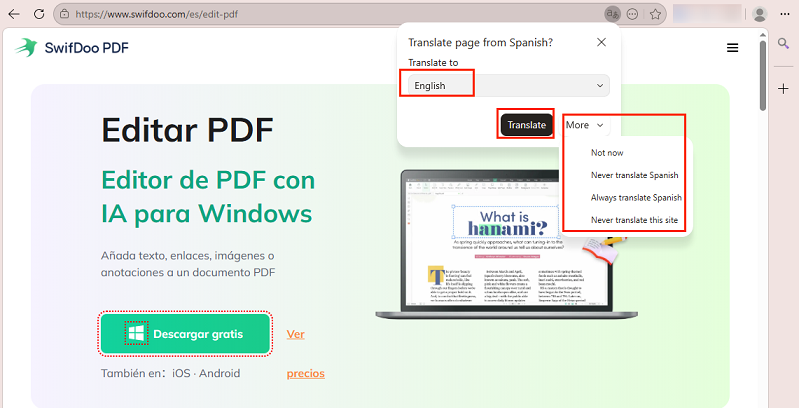
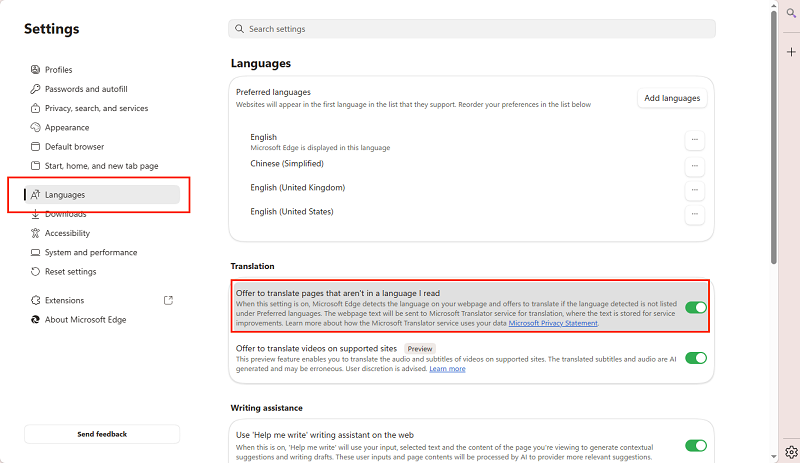
Microsoft Edge also offers the built-in website translation feature. How to translate a webpage in Edge? Follow the steps below:
- Open the website in a foreign language on your Edge browser.
- A translate prompt will pop up.
- Select the language you need and click the Translate button. If you frequently work on this foreign language website, open the More list and click the “Always translate XXX” option.
# Translate a Website in Safari
Whether you are on a Mac, iPhone, or iPad, you can translate a website in Safari using its built-in translation feature. Let’s learn the exact steps:
- Open your Safari browser and visit the target webpage in a foreign language.
- Click the Translate icon in the address bar if you are using a Mac. If you are using an iPhone or iPad, tap the aA icon in the address bar.
- Next, select the needed language.
Method 2: Translate a Website Using Google Translate
Google Translate is one of the most popular and widely used translators, supporting translation of text, images, documents, and websites. It supports 108 languages for text translation. When your browser doesn’t support certain language translation or website translation isn’t working correctly, consider Google Translate. Below is how to translate an entire website using Google Translate:
- Visit Google Translate on your PC. Also, you can install the Google Translate app on your phone.
- Click the Websites option.
- Copy the target webpage URL and paste the URL into Google Translate.
- Next, select the language you need. Then, click the Translate icon (the right arrow).

Then, the newly translated webpage will open in a new tab. Also, you can use an alternative to Google Translate.
Method 3: Translate a Website Using AI Translation Tools
In the past two years, AI-powered translation tools have become increasingly popular and widely used because they offer better context and more natural translation than traditional machine translation tools. The powerful AO translation tools you can choose include: ChatGPT, DeepL, Gemini, and Copilot. They are especially useful for business websites, legal content, technical documentation, and similar contexts.
Unlike the two methods above, this method can’t translate the entire webpage. You can only translate the content by copying and pasting. However, AI translations can outperform Google Translate when the content contains industry-specific terminology, idioms, and expressions.
Method 4: How to Translate a Website with Browser Extensions
If you frequently visit multilingual websites, browser extensions can provide more control than built-in browser translation tools. Below are some translation extension options for you to choose from:
- Google Translate extension
- DeepL browser extension
- Mate Translate
- Immersive Translate
- OpenL Translate
Method 5: How to Translate Your Own Website
This section is for website owners or developers. If you need to make your website easy for visitors to view in multiple languages, you’re in the right place. Compared to websites that support only a single language, a multilingual website can attract more international traffic, gain global visibility, and achieve higher search rankings across multiple countries.
To translate your own website, you can use website translation plugins. If your website uses WordPress, you can try the following translation plugins:
- WPML: It is suitable for large websites, businesses, or e-commerce stores
- TranslatePress: This one is best for beginners and visual translation workflows
- Polylang: It is best for lightweight multilingual websites
- Weglot: It is suitable for fast deployment and automatic translation
A Quick Comparison: Best Website Translation Tools in 2026
How to translate a website? You can use browsers’ built-in translation features, Google Translate, browser extensions, or AI-powered tools. Which website translator is the best? Here’s a quick comparison table:
|
Tool |
Best For |
Free Version |
Translation Quality |
|
Chrome Translate |
Everyday browsing |
Yes |
Good |
|
Edge Translator |
Windows users |
Yes |
Good |
|
Safari Translate |
Apple users |
Yes |
Good |
|
Google Translate |
Entire websites |
Yes |
Good |
|
DeepL |
High-quality translation |
Yes |
Excellent |
|
ChatGPT |
Context-aware translation |
Limited |
Excellent |
|
Browser Extension |
Frequent translation |
Usually |
Good to Excellent |
To Wrap Things Up
How to translate a webpage? The easiest and fastest way is to use the browser’s built-in translation feature. Google Chrome, Microsoft Edge, and Safari offer built-in features to translate the entire website with a single click. In addition, you can use Google Translate for website translation. If you need more accurate translations, consider AI-powered tools like ChatGPT and DeepL. If you frequently translate on a website, install a translation browser extension.



