Whether you need to edit a scanned contract, extract information from a bank statement, or convert a paper record into a digital file, an OCR PDF editor can make the process much easier. In the following content, you’ll learn 6 trusted PDF editors that can help you make the right choice to edit a scanned PDF with ease. Now, let’s dive in.
6 Best PDF Editors with OCR
OCR can analyze characters in scanned pages or images and convert them into machine-readable text. A reliable PDF editor with OCR enables you to edit scanned PDFs effectively. When choosing a qualified OCR PDF editor, I take OCR accuracy, supported languages, searchable or editable output, and price and free features into consideration. Then, I picked the following 6 representatives. Let’s check them one by one.
#1. SwifDoo PDF – PDF Editor with OCR and Editing Tools
Best For: Users who want OCR together with a broad set of PDF editing features
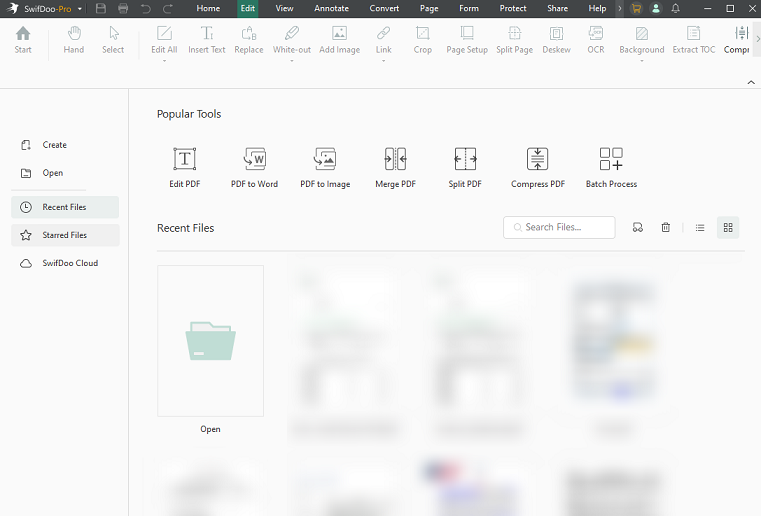
SwifDoo PDF is a lightweight PDF editor that combines PDF editing, conversion, annotation, signing, and document management. As one of the best PDF editors for Windows, SwifDoo PDF allows you to OCR PDFs to make them searchable and editable. Moreover, it supports over 20+ languages. Furthermore, it allows you to convert scanned PDFs to Word, Excel, and other formats with OCR.
After recognizing the scanned document, you can use SwifDoo PDF’s various features to refine and complete the document. For instance, it lets you fill out and sign PDF forms, flatten PDFs, add watermarks/shapes/highlights to PDFs, and make other edits. Additionally, SwifDoo PDF also supports creating PDFs from scans and applying OCR to make scanned documents searchable and editable.
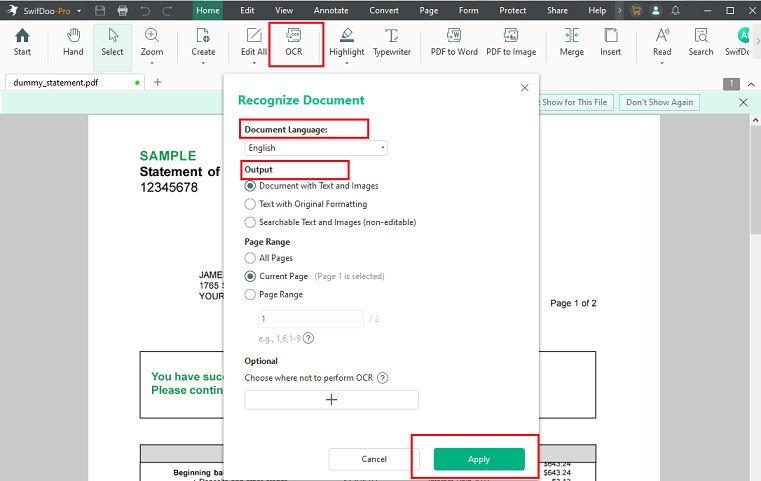
You can refer to the steps below to OCR a scanned PDF in SwifDoo PDF.
- Launch SwifDoo PDF and click Open to import the scanned PDF.
- Click OCR from the top toolbar.
- Specify the OCR settings in the Recognize Document dialog.
- Finally, click Apply to OCR the scanned document.
Pros:
- It includes tools for editing, annotating, converting, organizing, and managing PDFs.
- It lets you recognize scanned text and continue editing the PDF in the same application.
- It can handle OCR alongside common document conversion and editing tasks.
- It is available on multiple platforms.
Cons:
- Its OCR and advanced features require a subscription.
- The OCR feature is only available on its Windows version.
#2. JOPDF – Best Free PDF Editor with OCR
Best For: Users looking for a free desktop PDF editor with OCR
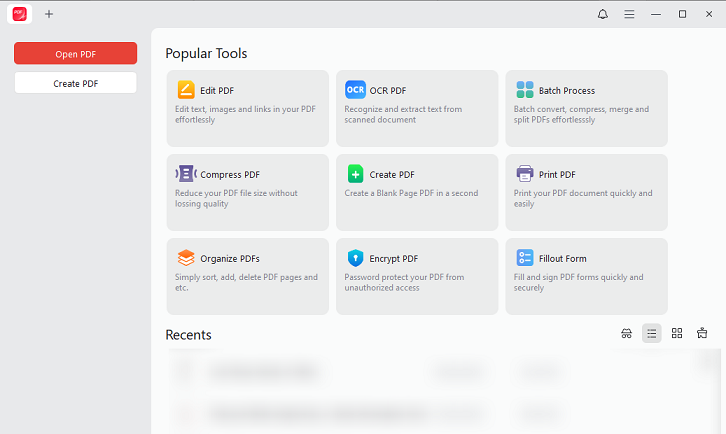
JOPDF is a 100% free PDF editor that combines PDF editing, conversion, annotation, page management, and OCR. Recently, it introduced full OCR support, including Local OCR and Online OCR. Like SwifDoo PDF, it supports over 20 languages. With its OCR, you can make a PDF searchable or editable as needed. Additionally, JOPDF enables you to fill out PDF forms and reduce file size without losing quality.
Here’s how to recognize text in a PDF for free using JOPDF.
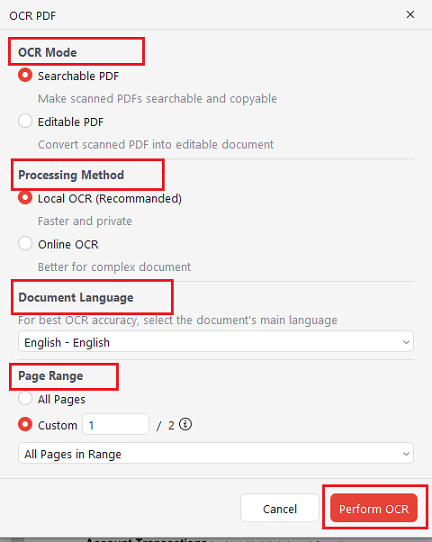
- Run JOPDF and select OCR PDF under Popular Tools.
- After the scanned PDF is imported, choose Searchable PDF or Editable PDF.
- Select Local OCR or Online OCR as needed. Meanwhile, adjust other OCR settings as needed.
- Finally, click Perform OCR.
Pros:
- It provides PDF editing and OCR without requiring a paid subscription.
- Its Local OCR can process PDFs directly on your computer.
- It supports a range of languages for recognizing scanned documents.
- It offers full PDF editing tools to edit, annotate, and organize PDFs.
Cons:
- Its OCR feature is only available on the Windows version.
- You need to download the OCR plugin before recognizing scanned PDFs.
#3. Adobe Acrobat – Advanced PDF Editor with OCR
Best For: Users who need an established PDF workflow with advanced features
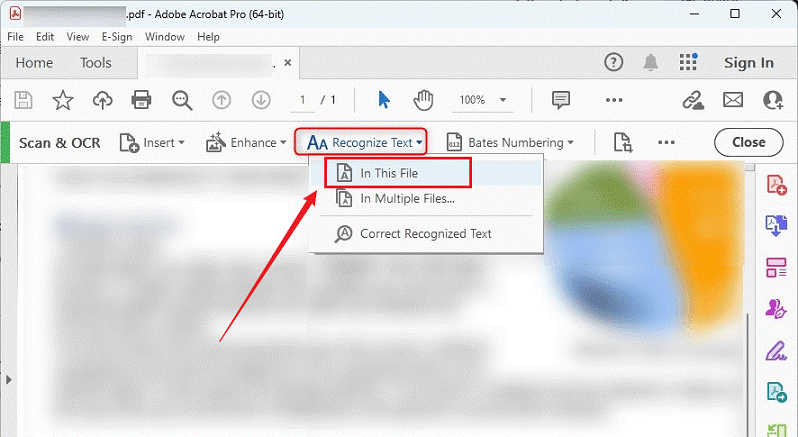
Adobe Acrobat is the industry-leading PDF editor and includes built-in OCR for scanned documents. Its Scan & OCR feature can recognize text and create a searchable text layer. What’s more, Adobe Acrobat also supports OCR for multiple files, making it useful when you have a collection of scanned documents rather than just one PDF.
Below is how to OCR a PDF in Adobe Acrobat:
- Launch Adobe Acrobat and open your scanned PDF.
- Go to All tools and select Scan & OCR. Under Recognize Text, select In this file to choose the page range.
- Then, customize other OCR settings. At last, click Recognize Text.
If Adobe is not recognizing text, try updating Adobe Acrobat, checking the OCR settings, and other available solutions. In addition, you can try an Adobe Acrobat alternative, such as SwifDoo PDF or JOPDF.
Pro:
- It combines OCR with extensive PDF editing, conversion, and other tools.
- It enables you to batch OCR PDFs.
- You can continue editing and managing the PDF after OCR.
Cons:
- Most of Acrobat’s advanced PDF capabilities require a paid plan.
- Its subscription cost is higher than other PDF editors.
#4. ABBYY FineReader PDF
Best For: Users who place particular emphasis on OCR and document recognition
ABBYY FineReader PDF has a strong focus on OCR and document conversion. Its recognition engine can analyze document structure and identify areas such as text, tables, images, and other elements. In that case, we can call it a good PDF editor with OCR that can maintain the original structure. Hence, ABBYY FineReader PDF is a good tool to OCR bank statements, reports, and other business documents.
Here’s how OCR works in ABBYY FineReader PDF:
- Run ABBYY FineReader PDF and go to Open > OCR Editor on the New Task screen to open the OCR Editor.
- Then click File and select Open PDF File or Image to open your target scanned PDF file.
- Next, go to Tools > Options, select Languages to set the OCR language, and switch to other tabs to adjust preprocessing.
- Now, click the Recognize button to start OCR. Once you are satisfied, click Save to export the resulting PDF file.
Pro:
- It is designed specifically for PDF recognition and conversion.
- It provides a good document structure recognition capability
- Its OCR Editor lets you review and correct recognized content.
- It offers tools for working with structured business documents and scanned files.
Cons:
- The Full OCR and PDF functionality requires a paid license.
- It requires a learning curve.
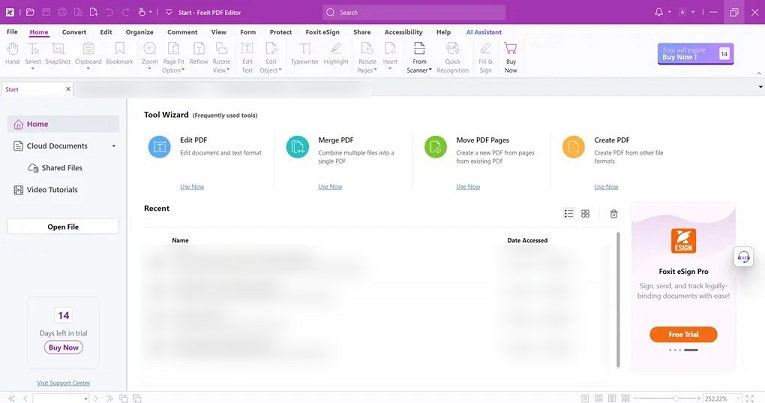
#5. Foxit PDF Editor
Best For: Users who want OCR alongside a full PDF editing workflow
Foxit PDF Editor is an excellent OCR PDF editor. It can detect scanned or image-based PDFs and provide OCR options. In addition, it allows you to choose between searchable text and editable text output. It also lets you select the recognition language and page range. Below are the steps to recognize text in Foxit PDF Editor:
- Open the target scanned PDF in Foxit PDF Editor.
- Select Convert, click Recognize Text, and choose Current File to specify the page range.
- Choose the document language, select the desired output type, and start OCR.
Pros:
- It enables you to recognize scanned text as well as edit the resulting PDF.
- It offers both searchable and editable OCR options.
- It provides broad PDF management features.
Cons:
- You need to pay to unlock its full PDF editing and OCR functionality.
#6. Nitro PDF Pro
Best For: Users who want OCR with traditional PDF editing and document workflows
Nitro PDF Pro provides OCR for scanned PDFs and enables you to select between searchable and searchable-and-editable output. In addition, it lets you create, edit, convert, combine, annotate, and sign PDFs. Working as an AI-powered tool, Nitro PDF Pro also enables you to chat with PDFs and translate PDF files.
Below is how to OCR a PDF in Nitro PDF Pro:
- Open your target scanned PDF in Nitro PDF Pro.
- Go to the Review tab, select OCR, and choose Searchable or Searchable and Editable.
- Optionally, click Options to set a page range or Advanced to adjust other OCR settings.
- Lastly, click OK to process the scanned PDF.
Pro:
- Its dedicated OCR feature makes it straightforward to recognize scanned PDFs.
- It allows you to edit and annotate the PDF after completing OCR.
- It can apply OCR to specific pages.
Cons:
- It is a paid PDF editor.
PDF Editors with OCR Compared
After introducing the 6 best PDF editors with OCR, I’d like to show you a quick comparison table of them.
|
PDF Editor |
OCR |
Edit Scanned PDF |
Free Option |
Best For |
|
SwifDoo PDF |
Yes |
Yes |
Trial/free features |
All-in-one PDF editing |
|
JOPDF |
Yes |
Yes |
Yes |
Free OCR PDF editing |
|
Adobe Acrobat |
Yes |
Yes |
Trial |
Advanced PDF workflows |
|
ABBYY FineReader PDF |
Yes |
Yes |
Trial/viewer options |
OCR and document conversion |
|
Foxit PDF Editor |
Yes |
Yes |
Trial |
PDF editing and OCR |
|
Nitro PDF Pro |
Yes |
Yes |
Trial |
Business PDF workflows |
How to Edit a Scanned PDF with OCR
How can you edit a scanned PDF? Any of the tools mentioned above can help you complete the task. Here, I’ll take SwifDoo PDF as an example and show you how to edit a scanned PDF.
Step 1. Launch SwifDoo PDF and click Open to import the scanned PDF you need to edit.
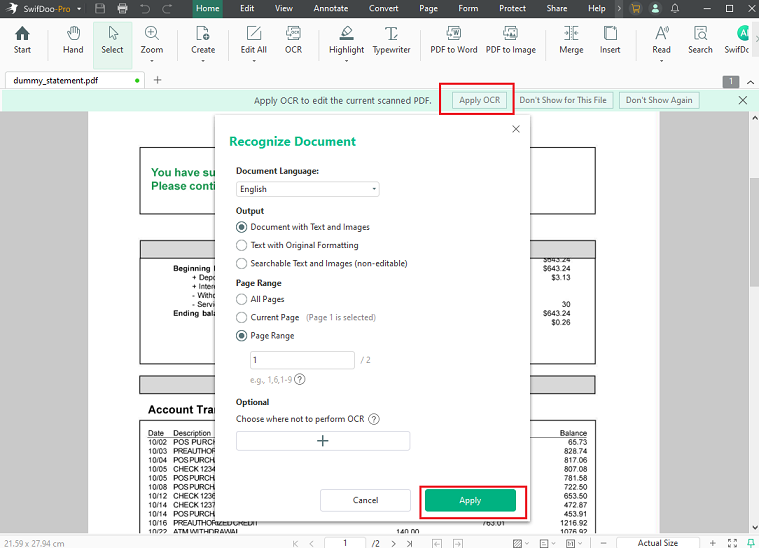
Step 2. Click Apply OCR, select the PDF’s primary language, and customize other OCR settings. Then click Apply to make the PDF editable and searchable.
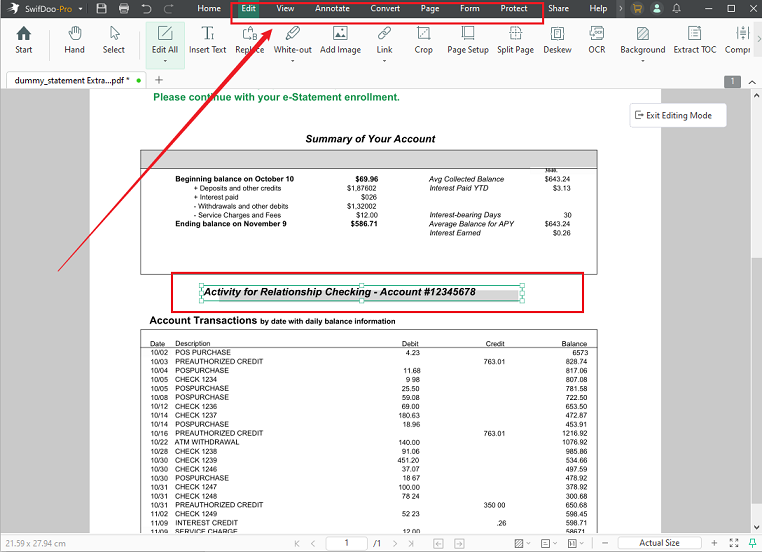
Step 3. Once the OCR process is complete, the resulting PDF will open in SwifDoo PDF. Now, you can go to the Edit, Annotate, Page, and Protect tabs to edit the PDF file as needed.
Step 4. Finally, click the Save icon to save the completed PDF file.
Conclusion
When you need to work with scanned or image-based PDFs, a PDF editor with OCR is necessary. It can recognize the characters and create a searchable or editable text layer. SwifDoo PDF is a good choice to edit scanned PDFs since it offers OCR and a set of other editing features. If you need a completely free OCR PDF editor, JOPDF is the best choice. Also, you can try the other 4 editors mentioned in this article.