Can You Write Directly on a PDF Form
Yes, you can write directly on a PDF form by either filling its existing interactive fields or adding text to the PDF with a text or annotation tool. Generally, there are two common types of PDF forms.
- Fillable PDF forms: A fillable PDF contains interactive fields designed for entering information. It can include checkboxes, text fields, radio buttons, dropdown menus, and others.
- Non-fillable PDF forms: A non-fillable PDF does not contain interactive fields. Instead, it may show blank lines, boxes, or spaces where you are expected to provide information.
How to Write on a PDF Form: 5 Methods
Here, I’d like to introduce you to 5 practical methods for writing and typing on a PDF form effectively.
|
Tool |
Best for |
Works with non-fillable PDFs? |
|
SwifDoo PDF |
Desktop PDF forms |
Yes |
|
Adobe Acrobat Reader |
Interactive and flat forms |
Yes |
|
Smallpdf |
Online PDF forms |
Yes |
|
Microsoft Edge |
Quick PDF form filling |
For supported PDF fields |
|
Adobe Acrobat mobile |
Filling forms on iPhone or Android |
Yes |
Method 1. Write on a PDF Form with SwifDoo PDF
SwifDoo PDF is a desktop PDF editor that can be used to write on both fillable and non-fillable PDF forms. If the PDF already contains interactive fields, you can type directly into them. If it is a flat PDF, SwifDoo PDF also lets you add text boxes to the page. Also, it lets you edit fillable PDFs with its various editing features. In this section, I’ll show you how to write on a fillable and non-fillable PDF form with SwifDoo PDF.
#How to Write on a Fillable PDF Form with SwifDoo PDF
Step 1. Download and install SwifDoo PDF, and then launch the program.
Step 2. Click Open to select and import the PDF form you want to complete. If your PDF contains fillable fields, SwifDoo PDF can identify them automatically. Then, click Highlight Fields to make the available fields easier to see.
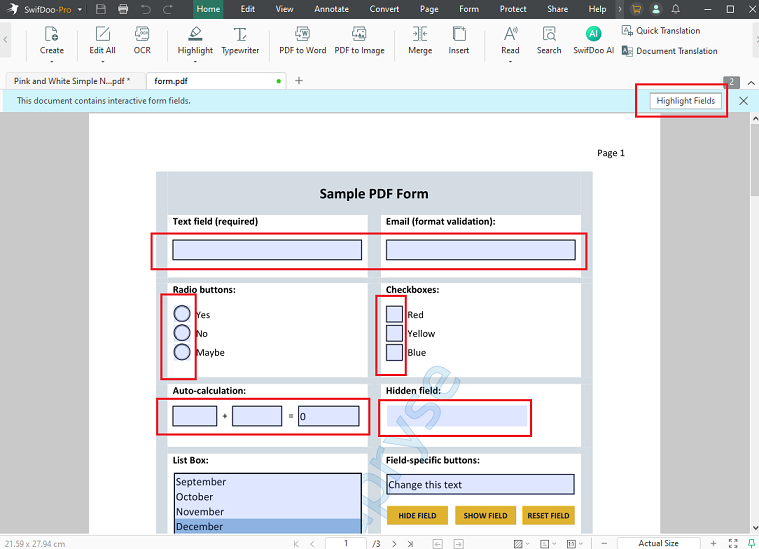
Step 3. Click inside a highlighted field and type your information into the field.
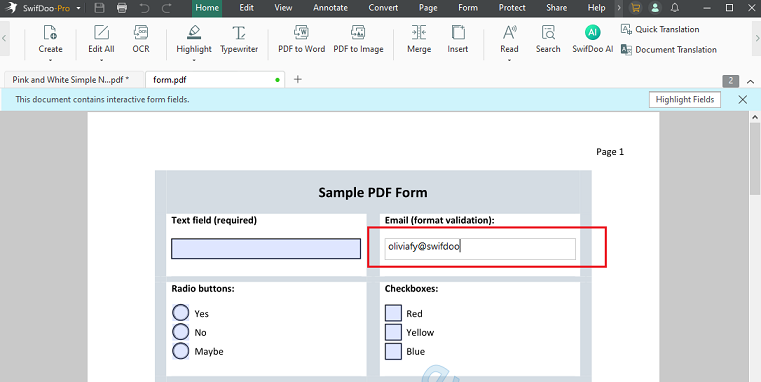
Step 4. Once finished, click the Save icon.
#How to Write on a Non-Fillable PDF with SwifDoo PDF
If you click the blank area of a PDF and nothing happens, the document may be a non-fillable or flat form. Here, let’s learn how to write on a non-fillable PDF using SwifDoo PDF.
Step 1. Open the flat PDF in SwifDoo PDF first.
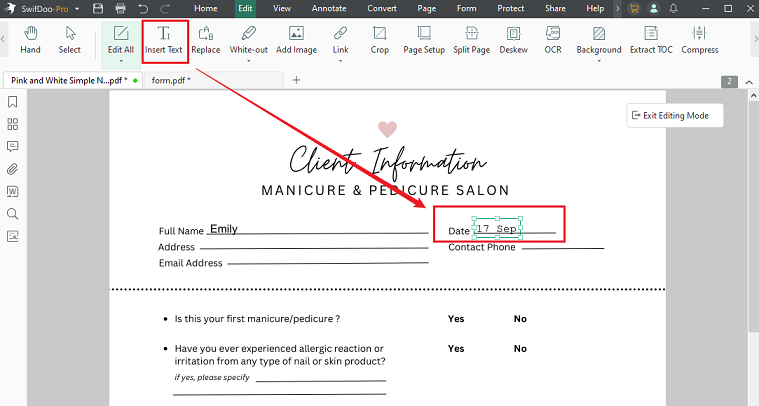
Step 2. Then, click the Typewriter option from the top toolbar. Now, directly click the blank area where you need to enter information and type your text. Additionally, you can adjust the font size, position, or other text properties as needed.
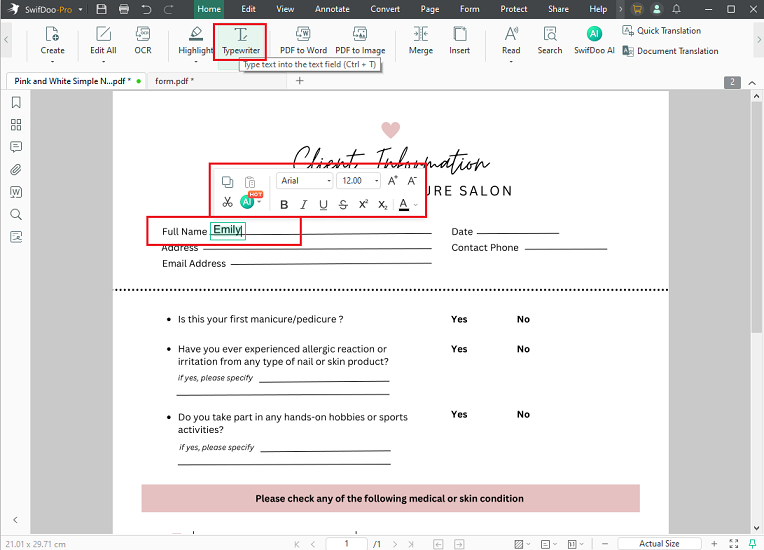
What’s more, if you need to add checkmarks to the PDF form, switch to Annotate, click Checkbox, select the needed one, and click the location where the mark should appear.
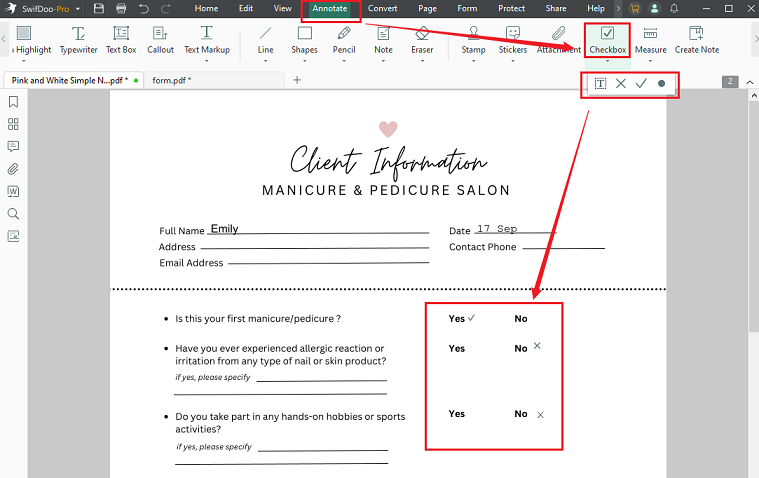
Step 3. Next, repeat the process for other fields. Finally, click the Save icon or use Save As to create a completed copy.
Method 2. Write on a PDF Form with Adobe Acrobat Reader
Adobe Acrobat Reader is the free version of Adobe Acrobat that mainly works as a PDF viewer and annotator. Surprisingly, it can fill out interactive PDF forms and write on flat forms that don’t contain interactive fields. What’s more, you can use its Fill & Sign feature to add text to non-fillable PDFs. Here, let’s learn how to write on an interactive, non-fillable PDF with Adobe Acrobat Reader.
#How to Write on an Interactive PDF Form with Adobe Acrobat Reader
Step 1. Run Adobe Acrobat Reader and open your PDF form.
Step 2. Since the PDF form is interactive, click inside the interactive text field and type your information. Meanwhile, you can complete checkboxes, radio buttons, or other available fields.
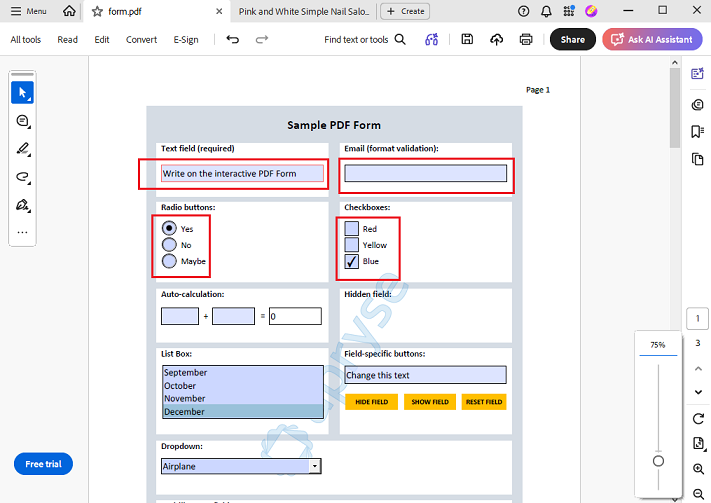
Step 3. At last, click Menu and select Save As to save the written PDF form.
#How to Write on a Non-Fillable PDF with Adobe Acrobat Reader
Step 1. Open your PDF file in Adobe Acrobat Reader.
Step 2. Go to All tools and select the Fill & Sign option.
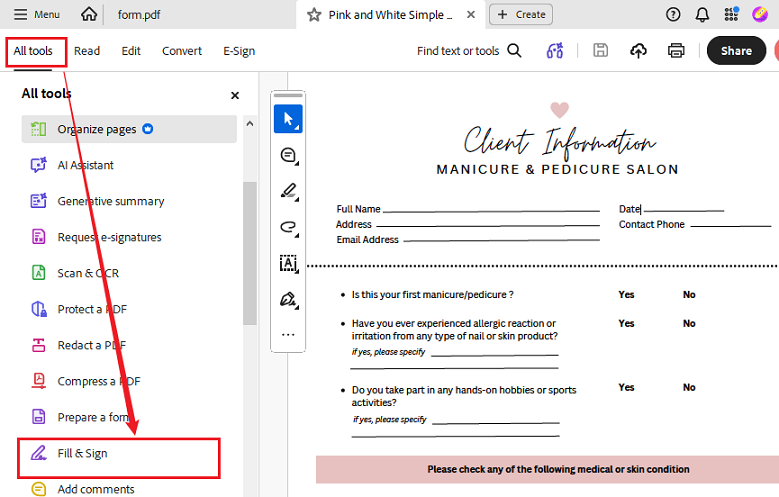
Step 3. Then, Acrobat Reader allows you to write on the PDF and add checkmarks. Now, click the area where you want to write and type your information. Repeat the operation for other blank areas.
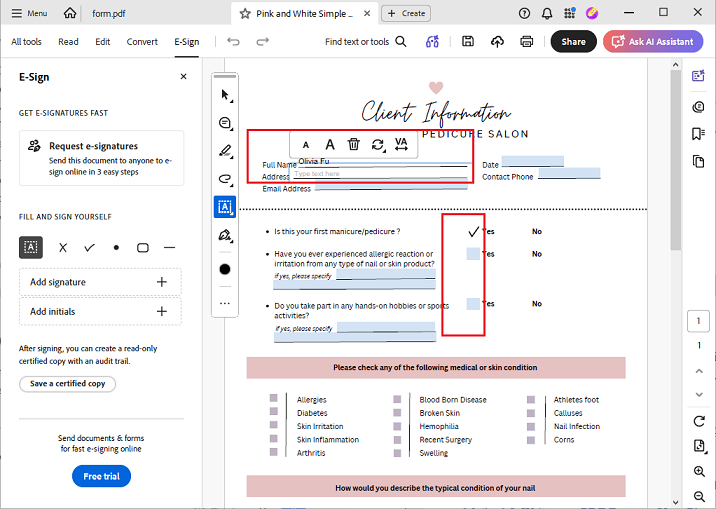
Step 4. Finally, select Save As to save the completed PDF.
Method 3. Write on a PDF Form Online with Smallpdf
If you don't want to install PDF software, Smallpdf provides an online PDF Form Filler that lets you complete PDF forms directly in your browser. Additionally, it supports both forms with existing interactive fields and non-fillable PDFs. Hence, you can type information even when the file was not designed as a fillable form. Below is how to write on a PDF form with Smallpdf.
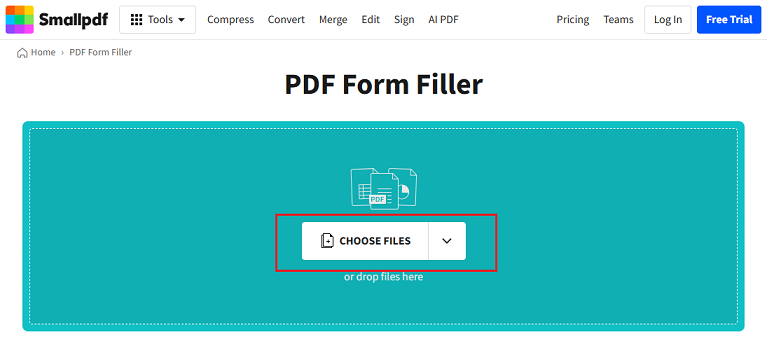
Step 1. Open your browser and visit the Smallpdf PDF Form Filler website.
Step 2. Click CHOOSE FILES or drag your PDF form into the upload area of Smallpdf.
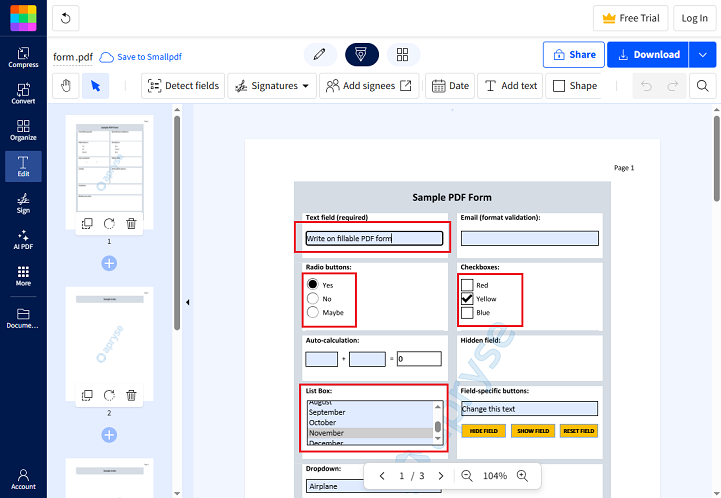
Step 3. If the PDF form contains interactive fields, directly click the existing text field and type the required information. Meanwhile, complete other fields, such as dates and checkboxes.
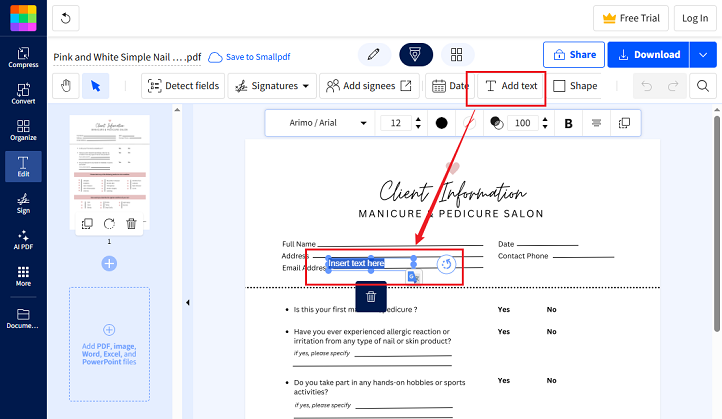
If the PDF doesn’t contain interactive form fields, you need to add text boxes to the PDF first. Click Add Text, click the blank line where you want to write, and type your information into the text box. Also, you can adjust the font size, color, and other settings.
Step 4. Once the PDF form is finished, click the Download button.
Method 4. Write on a PDF Form with Microsoft Edge
Beyond a search engine, Microsoft Edge also includes a built-in PDF reader that can open PDFs and supports working with PDF forms and adding text. This makes it convenient if you already use Edge and only need to complete a form occasionally. Here’s how to write on a PDF form in Microsoft Edge.
Step 1. Locate the target PDF form, right-click it, go to Open With, and select Microsoft Edge. Then, the PDF form will open in Edge.
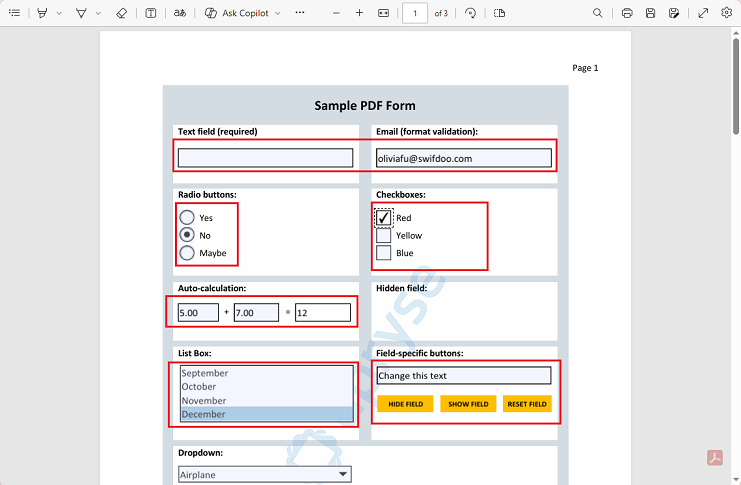
Step 2. If the PDF form contains blank fields that Edge recognizes, directly click a field and type your information. For checkboxes or radio buttons, directly click on them.
If the PDF is non-fillable, click the “Add text” tool from the top toolbar. Click the place where you need to write your information and type the required information. Then repeat the operation to fill in all blank areas you need to complete.
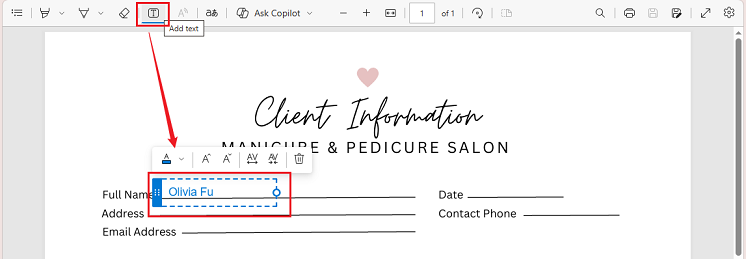
Step 3. Finally, click the Save As icon at the top right to save the completed PDF form.
Method 5. Write on a PDF Form on Your Phone with Adobe Acrobat
If you need to complete a PDF form on an iPhone or Android device, Adobe Acrobat on mobile provides dedicated tools for adding text, selecting form options, and signing documents. Here, let’s refer to the steps below to write on a PDF on iPhone or Android using the Adobe Acrobat mobile app.
Step 1. Install and open the Adobe Acrobat mobile app, and then open the PDF form you want to complete.
Step 2. Select Fill & Sign from the bottom menu and click Text box. Next, tap the location where you want to add text and type your information. Meanwhile, you can use the corresponding tools to add checkmarks, crosses, or other form marks.
Step 3. Finally, tap the checkmark on Android or Done on iOS to save it.
Tips for Writing on PDF Forms Correctly
At the end of this article, I’d like to offer you several useful tips to help you avoid mistakes when filling out a PDF form.
- Keep the original form. Save your completed version as a separate file.
- Check every field. Don’t overlook required information.
- Use an appropriate font size. Make sure your text fits inside the designated fields
- Keep text aligned. Position manually added text carefully.
- Don’t cover existing instructions. Place your answers in the intended areas.
Conclusion
It is not complicated to write on a PDF form. If the PDF contains interactive fields, you can usually click them and type directly. If it is a non-fillable PDF, use an Add Text or text-box tool to place your information manually. SwifDoo PDF is a good choice that allows you to write on both fillable and non-fillable PDF forms. Alternatively, you can try the other 4 methods mentioned in this article, depending on your needs.