


Why Edit a PDF Without Adobe
Although Adobe Acrobat is a powerful and professional PDF editor, many users prefer alternatives for several reasons as follows:
- High cost: Its free version, Adobe Acrobat Reader, only allows viewing PDFs and offers very few editing features. Adobe Acrobat Pro requires a subscription.
- Steep learning curve: Compared to other free PDF editors, Adobe Acrobat Pro requires a steep learning curve.
- Heavy installation: It requires time to install large programs.
In those cases, most users prefer to edit PDFs without Adobe Acrobat. How to edit a PDF without Adobe Acrobat? Let’s explore below.
Free Ways to Edit a PDF Without Adobe
Best For: frequent PDF editing.
At the beginning of this article, I’d like to introduce free or cost-effective alternatives to Adobe Acrobat to edit PDFs. Here are some great Adobe alternatives for you to choose from:
- SwifDoo PDF
- JOPDF
- PDF-XChange Editor
- Foxit PDF Editor
Among them, I strongly recommend SwifDoo PDF, a full-featured PDF editor. It works on Windows, Mac, Linux, Android, and iOS. Both basic and advanced editing features are available in SwifDoo PDF. You can use it to add text boxes to PDFs, sign PDFs, highlight or underline PDFs, add or remove PDF watermarks, and more. Additionally, it has the OCR technology so that you can use it to edit scanned PDFs.
How to edit a PDF without Adobe using SwifDoo PDF? Follow the steps below.
Step 1. Download and install SwifDoo PDF on your device and then launch it to get to its main interface.
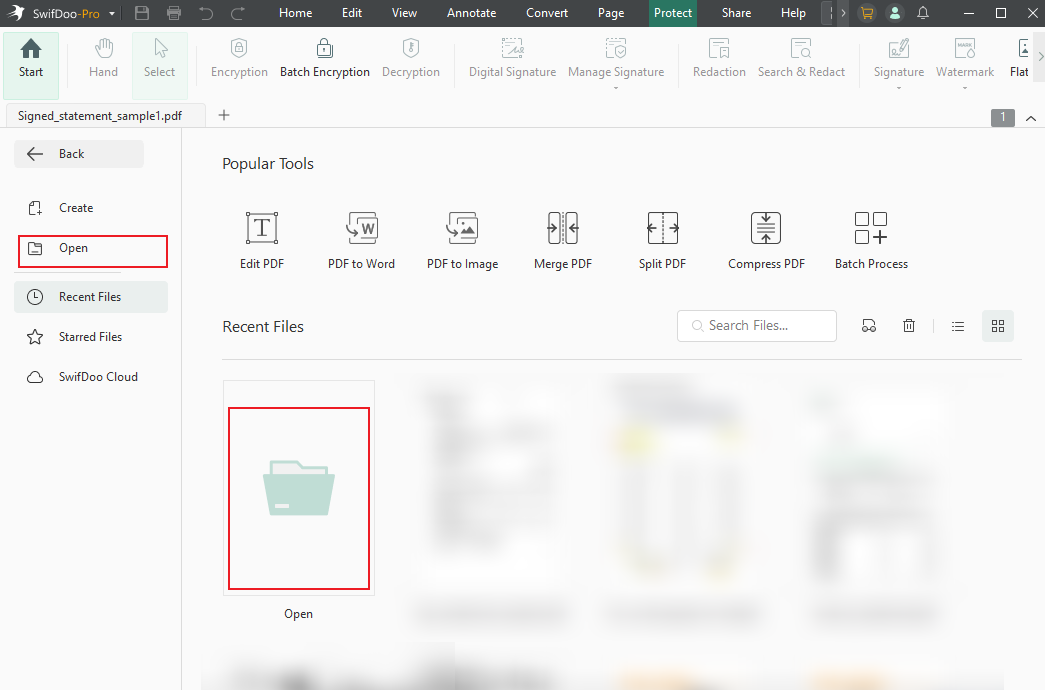
Step 2. Click Open to import the PDF file you need to edit.
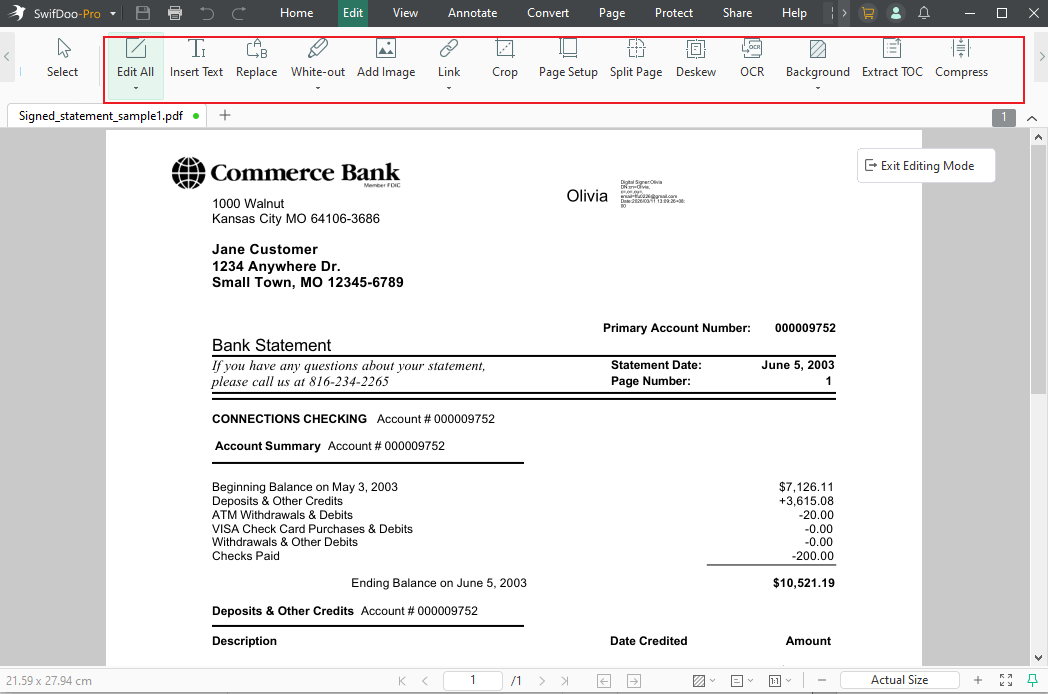
Step 3. Go to the Edit tab to edit the PDF as needed. Here, you can edit text, add text boxes, insert images, or white out the PDF. Moreover, you can OCR the PDF, customize the page setup, and make other edits.
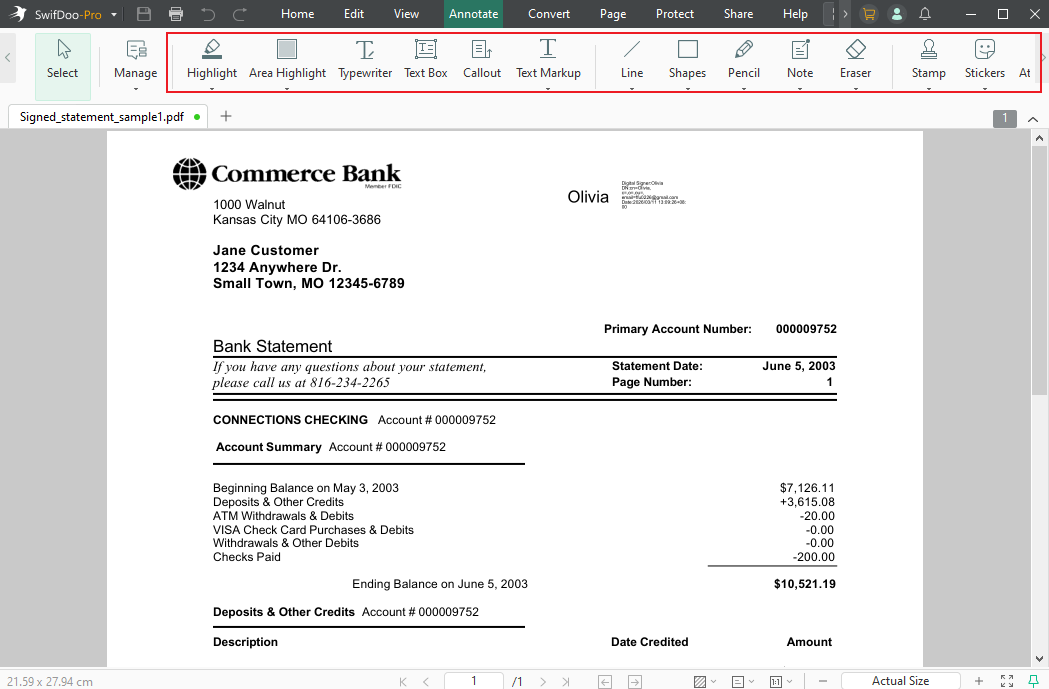
Furthermore, you can switch to the Annotate tab to highlight the PDF text, add sticky notes, stamps, or underlines to the PDF. Meanwhile, you can draw on the PDF without Adobe Acrobat.
Step 4. According to your practical needs, you can navigate to the Convert, Page, or Protect tab to refine the PDF. At last, click the Save icon to save the PDF or click the Print icon to print the PDF.
How to Edit a PDF Without Adobe Using Google Docs
Best For: quick edits and simple text changes.
Google Docs is a web-based word processor that lets you create, edit, and collaborate on documents in real time. Can you edit a PDF on Google Docs? The answer is YES. You can edit PDF files with Google Docs. When you open a PDF file in Google Docs, it will convert the PDF into an editable document. Later, you can choose to save it as a PDF or Word file. Below is a guide on how to edit a PDF using Google Docs without Adobe.
Step 1. Visit Google Drive and sign in to your Google account. Next, click + New and select File upload to upload your PDF file.
Step 2. Then, right-click the PDF, move to Open with, and click Google Docs.
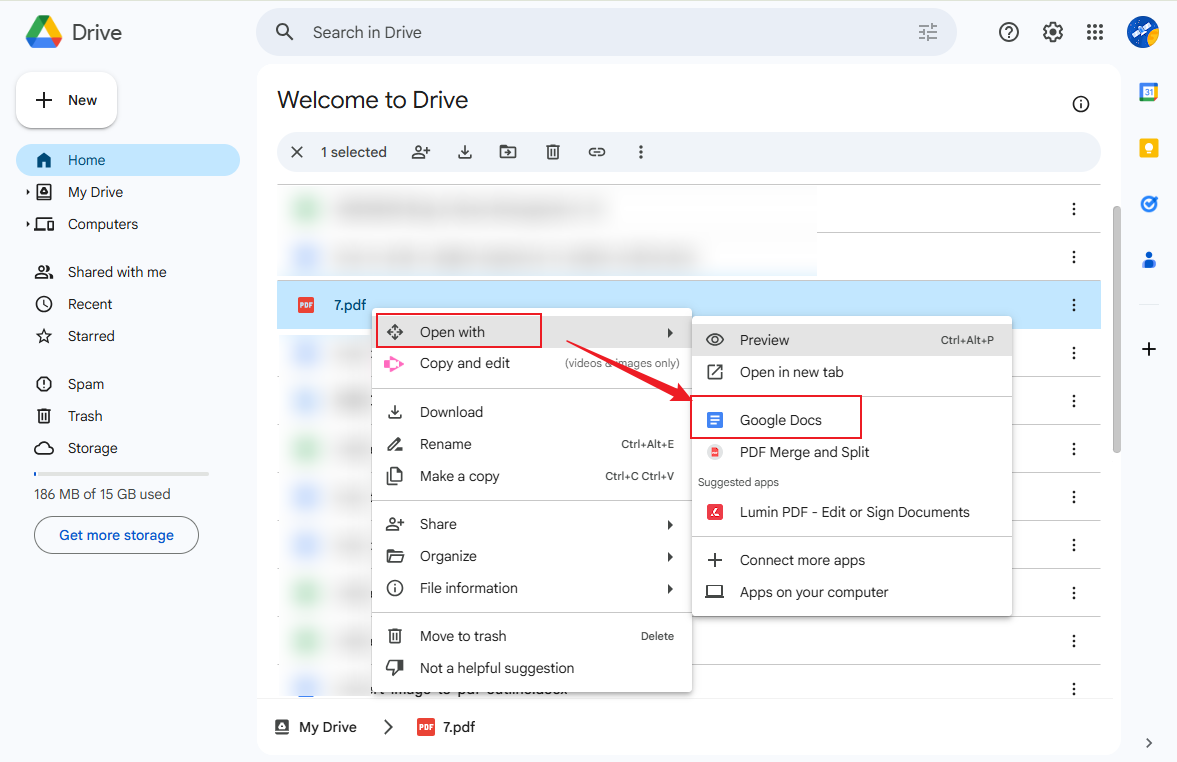
Step 3. The PDF will be converted into an editable document. Now, you can edit the text, image, and formatting as needed.
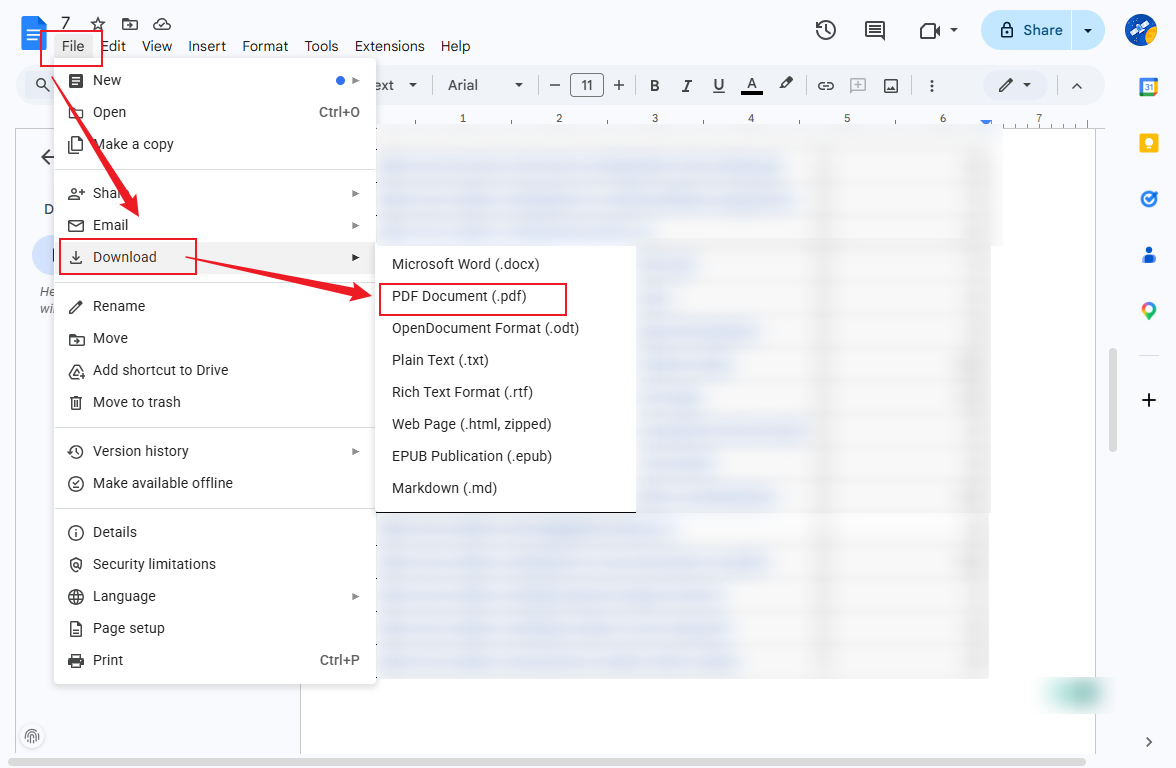
Step 4. Once satisfied, click File, move to Download, and select the PDF Document (.pdf) option to save the file.
How to Edit a PDF on Mac Without Adobe in Preview
Best For: quick markup and comments.
How to edit a PDF on Mac without Adobe? If you don’t want to install additional software, Preview, one of the best Mac PDF editors, would be the best choice. It is a built-in program for Mac, which is designed to view, annotate, and convert digital images and PDFs. If you need to edit a PDF, especially to annotate a PDF, give Preview a try. Here’s how:
Step 1. Locate the PDF file, right-click on it, move to Open With, and choose Preview.

Step 2. Click the Markup Toolbar icon. Then, you can choose to add text, draw annotations, highlight sections, or insert signatures.
Step 3. Finally, click File and choose the Save or Export as PDF option.
Edit a PDF Without Adobe Using Microsoft Word
Best For: editing paragraphs, forms, and text.
Microsoft Word is a professional and dedicated word processor. It enables you to edit PDFs without Adobe Acrobat. Like Google Docs, Microsoft Word will convert the PDF into an editable Word document. Hence, you can edit the PDF like a Word file. How to edit a PDF file without Adobe in Microsoft Word? Check the steps below.
Step 1. Launch Microsoft Word on your PC, then click Open to select the target PDF file.
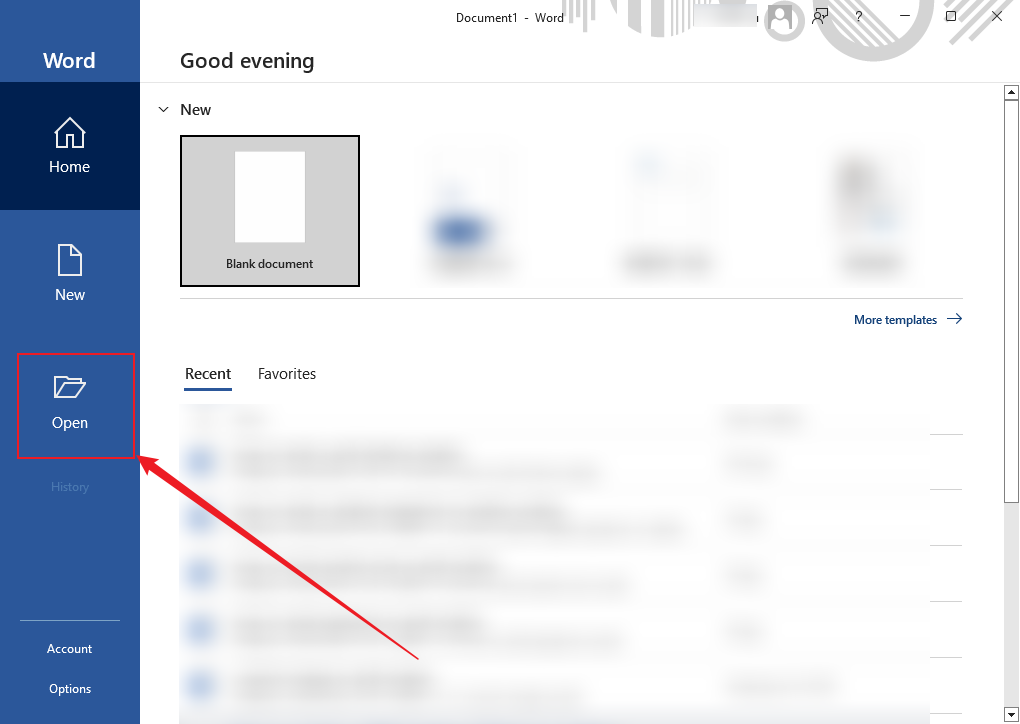
Step 2. Then, Microsoft Word will prompt you to convert the PDF into an editable document. Click OK to confirm.
Step 3. Next, edit the content as you would in a normal Word file.
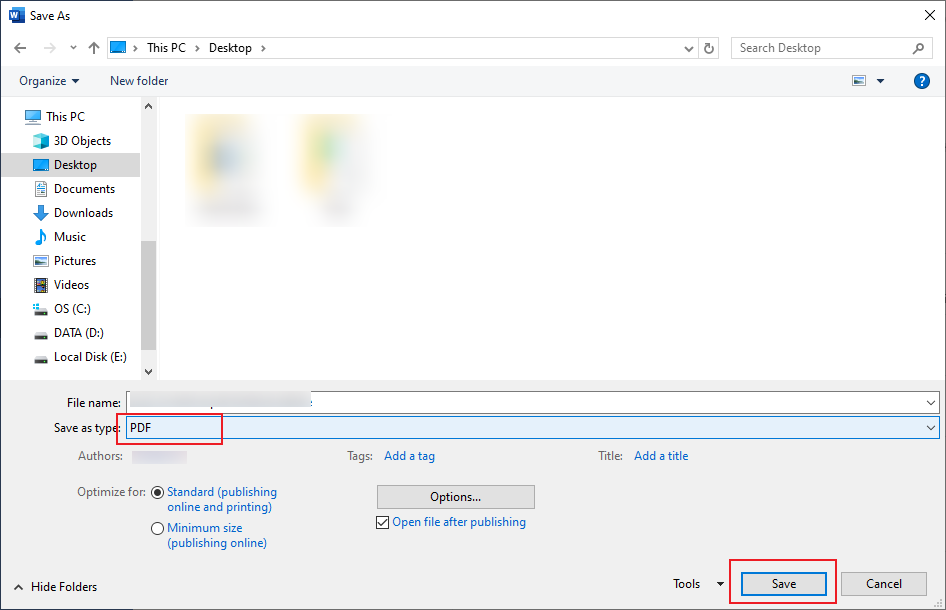
Step 4. Click File and select Save As. Then choose a folder to save it to, name the file, and set PDF as the output format. Finally, click Save.
How to Edit a PDF Online Without Adobe
If you don’t want to install software and have a stable Internet connection, online PDF editors can be an excellent solution. Additionally, you can use them to edit a PDF on Android or iPhone. Below are some reliable online PDF editors you can choose from.
- iLovePDF
- Smallpdf
- Xodo Online PDF Editor
- PDFescape
- PDF Candy
How to edit a PDF online without Adobe Acrobat? Here, I’ll take Smallpdf as an example to show you how to do that.
Step 1. Open your browser and visit the Smallpdf PDF Editor website.
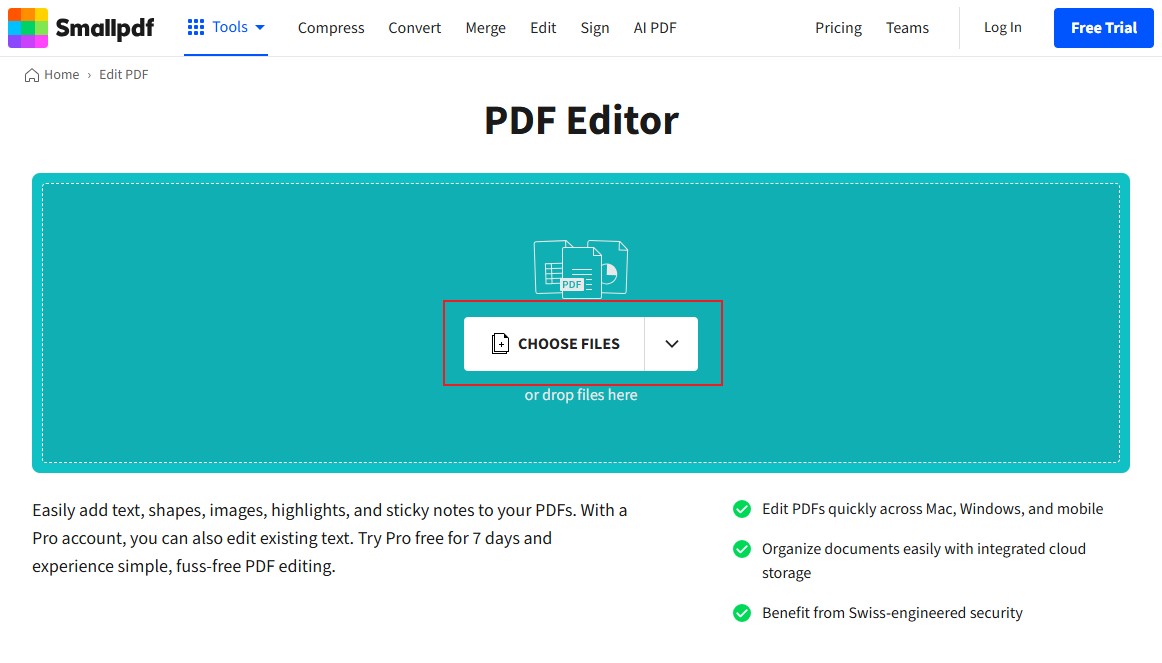
Step 2. Click CHOOSE FILES to import the target PDF document.
Step 3. Once the PDF is imported, you can use the tools in the top bar to draw on the PDF, add signatures, highlight, or redact the PDF without Adobe Acrobat. Meanwhile, you can use the features in the left sidebar to compress, organize, or convert the PDF file.
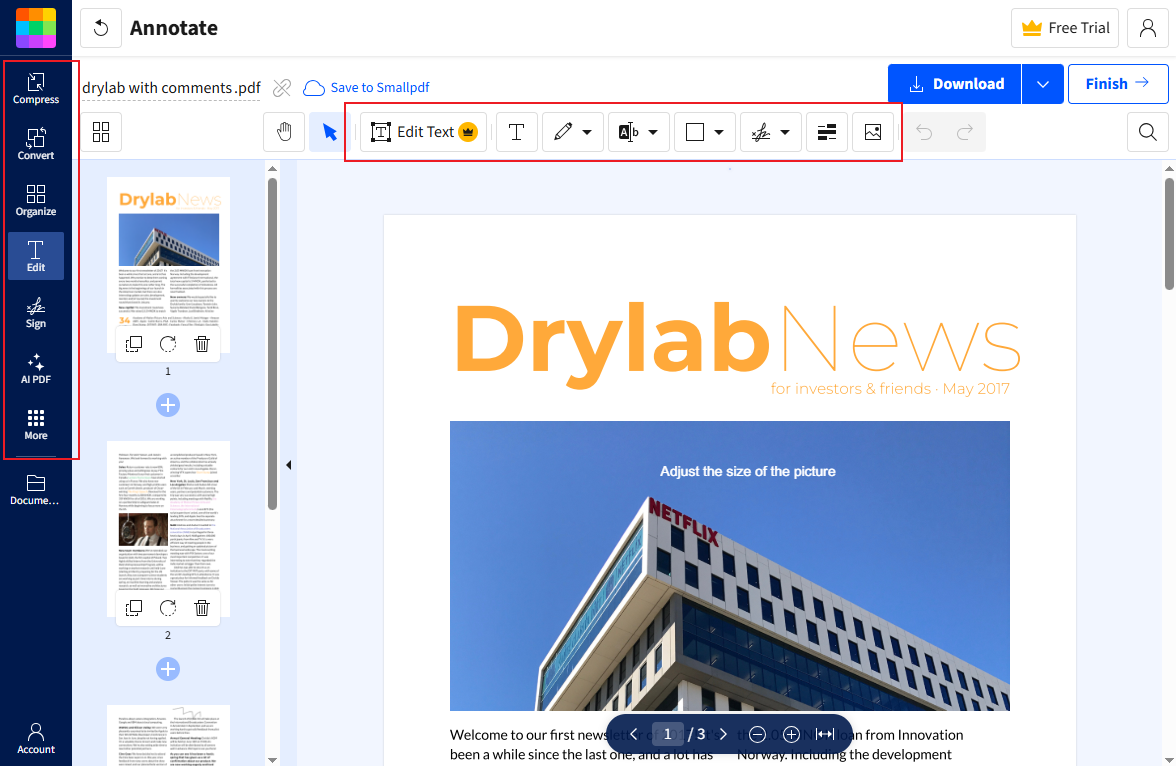
Step 4. At last, click Download to save the modified PDF.
A Quick Sum Up
How to edit a PDF without Adobe? Nowadays, many modern tools are available. You can edit and modify PDF files with free PDF editors (like SwifDoo PDF and JOPDF), Google Docs, Preview, Microsoft Word, and online PDF editors (like Smallpdf). If you frequently handle PDFs, SwifDoo PDF would be the best choice. Also, you can use other tools according to your practical needs.



