


Can You Edit a PDF in Teams?
Many people search the internet to ask, "can you edit PDF in teams?" The direct answer is yes, but there are some very specific rules you must understand. Microsoft Teams does not treat PDF files exactly the same way it treats normal Word documents or Excel spreadsheets.
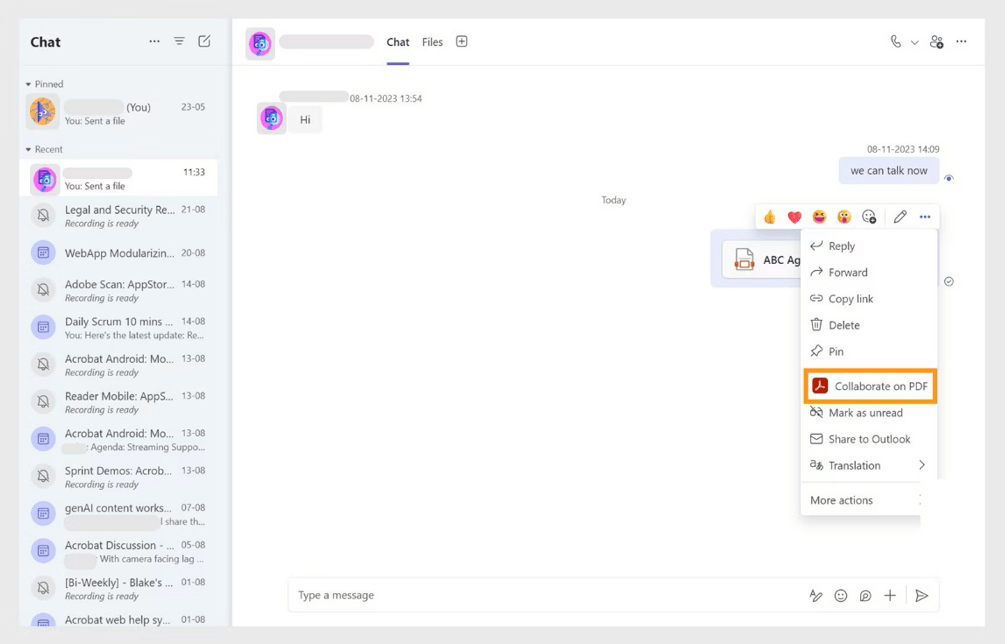
PDFs are designed to look like printed paper. Because of this, by default, the Teams app acts strictly as a basic viewer for these files. When you click on a file in your chat, you can read the pages easily. In addition, you can select Collaborate on PDF to highlight text, insert text, or leave a comment.
However, the standard system does not allow you to click and change the underlying words or move the pictures around.
Fortunately, there is a modern solution. Microsoft has partnered directly with Adobe to bring real editing power inside the Teams app. This acts as the main method for making changes without leaving your chat window. You can easily edit a shared PDF in Teams if your company takes the time to set up this special connection.
How to Edit a PDF in Teams with Adobe Acrobat Integration
If you want to know exactly how to edit a PDF in Microsoft Teams, the official way is to use the Adobe Acrobat app. Companies can now set this specific app as the default, powerful PDF reader inside the Teams workspace.
Important Requirements: There is a very crucial catch you must know. Viewing the document and adding small sticky note comments is free for everyone. However, you must have a paid Adobe Acrobat Standard or Pro subscription to actually change the text, swap the pictures, or organize the pages.
Another cheaper PDF editor you can try:
Step-by-Step Guide:
1. First, your company's IT manager (Information Technology department) must enable the Adobe Acrobat app in the main Teams Admin Center. You cannot do this yourself.
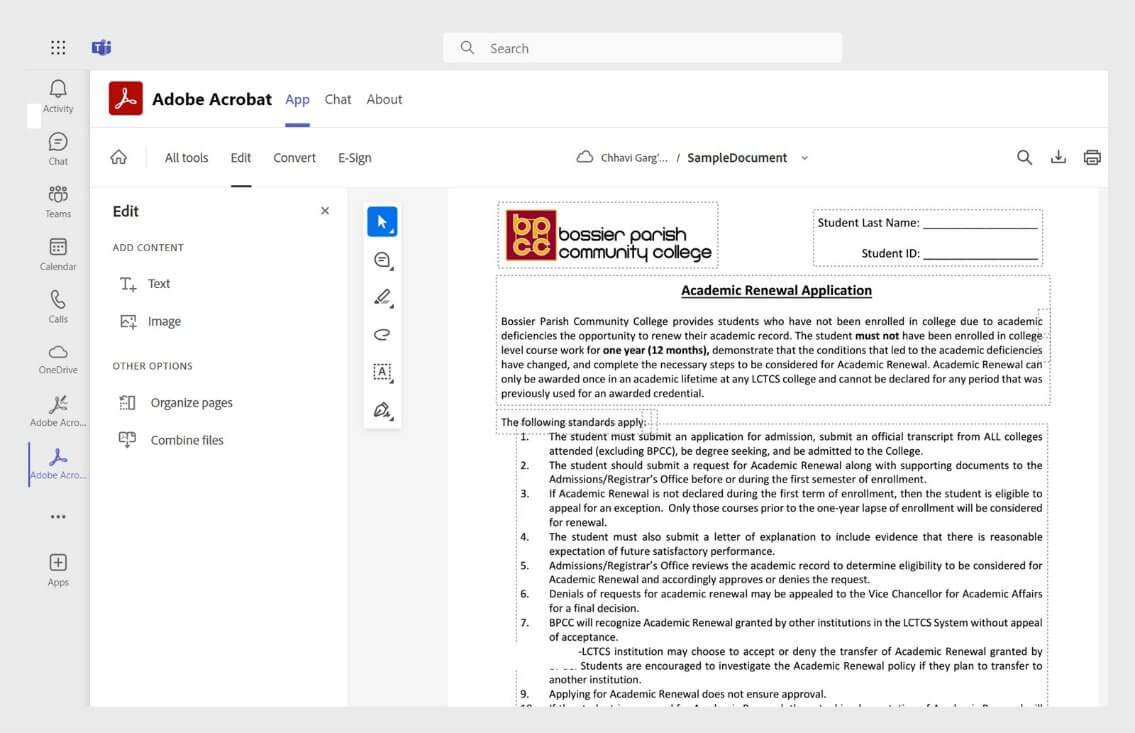
2. Once the IT team turns it on, simply click a PDF in your Teams chat or channel. The file will automatically open in a special Adobe screen right inside Teams.
3. You must sign in with a paid Adobe ID account to unlock the helpful tools.
4. Use the toolbar at the very top of the screen. Click the button that says "Edit Text and Images." Now you can click on the document, make your required changes, and save the file directly back to your Teams chat.
This method is best for large enterprise companies and professional office workers. It is a great choice if your company already pays for premium Adobe Acrobat subscriptions for its workers and has an active IT department to set everything up correctly. If you want a cheaper alternative to Adobe Acrobat, please move on.
Bonus Tip: How to Easily Edit a PDF on Windows
Dealing with Teams administrator settings can be confusing. Also, paying for an expensive Adobe monthly subscription just to fix a simple spelling mistake is very annoying. If you need a faster, cheaper option, downloading the file to your computer is the easiest fix.
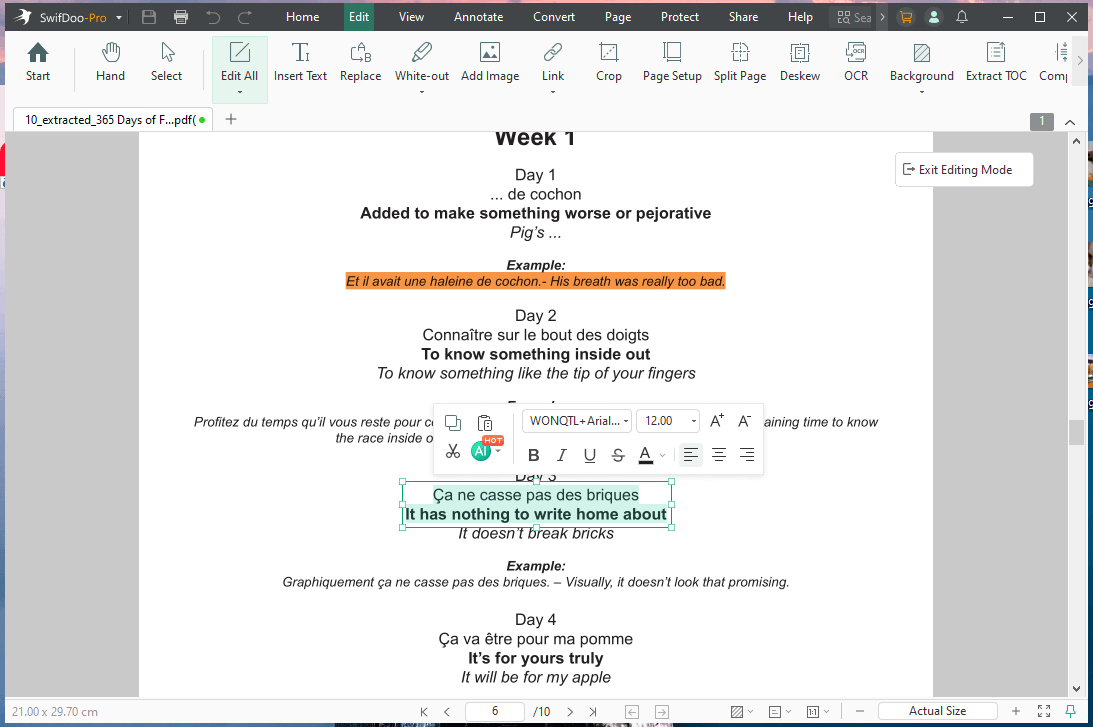
To edit the document, we highly recommend using SwifDoo PDF. It is widely considered one of the best PDF editors for Windows computers today. It allows for full, professional editing without the high price tag.
You can easily change text in PDF files just like typing in a normal Microsoft Word document. You can change font colors, insert new pictures, or safely delete PDF pages that you do not need anymore to make the file smaller.
Check to learn how to use SwifDoo PDF:
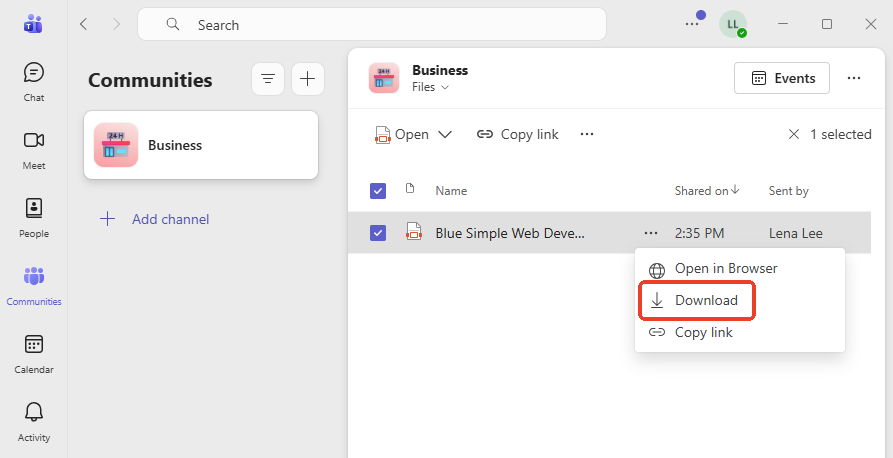
1. In your Teams chat window, find the document. Click the three small dots next to the file name and select "Download."
2. Open the downloaded file using the SwifDoo PDF.
3. Click the Edit tab located on the top menu bar. Select the Edit Text button and click anywhere on the document to start typing your new words.
4. If needed, go to Annotate to highlight, add shapes, or draw anything.
5. Save your changes. Finally, click and drag the finished file back into your Teams chat to share it with your coworkers.
If you are looking for a fast, secure, and cost-effective way to handle documents, then why not give SwifDoo PDF a try?
Conclusion
That’s all about how to edit a PDF in Teams. To make it, you should have the expensive Adobe subscription or special office permissions. For a cost-effective option, downloading the file and using SwifDoo PDF is the smartest and fastest way to get your work done!



