


Foxit Reader vs. Foxit PDF Editor: Which Do You Have?
Choosing the right PDF tool matters. Foxit Reader is a free PDF tool designed for viewing documents, highlighting text, adding comments, and signing PDFs. While it’s perfect for reading and basic annotation, it cannot alter core content like text or images, so learning how to edit a PDF in Foxit Reader is limited to annotations, highlights, and adding notes rather than full text or image edits.
On the other hand, Foxit PDF Editor is a paid solution that allows you to edit text on a PDF in Foxit, adjust images, reorganize layouts, and make complete changes. It suits users who need comprehensive control over their documents, not just simple viewing or notes.

How to Edit a PDF in Foxit
Foxit is a reliable PDF editor that makes document management faster and easier. With Foxit, you can change text in a PDF, update images, and rearrange pages seamlessly. It lets users annotate, highlight, and add comments without affecting the original formatting.
Foxit also lets you rearrange pages, add or remove content, and secure your PDFs with passwords or permissions. Suitable for work, study, or personal use, it simplifies PDF tasks and improves productivity. Its user-friendly interface lets you edit PDFs quickly and easily. Check to learn the details.
Steps to Edit Text in Foxit
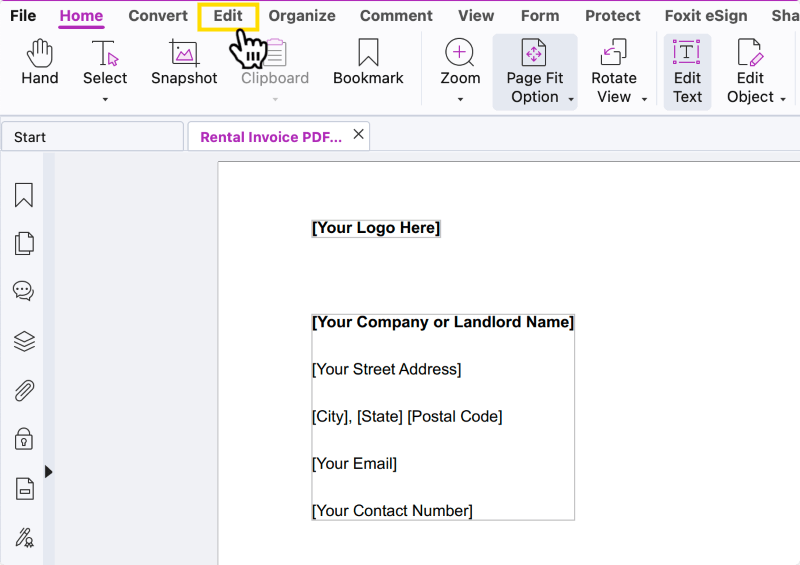
Step 1. After launching Foxit PDF Editor, open the PDF, click Edit, then choose Edit Text.
Step 2. Click the paragraph you want to edit. Use the Format tab in the right-hand panel to change font in Foxit and adjust font type, size, color, alignment, and spacing.
Step 3. Text wraps automatically at the margin; press Enter for a manual line break.
Step 4. While the Edit Text tool is active, click anywhere in the paragraph to make changes. Drag the Rotate icon on the text box to adjust the paragraph’s orientation.
Steps to Edit Images and Objects
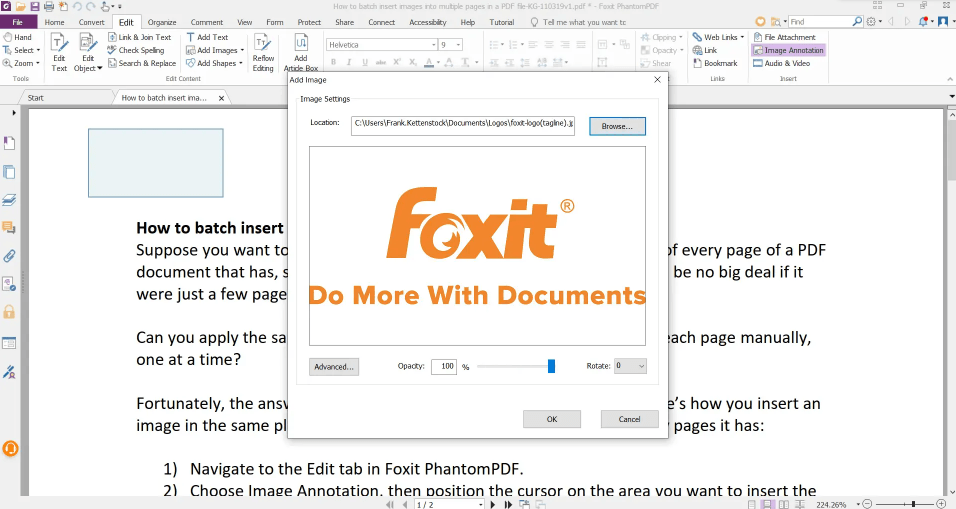
Step 1. After downloading and installing Foxit PDF Editor on your device, choose Edit > Image Annotation.
Step 2. Draw a box on the page to determine where the image will be placed.
Step 3. In the Add Image dialog box, click the Browse button to select the image, then click Open. The image will be inserted into the rectangle you defined, and you can resize or move it as needed.
Step 4. Once placed, use the handles around the image to adjust size or rotate it, ensuring it fits neatly within your PDF layout.
Steps to Compress PDFs
Step 1. To compress a PDF with Foxit, drag and drop the PDF into the designated area.
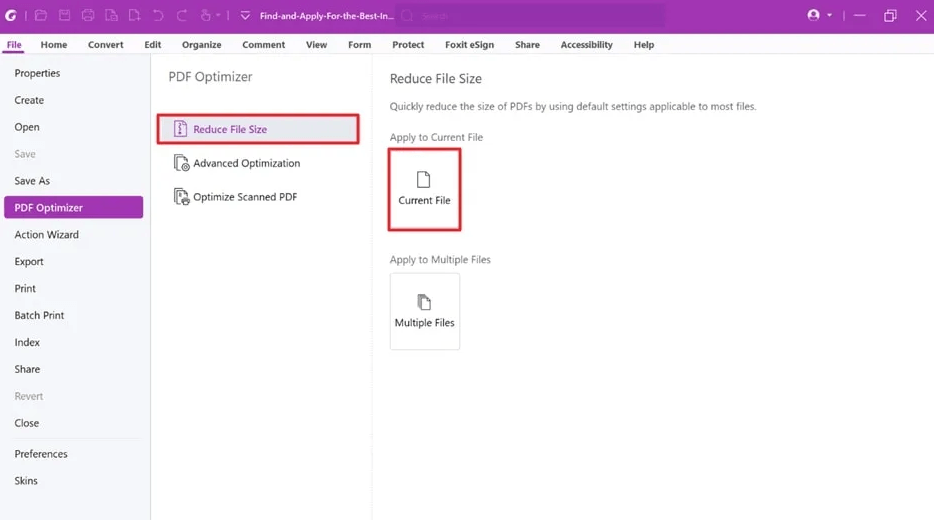
Step 2. Now tap the File option and choose PDF Optimizer > Reduce File Size to access the PDF compressor tool. Select the opened file.
Step 3. Click OK in the pop-up window, choose a save location, and wait a while for the process to complete.
Step 4. To save the compressed PDF, click the Download the file button.
Steps to Merge, Split, and Delete Pages
#To Merge
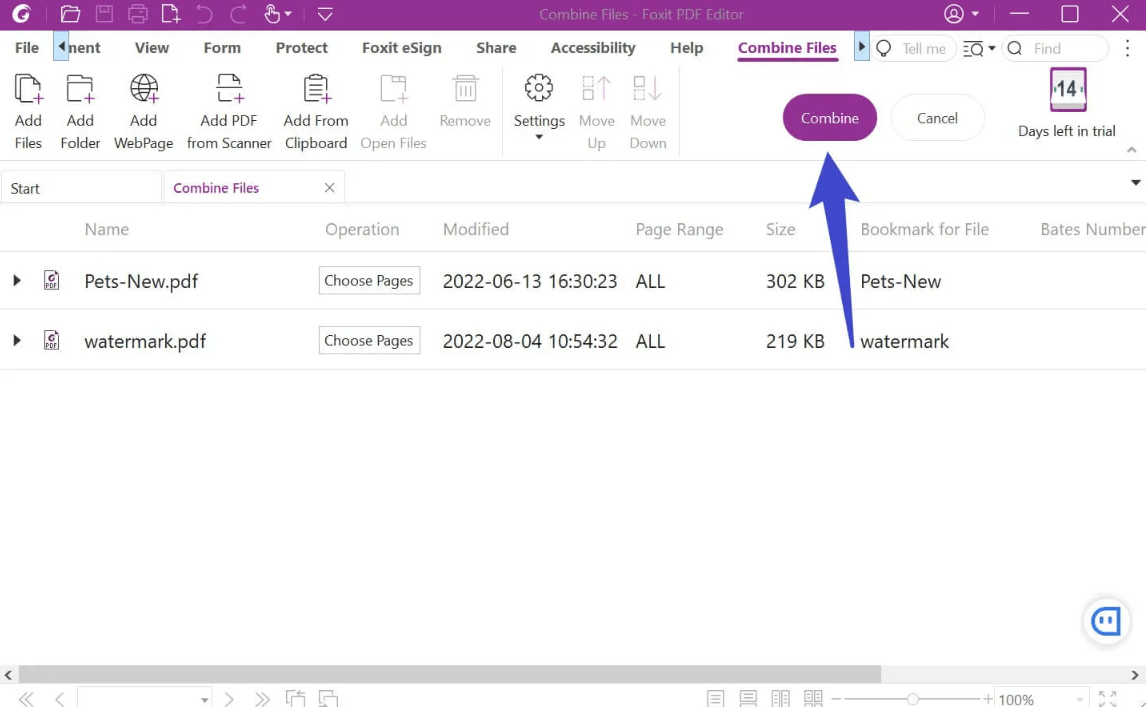
Step 1. Run Foxit and click File in the top-right corner. Choose Create and navigate to Combine Files. Click Combine Files, then.
Step 2. In the pop-up dialog, hit Add files > Add Files. Select the PDF files to merge, then tap Open.
Step 3. Click the target PDF, then press Move up or Move down to keep it where you like.
Step 4. Click on the Combine button, and the merged file will automatically open in Foxit after the merge.
#To Split
Step 1. Go to Organize > Split.
For example, if it’s page 1 of the original, name the duplicated pages Page 1A and Page 1B.
Step 2. Adjust the settings: the page range, number of pages, and size.
Step 3. Select the destination and click OK.
#To Delete
Step 1. Open the PDF file in Foxit PDF Editor by clicking the File menu, then selecting Open. Then, select the Organize tool in the ribbon.
Step 2. Select the page or pages you want to delete by clicking on them. Hold down Ctrl while clicking to select multiple pages at once. When the pages are highlighted, click Delete on the menu bar or right-click and pick Delete Pages.
Step 3. In the Delete Pages dialog box, choose Delete Pages and click OK.
Step 4. The selected pages have been deleted. Select File > Save (Save As) to preserve the changes in your PDF.
Bonus Tip: Easily Edit a PDF with Foxit Alternative
Foxit PDF Editor provides powerful tools for editing text, images, and layouts, but the paid version may not be accessible to everyone. For a simple, cost-effective solution, SwifDoo PDF allows unlimited PDF editing, unlike Foxit.
SwifDoo PDF ranks among the best PDF editors for Windows and Mac, providing speed, ease of use, and robust editing features. It provides tools to edit text, images, and pages, along with options to merge, split, compress, and annotate PDFs.
Its simplicity and reliability make it an excellent choice for anyone seeking efficient, hassle-free PDF management, from beginners to experienced users.
This is how you can edit a PDF in SwifDoo PDF:
Step 1. Download and launch SwifDoo PDF and open a PDF document with the program.
Step 2. Click Edit to enter edit mode, then choose Edit All, Edit Text, or Edit Image. Modify the PDF text and change the font, alignment, or color as needed. Then add images or hyperlinks to the file.
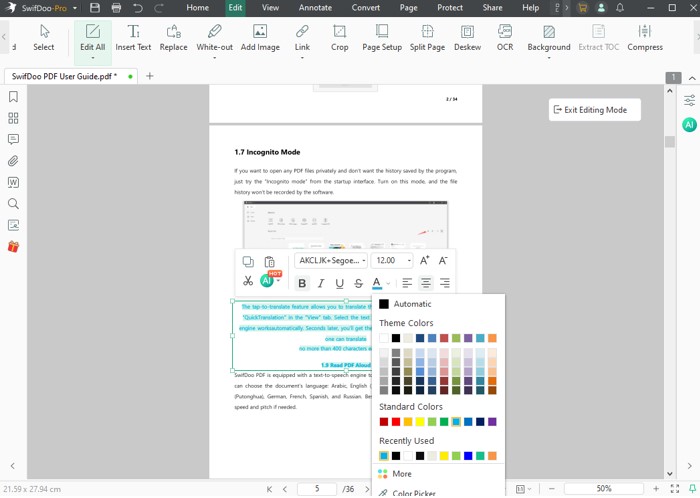
Step 3. Hit Ctrl + S or click Save at the top left to immediately save the updated PDF.
Download SwifDoo PDF and see how simple it is to edit, annotate, and organize your PDFs. Available on both Windows and Mac, it allows you to manage your documents effortlessly. Make PDF tasks easier and increase your productivity today!
Conclusion
In conclusion, learning how to edit a PDF in Foxit lets you update text, adjust images, rearrange pages, and manage documents easily. Although Foxit PDF Editor provides full editing features, alternatives like SwifDoo PDF offer a simpler, more affordable option for Windows and Mac users. Take charge of your PDFs now—download a PDF editor and start editing, annotating, and organizing effortlessly!



