


Method 1. The Universal "Print to PDF" Method
The “Print to PDF” method works in 99% of Mac applications, from text editors and spreadsheets to design software. It can even help you save emails as PDFs. If you learn one thing from this guide, make it this.
Here is how to save something as a PDF on Mac:
- Open the document you want to save as a PDF.
- Go to the menu bar, click File > Print (or use the universal keyboard shortcut Cmd + P).
- When you see the Print Dialog, look in the bottom-left corner for a small dropdown menu labeled "PDF".
- Click the "PDF" menu. A list of options will appear. Then, select Save as PDF from this list.
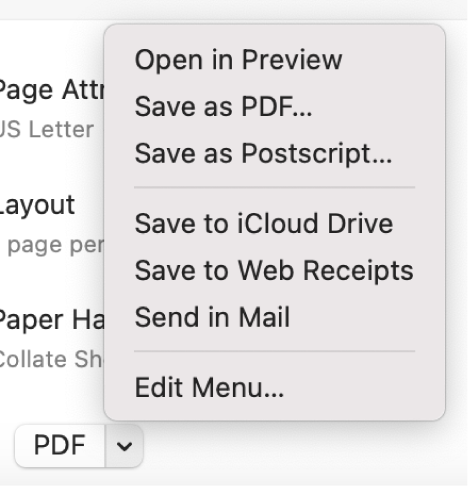
- Name your file, add a title or author, and choose where to save it.
- Finally, click Save. You have successfully created a PDF.
Method 2. How to Save as PDF on Mac from Safari & Chrome
You might want to save an article to read offline, a receipt for your records, or a project confirmation page. Luckily, you can save a webpage as a PDF on Mac. The process is slightly different depending on your browser. Check to learn the details.
How to save a webpage as a PDF on Mac (Safari):
- Open the webpage in the browser.
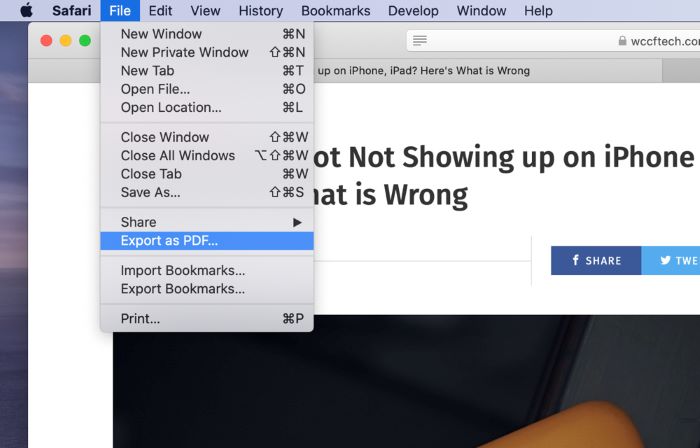
- Click File from the menu bar > Export as PDF...
- A "Save" dialog will appear immediately. This is the fastest method for Safari users.
How to save a webpage as a PDF on Mac (Chrome):
- In Google Chrome, go to the webpages you want to save.
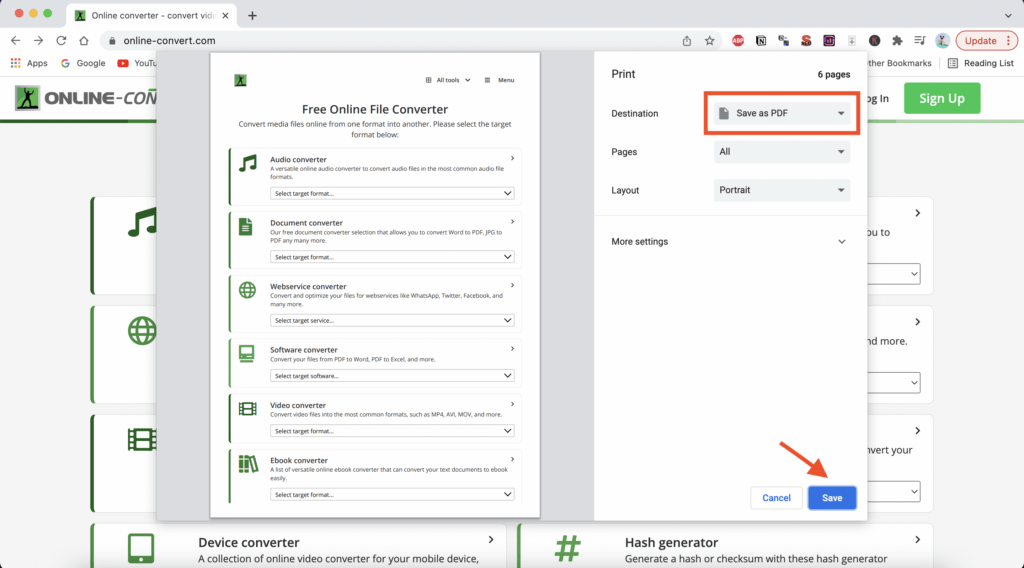
- Go to File > Print... (or press Cmd + P).
- Next, select Save as PDF as the destination.
- Finally, click the Save button.
Method 3. How to Save as PDF on Mac from Word, Excel, Pages
Have you finished a Word document and want to create a PDF version for sharing? In this case, you can use the Print or Save as feature. They can also help you convert other documents, like Excel, PowerPoint, and Pages.
How to save Word doc as PDF on Mac:
Option 1. The "Print" Method
- Open the document.
- Press Cmd + P.
- Select Save as PDF.
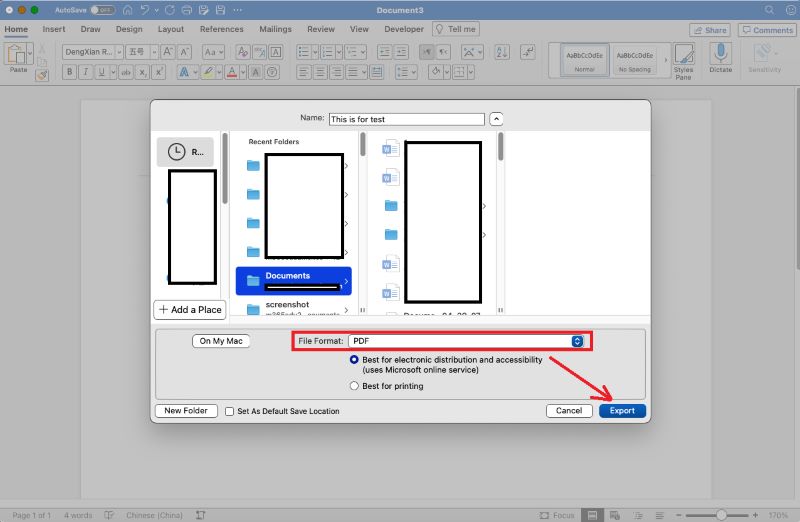
Option 2. The "Export" Method
Most modern apps have a direct export feature, which often gives you more control over the final quality.
- Go to File > Save As...
- In the "File Format" dropdown, select PDF.
- Select “Best for printing” if you prefer high-quality.
- Click Export to confirm.
Method 4. How to Save as PDF in Preview
The Preview app is your Mac's built-in tool for images and PDFs. You can use it to quickly convert images to PDFs or combine multiple files into a single PDF. Of course, Preview can help you turn screenshots into PDFs on Mac.
How to save images as PDsF on a Mac:
- Find your image file (e.g., a .jpg, .png, or .tiff).
- Double-click to open it. It will open in Preview by default.
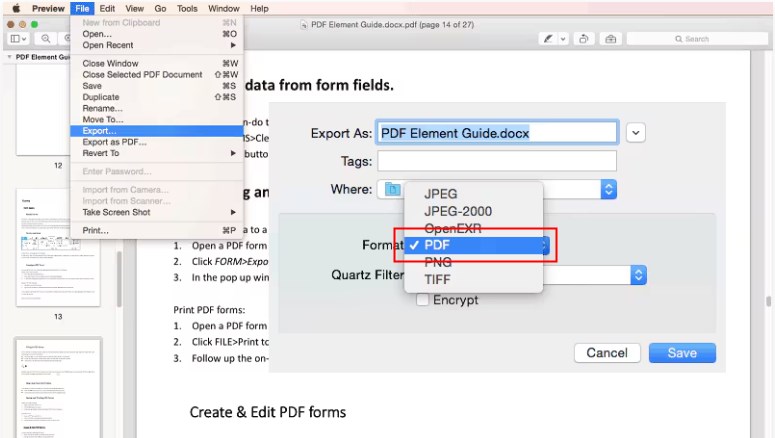
- Go to File > Export as PDF...
- Adjust the name and location, and click Save. You've just converted your image to a PDF.
Bonus Tip. Go Beyond "Saving" with a PDF Editor
You've successfully created a PDF on Mac. But what happens when you notice a typo? Or, what if you need to edit the text, add a new image, or add password protection?
While Preview is great for viewing and combining, it can't edit the original text in a PDF. For users who need more features, SwifDoo PDF for Mac is a good choice.
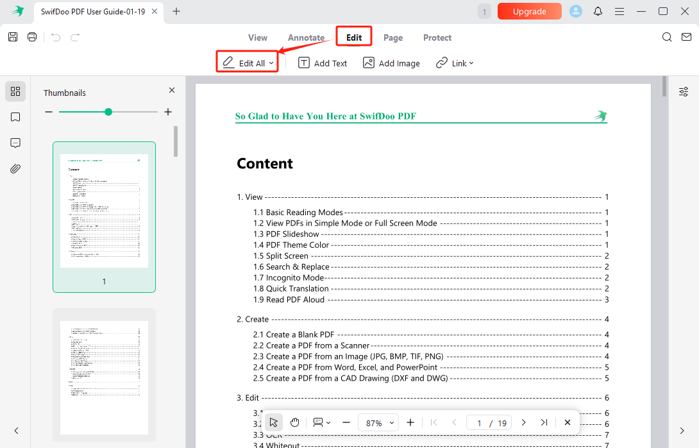
Key Features
✅ Organize Pages: Visually add, delete, and re-order pages.
✅ Annotate: Add comments, highlights, shapes, and stamps.
✅ Password Protection: Add open and permission passwords.
While Preview is a fantastic free tool for basic tasks, for those who frequently handle PDF files, a dedicated Mac PDF editor like SwifDoo would be a better choice. Try it now!
Conclusion
That’s all about how to save as PDF on Mac. The Print to PDF can always work. Just press Cmd + P, look for the "PDF" button in the corner, and you'll be able to create a professional, secure PDF from any app, any time. After that, you can use SwifDoo PDF to edit it easily. Hope this guide is helpful!



