


What Are HEIC and PNG
It’s important to know the distinctions between HEIC and PNG before proceeding with conversion. This section explains HEIC and PNG formats and shows how converting HEIC to PNG simplifies sharing and accessibility.
What Is HEIC
HEIC, short for High Efficiency Image Coding, is commonly used on Apple devices and balances high compression with clear image quality. It balances file size reduction with detail preservation, making it ideal for photography. Because HEIC is not supported everywhere, converting it to formats like PNG is often necessary.
Here are the notable features of HEIC:
- High Compression Efficiency. Balances smaller file sizes with maintained image quality.
- Supports 16-Bit Color. Offers higher color fidelity than standard JPEG images.
- Multiple Images in One File. Can store bursts or live photos in a single HEIC file.
- Transparency Support. Handles alpha channels for image transparency.
- Metadata Storage. Stores information such as camera settings, location, and edits.
- Better Image Quality. Maintains superior image quality and detail compared to JPEG at the same file size.
What Is PNG
With lossless compression, PNG (Portable Network Graphics) preserves image crispness and detail while remaining compatible across devices and software. Its features make it ideal for web images, screenshots, and transparent graphics. Because it’s universally compatible, PNG is often chosen over HEIC for easy editing and sharing.
Here are the notable features of PNG:
- Lossless Compression. Maintains image quality without losing details.
- Transparency Support. Handles alpha channels for transparent backgrounds.
- Wide Compatibility. Supported by nearly all devices, browsers, and image editors.
- High-Quality Images. Preserves sharpness and color accuracy.
- Supports Text and Graphics. Perfect for digital illustrations, logos, and high-quality screenshots.
Why convert HEIC to PNG
Converting HEIC to PNG improves compatibility across devices, browsers, and editing tools. With universal compatibility, lossless quality, and transparency support, PNG is perfect for editing and sharing. By converting HEIC images, you maintain clarity while ensuring easier use on multiple systems.
Best HEIC to PNG Converters
If you want hassle-free image conversion, here are the best HEIC to PNG converters to try. They let you convert HEIC on Windows, Mac, and online, making it easy to manage your photos across any platform.
Top 1. SwifDoo PDF
Best For: Quickly convert HEIC to PNG, JPG, BMP, and TIFF, with support for other image formats.
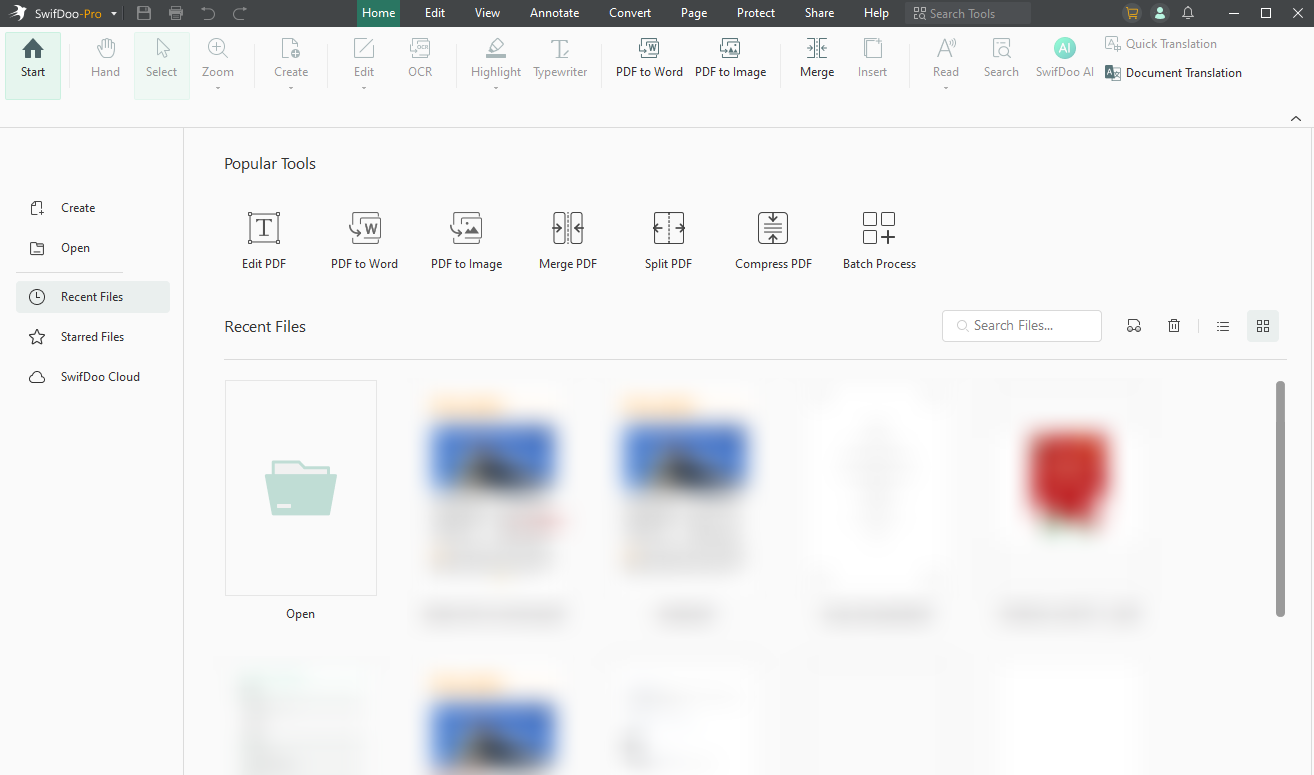
SwifDoo PDF is an excellent tool to convert HEIC to PNG, JPG, BMP, and TIFF effortlessly. As a free HEIC converter for Windows, it enables image-to-PDF combination, file compression, and more conversions. As one of the best PDF converters, it offers a user-friendly interface, fast processing, and reliable output quality for both personal and professional use.
Pros of SwifDoo PDF:
- Fast, intuitive, simple, easy, and user-friendly interface without any steep learning curve for beginners.
- Less resource-intensive with great performance.
- Helps combine images into one PDF, demonstrating batch conversion capabilities.
- Performs several other PDF-handling functions to manage all PDF-related tasks.
Cons of SwifDoo PDF:
- The Mac version of SwifDoo PDF has relatively fewer features than the Windows version.
Top 2. Built-in Photos App for Windows
Best For: Effortlessly turn HEIC files into PNG on Windows for free, while managing and editing photos.
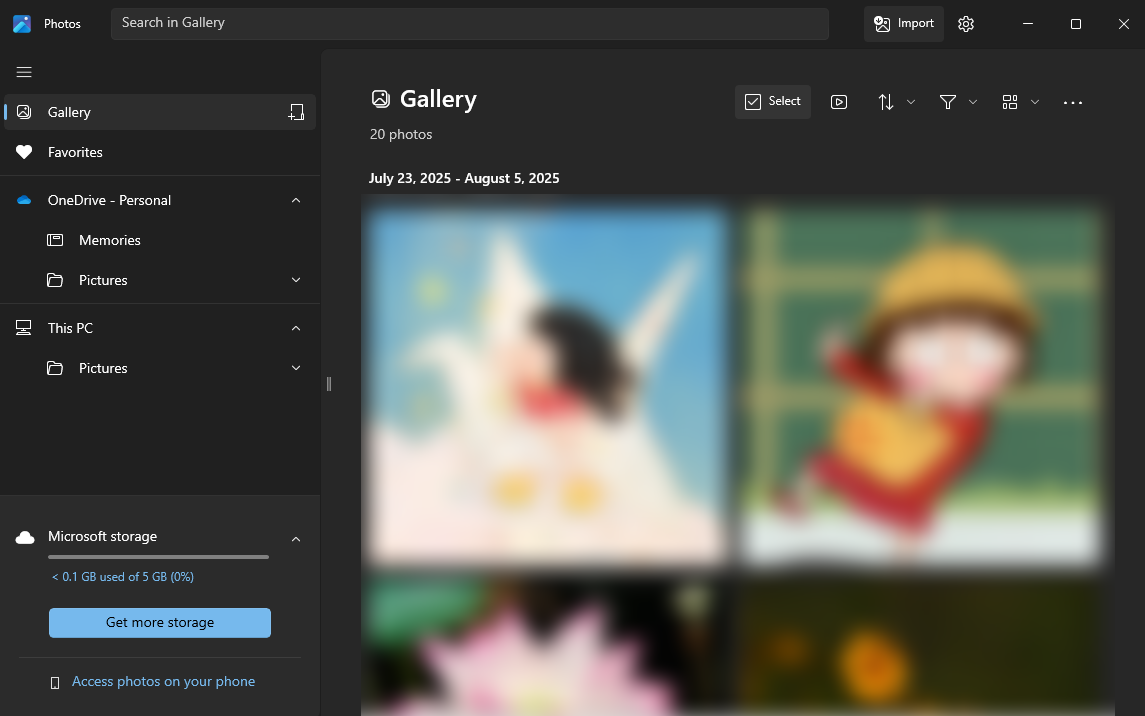
The built-in Photos app lets you convert HEIC to PNG on Windows for free. This makes it ideal for quick image conversions. In addition to converting HEIC files, it includes essential edits such as crop, rotate, and enhance, ideal for daily image handling.
Pros of the Windows Photos App:
- Offers a straightforward layout that makes conversions fast and simple.
- Preloaded in Windows, allowing HEIC to PNG conversion without extra software.
- Photos are converted entirely on your device, protecting them from third-party access.
- Offers key editing functions like cropping, rotation, and color tuning.
Cons of the Windows Photos App:
- Does not support advanced functions like batch conversion or PDF merging.
- Limited support for formats beyond standard image types.
- The Photos app offers very limited control over conversion settings.
Top 3. Preview
Best For: Effortlessly convert HEIC to PNG or PDF on Mac, with core editing functions available.
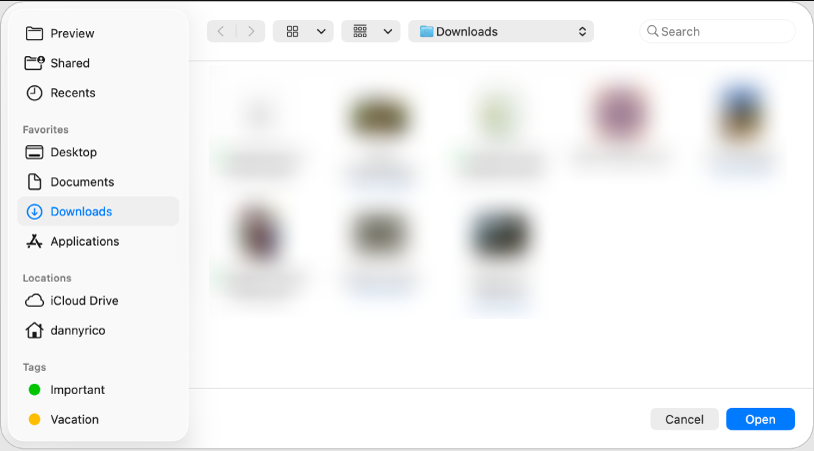
Preview is a free HEIC to PNG converter built into macOS. Most users prefer to use it to convert HEIC to PDF on Mac. It supports quick image viewing, basic editing, and exporting to multiple formats. This makes image and document conversions easy and lightweight, with no extra installations necessary.
Pros of Preview:
- Already included on Mac, offering a lightweight solution without additional software or fees.
- Supports a simple, user-friendly interface that makes it easy for beginners.
- Preserves the original HEIC image's transparency.
- Supports basic editing, including cropping, rotation, and annotations.
Cons of Preview:
- True batch conversion (e.g., automated folder watch) is weak; it often requires manual steps for each file or struggles with large groups.
- Unlike JPG, you cannot modify quality settings when exporting to PNG.
Top 4. iMazing Converter
Best For: Effortlessly transform HEIC files to PNG and more, with batch conversion and metadata retention.
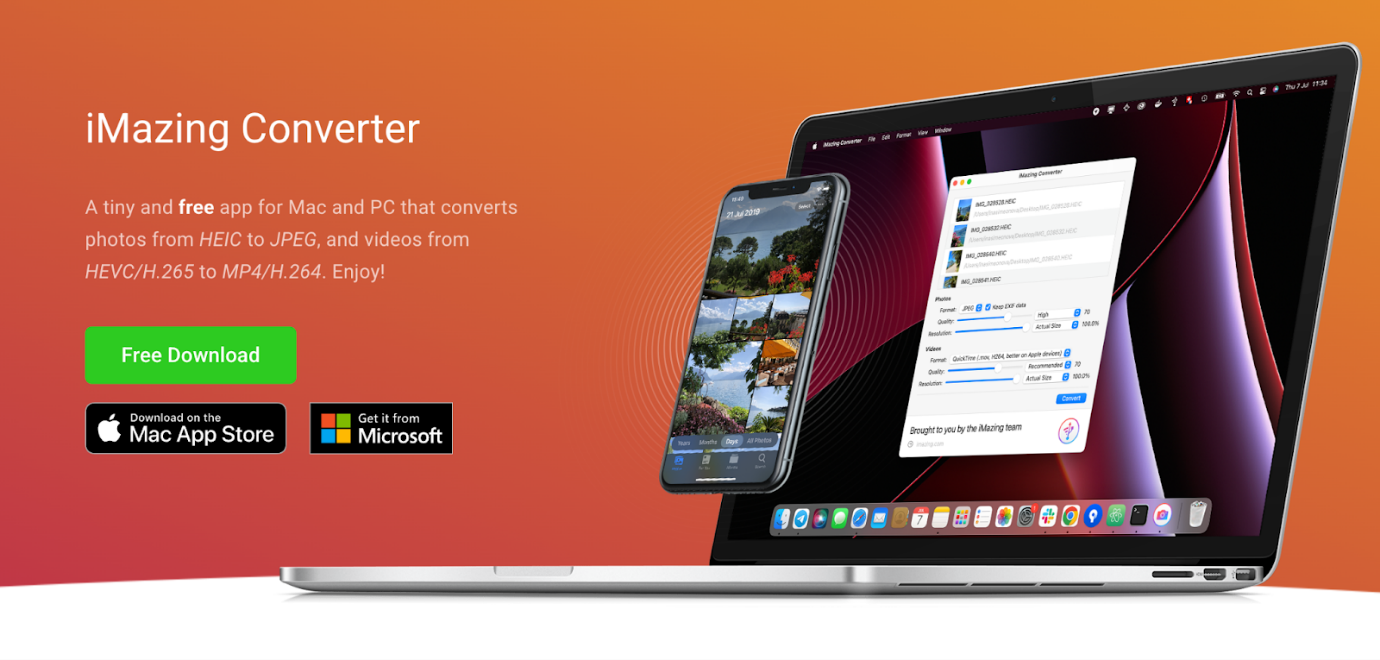
iMazing Converter is a versatile tool that lets you easily convert HEIC to PNG. It also enables batch conversions, emerging as an ideal for handling multiple files at once. With fast processing and metadata retention, it provides a reliable and easy-to-use image conversion solution.
Pros of iMazing Converter:
- Entirely free for personal use with a simple interface.
- Retains important EXIF data, such as dates and locations.
- Converts files locally on your computer, without uploading them to online servers.
- Converts HEIC to PNG and JPG, plus HEVC video to MP4.
Cons of iMazing Converter:
- Some users report that conversions can fail for unknown reasons.
- While it supports JPG/HEVC, specific quality adjustments for PNG may be limited, and users may create duplicates when processing files repeatedly.
Top 5. CloudConvert
Best For: Effortlessly converting HEIC files to PNG, JPG, BMP, and other formats online easily in batches.
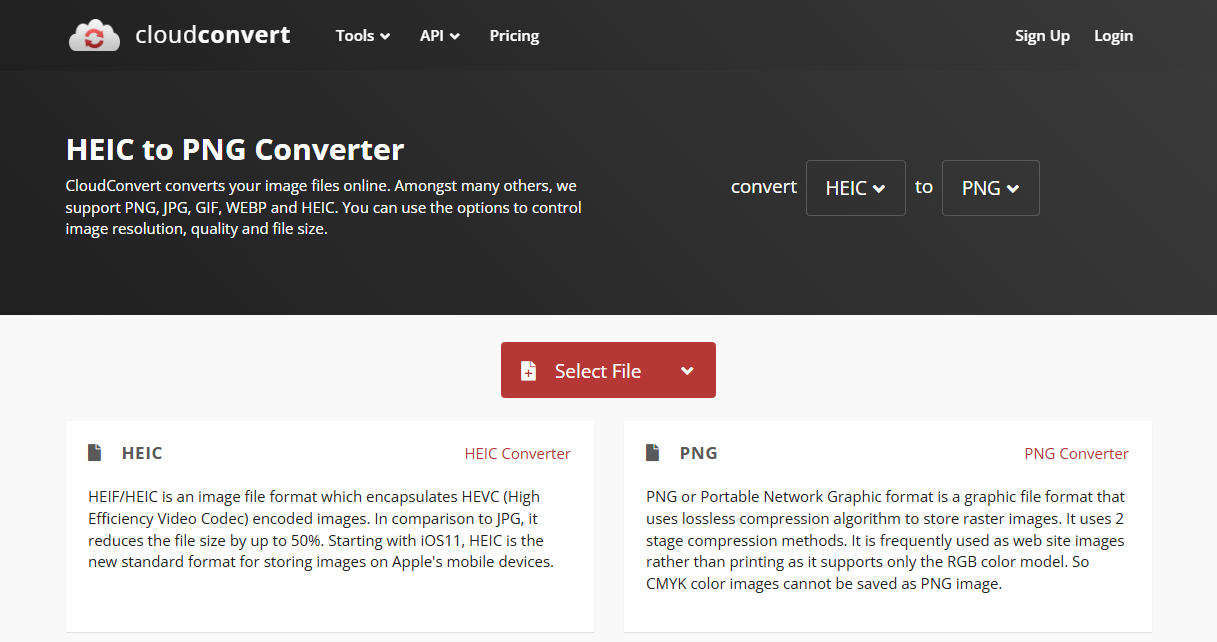
CloudConvert is a versatile free online HEIC to JPG converter to quickly handle multiple images. You can use it to quickly convert HEIC to BMP, JPG, PNG, etc. Additionally, it provides reliable online image conversions with batch support, format customization, and cloud storage, with no installation required.
Pros of CloudConvert:
- HEIC to PNG, JPG, BMP, and a wide range of other formats online with batch support.
- Makes uploading and converting files seamless with an intuitive drag-and-drop design.
- Uses SSL/TLS encryption, isolated conversion containers, and immediate file deletion, ensuring privacy.
- Connects to cloud storage services (such as Google Drive and Dropbox) for seamless file management.
Cons of CloudConvert:
- The free version has conversion limits.
- Requires payment for heavy use of advanced features.
- Requires an internet connection for all conversions.
- Occasionally, error messages appear vague, leaving users unsure how to fix issues.
How to Convert HEIC to PNG (Step by Step)
For a quick and reliable solution, SwifDoo PDF is one of the best HEIC to PNG converters. This tool makes it easy to easily upload HEIC files, adjust settings if necessary, and convert to PNG quickly without extra software. It’s best suited for Windows users who want quick and free image conversion solutions.
Discover the steps to convert HEIC to PNG with SwifDoo PDF in a few clicks.
Step 1. Download SwifDoo PDF and set it up on your device. Then, launch the program to proceed with the steps.
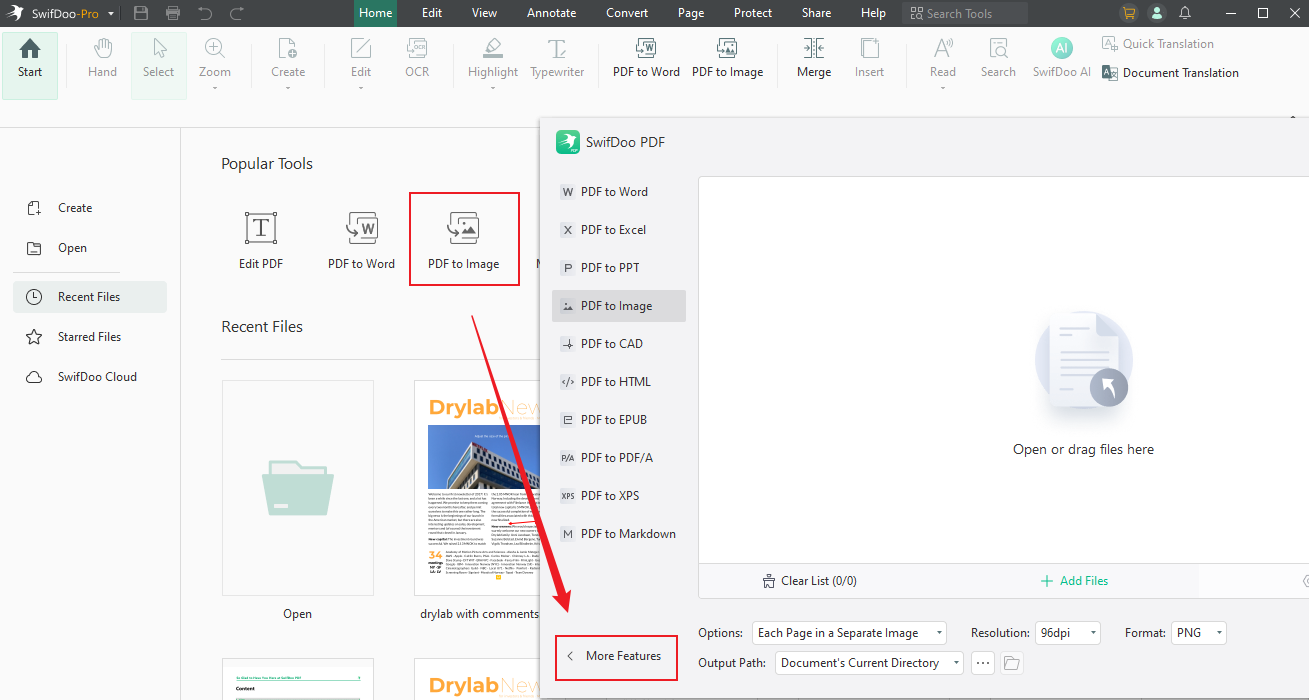
Step 2. Tap the PDF to Image option on the main page to open the SwifDoo PDF Converter window. Now, access ‘More Features’ in the bottom-left corner to continue.
Step 3. Press ‘Image Converter’ and pick ‘HEIC to Image’.
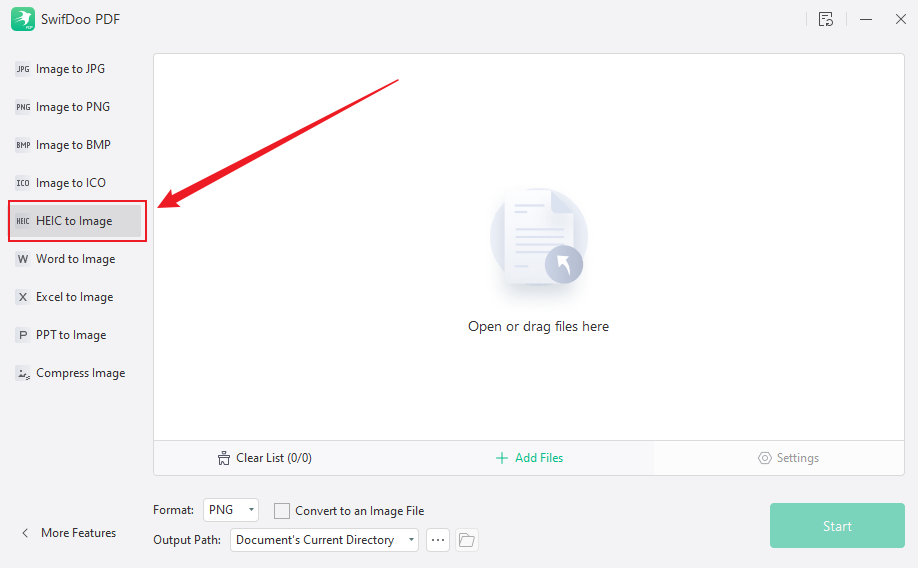
Step 4. Select ‘Add Files’ to bring in your HEIC image files. Then select PNG from the Format options box.
Finally, hit Start to begin transforming HEIC images into PNG quickly.

Quick Wrap Up
Converting HEIC to PNG allows for better compatibility, easier edits, and preserved image quality. By using these 5 best HEIC to PNG converters, you can organize and convert images effortlessly. Depending on your device and preferences, pick any tool to continue with the conversion. For advanced conversion and comprehensive PDF management, SwifDoo PDF can be your best bet.



