


Why Convert a Word Resume to PDF?
How your resume looks and is organized can make a big difference in applications. Users often convert Word resumes to PDF for the following benefits.
- Preserves formatting: Ensures your resume looks consistent across devices.
- Professional appearance: PDF files appear more polished and formal.
- Universal compatibility: Works seamlessly on almost any platform or device.
- Prevents editing: Prevents accidental modifications to your resume.
- Smaller file size: PDFs make emailing and online uploading more convenient.
1. Professional Way to Convert Word Resume to PDF
SwifDoo PDF is a professional tool that makes it simple to convert Word to PDF without losing formatting. It ensures your resume appears exactly as you designed it.
In addition to converting PDF files, it provides tools for editing, annotating, and managing PDFs effectively. That is, SwifDoo PDF enables effortless file management after conversion, making document handling quick and convenient.
Learn the simple steps:
Step 1. Access the official SwifDoo PDF website to download the program, or click the button below. And install the program on your PC.
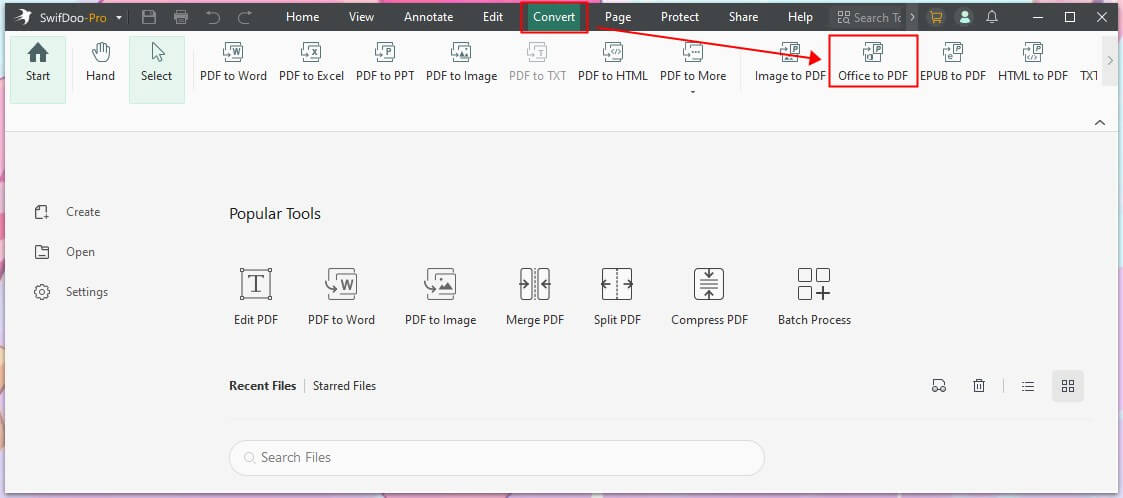
Step 2. Launch the program. Then click Convert in the top menu bar. After that, select Office to PDF in the secondary menu bar.
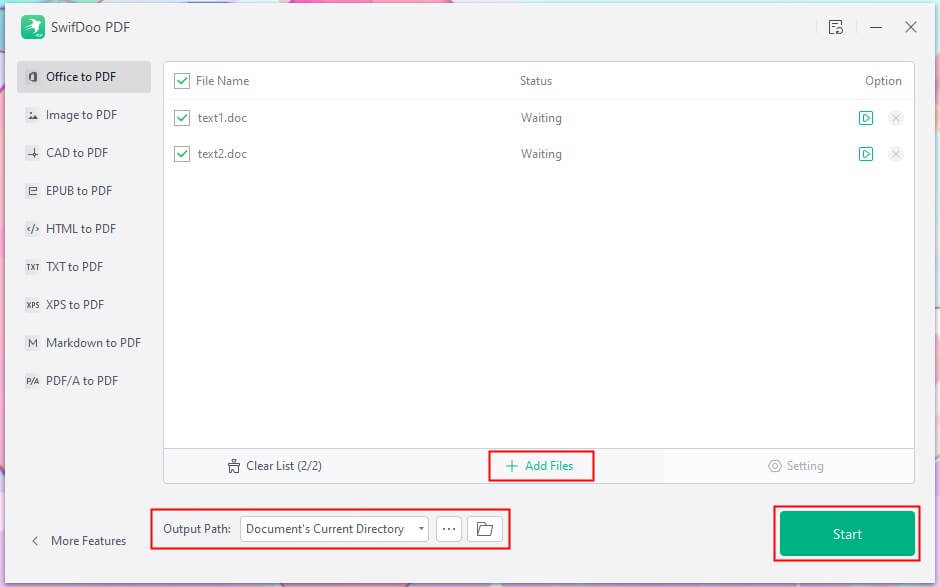
Step 3. Add your Word resume to the workstation. You can easily batch convert Word to PDF.
Step 4. Tap Start to create a PDF version of your Word resume without losing formatting.
Then, you can edit a PDF resume to make it even better.

2. Convert Word Resume to PDF in Microsoft Word
Microsoft Word makes it simple to export resumes to PDF without altering the original layout. The built-in functionality is efficient, trustworthy, and user-friendly, making Word a solid option for professional conversions.
Let’s see how to export Word resume to PDF for free using Microsoft Word in a few clicks.
Step 1. Tap twice on your Word resume to open it in Microsoft Word on your PC.
Step 2. Click the File tab in the top-left corner of the Word window. Next, select Export from the left-hand menu.
Step 3. After that, tap the Create PDF/XPS Document button on the right side of the menu. By doing so, the "Publish as PDF or XPS" dialog will open automatically.

Step 4. On the left side of the window, tap the folder in which you wish to store your converted PDF.
Step 5. Tap Publish in the lower-right corner of the window. This process instantly transforms your Word file (resume) into a PDF.
3. Convert Word Resume to PDF Online for Free
Many free online PDF to Word converters make it simple and fast to convert Word resumes to PDF. SwifDoo PDF Online Converter and similar tools let you convert files directly in your browser without installing software. They help preserve formatting, speed up the process, and offer convenient online access for efficient resume conversion.
Find out how to use SwifDoo PDF Online Converter without any cost.
Step 1. Launch the SwifDoo PDF Word to PDF online converter on your web browser.
Step 2. Press the Choose File button on the homepage. And import your Word resume. As soon as your resume is uploaded, SwifDoo will automatically convert it to a PDF.
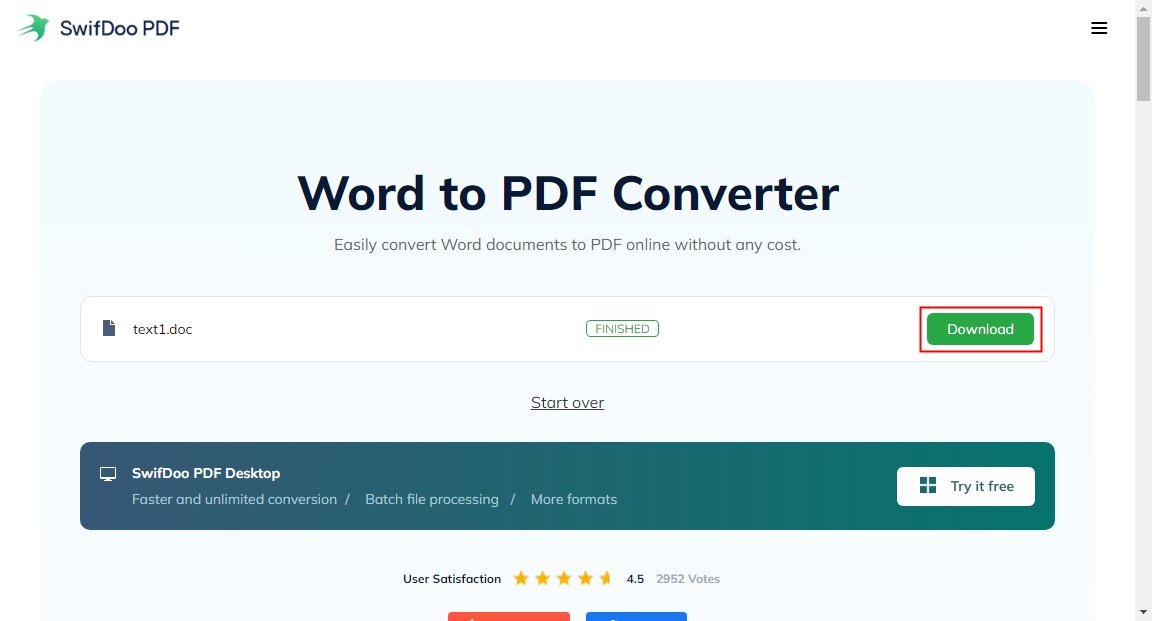
Step 3. Hit the Download button. And the converted resume in PDF format will automatically appear in your local storage.
4. Export Word Resume to PDF Using Google Drive
Lastly, Google Drive makes it simple for users to convert a Word resume to a PDF from anywhere. Upload your Word file to Google Docs, then save or download it as a PDF while keeping formatting intact. Being online allows easy access from anywhere and simplifies resume conversion.
Explore how to convert a Word resume to a PDF for free using Google Drive.
Step 1. Launch Google Drive in a web browser on your PC or Mac. If you aren’t logged in, tap Go to Google Drive. And enter your active email address and password when prompted.
Step 2. Next, tap the +New button on the upper-left side of the Google Drive window. Next, tap File Upload in the dropdown menu to open File Explorer (Windows) or Finder (Mac).
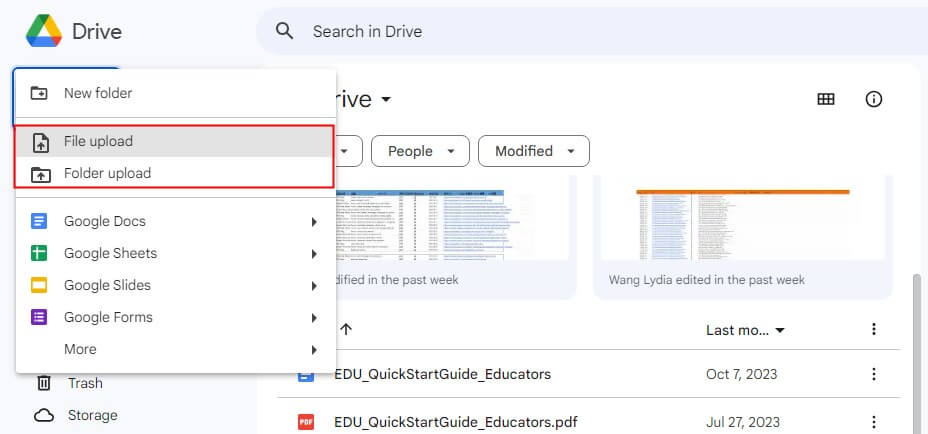
Step 3. Go to your Word resume’s location and click to select it. After you tap Open, your document will upload to Google Drive. Mac users can click Choose here.
Step 4. Once the Word resume finishes uploading to Google Drive, double-click it and select Open with Google Docs at the top to open it in your browser.
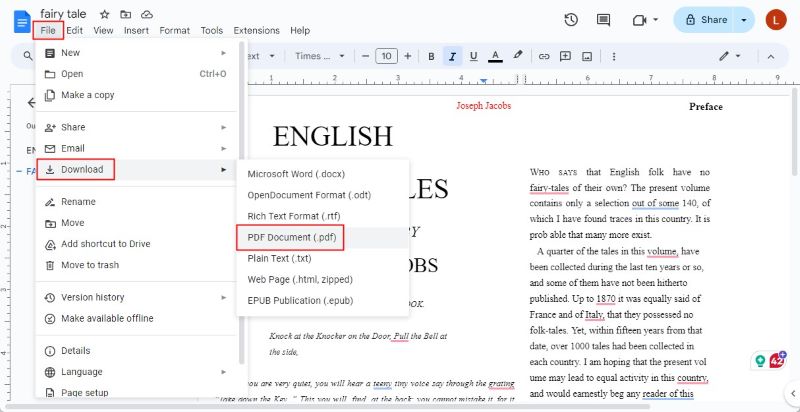
Step 5. Tap the File menu in the top-left corner of the window. Mac users must click File in the browser, not in the menu bar at the top of the screen.
Step 6. Click Download, and another set of options will expand. Then, click PDF Document (.pdf) to create a PDF version of the resume, which prompts you to save it to your computer.
Quick Wrap Up
Converting to PDF helps maintain formatting and a polished, professional look on all platforms. If you want to know how to convert Word resume to PDF, multiple reliable methods are available. From Microsoft Word and Google Drive to online solutions like SwifDoo PDF, all methods have been covered. Each option is quick and convenient, helping you present your resume flawlessly.



