


1. Convert a PDF Resume to a Link with SwifDoo PDF
SwifDoo PDF, a professional PDF converter, offers an effective, straightforward way to convert a resume PDF to a safe link. With cloud support and easy sharing options, users can quickly upload a resume and produce a link to share. Whenever required, you can also edit a resume in PDF with simple steps.
Check out how to convert a resume PDF to a link using SwifDoo PDF in a few clicks.
Step 1. Download and install SwifDoo PDF from the official website on your Windows PC.
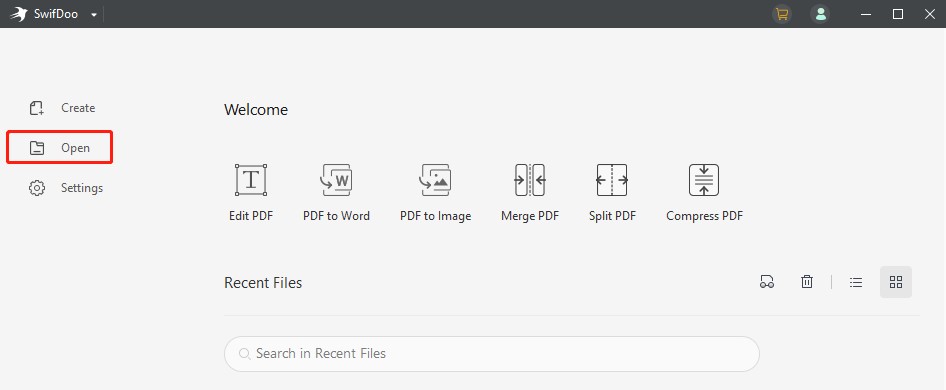
Step 2. Launch the program, then click Open in the main interface to upload your PDF resume. Or, you can drag and drop your resume into the tool.
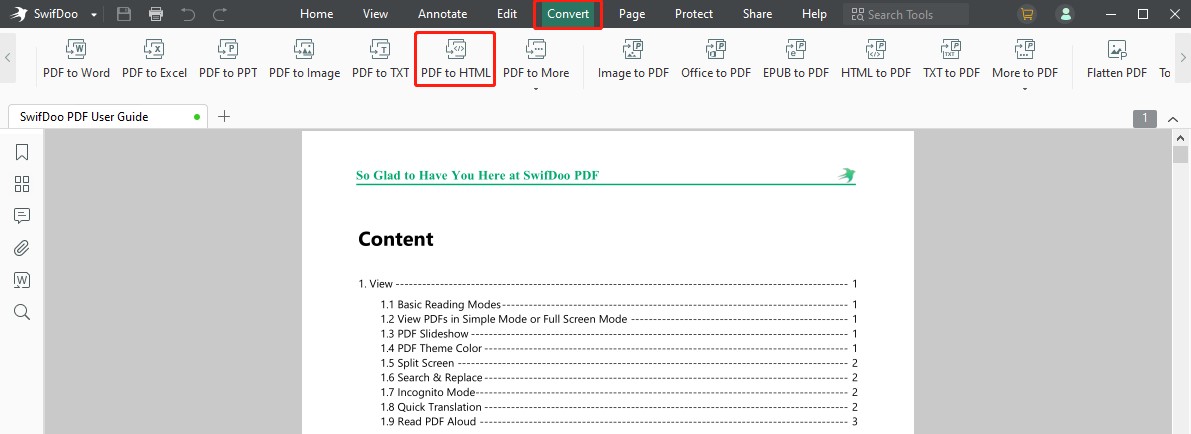
Step 3. After uploading your PDF to the program, click Convert in the top menu. And choose PDF to HTML in the secondary menu bar.
Step 4. The SwifDoo PDF converter dialog box will appear. Select a folder in the Output Path section to save the converted file.
Step 5. Then, press the Start button. SwifDoo PDF will process your request and create an HTML file from the PDF resume in seconds. You can make the HTML a URL link to share with others or view your resume anytime.
Beyond converting PDFs, SwifDoo PDF can help you edit text/image, annotate, split, merge, compress, and protect PDFs. Therefore, it not only enables you to handle resumes but also helps you handle other PDF documents. Don't forget to give it a try!
2. Convert PDF Resume to Link Using Tiiny.Host
Tiiny.Host simplifies the process, letting users convert a resume PDF to a link without technical complications. You can upload your PDF and quickly share a PDF as a link that works across all platforms. The platform includes options for custom URLs, analytics, and password-protected access. Nevertheless, the free version limits storage and access to premium features, making it less suitable for ongoing professional use.
Here’s how to make a resume PDF to link using Tiiny.Host with ease.
Step 1. Open Tiiny.Host on your web browser. Then, sign up or log in to the platform to proceed with the conversion.
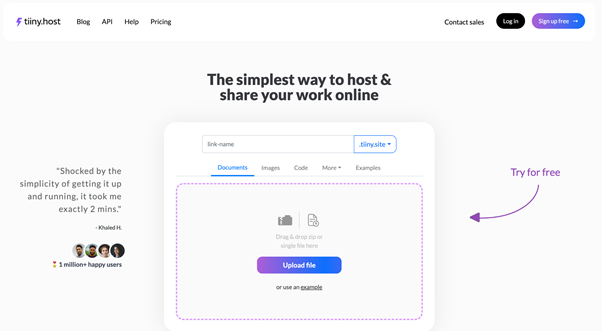
Step 2. Once you have logged in to the platform with your login credentials, click Upload file to import your PDF resume into the workspace.
Step 3. Make the necessary settings as needed.
Step 4. Finally, click Publish at the bottom. Tiiny.Host will process your request instantly.
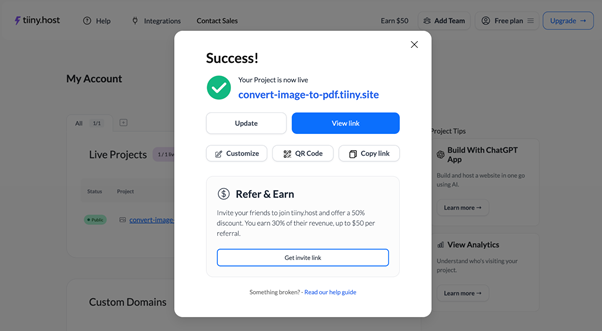
Click Continue. In the appearing window, choose View Link or Copy Link, as per your preferences. If copied, you can send the link to anyone. You can also store it for future access.
3. Export PDF Resume to Link in Google Drive
Google Drive makes it easy to convert a resume PDF to a link by uploading the document and generating a shareable URL. With this method, you can efficiently convert PDF to URL for seamless distribution to recruiters or in applications.
Google Drive additionally offers file organization, permission management, and real-time collaboration. However, link permissions can sometimes cause access issues, and it lacks dedicated PDF editing features.
Learn how to convert a resume PDF to a link via Google Drive in a few clicks.
Step 1. Use a browser of your choice to sign in to Google Drive.
Step 2. Click New and choose File Upload to import the PDF resume into Google Drive. Or drag and drop your PDF resume into Google Drive.
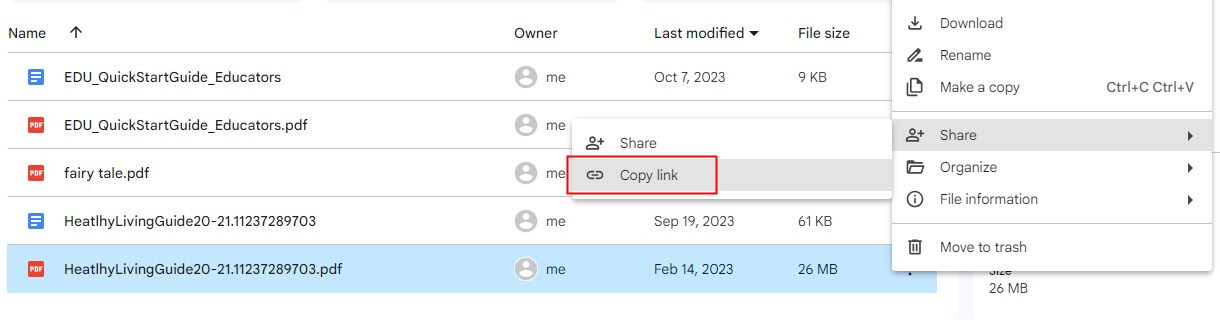
Step 3. Wait as your PDF resume uploads to the Drive. After the upload is done, right-click the file and select Copy link from the dropdown menu.
Step 4. Save the link created from your PDF by copying it. Paste the URL into your browser’s address bar to open the PDF at any time. Similarly, the URL can be shared with friends or clients via any service.
Quick Wrap Up
PDF resumes are widely accepted in professional settings, but turning them into links makes sharing quicker and access easier. In this guide, we covered how to convert a resume PDF to a link to simplify sharing with recruiters.
Although various methods are available, each has its disadvantages. With its ease of use, flexible editing, and strong security, SwifDoo PDF emerges as the top option compared to other tools. In addition, it can help you edit the PDF before sharing. Give it a try!



