


Why Is ChatGPT Saying Something Went Wrong?
ChatGPT displays the “Something Went Wrong” error when it cannot carry out your request. This may occur because of technical glitches, network interruptions, or temporary server downtime. Recognizing the possible causes can speed up the troubleshooting process.
Here’s a list of some of the common reasons:
- Poor or unstable internet connection
- High traffic on OpenAI’s servers
- Momentary server faults or downtime
- Browser cache or cookies
- Outdated browser or application version
- Faulty VPN or firewall configuration
- Too many requests are submitted simultaneously
How to Fix ChatGPT Something Went Wrong Error
Once you know the causes of the error, applying the correct fix is much simpler. You can usually resolve the “Something Went Wrong” error in ChatGPT with some simple fixes. Let’s take a look at all the practical fixes.
Fix 1. Check Your Internet Connection
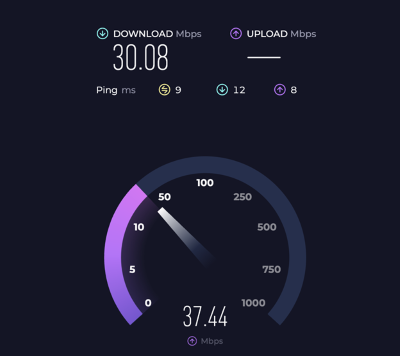
An unstable or weak internet connection can stop ChatGPT from handling your request correctly. Make sure your connection is stable, then restart your router or switch to a better network if needed.
Fix 2. Apply Browser-Specific Solutions
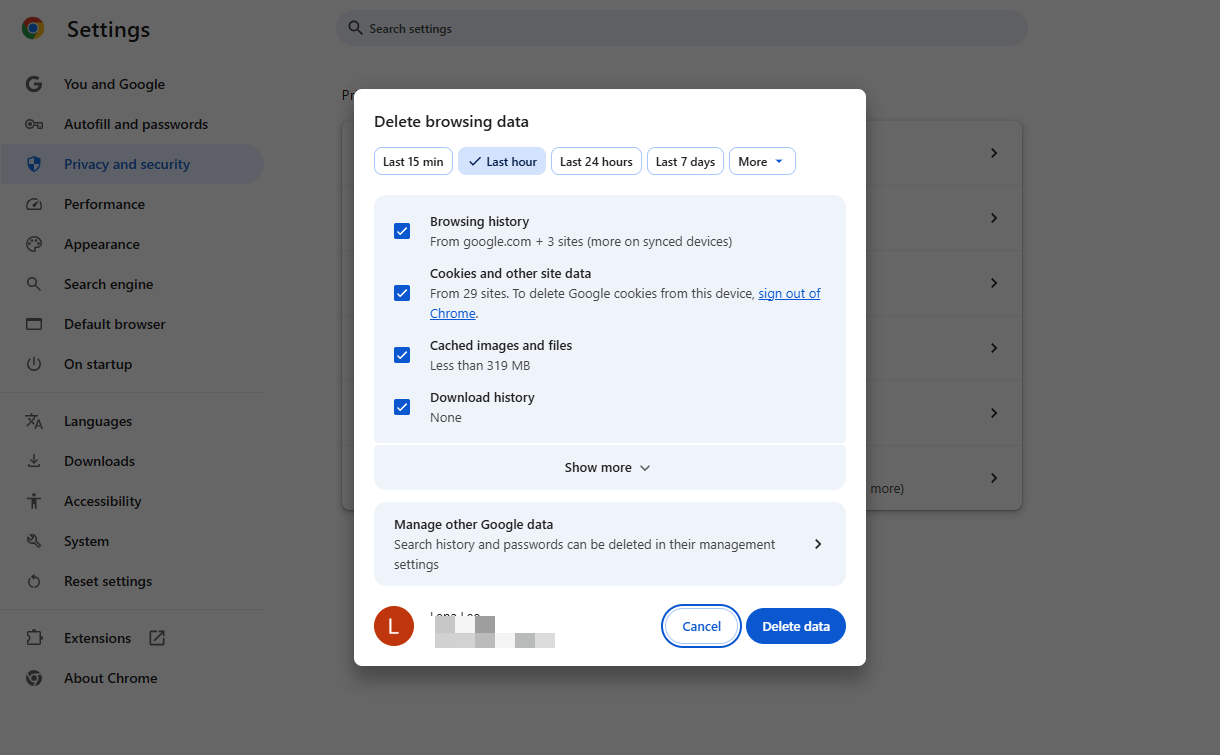
To fix browser-related errors, try clearing your cache and cookies or updating your browser to the latest version. Switching to another browser may help determine if the issue is resolved.
Clear Cache and Cookies
Sometimes, the stored cache and cookies in your browser can cause conflicts with websites and lead to errors. Clearing them removes old or corrupted data and lets the browser load ChatGPT correctly.
Refresh Your Browser
In some cases, the error is caused by a temporary glitch while the page is loading. Reloading the browser page can reconnect the request and properly load ChatGPT, which may fix the problem.
Try a Different Browser
Should the issue persist, try accessing ChatGPT in another browser to see if it resolves the error. Doing this helps determine whether the issue comes from your browser, installed extensions, or settings.

Disable Browser Extensions
Some browser extensions, especially ad blockers or privacy tools, can interfere with how websites function. Temporarily turning off these browser extensions can help you find out if any of them are causing the ChatGPT error.
Use Incognito Mode
Opening ChatGPT in Incognito or Private mode can help bypass issues caused by stored cache, cookies, or extensions. Incognito mode runs the browser with basic settings, which can reveal whether the problem is tied to your normal browser setup.
Fix 3. Check OpenAI Server Status
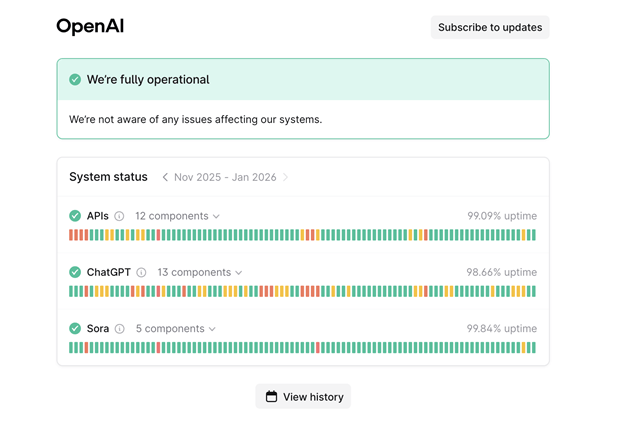
Occasionally, the “Something Went Wrong” error happens because of problems with ChatGPT’s servers. Checking the OpenAI server status helps determine whether the service is currently affected by maintenance or downtime.
When the servers are experiencing downtime, the problem isn’t on your side, so it’s best to wait for OpenAI to resolve the issue before attempting again.
Fix 4. Turn Off Your VPN
Sometimes, VPN usage can prevent ChatGPT from connecting properly, resulting in errors or slower performance. Turning off your VPN temporarily allows ChatGPT to connect directly, resolving the “Something Went Wrong” error and restoring smooth, uninterrupted access.
Fix 5. Restart Your Device
Temporary system glitches or software conflicts may often cause errors in ChatGPT. Restarting any device you’re using—computer, tablet, or smartphone—can clear temporary glitches and restore normal ChatGPT access, fixing the “Something Went Wrong” error. This straightforward step can quickly return normal operation without complex procedures.
Bonus Tip: Easily Handle PDFs with ChatGPT Without Uploading
Now that you’ve gone through the common causes and solutions for ChatGPT something went wrong please try again, you can safely attempt to use ChatGPT again. However, at times, a ChatGPT unable to load site error may still occur. In these situations, a dependable tool like SwifDoo PDF lets you keep working without any interruptions.
SwifDoo PDF is a powerful PDF management tool that offers an AI-powered feature, SwifDoo AI. This AI PDF summarizer allows users to quickly analyze, summarize, and extract information from PDF documents, making it a practical solution when ChatGPT experiences errors like "Something went wrong, please try again." This provides a way to maintain productivity without solely relying on ChatGPT for document handling.
Main Features of SwifDoo PDF.
- Offers an AI-powered assistant, so you can interact with the PDF directly in the interface.
- AI capabilities enable quick, automated summarization of long PDF documents, identifying key points without manual reading.
- Effortlessly use AI to extract data from PDF and support the translation and analysis of complex documents via AI.
- Allows you to process, edit, and analyze documents directly on your machine rather than through cloud-based AI tools, ensuring better data security.
- Offers robust editing features similar to Microsoft Word, including text modification, highlighting, annotating, and commenting to refine the content before or after AI analysis.
- Includes Optical Character Recognition (OCR) to convert scanned, non-editable PDFs into searchable, editable, and AI-readable text.
Learn how to access SwifDoo AI to handle PDFs without hassle.
Step 1. Get SwifDoo PDF and install it on your Windows PC.
Step 2. Once you run the program, open the PDF document you wish to manage.
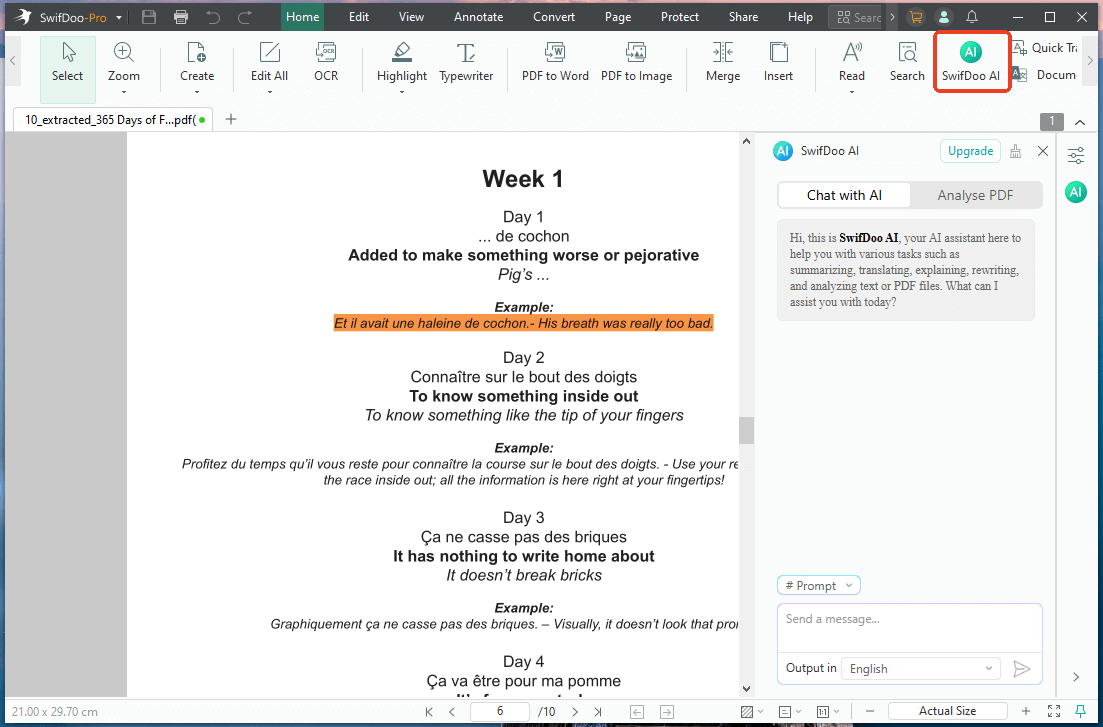
Step 3. Navigate to SwifDoo AI in the top toolbar.
Step 4. Once the window opens, choose Chat with AI. And provide your prompts to summarize, translate, rewrite, or proofread the document.
Or select Analyze PDF to let SwifDoo AI examine the full document and provide helpful insights.
Ready to streamline your PDF tasks? Get SwifDoo PDF now and take advantage of SwifDoo AI to chat with PDF, summarize your documents, and extract important information instantly. Maintain productivity even when ChatGPT is unresponsive. Keep your workflow uninterrupted and never let "Something went wrong, please try again" stop your progress.
A Quick Wrap Up
Dealing with the ChatGPT something went wrong error can disrupt your workflow. However, most problems can be fixed by checking your internet connection, refreshing your browser, or using other simple solutions.
For continued efficiency, SwifDoo PDF and its AI features offer a dependable alternative to manage documents when ChatGPT is temporarily out of service!



