


Whether you're seeing a spinning cursor that never stops, getting "network error" messages, or simply no reply at all after sending a prompt, this problem disrupts productivity and causes widespread searches like "ChatGPT not responding," "ChatGPT not working," "why is ChatGPT not answering," and "fix ChatGPT no response." Now, let’s find the answers in the following content.
Why Is ChatGPT Not Responding
Before diving into solutions to “ChatGPT not responding”, it helps to understand the root causes. Below are some common causes.
OpenAI Server Issues or Outages
The OpenAI server issues or outages are the most common causes, especially during peak hours or after major updates. When the OpenAI servers are overloaded owing to high traffic or maintenance, ChatGPT can become unresponsive.
Browser Cache or Extension Conflicts
If your ChatGPT has some corrupted cache or cookies from previous sessions, those can prevent proper loading or submission. In addition, some browser extensions may interfere with WebSocket connections ChatGPT uses for real-time responses.
Internet Connection Problems
If you use unstable Wi-Fi or high-latency connections, or if mobile data is throttled, ChatGPT may not respond. You need to use a reliable, low-latency connection.
Account or Login Glitches
If the login session expires or authentication fails, ChatGPT will be unable to generate a response.
Device or System Limitations
Low memory, outdated apps or browsers, or hardware acceleration conflicts may freeze the ChatGPT interface, causing it to stop responding.
Fix ChatGPT Not Responding: Step-by-Step Troubleshooting
Now, follow the fixes below in order to resolve the ChatGPT not responding issue. Some of you may resolve the issue with the first few steps. Let’s check them one by one.
Step 1. Check ChatGPT Server Status
First, you can visit the official status page (https://status.openai.com/) to check for an outage. If it shows degraded performance or outages, the problem isn't on your end. The only option for you is to wait until the issue is resolved. Also, you can search for “is ChatGPT down” on Downdetector for user reports.
Step 2. Refresh and Reload the Page
Sometimes, a simple refresh can fix temporary glitches. You can try refreshing or reloading the ChatGPT page.
- Refresh the page for a hard reload: Press Ctrl + F5 on Windows or Cmd + Shift + R on Mac.
- Close and reopen the browser tab.
- Start a new chat instead of continuing the old one.
Step 3. Clear Browser Cache and Cookies
Then, try clearing the browser cache and cookies. Here, I take the Chrome browser as an example.
- Go to Settings.
- Click the Privacy & Security option.
- Select the Clear browsing data option and choose cache and cookies.
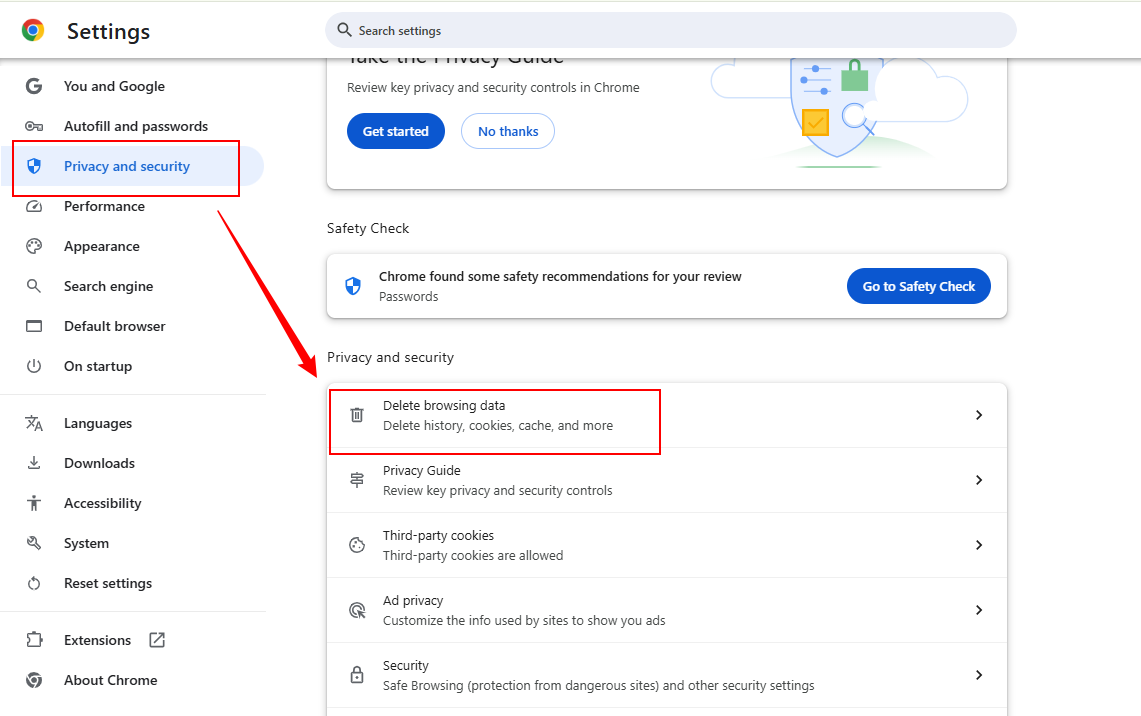
- Finally, click the Delete data button.
After clearing, log out of ChatGPT, close the browser, and reopen it. Then, log back in and try ChatGPT again.
Step 4. Try Incognito, Private Mode, or a Different Browser
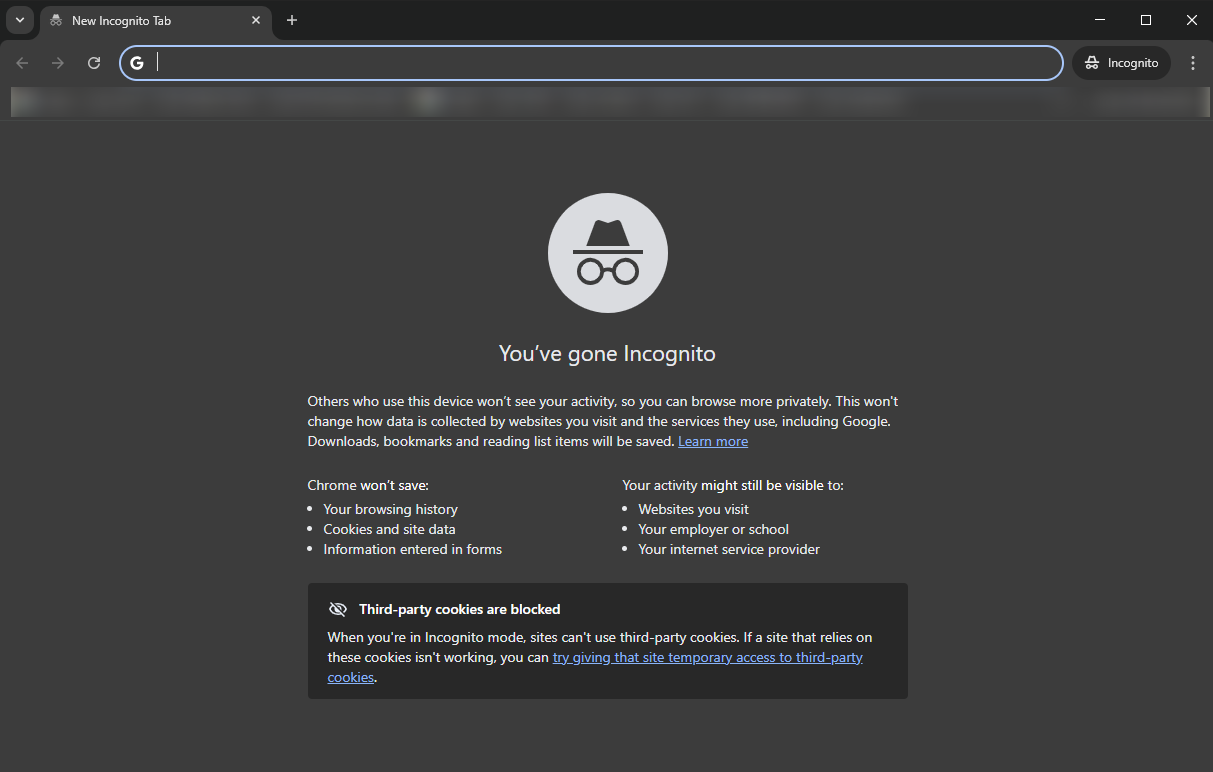
Also, you can try incognito mode, which disables extensions and starts a clean session.
- Press Ctrl + Shift + N to enable the Incognito mode in Chrome.
- Visit ChatGPT
- Log in again.
Alternatively, you can try a different browser.
- Firefox
- Microsoft Edge
- Safari
Step 5. Switch Devices or Use the ChatGPT App on Mobile
If ChatGPT fails to load or respond on desktop, try the official ChatGPT iOS or Android app. In reverse, if the ChatGPT app hangs, switch to its web version.
Step 6. Disable VPN, Proxy, or Problematic Extensions
ChatGPT is not available across all countries. Hence, VPNs can trigger IP blocks or high latency. You can try to disable your VPN temporarily. Meanwhile, if your browser has extensions installed, such as ad blockers or script blockers, you need to disable them one by one to identify conflicts.
Step 7: Check and Improve Your Internet
A slow or unstable network can prevent responses from loading. You can try the following options.
- Switch from the Wi-Fi network to mobile data or hotspot.
- Restart your router or modem.
- Run a speed test.
Step 8: Adjust Model or Reduce Prompt Complexity
ChatGPT offers several models. You can toggle between GPT-4o, GPT-3.5, or others in settings.
Additionally, you need to shorten your prompts or break them into smaller parts, which can reduce ChatGPT’s processing load and improve the response speed.
Step 9: Log Out and Log Back In
Moreover, you can log out and log back in when ChatGPT is not working, responding, or loading. Here’s how:
- Click the profile icon in the lower-left corner.
- Click Log out.
- Then, visit ChatGPT and log in again.
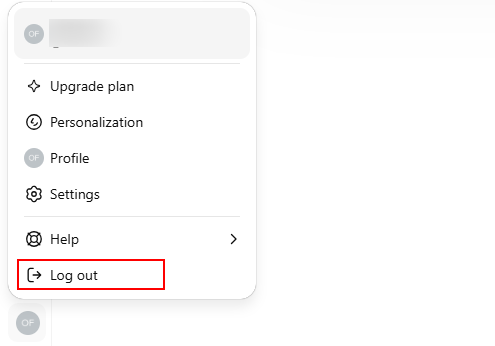
This can refresh your session token.
Step 10: Wait It Out or Contact Support
If the status is normal and the fixes above don’t work, it could be due to temporary throttling. You need to wait a bit, or try contacting OpenAI support at help.openai.com.
How to Prevent ChatGPT from Not Responding
To avoid further issues, I have summed up the following best practices for prevention.
- Keep your browser and app updated.
- Maintain shorter chats and clearer prompts
- Use a stable Internet connection.
- Consider ChatGPT Plus or Po for priority access during high traffic.
What to Do When ChatGPT Still Won't Respond: Alternatives
In addition to ChatGPT, there are other useful, reliable AI tools available. Below are several alternatives to ChatGPT for you to choose from.
- Google Gemini: Is ChatGPT better than Gemini? The answer and choice are subjective. If you need a free AI assistant, try Google Gemini.
- Microsoft Copilot: Copilot is powered by similar tech and integrated with Bing.
- Perplexity: Perplexity vs ChatGPT, which one is better? Try Perplexity if you have the need for research with sources.
- DeepSeek: It is a popular AI assistant that is suitable for coders, researchers, and anyone wanting raw reasoning power.
Final Thoughts
ChatGPT remains highly functional, but like any cloud service, it occasionally experiences malfunctions. What can you do to fix the “ChatGPT not responding” issue? With the step-by-step troubleshoot guide above, you can resolve the issue effectively. Hopefully, this article can be helpful to you.



