


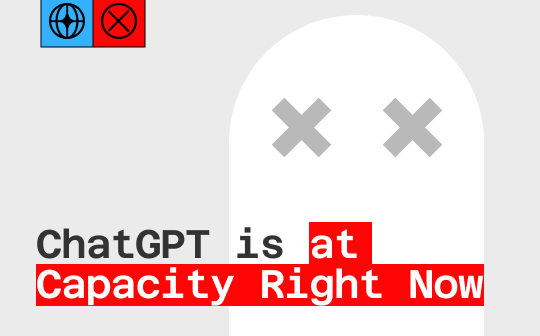
What Does It Mean When "ChatGPT is at Capacity Right Now"?
When you see this error message, it means the website is too full.
Imagine ChatGPT is a physical building, like a supermarket. The building has a fire limit. It can only hold 1,000 people safely. If 1,005 people try to enter, the security guard has to stop the last 5 people at the door. He tells them, "Sorry, we are at capacity. You have to wait until someone leaves."
In the digital world, the "building" is the server (the powerful computers that run the AI). When millions of people try to type questions at the exact same second, the servers get overwhelmed. To stop the whole system from crashing, OpenAI (the company that owns ChatGPT) puts up a virtual gate. If you are seeing this message, you are standing at that gate.
Why Is ChatGPT at Capacity Right Now?
Why does this happen so often? There are a few simple reasons:
❌ It Uses a Lot of Power: Answering your questions requires a lot of computer processing power. It isn't like a normal Google search; the AI has to "think" about every word it writes. This quickly uses up the server's energy.
❌ Peak Hours: Usually, during business hours (9 AM to 5 PM) in the United States and Europe, the site is busiest as people use it for work.
❌ Free vs. Paid: OpenAI saves some space specifically for people who pay for a subscription. This means the "room" left for free users is smaller and fills up faster.
How to Fix ChatGPT Is at Capacity Right Now Error
It is annoying to see the error message when you have a burning question. In this case, you can try these 8 solutions one by one and return to the normal screen you're familiar with.
Solution 1: Refresh the Page and Wait
If the "capacity" message is just a momentary glitch, a simple refresh can help you get rid of the error. Click the reload button, or press Ctrl + R (on Windows) or Cmd + R (on Mac) to make it. When you encounter other problems, such as , you can also try this method.
After many attempts, it still didn't work? If you're not in a hurry now, then you can wait for 15 to 30 minutes, or even longer. Besides, you don't have to check manually every time. You can click the "Get notified when we're back" button, and in this way, when the service is restored, you will receive a notification email.
Solution 2: Clear Browser Cache and Cookies
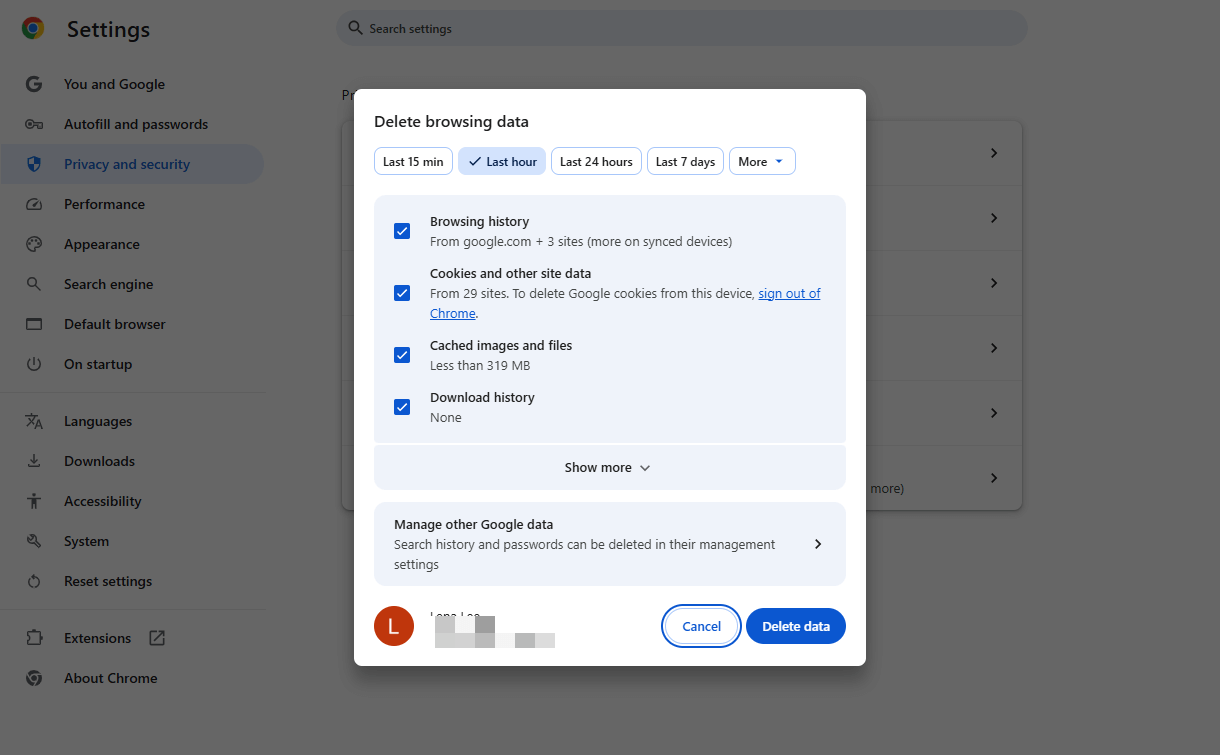
By default, your browser saves information about websites to load them faster. This is called "cache." Maybe your browser "remembers" the error message even after the site is working again. Therefore, you can go to Settings to clear cache and cookies.
Here is an example to do so in Google Chrome:
- In Google Chrome, click the three-dots icon, then click Settings.
- Go to Privacy and Security and click Delete browsing data.
- Select the “Cookies and other site data” and “Caches images and files” option.
- Finally, click Delete date.
Solution 3: Use Incognito Mode
This is a quick trick. "Incognito" or "Private" mode opens a fresh window that doesn't use your old cookies or data. It forces the website to treat you like a brand-new visitor.
How to make it:
- Chrome/Windows: Press Ctrl + Shift + N.
- Mac: Press Cmd + Shift + N.
- Go to the ChatGPT website in this new black window. Often, it will let you right in.
Solution 4: Log Out and Log Back In
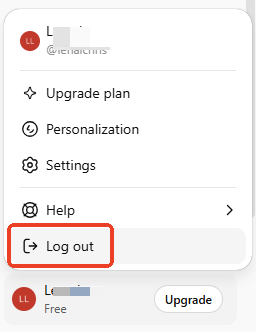
Sometimes your connection to the site gets "stale" or stuck. If the site lets you see the sidebar, click your name at the bottom and select Log Out. Then, enter your email and password to log back in. This refresh can sometimes push you into an open spot on the server.
Solution 5: Use a VPN
This is one of the most successful fixes. If the servers in New York are full, the servers in London or Japan might be empty.
Use a VPN app on your computer. Change your location to a country where it is currently nighttime (like switching to a server in Asia when it is daytime in the US). Since fewer people are awake there, the servers are less busy.
Solution 6: Try a Different Account or Device
If you are on a computer, try opening ChatGPT on your phone's web browser or using the official ChatGPT mobile app. The mobile app sometimes uses a different "door" to get into the server, allowing you to bypass the web traffic jam.
Solution 7: Try ChatGPT Alternatives
When you see the ChatGPT Is at Capacity Right Now error message, another quick solution is to use a ChatGPT alternative, such as Gemini, Grok, and DeepSeek. Just like ChatGPT, these AI tools also have a chat box where you can input your questions and receive answers.
If you are working with a PDF document, SwifDoo PDF is a good choice. It is a PDF editor that integrates ChatGPT. That is, SwifDoo PDF can be an AI PDF analyzer, summarizer, translator, and rewriter.
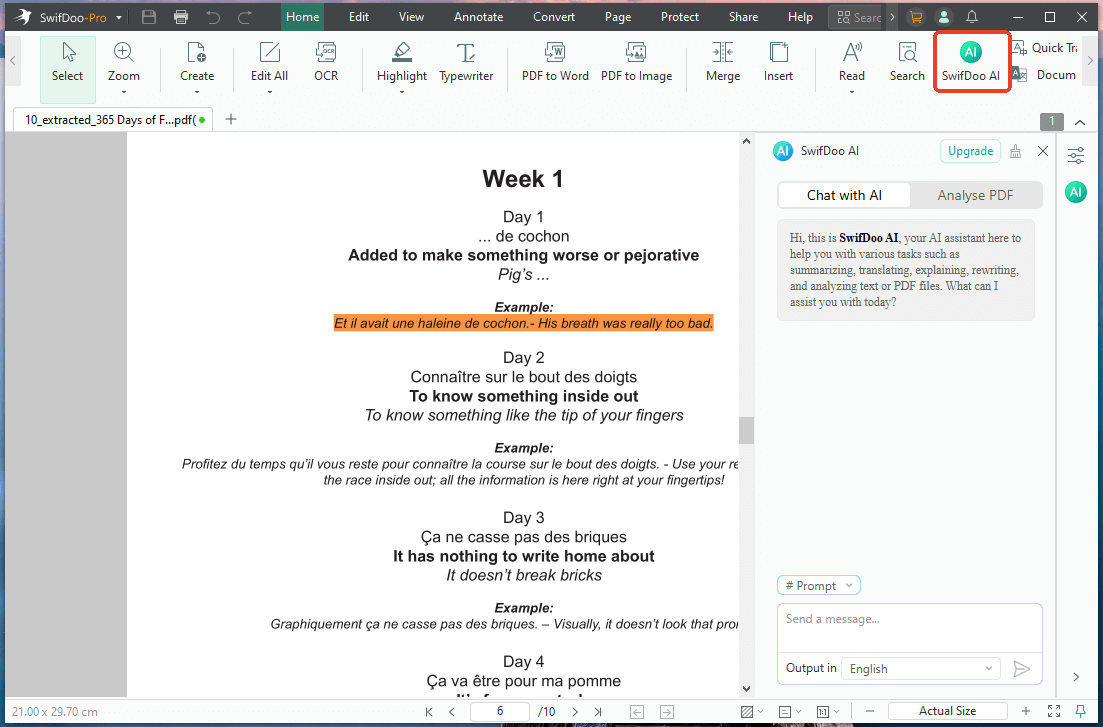
All you need to do is open the document, click on "SwifDoo AI", and then you can start working. It's very convenient. Why not give it a try?
Solution 8: Upgrade to ChatGPT Plus
If you use ChatGPT for your job and cannot afford to wait, this is the only 100% permanent fix.
OpenAI offers a paid plan called "ChatGPT Plus" (usually $20/month). One of the main benefits is "Priority Access." This means even when the site is "at capacity" for everyone else, you get to skip the line and get in immediately.
Conclusion
That’s all about how to fix "ChatGPT is at capacity right now" error message. Next time you see it, don't panic. Start by refreshing the page. If that doesn't work, try opening an Incognito window or using a VPN to change your location. If you keep encountering this error every day, you might consider upgrading to the advanced plan so you won't have to wait in line anymore.



