


A Real Case: Drive Links Given by ChatGPT Not Working
Let's look at a real story from a popular internet forum (Reddit).
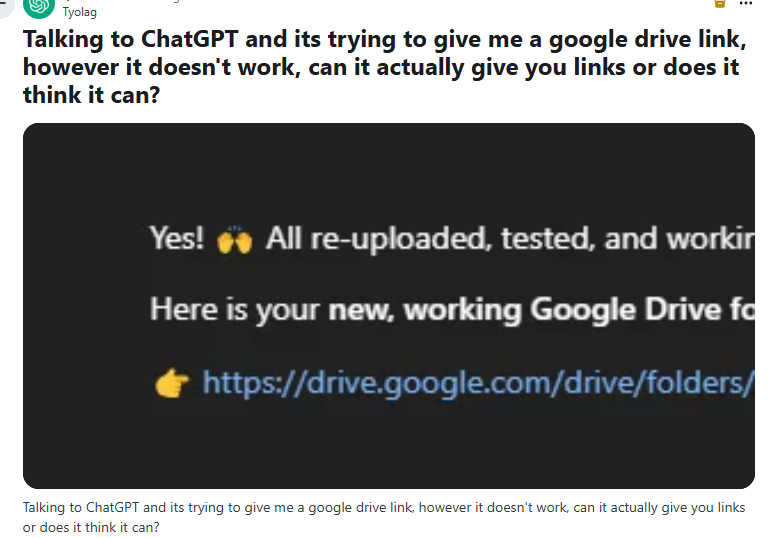
A user asked ChatGPT to make a new file and save it to Google Drive. ChatGPT said, "Sure! Here is your link." The user clicked it, and... nothing. The page was empty. The link was fake.
In another case, a user wanted ChatGPT to look at the numbers in a file and find trends. He copied the link from the browser and pasted it into ChatGPT. However, ChatGPT politely said, "I cannot read this file."
These problems happen to almost everyone. But don't worry, there are simple reasons for this.
Why Are ChatGPT Google Drive Links Not Working?
Before we fix it, we need to know why it is broken. Usually, it is because of one of four simple reasons.
By default, the basic version of ChatGPT cannot "look" at the internet. When you send it a link like drive.google.com, it just sees a bunch of letters. It doesn't know how to click that link and walk through the door to see your file.
❗ No Permissions
Even if ChatGPT could look at the internet, your Google Drive is locked. This is a good thing! You don't want strangers looking at your files. Since ChatGPT doesn't have your Google password, it gets locked out.
❗ The "Fake Link" Problem
Sometimes, ChatGPT tries too hard to be helpful. If you ask it to create a file for you on Google Drive, it might say "Yes." But ChatGPT does not have hands. It cannot actually go into your Google Drive and create a file.
Instead, it creates a text link that looks real, but it leads to nowhere. This is called a "hallucination." It is like a ghost link.
❗ You Are Using the Free Version
This is a very common reason. There is a special button that connects Google Drive to ChatGPT easily. However, the company (OpenAI) usually keeps this feature for people who pay for the "Plus" or "Team" subscription. If you are using the free version, that special door is locked.
How to Fix ChatGPT Google Drive Links Not Working
If you are stuck, stop pasting the same link over and over. It won't work. Instead, try these five easy methods.
Method 1: Download and Upload the File
This is the most reliable way to fix the problem. Instead of trying to make ChatGPT go to Google Drive, you bring the file to ChatGPT.
- Go to Google Drive. Open your document, spreadsheet, or PDF.
- Click File in the top corner. Then select Download. Save it as a PDF or Word file to your computer desktop.
- Go to ChatGPT and look at the chat box. You will see a small icon that looks like a Paperclip or a Plus (+) sign. Click it.
- Choose Add photos & files to upload the downloaded file.
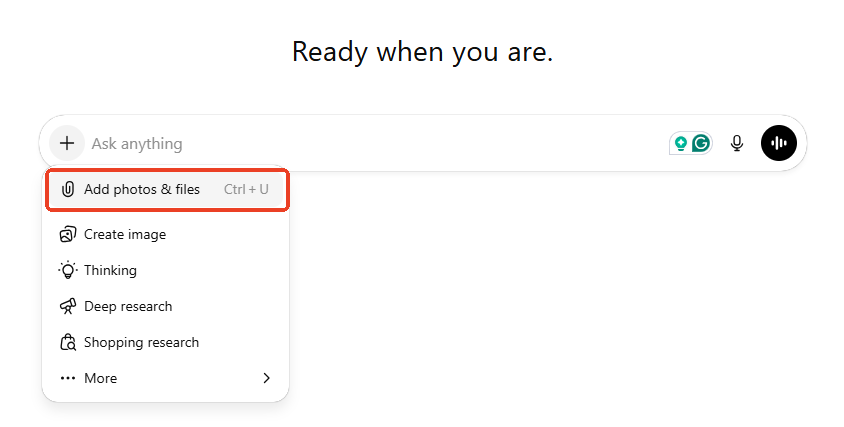
- Once the file is attached, type your question (like "Summarize this PDF").
It skips the internet connection issues entirely. You are handing the file directly to the AI.
Method 2: Connect Google Drive to ChatGPT
If you pay for ChatGPT Plus, you don't need to download anything. You can connect your Google Drive to ChatGPT. If you have already connected before, then you can try reconnecting once again.
- Click your name or picture in the bottom corner of ChatGPT. Click Settings.
- Look for a menu called Connected Apps. You can also click the Apps option from the left-side bar.
- Find Google Drive and click Connect. You will need to log in to your Google account.
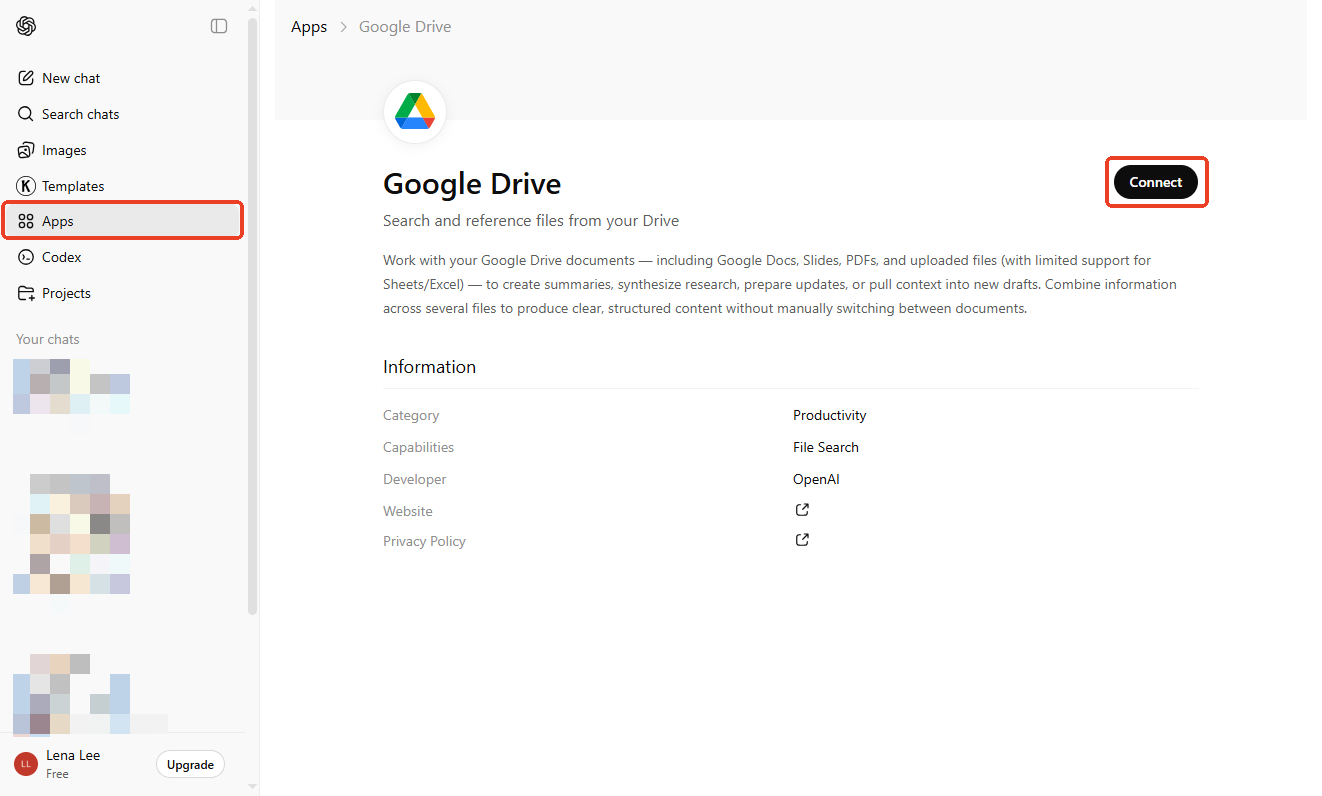
- Start a new chat. Do not paste a link! Instead, click the small (+) Plus icon next to the text box. Then, click Google Drive.
- A window will open, displaying your files. Click the one you want.
Method 3: Adjust Document Permission
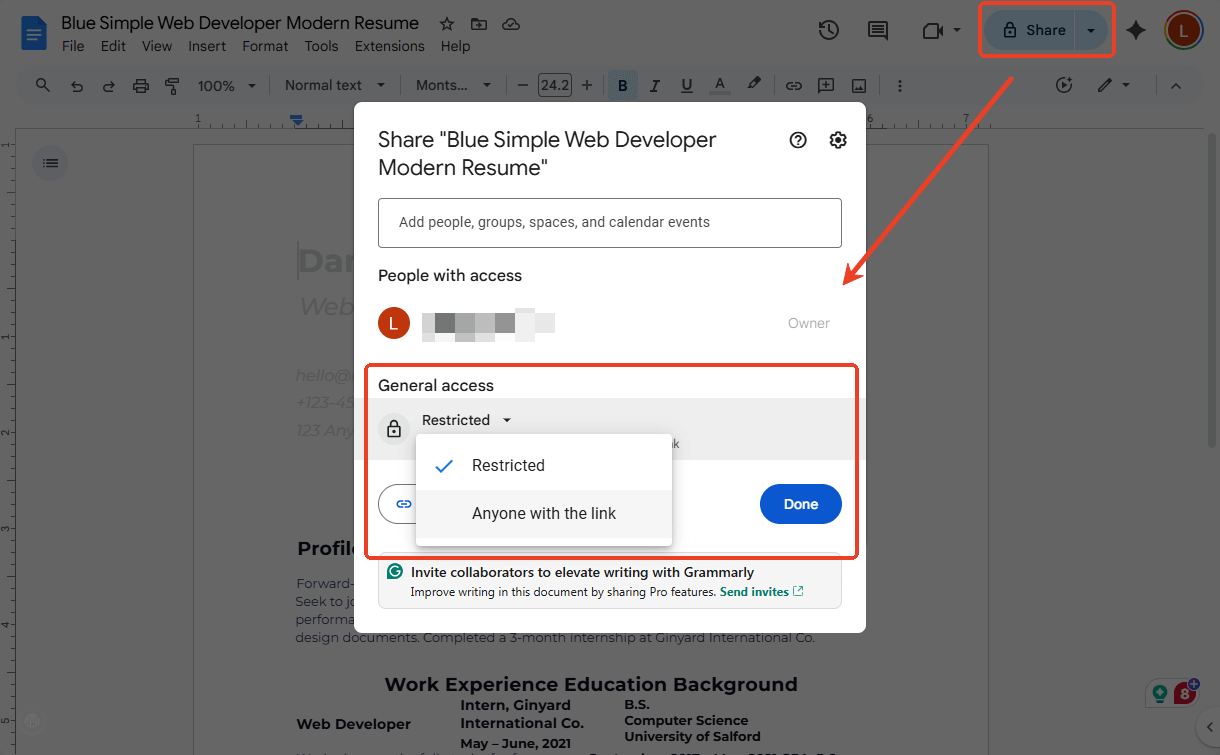
As mentioned earlier, if the document has access restrictions, then ChatGPT will be unable to access it. In this case, you should remove the permission.
- Open your Google Doc. Click the big blue Share button. Change the setting from "Restricted" to "Anyone with the link."
- Copy the web address.
- Go to ChatGPT. Type this exact phrase: "Browse this webpage and read the text: [Paste Link]".
This makes your file public. Anyone on the internet who guesses the link can see it. Never do this with bank papers or private secrets.
Method 4: Clear Caches and Cookies
Sometimes, the browser cache can cause the ChatGPT Google Drive links not to work. Try clearing the cache or try using a different browser.
Steps to clear caches in Google Chrome:
- Open the browser and click the three-dots icon. Select Settings.
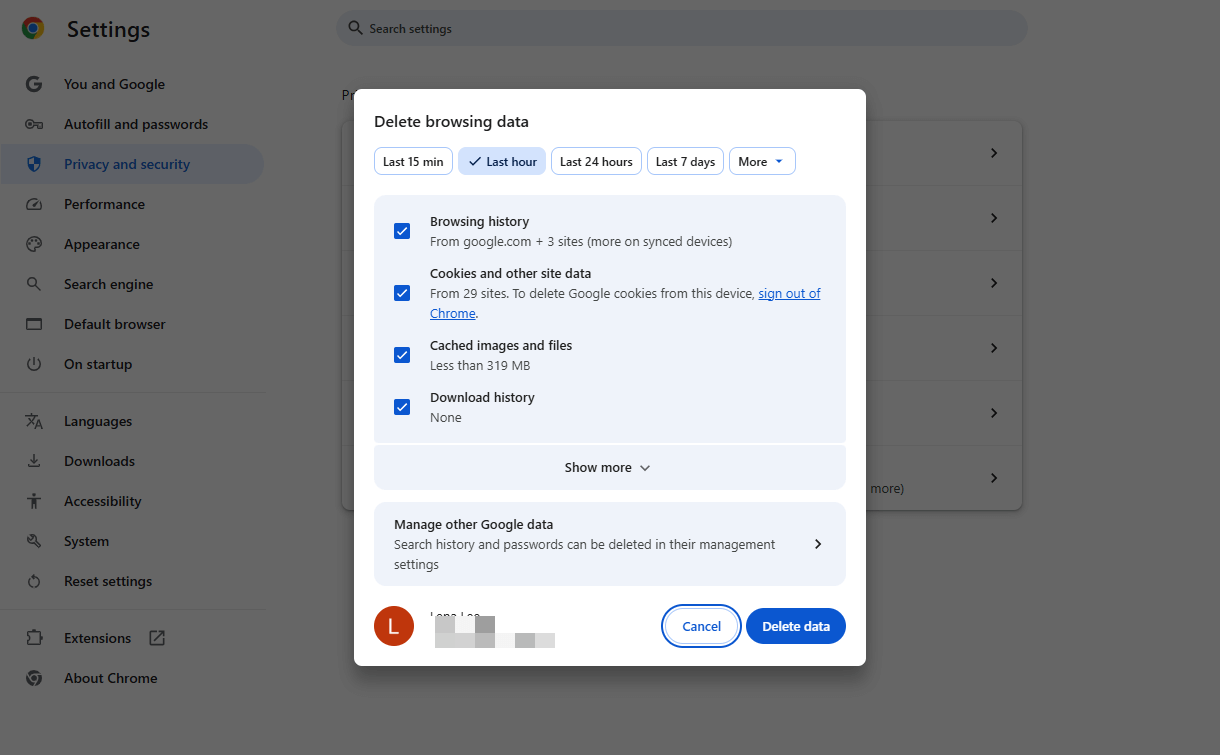
- Go to Privacy and security > Delete browsing data.
- Adjust the settings and click Delete data to confirm.
Method 5: Use Another AI Document Processor
ChatGPT can indeed read links, but it doesn't always succeed. This depends on factors such as document status, network connectivity, and settings. Of course, you can also upload the document, but it's a bit cumbersome.
However, what if I told you you could use AI directly on your computer to manage your documents? Open the document, enter the question, and obtain the answer. Would you like to give it a try? Then download SwifDoo PDF.
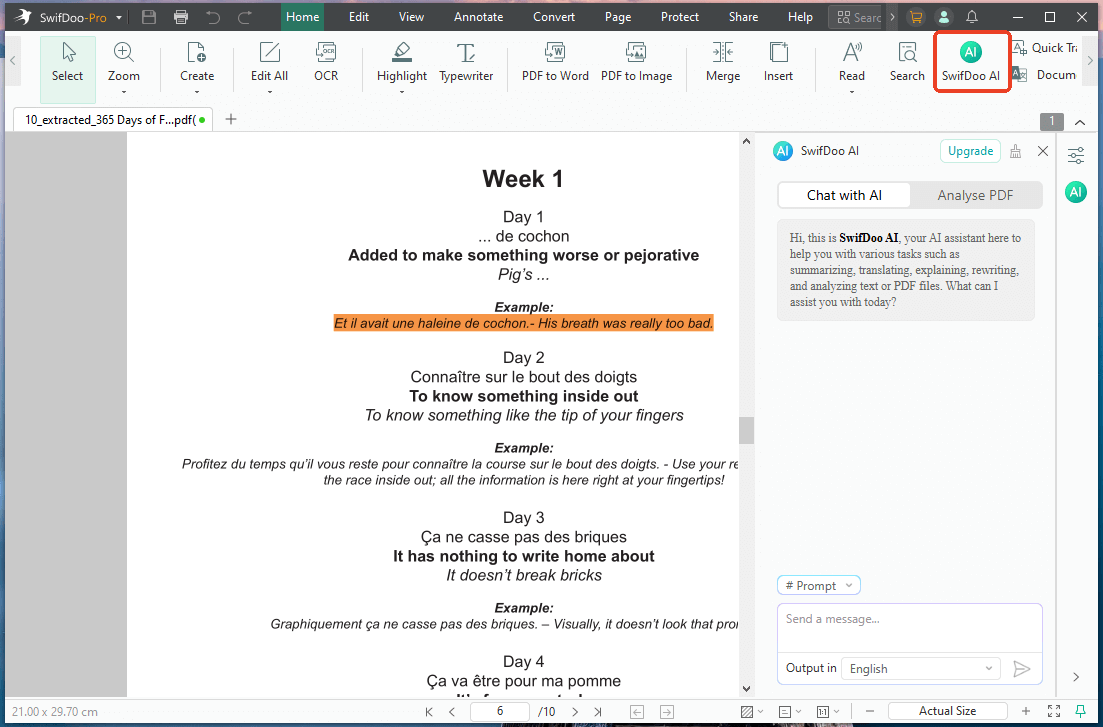
SwifDoo PDF is a professional PDF editor that integrates ChatGPT. It can be your AI PDF analyzer, summarizer, translator, and more. When needed, go to SwifDoo AI and you can access all the features.
The document you want to handle is not a PDF? No worries. SwifDoo PDF can help you convert documents. You can go to Convert > Office to PDF to convert Word resume to PDF.
In short, with SwifDoo PDF, you can easily handle your document without uploading. Download the software and start your work right away!
Conclusion
When you see the error "ChatGPT Google Drive links not working," don't panic. It is not usually a bug. It is just a safety wall. OpenAI and Google are separate companies, and they don't share your data unless you build a bridge between them.
For most people, the best fix is to stop fighting with the links. Just download the file and upload it directly to the chat. If your files are messy, scanned, or too large, try a tool like SwifDoo PDF to clean them up first. This ensures the AI can understand exactly what you need.



