


Why Is ChatGPT Image Generator Not Working?
Troubleshooting ChatGPT image generation is easy when you know the root cause. Wonder why is ChatGPT image generator not working? Several factors may be contributing to the issue. Let us find out the possible causes.
- Operating with an unsupported ChatGPT model.
- Free tier restrictions or subscription issues.
- Misconfigured personalization settings in ChatGPT.
- Browser problems or cached data conflicts.
- The input violates ChatGPT’s content policies.
- Unclear or incomplete instructions.
- Technical glitches, bugs, and server issues.
- Service outage or an unknown network error.
- Temporary glitches that resolve themselves over time.
How to Fix ChatGPT Image Generator Not Working
You are now familiar with multiple reasons that may disrupt ChatGPT’s image generation. Keep following along to fix the issue efficiently and without delay.
Fix 1. Input the Prompts Clearly
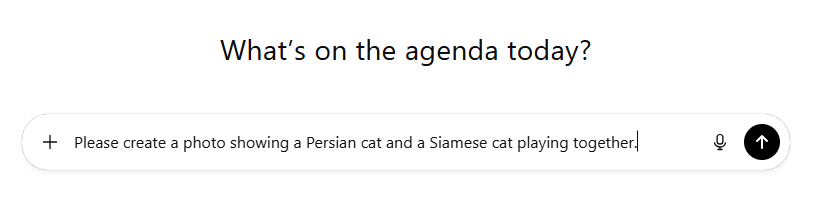
Sometimes, images fail to generate because the user's prompts are not clear enough. You can clarify that you're looking for an image by including terms such as "picture" or "image" in your request.
Be sure to include specific details, for example, you can be specific about the image you want to generate, such as mountains, a girl, a cat, etc.
Fix 2. Ensure to Enable the Dall·E Image Generation Option
Ensure you’ve enabled the Dall·E Image Generation option before you proceed to generate any images. Here’s how.
Step 1. Go to the ChatGPT page and log in to your account.
Step 2. Hit your profile avatar in the top right corner.
Step 3. Choose Customize ChatGPT.
Step 4. Scroll to the bottom of the pop-up. And click Advanced.
Step 5. Enable the Dall·E option and tap Save.
Fix 3. Disable Custom Instructions
You can also disable custom instructions that may conflict with image generation capabilities to resolve the issue. Here’s how.
Step 1. Select your profile icon at the bottom-left corner.
Step 2. Select Settings and navigate to Personalization. Then scroll down to Custom Instructions.
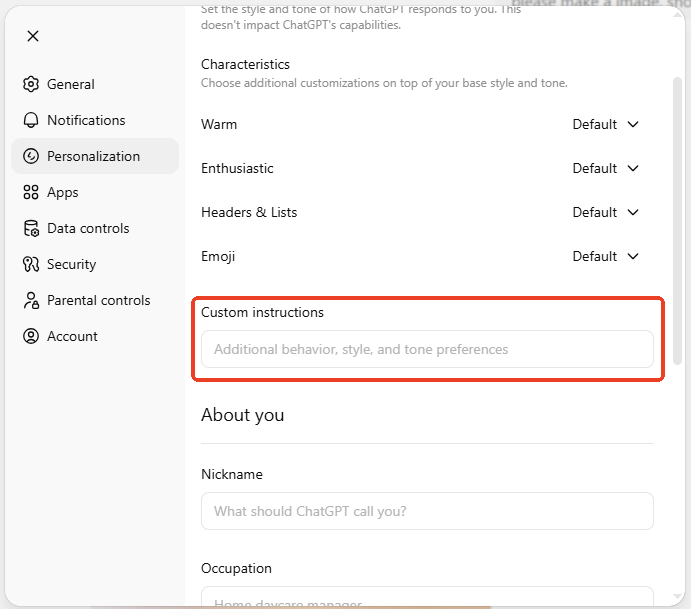
Step 3. Temporarily clear bot custom instruction boxes.
Step 4. Save the updates and retry image generation.
Fix 4. Upgrade Your Subscription
The free account has usage limitations. If you plan to create a large volume of images with the newest image generation features, consider upgrading your subscription plan. Here’s how.
Step 1. Select the ChatGPT icon at the top.
Step 2. Click Upgrade.
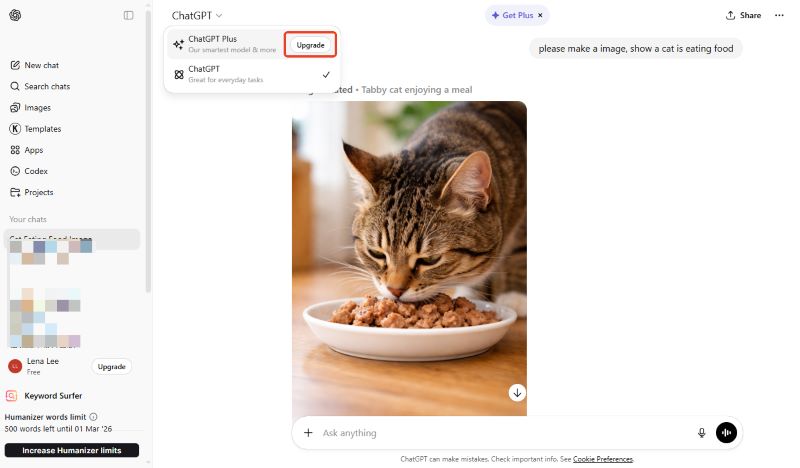
Step 3. Then choose a plan you prefer.
Fix 5. Hard Refresh the Browser
Sometimes, your browser may fail to load ChatGPT properly due to temporary issues. In that case, it is best to clear your browser cache and cookies. Here’s how.
- Press Ctrl + Shift + R on Windows.
- Or, press Cmd + Shift + R on Mac.
Then, start a new chat in ChatGPT. Make sure the problem has been successfully addressed.
Fix 6. Try Other Solutions
If none of the above fixes work, try the workaround solutions to resolve the issue.
- Turn off Beta features.
- Verify rate-limit status.
- Try different browsers or devices.
- Disable browser extensions.
- Update your browser.
- Start a fresh conversation.
- Check your internet connection.
- Tets during off-peak hours to avoid server overload.
- Check OpenAI service status.
- Log out of your ChatGPT account, then log back in.
- Update the mobile app.
- Contact OpenAI support.
- Try alternative API methods.
Bonus Tip: How to Efficiently Process PDF Files with AI
Even after reviewing the causes and fixes, you might still face the ChatGPT image creator not working issue. Should ChatGPT unable to upload image issues continue despite the solutions above, it’s best to use a dependable option like SwifDoo PDF for efficient AI-powered PDF processing.
SwifDoo PDF is a powerful tool created to make PDF management easier. With its built-in AI assistant, SwifDoo AI, you can enhance your workflow and productivity.
The AI PDF summarizer helps summarize lengthy PDFs, accurately translate text, rewrite content, explain complex sections, and proofread instantly. It also enables you to interact with your PDF and extract important insights without technical skills.
Key Features of SwifDoo PDF
- Edit, annotate, merge, and split PDF files.
- Easily convert PDFs to and from Word, Excel, PowerPoint, images, and more.
- Quickly compress documents smoothly while retaining their original clarity.
- Leverages AI to summarize, translate entire PDFs, proofread, and much more.
- Access, print, secure, and sign documents on any device.
Ready to work smarter with your documents? Download SwifDoo PDF today to take full advantage of its AI tools. Use it to chat with PDFs, quickly summarize content, and revolutionize how you manage and understand files.
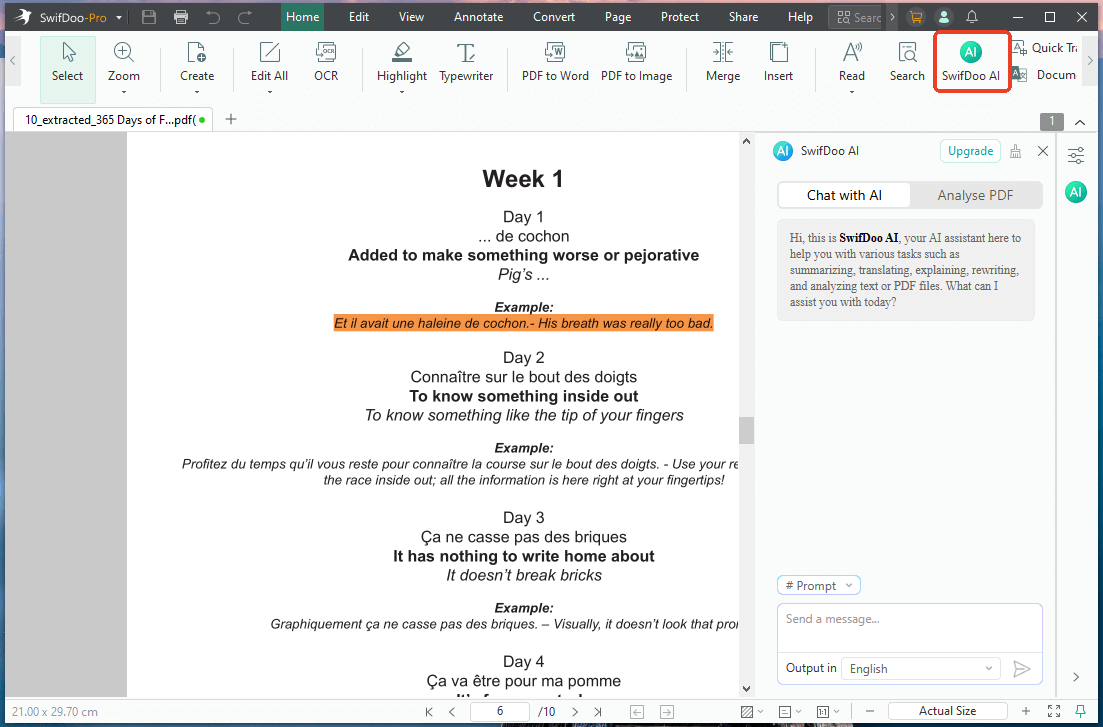
How to use SwifDoo AI: Open the document in the software > Click SwifDoo AI > Enter your question.
Final Thoughts
The ChatGPT image generator not working issue may affect your creative flow and productivity. However, finding the root cause is necessary to resolve the issue promptly. Doing so allows you to quickly bring the tool back to full functionality.
If problems continue despite fixes, switch to a trusted AI-powered option like SwifDoo PDF to keep your workflow smooth, uninterrupted, and efficient. Hope this guide is helpful.



