


Can ChatGPT Create PDF?
This is one of the most common questions people ask. The simple and direct answer to "Can ChatGPT create PDF files?" is yes, it absolutely can. However, it does not have a giant, glowing "Download as PDF" button on the main screen.
However, while the AI is incredibly smart at writing perfect words, its design skills are very basic. If you just ask it for a file, you will usually get a very plain, simple page with black text and a white background. You will not get a beautifully designed magazine page unless you use special extra tools. Let's look at exactly how to do this.
How to Generate a PDF from ChatGPT
If you want to know how to generate a PDF from ChatGPT, there are three main methods. We have broken them down into very simple steps.
Way 1. Directly Ask ChatGPT to Create a PDF
The easiest method is to simply talk to ChatGPT and tell it what you want. If you are using an account that has "Advanced Data Analysis" turned on (most modern accounts do), the AI can write a file for you.
Here is how to make ChatGPT create a PDF using a direct command:
1. Open your chat window.
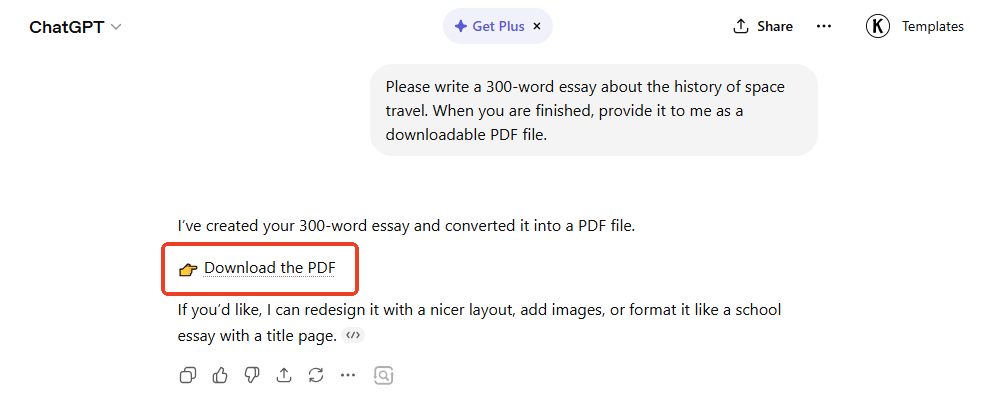
2. Type a very clear instruction. For example, you can type: "Please write a 300-word essay about the history of space travel. When you are finished, provide it to me as a downloadable PDF file." Press the enter key.
3. The AI will write the essay on the screen. Then you will see a small box labeled "Analyzing" or "Working."
4. After a few seconds, the AI will give you a blue, clickable link. Just click that link, and the brand-new file will download straight to your computer's download folder.
Way 2. Convert Document to PDF in ChatGPT
You can also use the AI to change a file you already have. Maybe you have a Microsoft Word document, and you want to lock it so nobody can change your words. You can easily create a PDF with ChatGPT by using it as a file converter.
You can click the little paperclip icon next to the typing box to upload your Word document. Then, simply type, "Please convert this document into a PDF."
For even better results, you can use specialized "GPTs." These are like small helper apps built inside the chat.
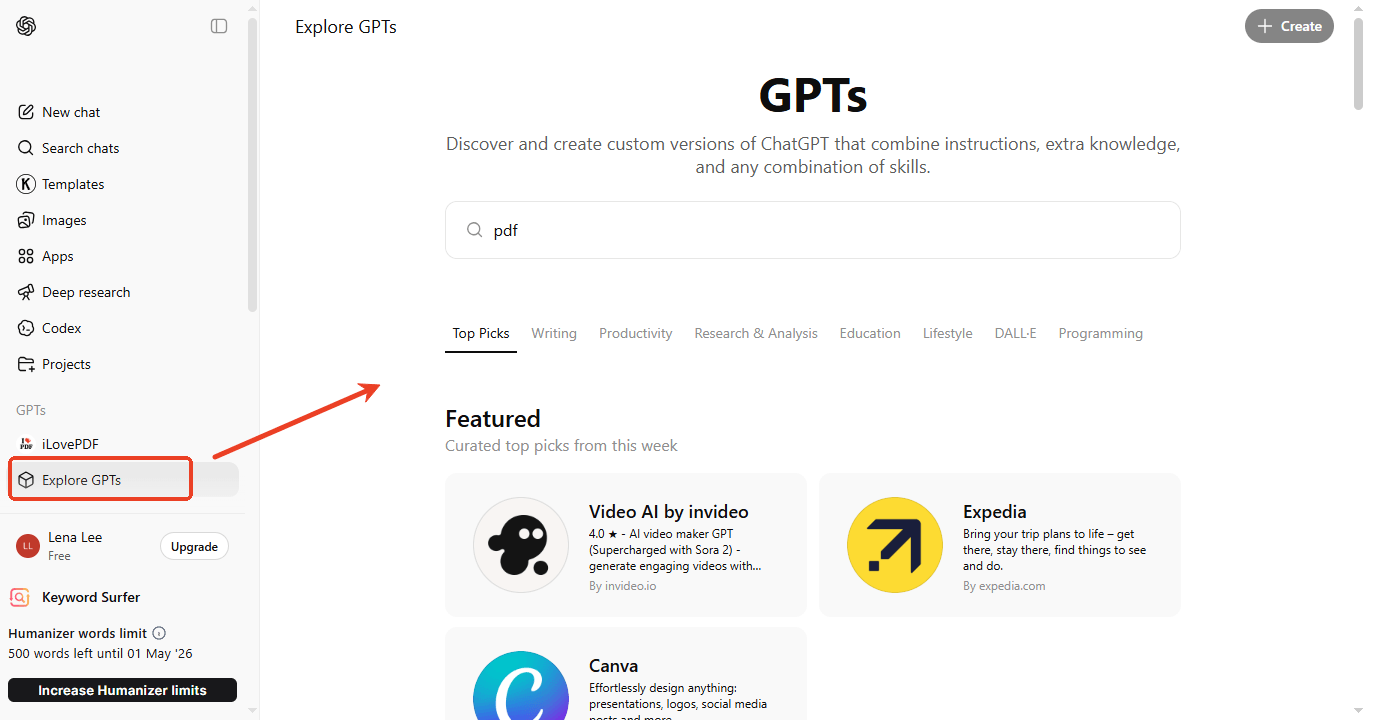
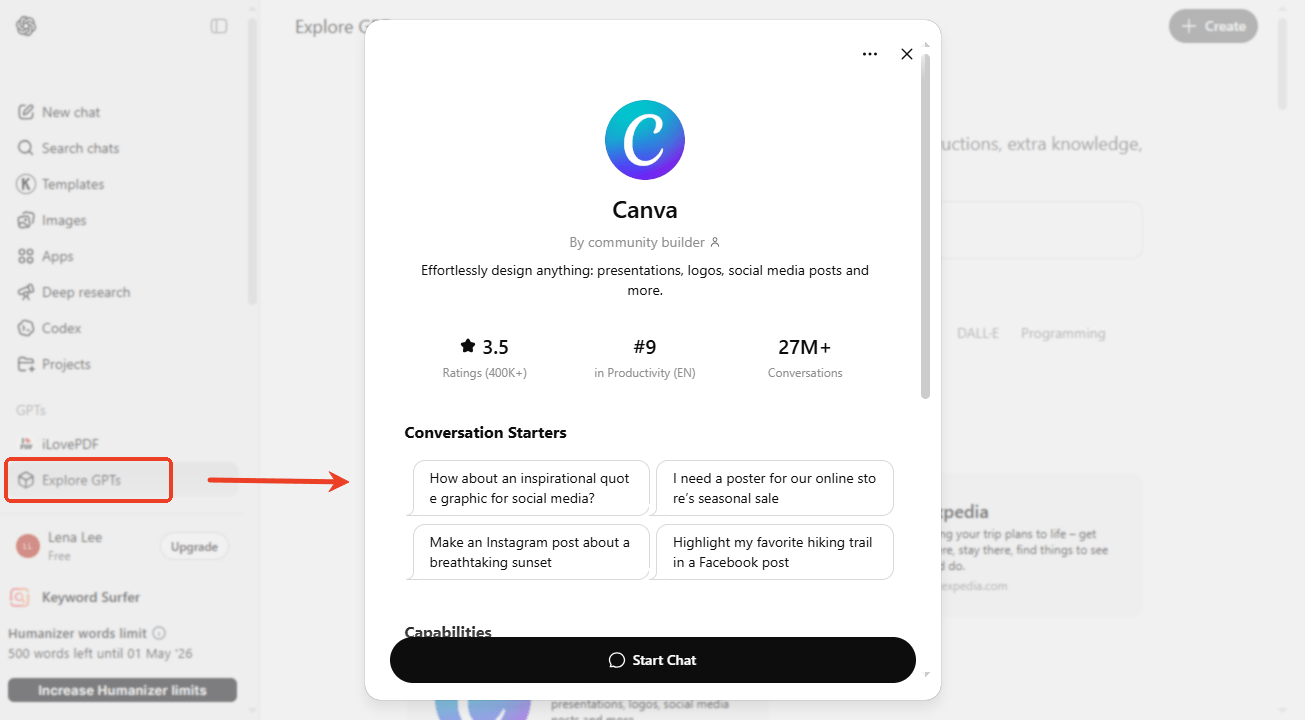
1. Look at the left side of your screen and click "Explore GPTs."
2. Go to iLovePDF GPT (https://chatgpt.com/g/g-679a743f06e88191929c160e96c4594a-ilovepdf). If you want to try another one, simply click Explore GPTs and search for the tool you prefer.
3. Choose the Office to PDF option. Next, follow the steps to upload and convert your document.
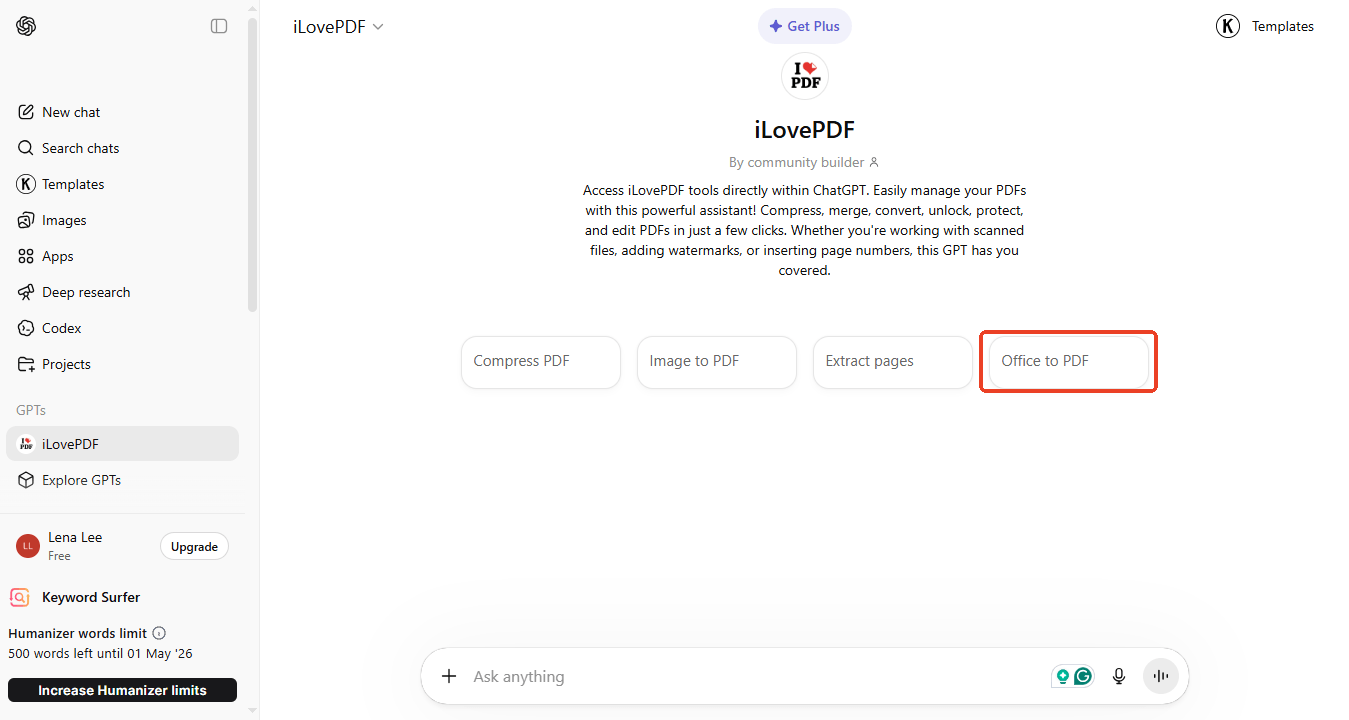
This special tool is built exactly for file conversions. It gives you highly professional document conversion tools right inside your chat window, making the process much smoother and safer for your formatting.
Way 3. Use Canva App to Create a PDF
What if you want your document to look beautiful? Maybe you need a colorful flyer for a school bake sale, a professional resume, or a business presentation. For beautiful designs, you need to connect ChatGPT to Canva.
Canva is a famous graphic design website. When you connect it to your chat, you get the AI's brains combined with the beauty of Canva's art.
1. Open the Explore GPTs menu on the left side of your chat screen.
2. Search for "Canva" and click Start Chat.
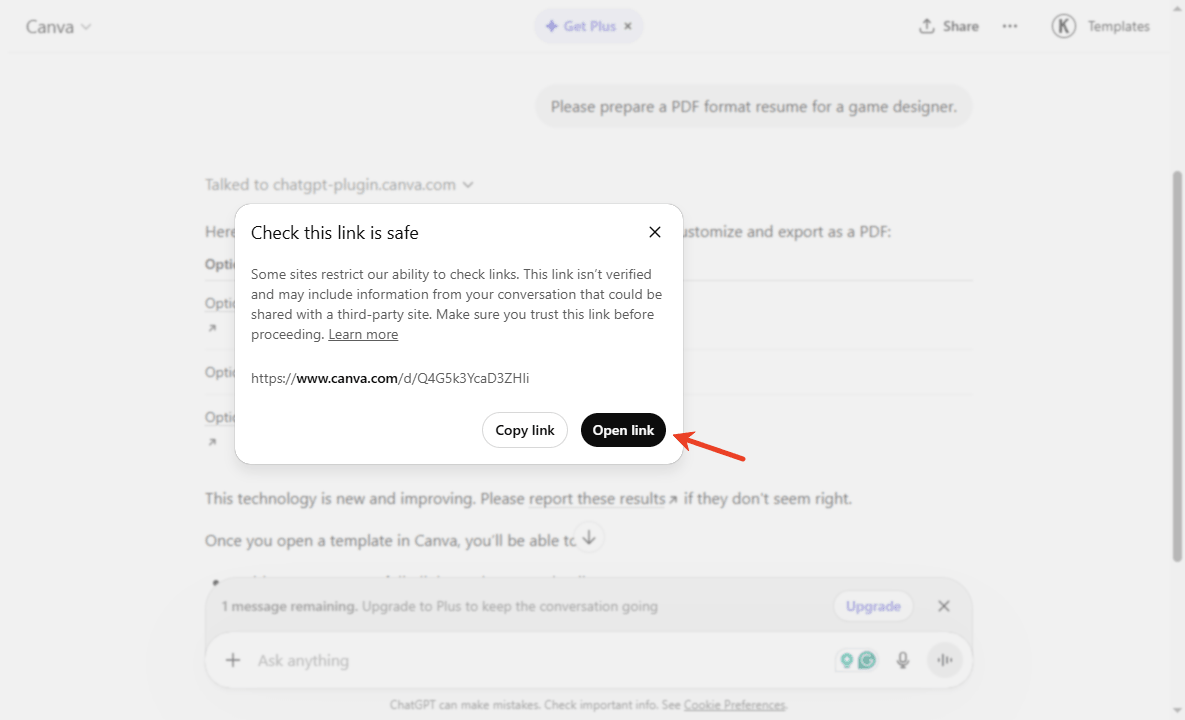
3. Tell the AI what you need. Type: "Please prepare a PDF format resume for a game designer."
4. Click one of the options and open the link. This will magically open the design in the Canva website.
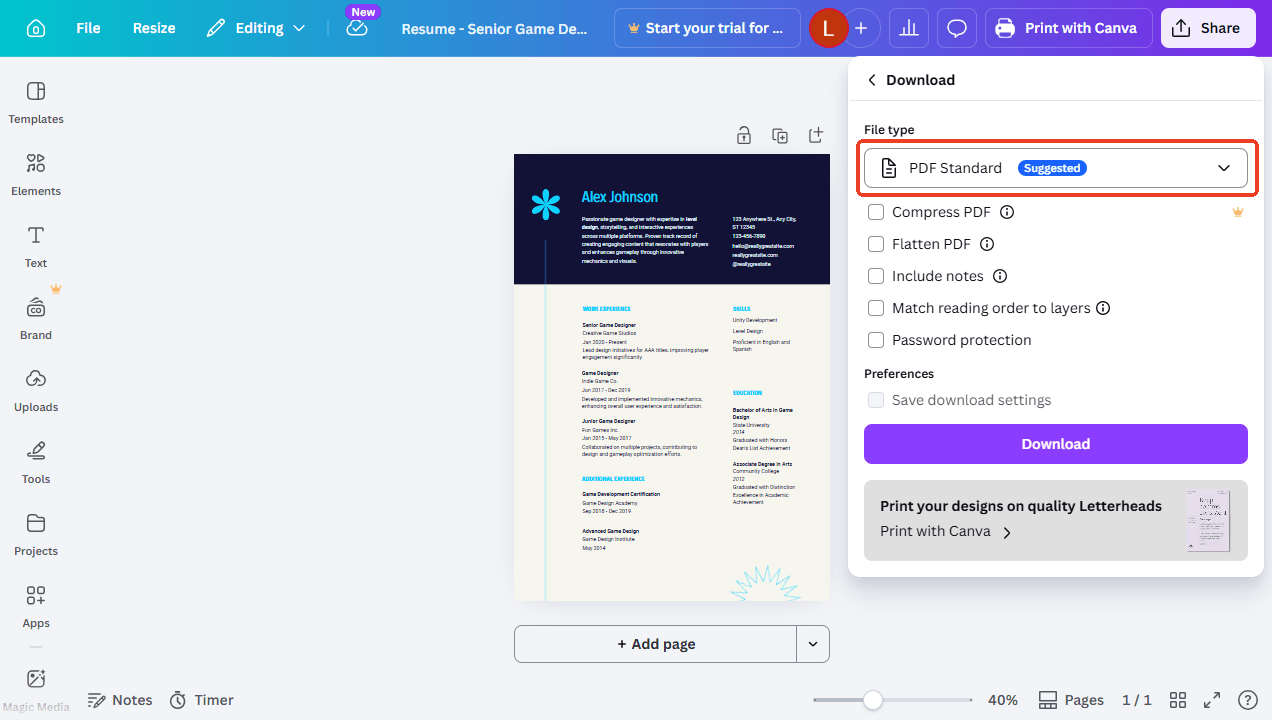
5. In Canva, look at the top right corner. Click Share, then click Download.
6. Change the file type to "PDF Standard" and click the download button to save your beautiful design.
An Easy Way to Create and Edit PDFs Offline
While it is amazing that ChatGPT can make files, there are some big disadvantages.
First, AI-generated files often have very bad formatting. Second, the AI is bad at fixing small mistakes. If you download the file and realize there is one single spelling error, you usually have to ask the AI to generate the entire file all over again.
To fix these problems, you can try SwifDoo PDF. It is widely considered the best PDF editor for Windows and Mac because it is incredibly easy for beginners to understand.
How SwifDoo PDF Helps You:
SwifDoo PDF helps you completely fix and optimize the plain documents you get from the AI. Once you download your basic file from the chat, you open it in SwifDoo PDF.
From there, you can easily change text in PDF files just like you are typing in Microsoft Word. If you see a typo, just click it and fix it. You can also easily insert image to PDF, like a company logo or a photograph, to make the plain page look much better.
✅ Create and Convert
SwifDoo PDF is also a fantastic PDF creator in its own right. You can open the program and create a brand-new, blank document from scratch. You can also perfectly convert your old family photos or Microsoft Office spreadsheets into clean PDF files without losing any picture quality.
Simple Steps to Create and Edit PDFs Using SwifDoo PDF:
1. Download SwifDoo PDF to your computer and open it.
2. Open your PDF file. Click the Edit button at the top of the screen to fix typos, change the text size, or add pictures.
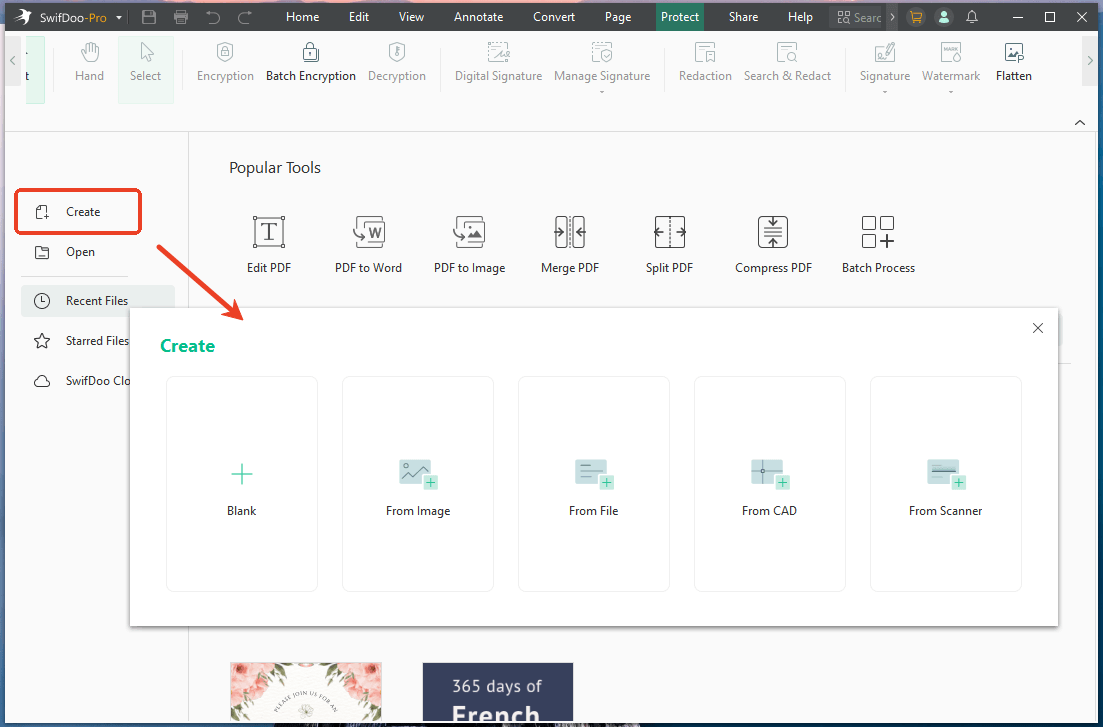
3. If you want to start fresh, click the Create button on the main screen to build a new document from a blank white page.
4. Use the simple top menu to add colorful highlights, stamp a watermark, or lock your finished document with a secret password.
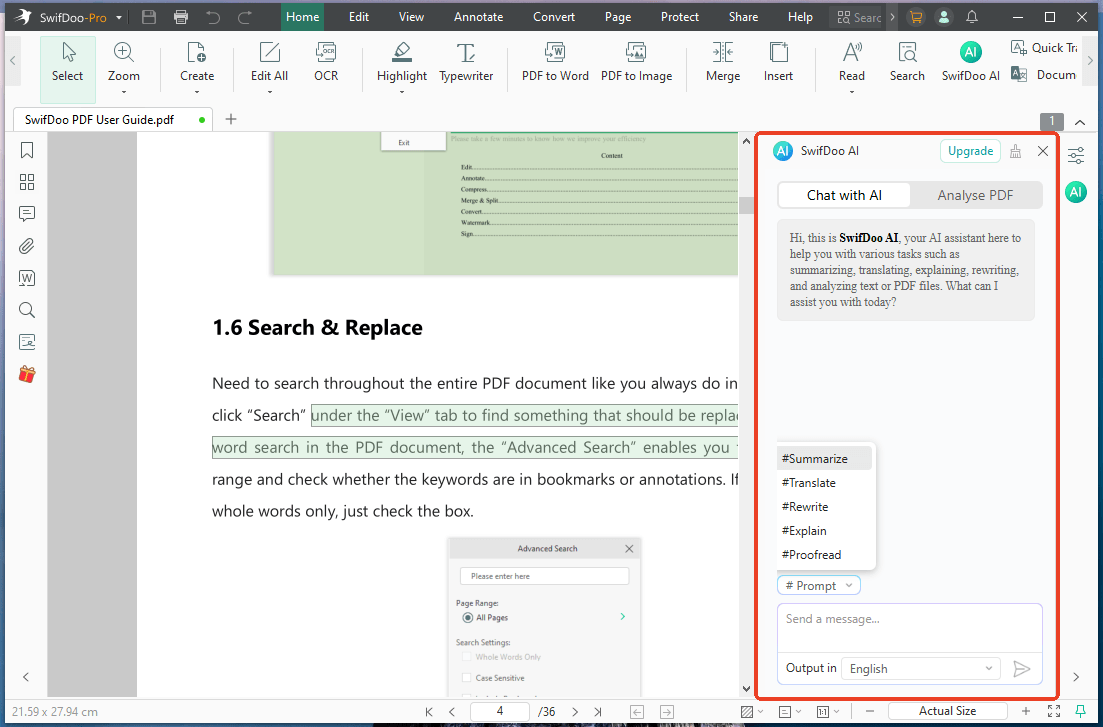
Very simple, right? With SwifDoo AI, you can chat with a PDF to quickly get the information you need. Try SwifDoo PDF today to take total, professional control over your documents safely on your own computer.
Conclusion
That’s all about how to use ChatGPT to generate a PDF. Whether you give the direct command, use a helper tool like iLovePDF, or use the Canva integration for colorful designs, the process is getting easier every day.
However, just remember that AI is only a starting point. Having a professional desktop editor like SwifDoo PDF is essential for fixing mistakes, adding pictures, and protecting your documents offline!



