


Preparation for Connecting ChatGPT to Canva
Before we look at the exact steps to connect Canva to ChatGPT, please make sure you have everything ready. Do not worry; you do not need to be a computer expert to do this. You just need two basic things.
A ChatGPT Account
First, you will need an active ChatGPT account. In the past, this special feature was available only to people who paid a monthly fee for the "Plus" version. Recently, things have changed. Now, many different account types can use the “connect Canva to ChatGPT integration”. Make sure you are logged into your account.
A Canva Account
Second, you need a Canva account. The good news is that you do not need to pay for a premium Canva Pro account. A completely free Canva account works perfectly for this setup. If you do happen to have a Pro account, you will just get extra access to premium pictures and fonts.
Use a Computer Browser
Finally, it is highly recommended to do this initial setup on a computer using a web browser. It is much easier to see the buttons on a computer monitor than on a small mobile phone screen. Once both accounts are open and ready, you are ready to link them!
Steps to Connect ChatGPT to Canva
The entire setup process takes less than two minutes, and no coding skills are required. Here are the exact steps on how to link ChatGPT to Canva.
1. Open your web browser on your computer and log in to your ChatGPT account.
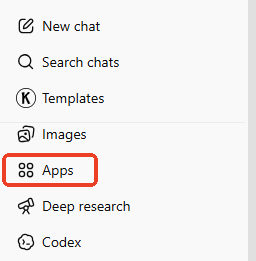
2. Look at the menu panel on the left side and click the Apps button.
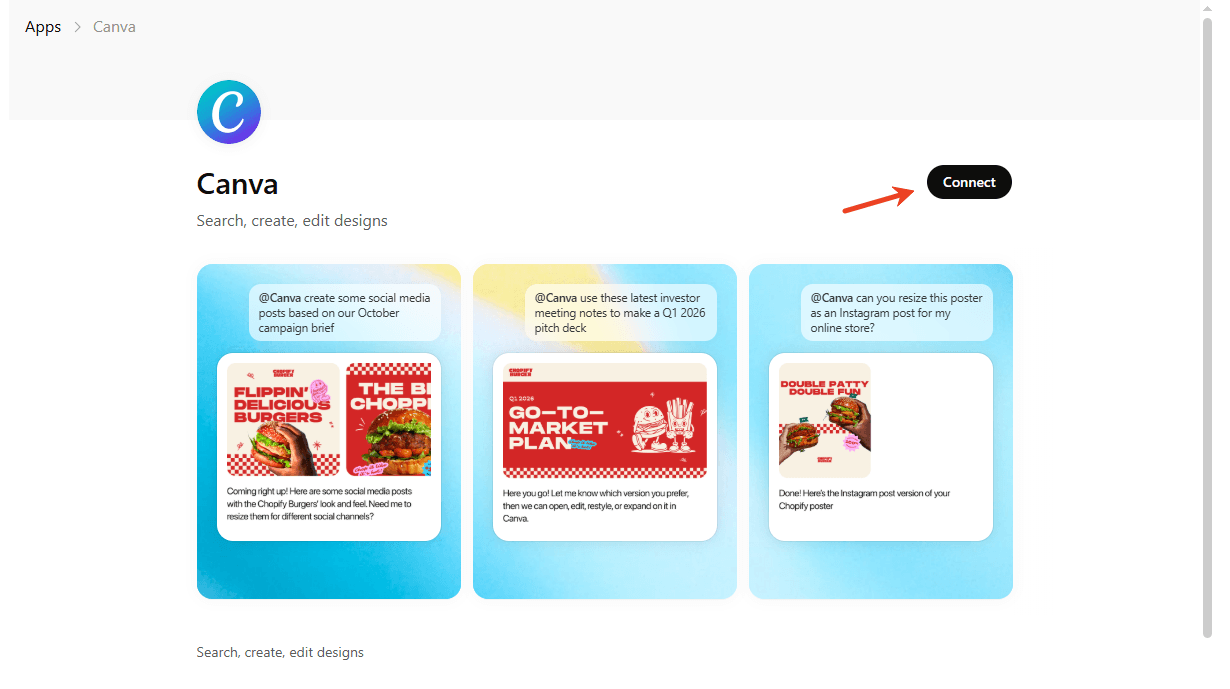
3. You will see a search bar at the top of the screen. Type the word "Canva" into the box. The official Canva tool will appear in the search results list. Click the Connect button and confirm the access.
4. Simply click Start Chat to open a new conversation with the Canva tool.
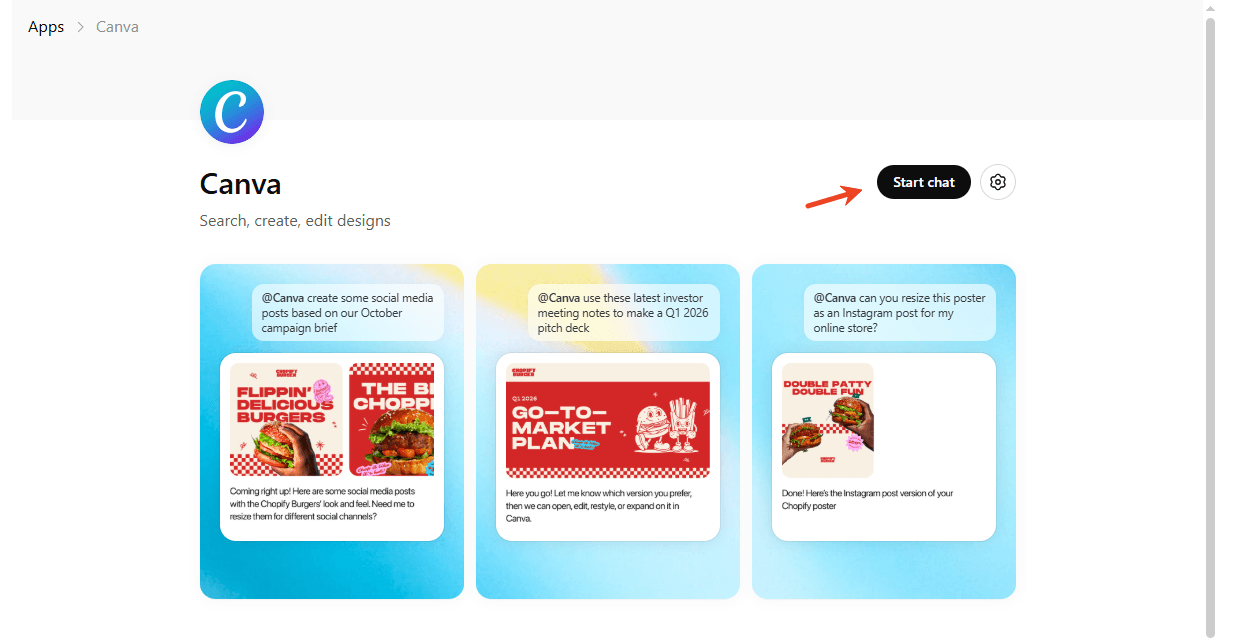
5. When you ask the Canva tool to make a design for the very first time, a small window will pop up on your screen. It will ask you to sign in to your Canva account to verify your identity.
6. Enter your Canva email address and password. Then, click the Allow button to give the system permission.
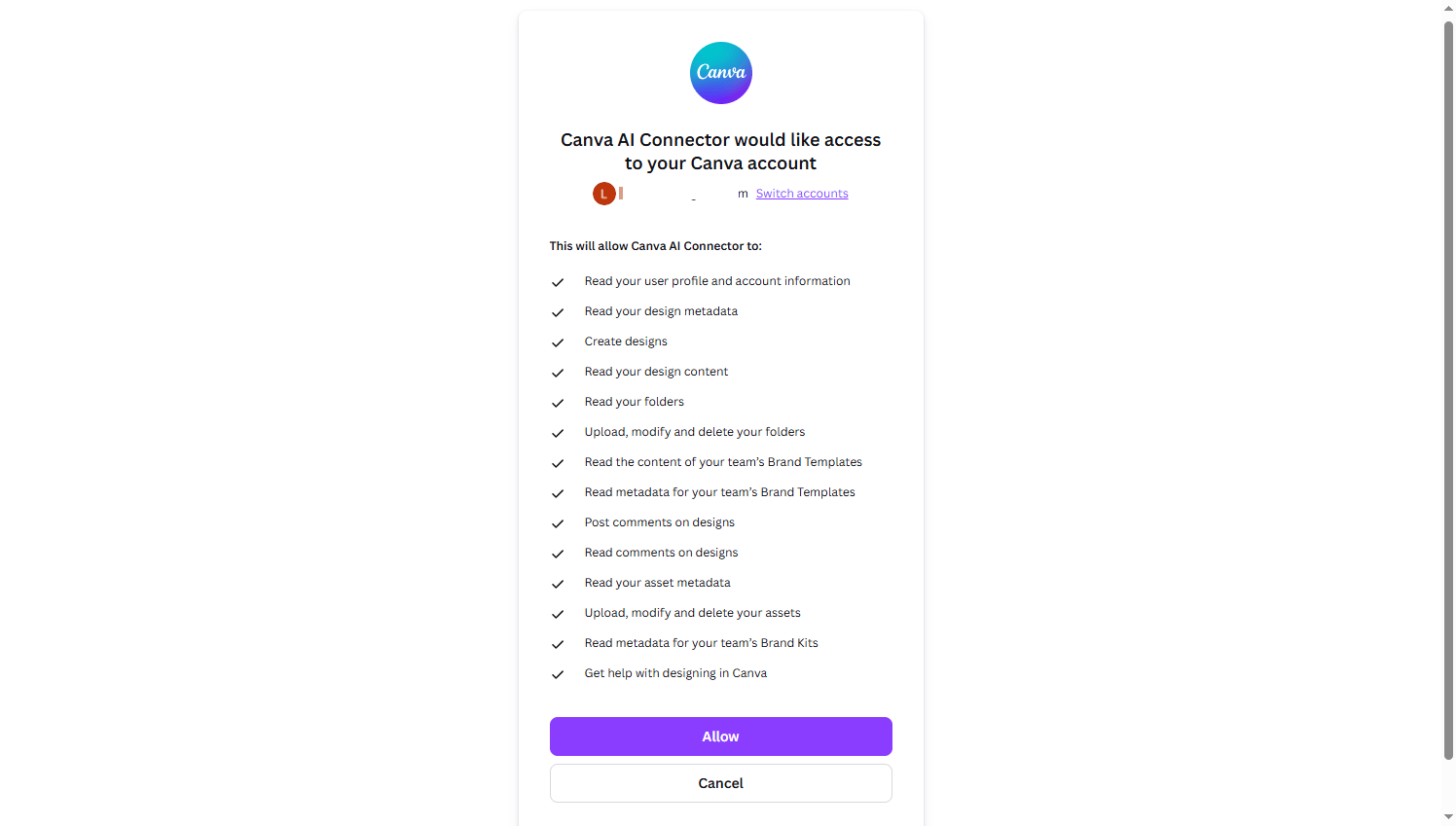
That is it! You have successfully finished learning how to connect ChatGPT to Canva. Now, you can simply type a prompt like, "Create a presentation about healthy eating," and watch the magic happen right inside your chat window.
What Can you Create with Canva in ChatGPT?
Now that you know how to link Canva to ChatGPT, what can you actually do with it? When you use ChatGPT to create Canva designs, you unlock many amazing features that will save you hours of typing and dragging boxes.
Amazing Features You Can Use:
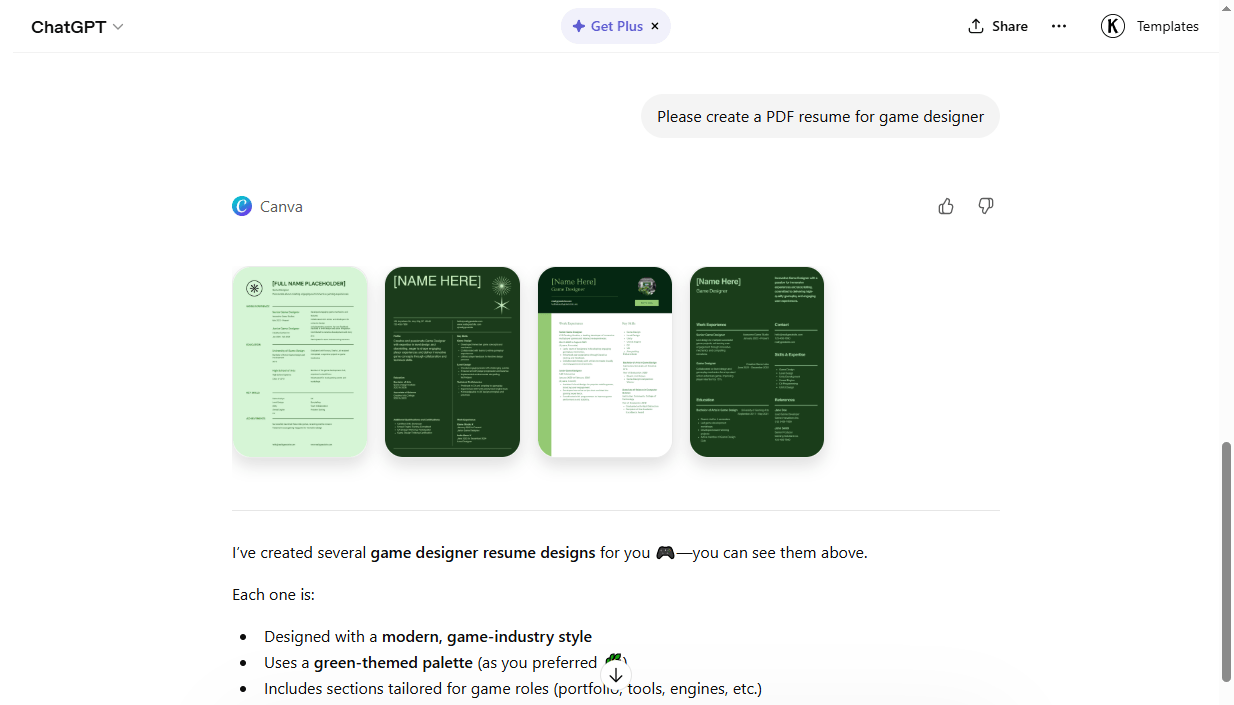
- Live Design Previews: You can see the actual design pictures right inside your ChatGPT chat. You do not have to constantly switch between tabs to see your work.
- Auto-Filling Text: ChatGPT will write the paragraphs and automatically place those words beautifully onto the Canva templates. You do not have to copy and paste text ever again.
- Fast Searching: Instead of scrolling through thousands of blank templates on the Canva website, you just tell the AI what you want. It searches its massive library and finds the best templates for you instantly.
Practical Examples of What to Create:
- Social Media Posts: You can ask the AI to write five helpful tips for saving money. Then, ask it to instantly generate five beautiful Instagram picture posts using those exact tips.
- Business Presentations: You can give the AI a long, messy document from a work meeting. Ask it to read the document and create a clean, highly professional 10-slide presentation deck to show your boss.
- Create PDF Documents: This feature is incredibly helpful for work or school. You can ask ChatGPT to create a PDF for a resume, a business report, or a blank invoice template. Once it's ready, you can click the picture, open it in the full Canva editor, edit the PDF in Canva, and download the final design.
Limitations of ChatGPT Canva Features
While this AI tool is amazing, it is important to be honest about what it can and cannot do. Knowing its limits will help you avoid frustration.
The AI is wonderful for drafting a project. However, it struggles with very complex, tiny graphic adjustments.
For example, if you want to move a tiny logo exactly three pixels to the left, or add a link to a PDF in Canva, you cannot ask the chat to do it. You still need to click the picture and open it in the real Canva website editor to make fine changes with your mouse.
❗ Wrong Picture Choices
Sometimes, the AI might pick a strange background picture or a weird font that does not perfectly match your text. It is a machine, so it does not always understand human style.
Overall, it is an incredible shortcut for text-heavy designs, but human help and fine-tuning are usually still required to achieve the final result.
Bonus Tip: How to Easily Edit a PDF Offline
Once you finish your beautiful Canva design and export it as a PDF document, you might realize you made a tiny mistake. Maybe you need to fix a spelling error, or maybe you need to sign the document later when you are traveling and do not have an internet connection.
For these tasks, you need a dedicated computer program. We highly recommend using SwifDoo PDF. It is an amazing desktop software that lets you click and edit text in your PDF just like you would in a regular Microsoft Word document.
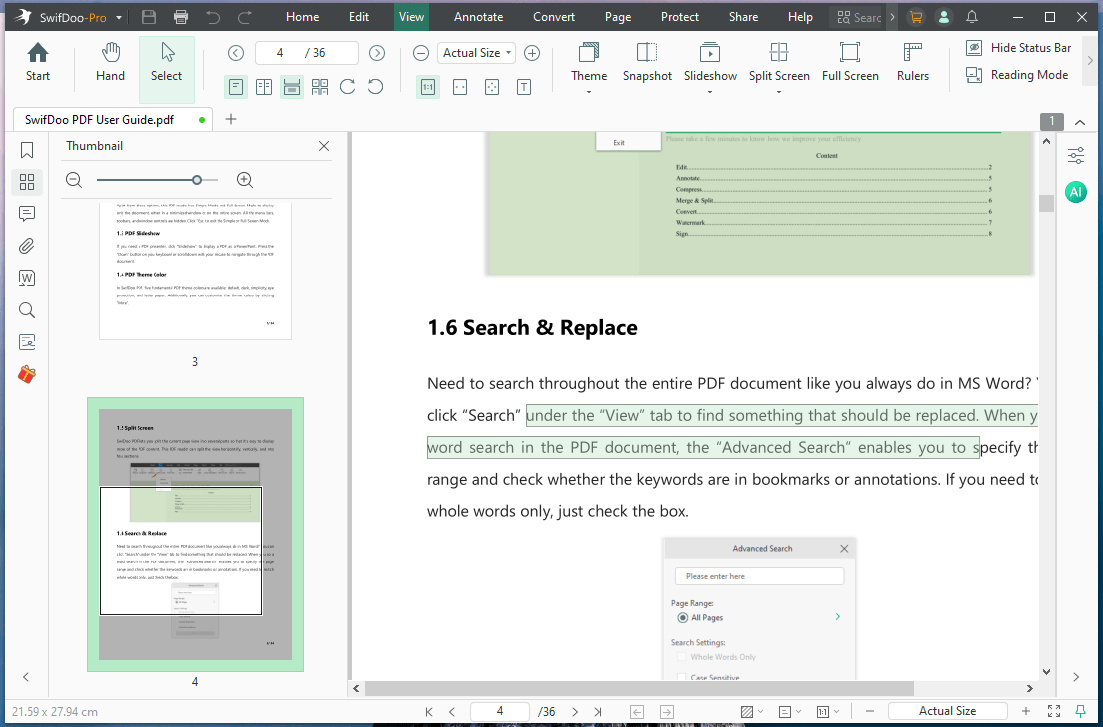
Even better, this software has a built-in SwifDoo AI feature. This acts like your personal reading assistant for any document. Powered by ChatGPT, it can be your AI PDF analyzer, summarizer, rewriter, and more.
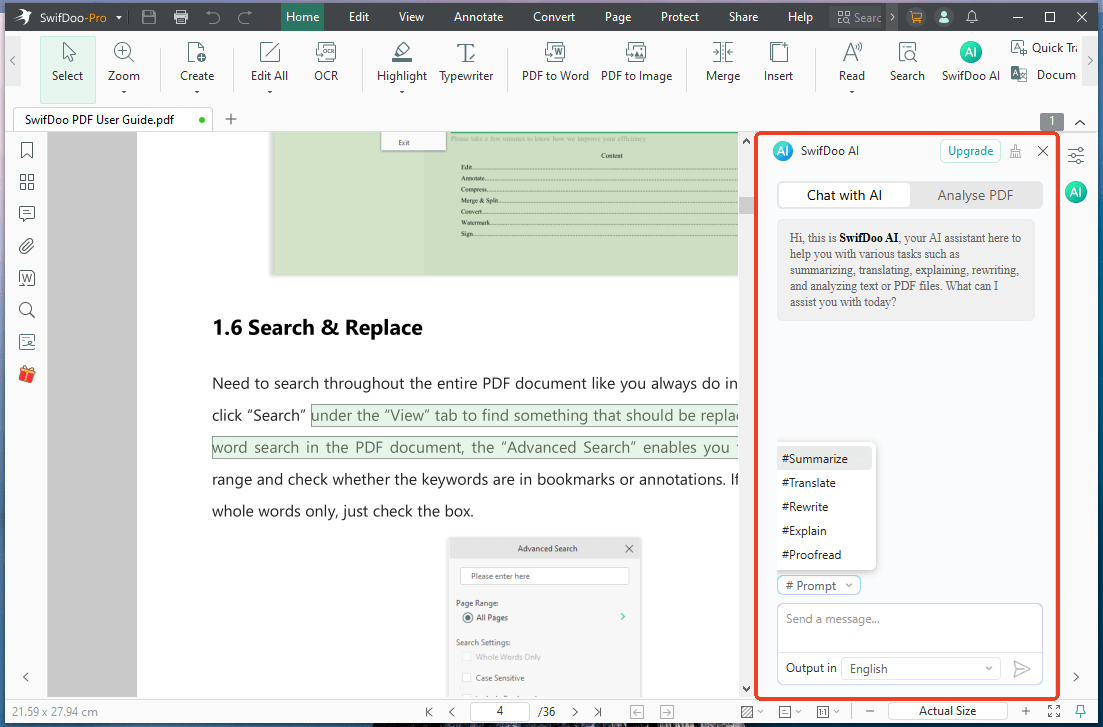
Stop struggling with basic web viewers that don't let you make any changes. Download SwifDoo PDF today to take total control of your final documents!
Conclusion
That’s all about how to connect ChatGPT to Canva. Connecting these two powerful tools bridges the gap between having great ideas and making beautiful visuals. It saves you from doing boring, repetitive computer work.
By using this AI design setup to start your projects, and combining it with a powerful offline editor like SwifDoo PDF to finish them, you will save hours of frustrating work every single week.



