


Can You Connect Google Drive to ChatGPT?
The short answer is: Yes! OpenAI has created a direct bridge between its AI and Google Drive.
However, the way it works depends slightly on what kind of account you have.
- Free Users: If you use ChatGPT for free, you can connect your Google Drive and add files. However, you will have a limit on the number of files you can upload and analyze each day.
- Paid Users (Plus, Team, Enterprise): If you pay for a subscription, you get full, unrestricted access to the "Connectors" feature. This allows you to pull in Google Docs, Google Sheets, and PDFs instantly with much higher limits.
Is It Safe to Connect Google Drive to ChatGPT?
Many people worry about this. They think that if they connect their Google Drive, the AI will secretly read all their private photos, passwords, and tax returns.
Do not worry! It is generally very safe. When you link Google Drive to ChatGPT, it does not get access to read your entire Google Drive. It can only see the specific, individual files that you manually click on and attach to the chat. Your other files remain completely hidden and safe.
However, OpenAI might use the text inside the files you attach to make their AI smarter in the future. So, how do you protect your privacy?
If you have a Free or Plus account and you do not want OpenAI to learn from your personal documents, follow the steps below:
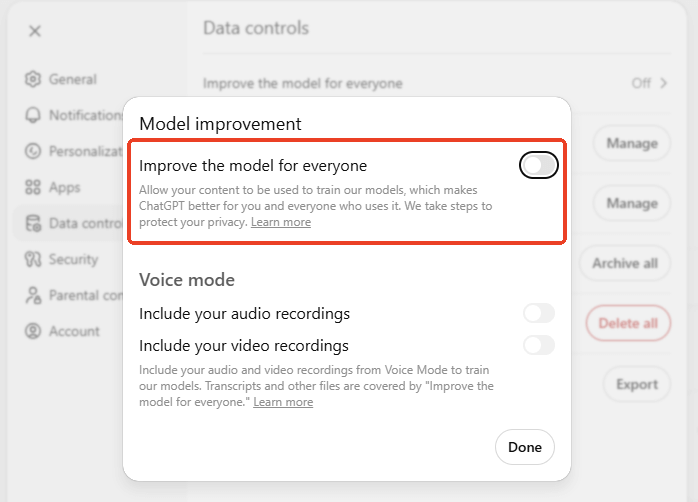
Click your profile > Go to Settings, then click Data Controls, and turn off the switch labeled "Improve the model for everyone." Once you turn that off, you can safely connect your Google Drive without worrying about your private information being used for AI training!
You may also like:
Does ChatGPT Save Your Chats (Even If Not Logged In)?
Does ChatGPT save your chats? Discover how OpenAI handles your data when logged in vs. not logged in, if they train on your text, and how to delete history.
READ MORE >How to Connect Google Drive to ChatGPT
Establishing a connection between Google Drive and ChatGPT is very simple. Just follow these easy steps.
Step 1: Start a New Chat
Log in to your ChatGPT account and open a fresh, new chat window.
Step 2: Find and Select Google Drive
Look at the text box where you normally type your questions. On the left side of that box, you will see a small (+) icon. Click on that icon. Go to More > Explore apps.
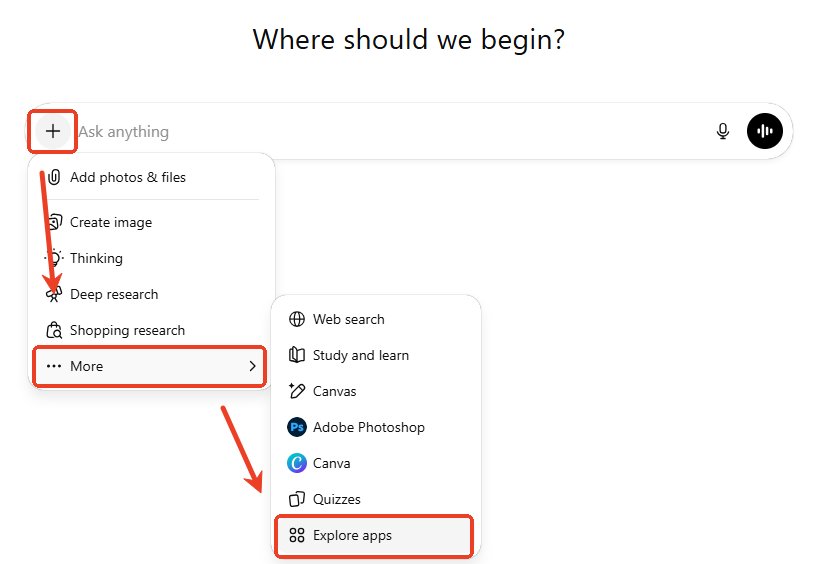
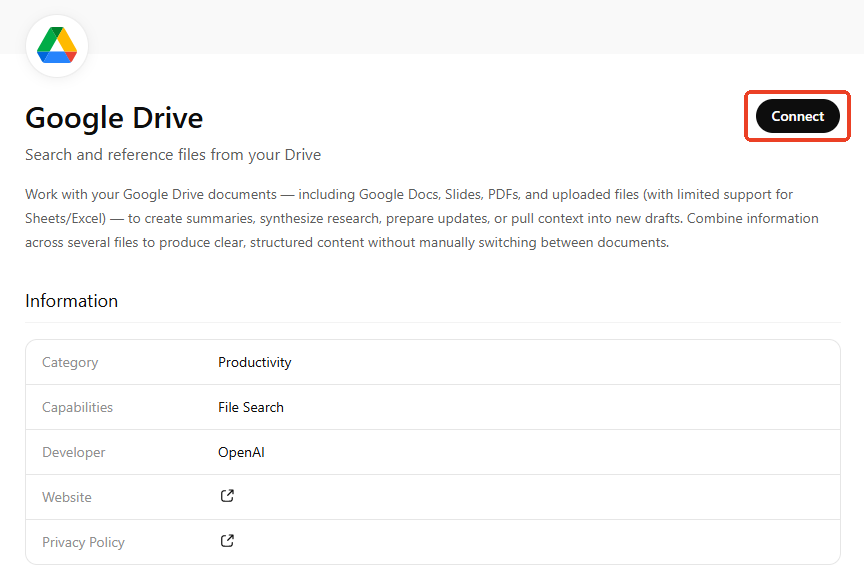
Then search for Google Drive and click Connect.
Step 3: Grant Permissions
A new window will appear from Google. It will ask you to sign in to your Google account. Choose the email address that has the files you want to use. Then, click "Continue" or "Allow" to give ChatGPT permission to connect.
Step 4: Pick Your File
Now, you can scroll through your folders or use the search bar to find the exact document, spreadsheet, or PDF you want to use. Click on the file to select it.
Step 5: Tell the AI What to Do
The file will now appear as an attachment in your chat box. Now, just type your prompt. For example, you can type: "Please extract text from PDF: the first sentence of each paragraph." Hit enter, and watch the AI do the heavy lifting!
Troubleshooting for Common Issues
If your connection fails or the AI refuses to read the document, try these simple fixes.
Issue 1: I cannot find my file in the search box.
The Fix: ChatGPT's search tool sometimes only looks at the first few words of a file's title. If your file has a very long or complicated name, try renaming it in Google Drive to something simple. Also, if you just created the file, wait two minutes for the system to sync up before trying to search for it.
Issue 2: ChatGPT Says Can’t Access the File
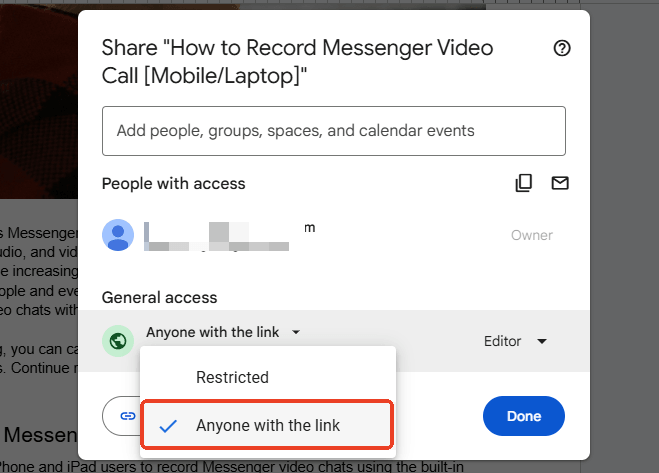
The Fix: The file may have access restrictions. You should go to Google Drive to remove the permission. In Google Drive, open the document > Click the Share button > Select Anyone with the link > Click Done to confirm.
Issue 3: I asked ChatGPT to edit my file, but nothing happened.
The Fix: It is important to know that ChatGPT has read-only access. It can only read the data and give you a rewritten version in the chat. You will have to copy and paste that new text back into your document yourself.
Bonus Tip: How to Easily Handle PDFs with ChatGPT
While the Google Drive connection is amazing for standard documents, ChatGPT sometimes struggles with complex PDFs. In this case, you need a professional tool. We highly recommend using SwifDoo PDF and its powerful features.
How SwifDoo PDF helps you work smarter:
✅ Fix Scanned Documents: If your PDF is just a picture of a page, SwifDoo PDF has an "OCR" tool that acts like reading glasses for your computer, turning the picture back into real, readable text.
✅ Edit the File: Unlike ChatGPT, SwifDoo lets you click text in your PDF to edit it, fix typos, or delete PDF pages.
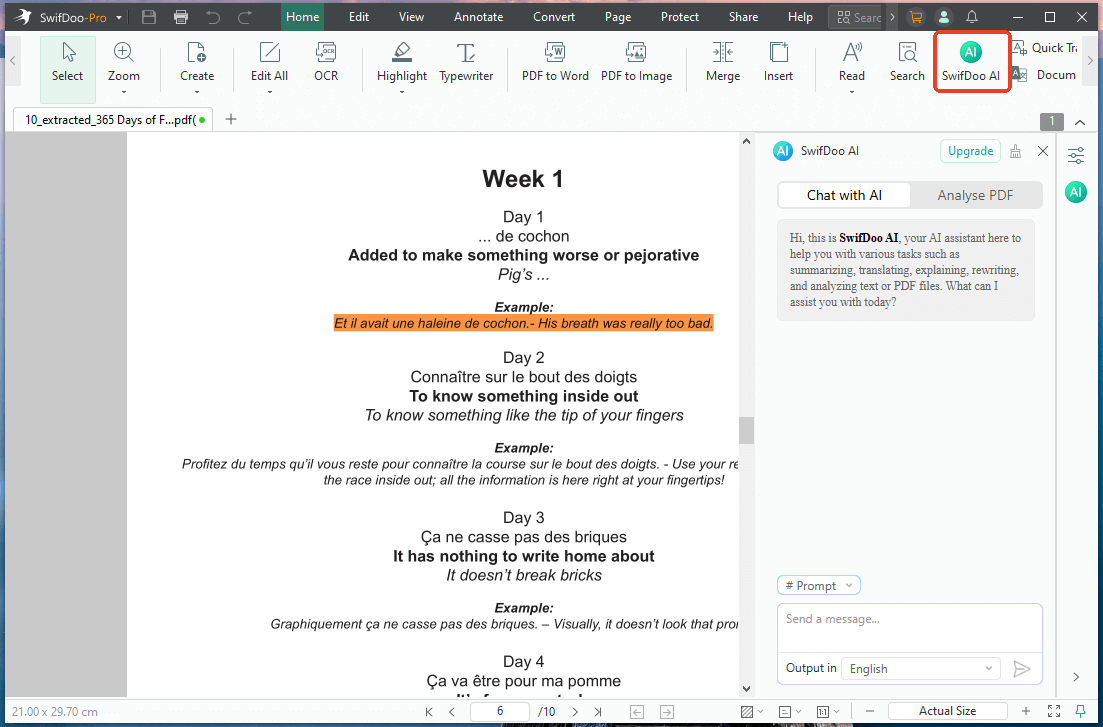
After installing SwifDoo PDF on your computer, you will never have to worry about a stubborn document slowing you down again. Open your PDF, go to SwifDoo AI, and ask anything you like. TRT IT NOW!
Conclusion
That’s all about how to connect Google Drive to ChatGPT. It is one of the smartest things you can do to boost your daily productivity. Follow the steps above to set up your connection today, and remember to use tools like SwifDoo PDF when you need extra help managing PDF files.



