


Can ChatGPT Edit a PDF for Me?
The short answer is: Yes, but it works differently than a regular editor. If you open a program like Microsoft Word, you can click on any word and change it. ChatGPT cannot do that directly inside your original PDF file because of how PDFs are built—they are like "digital ink" that is dried and hard to change.
Instead, ChatGPT acts like a very smart assistant. It can read the words inside your file (even if it is a photo of a document), change them based on your instructions, and then use ChatGPT to generate a PDF as a brand-new file for you to download.
Anyhow, if you want to edit a PDF easily, a professional PDF editor like SwifDoo PDF would be a better choice.
3 Methods to Edit a PDF Using ChatGPT
To reach your goal, you can choose one of these three paths depending on what you need to change.
Way 1. Ask ChatGPT to Update the Text
This is the most common way to get ChatGPT to edit a PDF. It is perfect for when you have the information but want to fix the writing, the length, or the mistakes.
How it works:
1. First, upload PDF to ChatGPT. Look for the small paperclip icon in your chat bar. Click it and select your file.
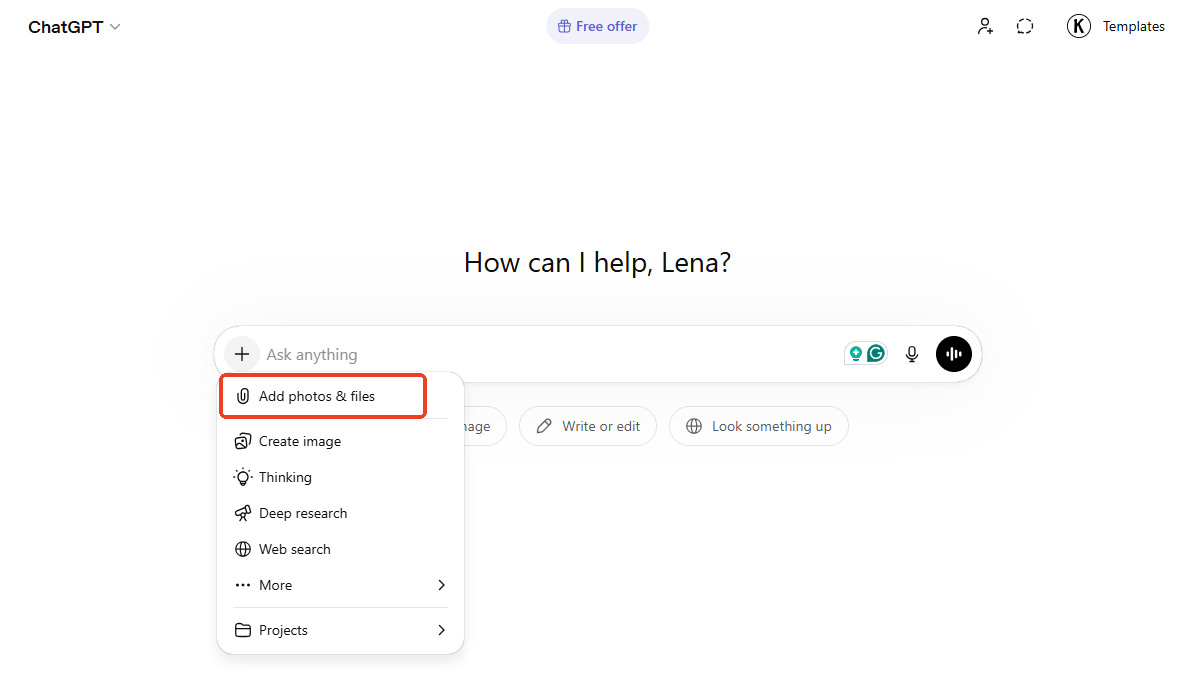
2. Then, give a clear command. For example: "I am uploading my resume. Please update my phone number to 555-0199 and rewrite the 'Summary' section to sound more energetic."
3. ChatGPT will show you the new text. You can then say, "This looks great, please provide this as a downloadable PDF." The AI will then create a fresh file for you.
Way 2. Use Adobe Acrobat in ChatGPT
In 2026, you can connect other apps directly to your chat. So, you can connect Adobe Acrobat to ChatGPT, which lets you do things that basic AI cannot, such as organizing the pages of the file or converting it into a different type of document.
The steps to connect Acrobat and use it to edit your PDF:
1. In the ChatGPT sidebar, go to Apps and search for Adobe Acrobat. Click the Connect button.
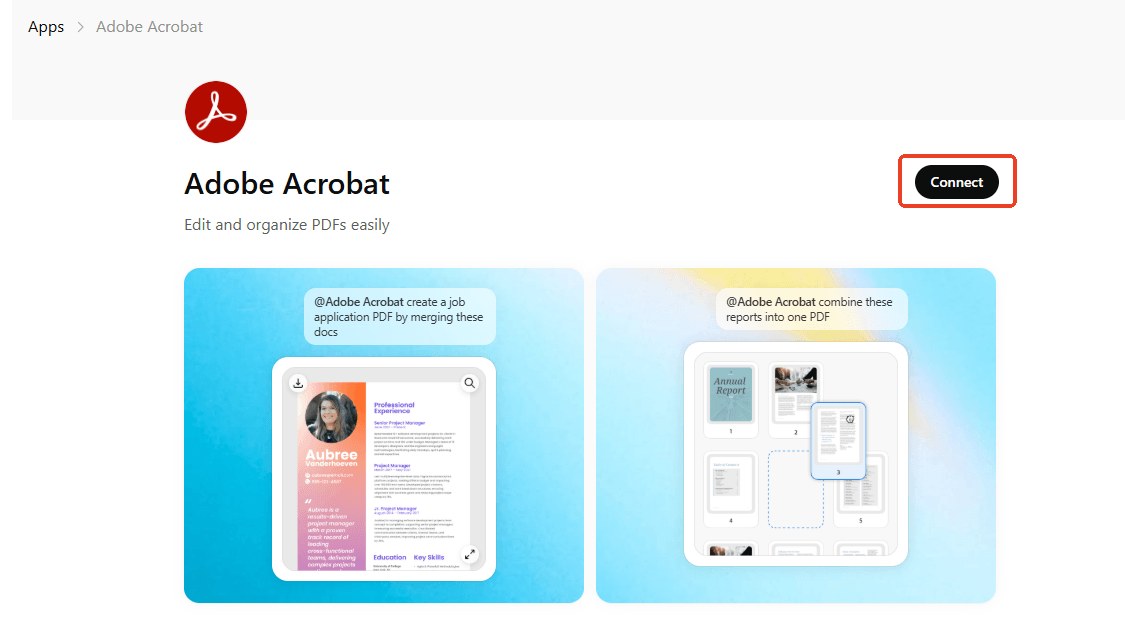
2. If needed, follow the prompt to sign in to your Acrobat account.
3. Upload your file and give a specific command. For instance, you can say, "Use Adobe to merge this PDF with the one I uploaded yesterday."You can also ask it to:
- "Delete page number 5 from this document."
- "Convert this PDF into an editable Excel sheet so I can see the tables."
- "Compress this PDF so it is small enough to send over email."
ChatGPT will use Adobe’s professional engine in the background to complete the task and deliver the finished file instantly.
Way 3. Use the Canva App
If your PDF is meant to look pretty—like a flyer, a menu, or a social media invite—standard text editing won't cut it. You can connect ChatGPT to Canva. canva is a design tool. When you connect it to ChatGPT, the AI can take the "boring" text from your PDF and put it into a professional design template.
The steps to connect and use Canva in ChatGPT:
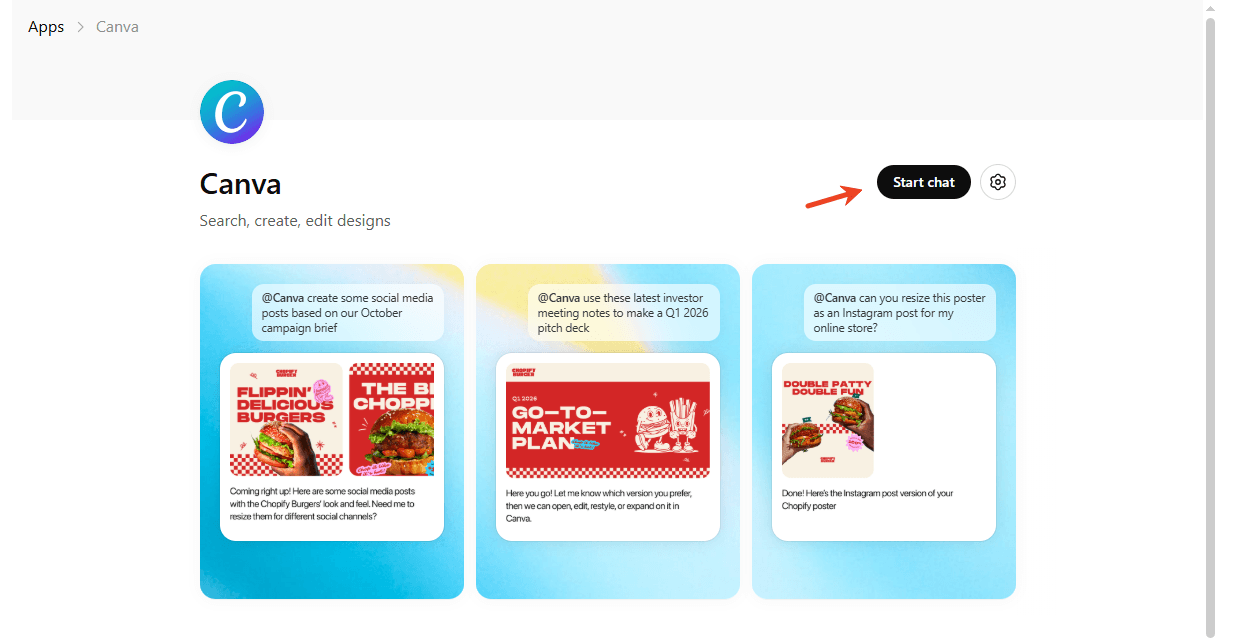
1. In ChatGPT, click the Apps from the sidebar. Search for Canva and connect.
2. Click Start Chat. Now you can upload the PDF and say something like: "Take the text from this PDF and use it to create a modern-looking business flyer." You can also ask ChatGPT to create a PDF from scratch.
3. ChatGPT will show you several design previews. Choose the one you like best.
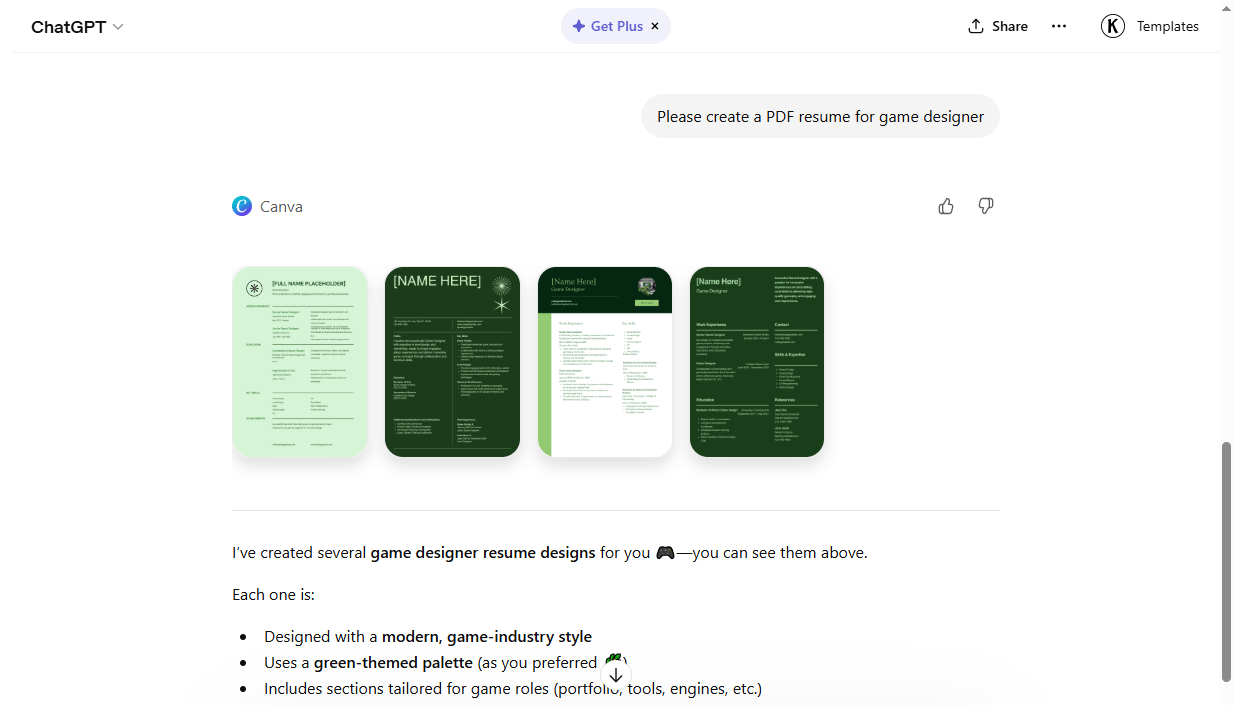
4. Then, it will take you directly into Canva. There, you can move images, change colors, and change text in a PDF. Finally, download the PDF to your computer.
Pros and Cons of Using ChatGPT to Edit a PDF
While ChatGPT is a powerful assistant, it has specific limitations when handling PDF files. Understanding these "pros and cons" will help you decide when to use AI and when to use a desktop PDF editor.
Pros: Speed and Intelligence
The greatest advantage of using ChatGPT lies in its powerful intelligence. It can read a 50-page document in just a few seconds and summarize the most important points, extract data, and polish the text, thereby saving you a lot of reading time.
Cons: Layout and Accuracy
When you have ChatGPT edit PDF files, the original formatting might be lost. Moreover, for extremely large files exceeding 500MB or documents containing highly complex tables, this AI might not be able to correctly read all the information.
For tasks requiring 100% visual perfection or those involving highly sensitive data, dedicated desktop tools remain a safer option. Keep reading to learn more.
Another Easy Way to Edit a PDF (The Professional Choice)
While AI is a great helper, it is not always perfect. Sometimes, when you ask ChatGPT to edit a PDF, it might change how the document looks. If you have a professional contract or a brochure where the layout must stay exactly the same, you need a desktop editor.
SwifDoo PDF is widely considered the best PDF editor for Windows because it is built for speed and simplicity. It feels exactly like using a word processor.
Key Features of SwifDoo PDF:
✅ Sign & Protect: You can add a digital signature to your business files or hide sensitive information with a password.
✅ High-Quality OCR: If you have a scanned piece of paper, SwifDoo can turn it into a document where you can search for words or delete lines.
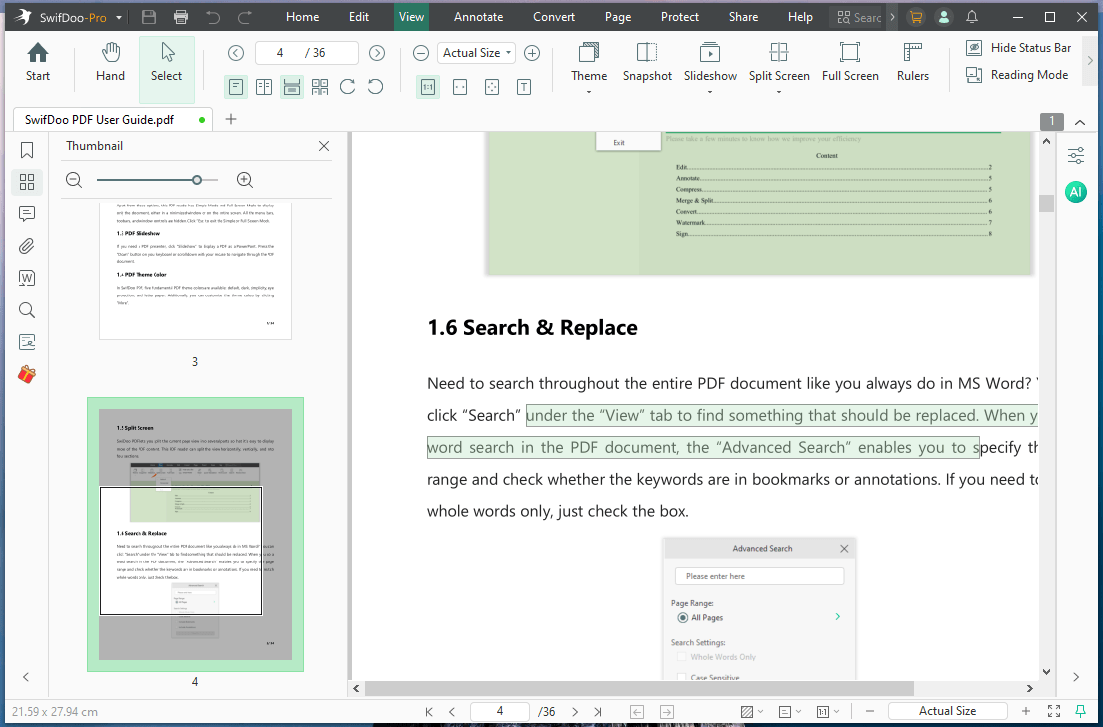
Furthermore, SwifDoo AI, which is powered by ChatGPT, is built right into the program. This means you don't have to switch back and forth between your editor and your browser. SwifDoo AI can help you:
✅ Summarize. Get the main points of a long document in seconds.
✅ Translate. Read documents in any language without leaving the page.
✅ Analyze. If you have a complicated bill or a long legal paper, you can ask the AI, "How much do I owe?" and it will find the answer for you.
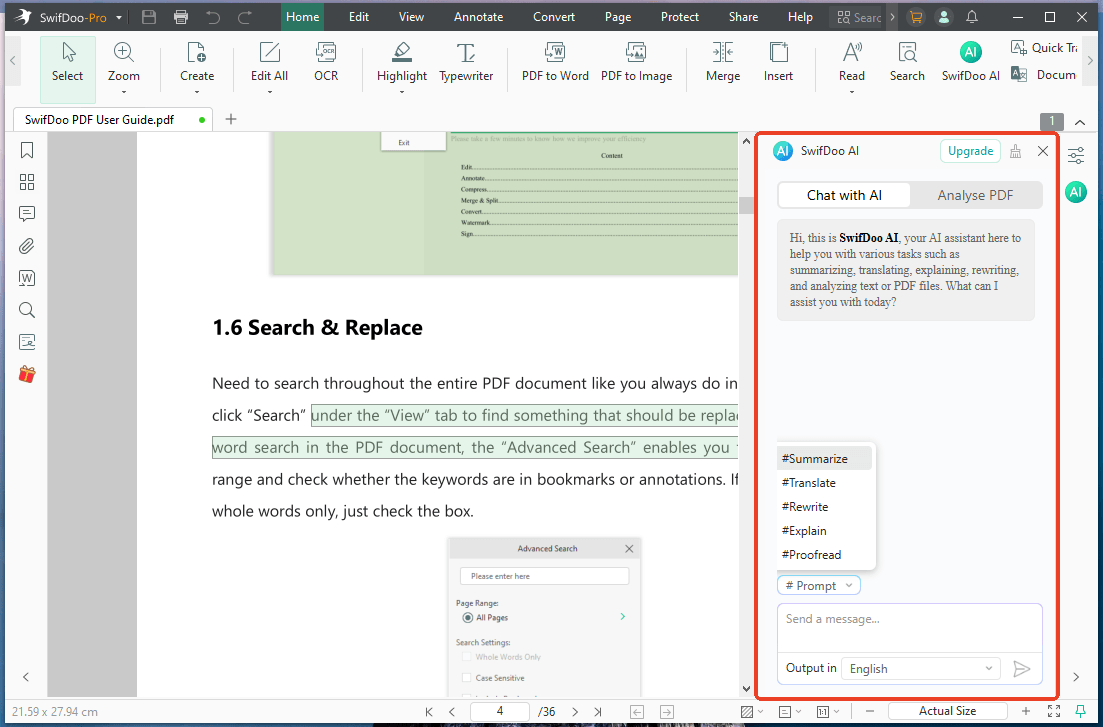
If you want the smart features of AI but need the precision of a professional tool, you should definitely try SwifDoo PDF.
Conclusion
So, can ChatGPT edit a PDF? Yes! By using text regeneration, Adobe connections, or Canva designs, you can handle almost any PDF task. However, if you are looking for a way to keep your document's original look while making quick changes, a dedicated tool like SwifDoo PDF is your best friend.



