


Can I Link My Notion to ChatGPT?
Yes, you absolutely can! In the past, these two tools were completely separate. You had to copy words from one screen and paste them into the other.
Today, they can talk to each other directly. You can now connect Notion to ChatGPT to bring your private notes into the AI brain. You can also use robot tools to automatically send data back and forth, or use simple web buttons to save your favorite chats.
How to Connect Notion to ChatGPT
Here are the three best ways to link your tools. We have broken them down into very simple steps.
Way 1. The Direct Integration
When to Use It: It is a good choice when you want the AI to read your private Notion notes to answer specific questions about your work. It is extremely fast. You do not need to use any outside websites. The connection is built right into the main systems.
Step-by-Step Guide:
Here is how to connect ChatGPT directly to Notion.
1. Open your web browser and log in to your account at chatgpt.com.
2. Click the Apps option from the left-side bar.
3. Find "Notion" in the list and click Connect.
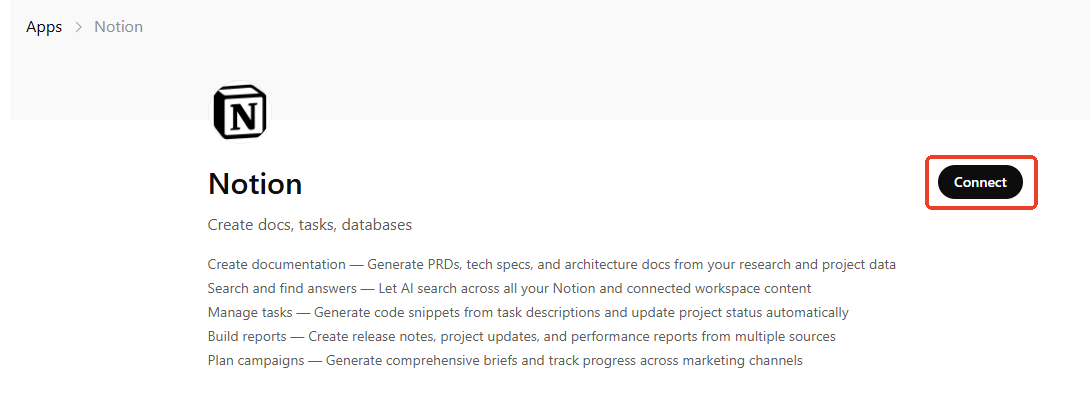
4. A new window will pop up asking you to log in to your Notion account.
5. Select the specific Notion pages you want to share, and click "Allow Access."
Best For: Paid ChatGPT Plus users who want to chat directly with their own personal notes and databases.
User Case: Suppose you are a manager and have connected your Notion workspace. You ask ChatGPT, "Please read my Notion meeting notes from yesterday and write a short summary of the goals we agreed on."
Way 2. Use Automation Tools (Zapier)
When to Use It: This is best when you want things to happen automatically in the background while you are working or sleeping. Zapier acts like a digital bridge. It is fully automated. You set the rules once, and the computer does all the hard work for you every single day.
Step-by-Step Guide:
1. Go to zapier.com and create a free account.
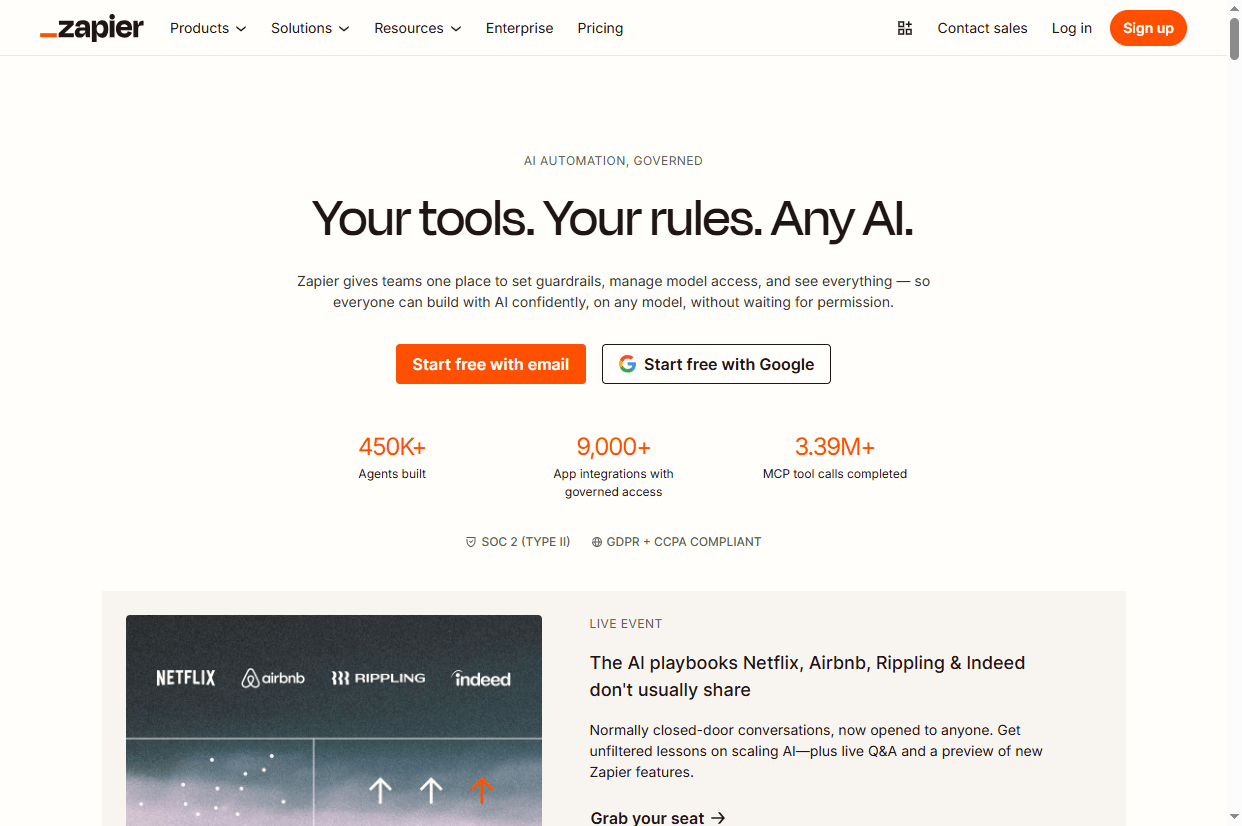
2. Click the button to Create a Zap. (A Zap is just a rule for the computer).
3. Set your "Trigger" (the starting action). Choose "New Chat in ChatGPT."
4. Set your "Action" (the result). Choose "Create a Page in Notion."
5. Connect both your accounts when Zapier asks you to log in. Turn the Zap on.
Best For: Busy professionals who want to build a totally hands-free, automatic digital workflow.
User Case: You can set a rule that every time you finish a conversation in ChatGPT, Zapier automatically copies the entire chat and saves it as a brand-new page inside your Notion "Research" folder.
Way 3. Browser Extensions
When to Use It: This is best when you want a very quick, free fix. It is perfect if you do not want to set up complicated computer rules. It is completely free and works right inside your web browser. It adds a simple "Save" button to your screen so you can connect ChatGPT to Notion with one click.
Step-by-Step Guide:
1. Open the Google Chrome web browser. Go to the Chrome Web Store.
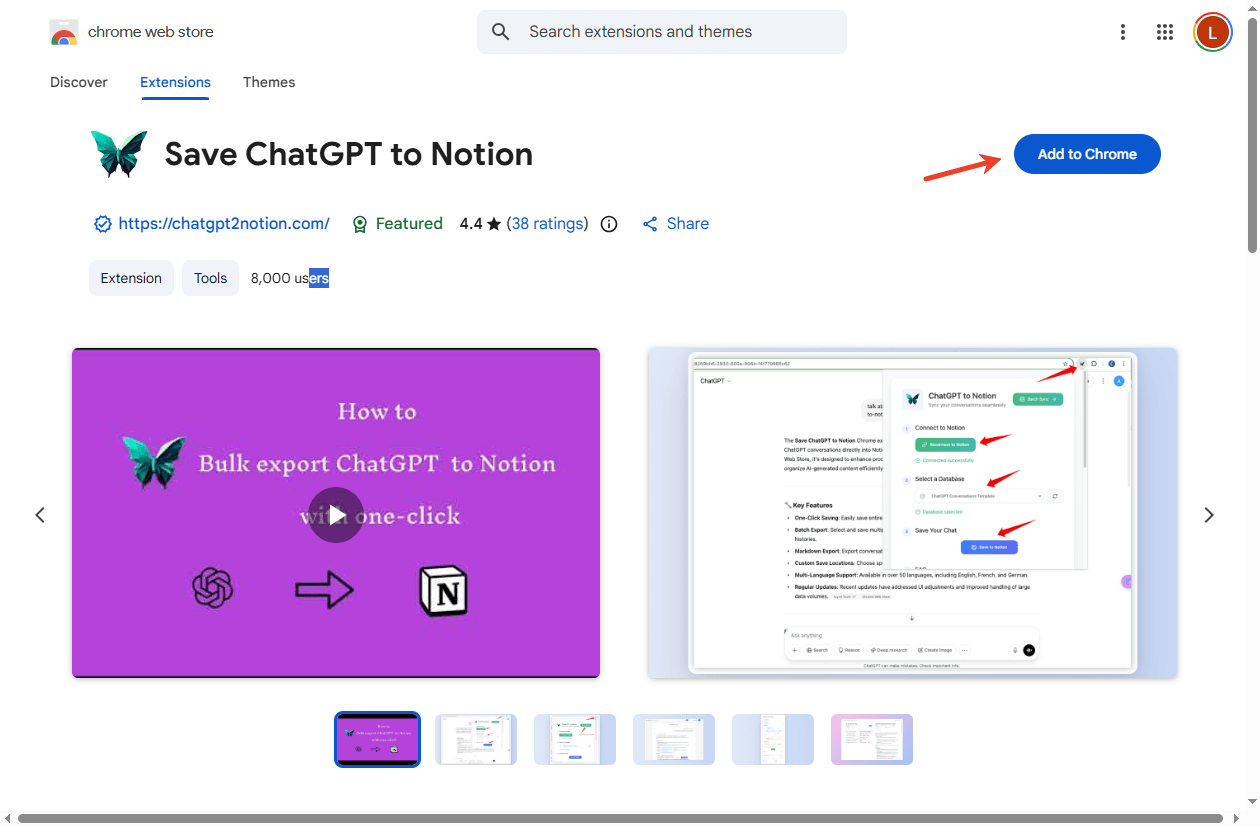
2. Search for a free tool called "Save ChatGPT to Notion."
3. Click the Add to Chrome button to install the extension.
4. Open your Notion account and allow the extension to connect.
5. Go back to ChatGPT. You will now see a small "Pin" icon next to the AI's answers. Click that icon to save the text.
Best For: Free users and students who just want to quickly save their favorite AI answers directly into their notebooks.
User Case: You can ask ChatGPT to write a healthy dinner recipe. Instead of copying and pasting the text, you just click the new extension button. The recipe instantly appears in your Notion "Cooking" database.
A Comparison: Notion AI vs. ChatGPT
You might be wondering why you should connect them when Notion already has its own built-in AI. Here is a simple comparison:
Notion AI: This tool lives entirely inside your notes. It is fantastic for editing what you have already written. It is the best tool for fixing your spelling, making your sentences sound more professional, or summarizing a very long page of your own notes.
ChatGPT: This is a massive, separate brain. It is much better for deep research, brainstorming brand-new ideas, learning complex topics, or writing long essays completely from scratch.
Anyhow, you can connect them to give you the absolute best of both worlds!
Bonus Tip: How to Convert Notion and ChatGPT to PDF
Need to save your work permanently so you can print it or share it offline? In this case, you can easily turn your work into PDF files.
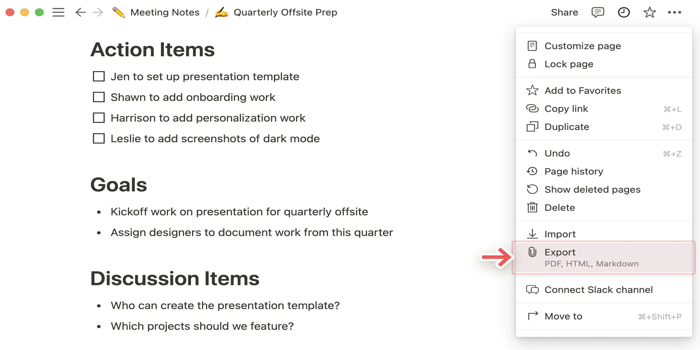
Export from Notion:
It is very easy to export Notion to PDF. Open the page you want to save. Click the three small dots in the top right corner of the screen. Click "Export." Change the export format to "PDF" and click Save.
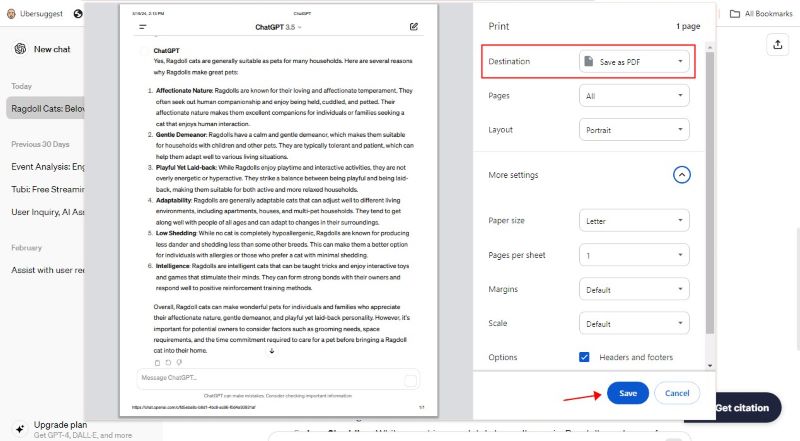
Print from ChatGPT:
You can also save ChatGPT conversation as PDF. Open your favorite chat. Press the Ctrl and P keys at the same time on your keyboard. Change the printer destination to "Save as PDF," then select a folder to save it.
Once you have downloaded your files, you will need a reliable computer program to read them. We highly recommend trying SwifDoo PDF, which lets you read and manage your files. You can even use it to combine PDFs into one clean, organized folder.
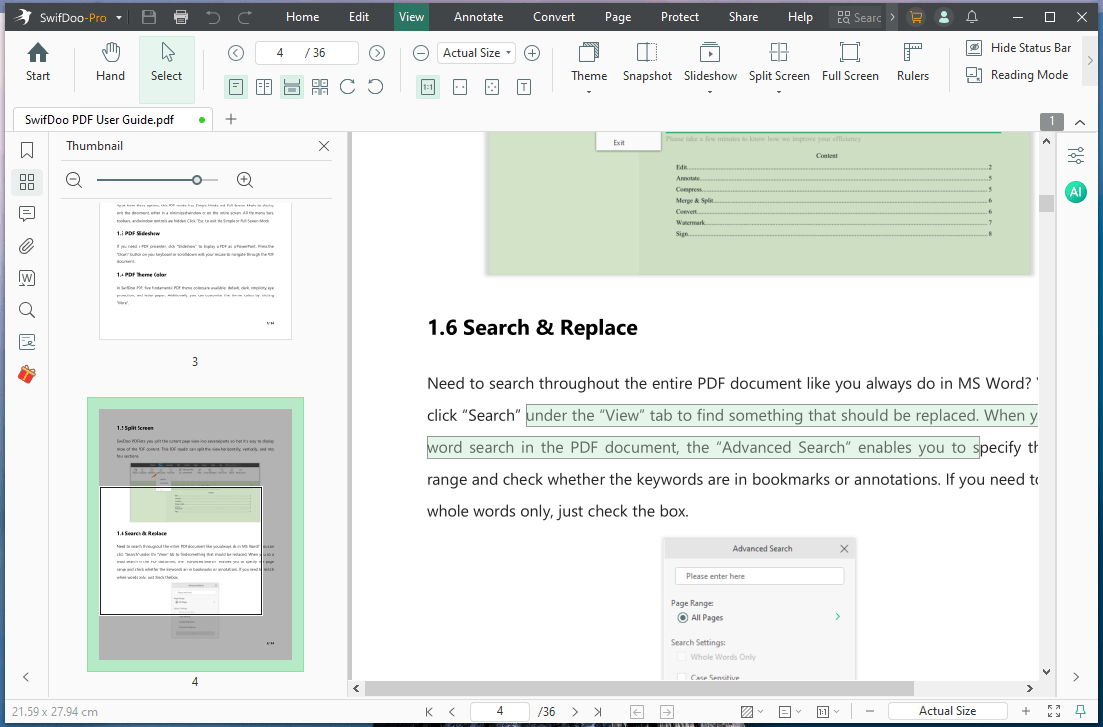
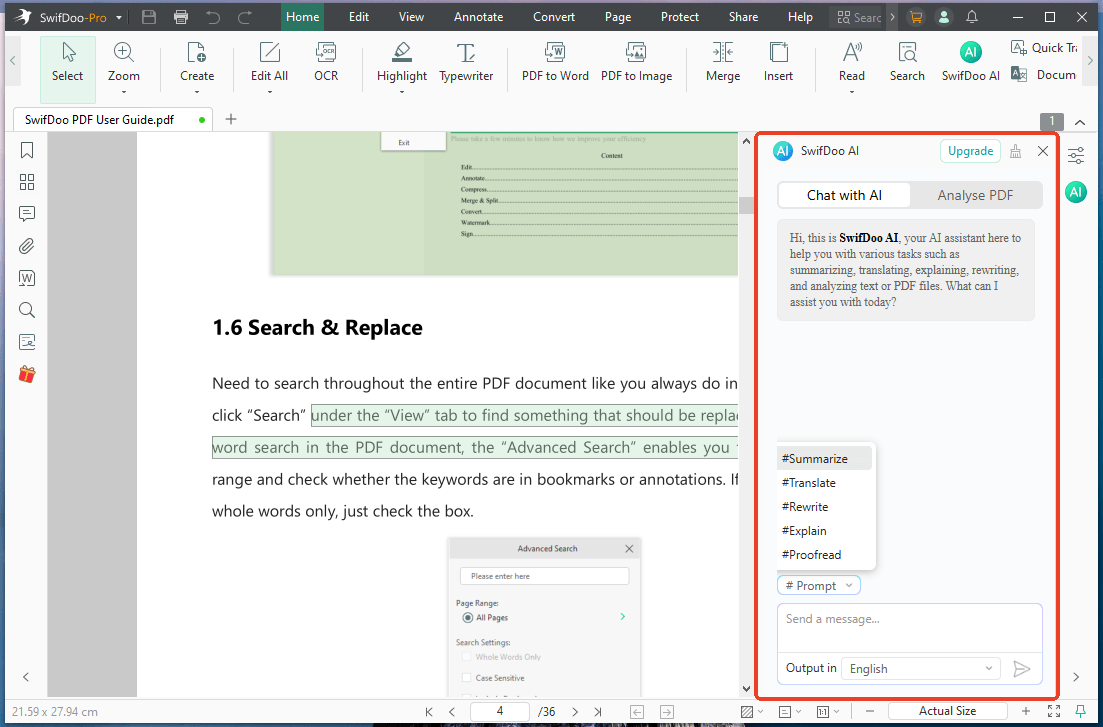
Even better, this software includes a powerful SwifDoo AI feature. This built-in tool acts as an amazing AI PDF summarizer. It can read your long PDFs, quickly summarize the main points, and analyze the data for you so you do not have to read every single word.
Download and try SwifDoo PDF today to make handling your documents easier than ever!
Conclusion
That’s all about how to connect Notion to ChatGPT. Linking your neat Notion workspace to the smart brain of ChatGPT saves you huge amounts of time. Whether you use the direct settings, a background tool like Zapier, or a simple Chrome extension, the setup is very fast. Try these simple methods today to build a smarter, faster way to work!



