


To split large PDF by file size means creating smaller files based on MB rather than page numbers. This will make a PDF smaller to email and upload. When you split a file by page, you break it up into pages. Size-based splitting groups files by size. This makes it convenient to manage documents across systems while adhering to size limits.
Why Split PDFs by Size? Common Use Cases
Breaking PDFs into size-based parts helps meet upload limits and enables smoother sharing. It’s a great solution when you need to split PDFs for email or platforms with upload size limits.
Here are some common use cases to split PDFs by size.
- Email attachments. Bypass 20–25 MB limits without uploading to the cloud first.
- Cloud uploads. Set file sizes to match the limits of Google Drive, Dropbox, or similar services.
- Web submissions. Submit files to websites that enforce tight size restrictions.
- Messaging apps. Transfer files without compression, degradation, or modification of size.
- Data storage management. Segment large files into smaller, clearly organized units.
Best Free Online Tools to Split PDF by Size
It is now possible to split PDF online by size directly in your browser with simple online utilities. They work directly in your browser, so you can upload, split, and download files within minutes without setup.
These top online options offer simple ways to split large PDFs into smaller files based on size.
These include.
- DeftPDF.
- Smallpdf.
- iLovePDF.
- Sejda.
- PDF24 Tools.
Among these tools, DeftPDF is recommended because it’s free for this task. You can use it without signing up for basic features, and you can split a PDF by exact file size in megabytes. A clear, simple layout allows beginners to handle the process effortlessly without technical knowledge.
Here’s how to split a PDF by size using DeftPDF.
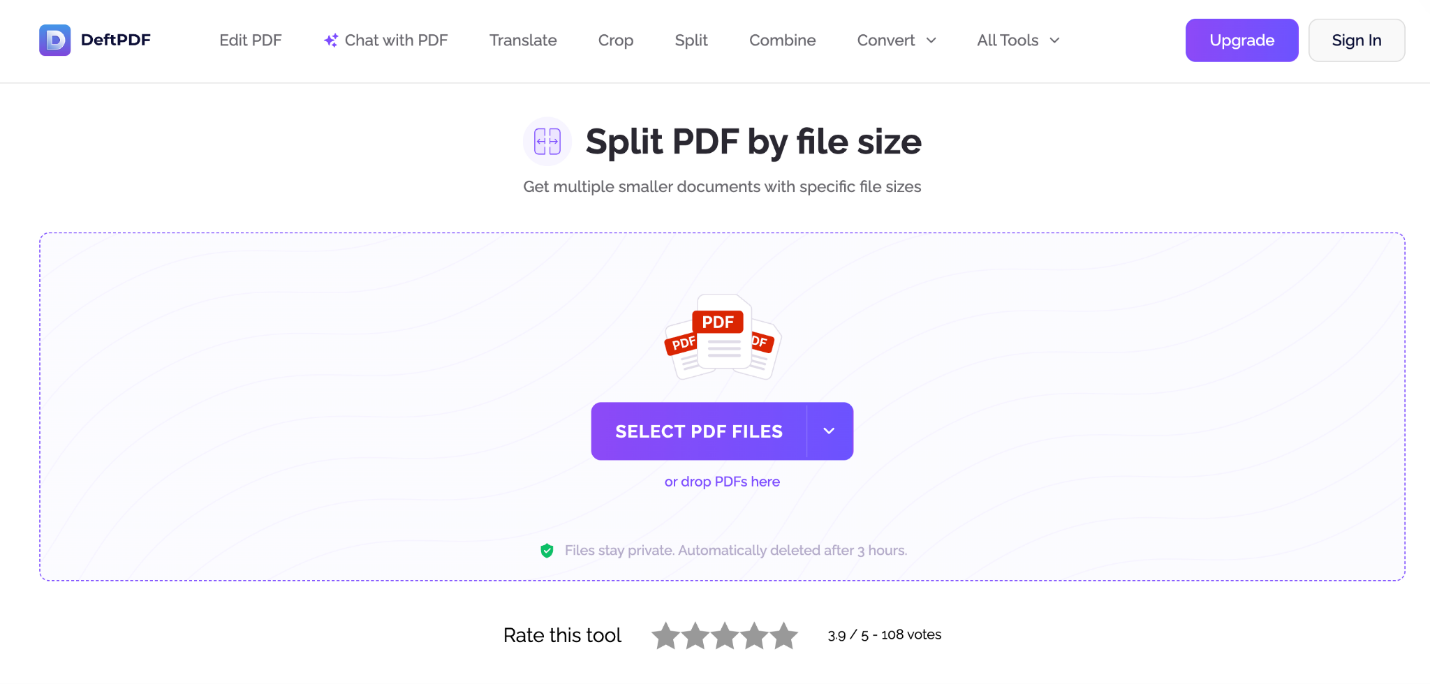
Step 1. Go to the DeftPDF site using your web browser. Go to the Split PDF by size section. Then click “Select PDF Files” to upload your large PDF file. You can also drag and drop it into the browser window.
Step 2. Enter your desired maximum split PDF size in MB or KB for each file in the top-left corner of your screen.
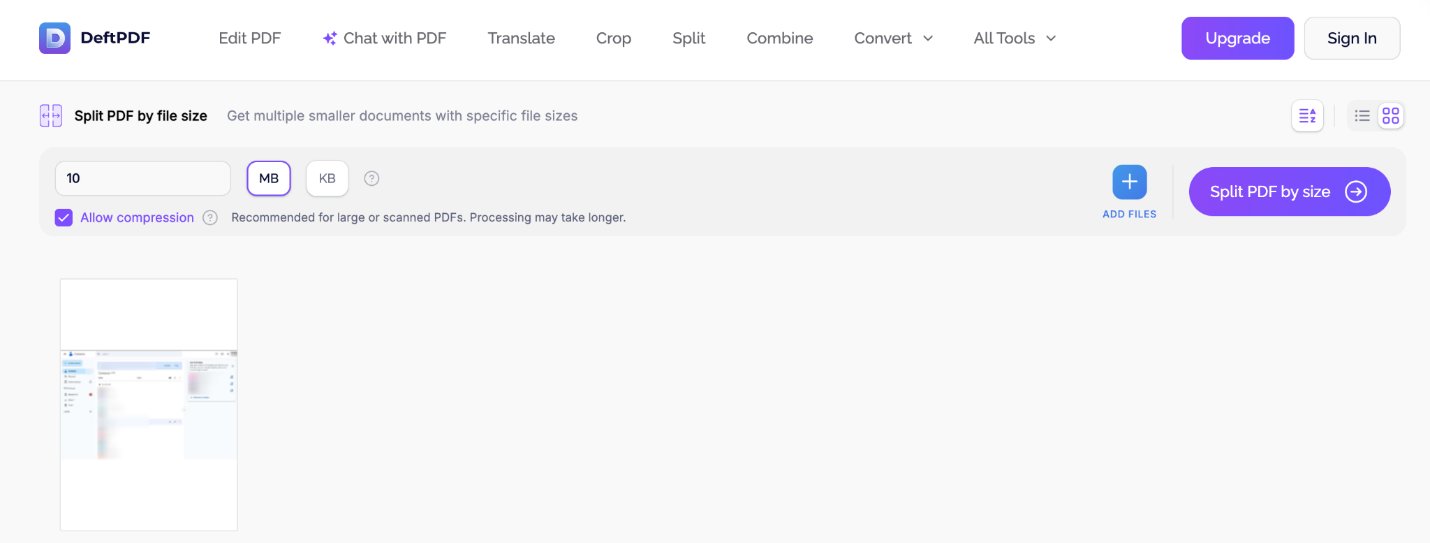
Step 3. Once completed, select “Split PDF by Size” at the top right, then allow the file to process.
Step 4. Download each file individually or download them all in a ZIP package.
How to Split PDF by Size in Adobe Acrobat
Adobe Acrobat is a widely used PDF tool known for its advanced editing and file management features. You can easily split PDFs into smaller, manageable parts based on your specific needs while maintaining full control over document organization. This makes large files easier to handle and share.
Learn how to split PDF by size in Adobe Acrobat in a few clicks.
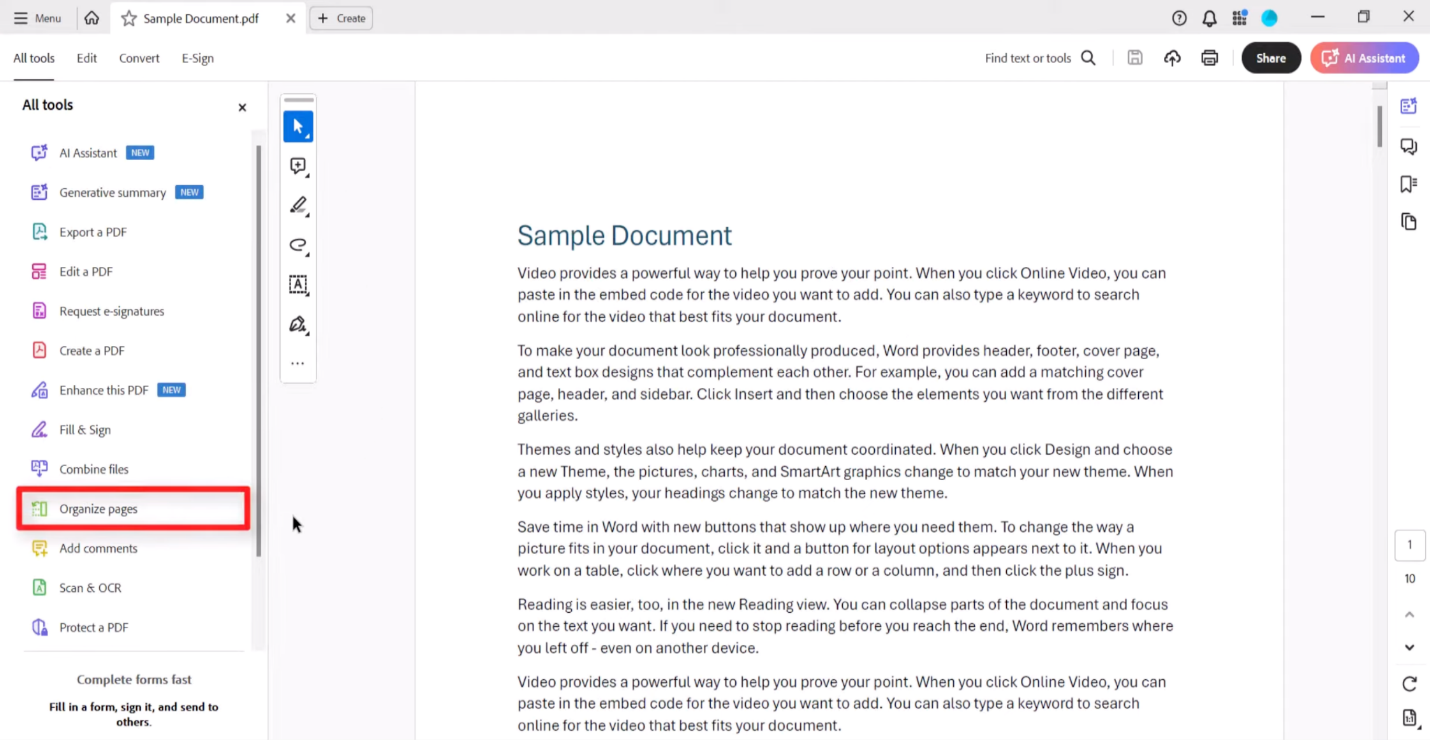
Step 1. Download and install Adobe Acrobat, then open the PDF file you want to split. Then go to Tools > Organize Pages.
Step 2. Click the Split option in the toolbar to start dividing the document.
Step 3. Under “Split by,” select File Size and enter the maximum size (in MB/KB) for each file.
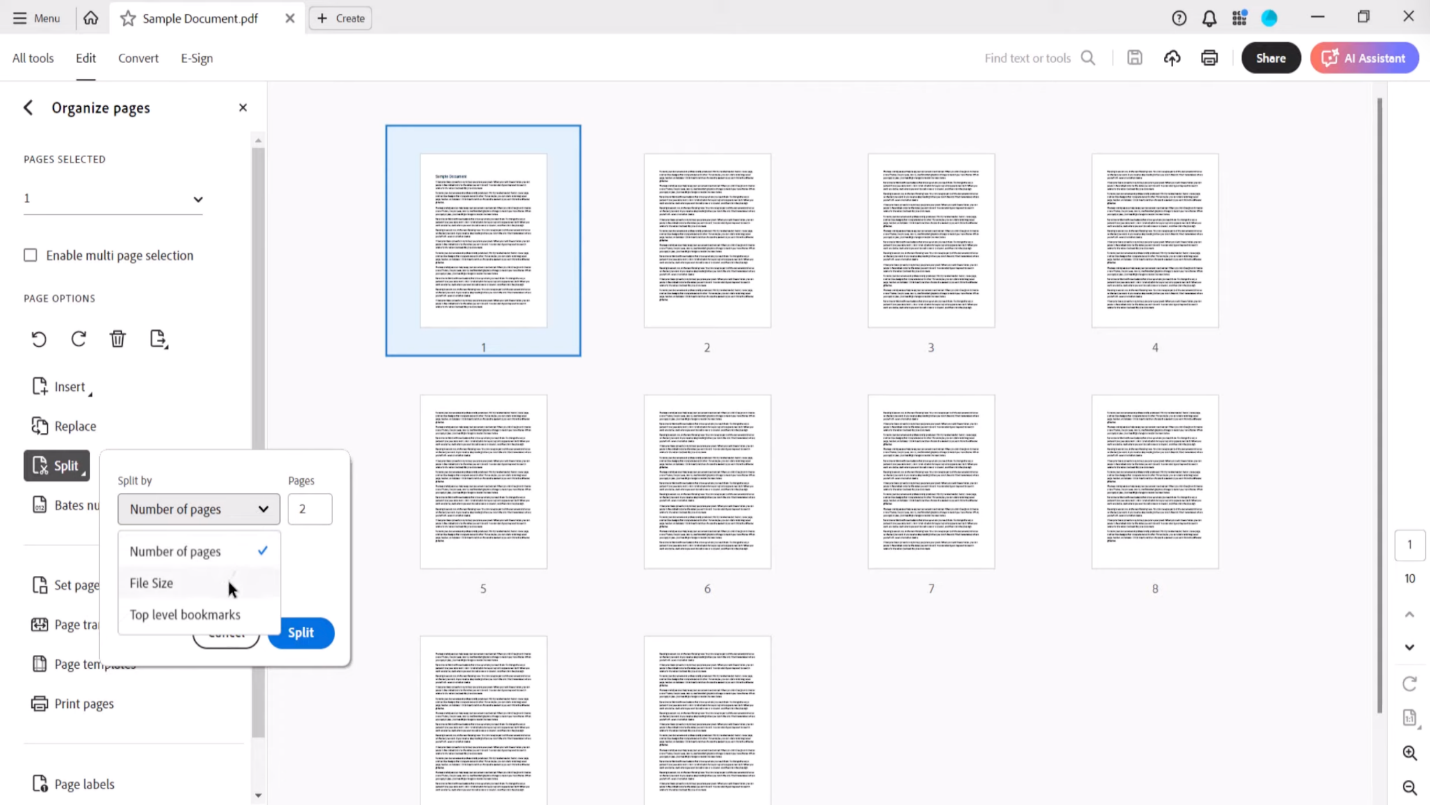
Step 4. Click Output Options to choose the location and naming. Then click OK, then Split to complete.
How to Split PDF by Size with PDFsam and Alternatives
PDFsam is also a popular, free, open-source PDF splitter that makes it easy to manage large documents. While it mainly splits by page, it can assist with workflows that split a PDF by file size with simple adjustments or alternatives.
Here’s how to split a PDF by size with PDFsam Basic in a few clicks.
Step 1. Download and install PDFsam Basic. Launch the program and select the Split module.
Step 2. Click Select to add the PDF you want to split.
Step 3. Next, choose Split by size and enter the maximum file size in MB or KB.

Step 4. Once done, set the output folder and file names. And then click Run to start splitting.
Besides PDFsam, several desktop programs also support splitting PDFs by size, giving you greater control, privacy, and offline processing than online tools. These are ideal for handling large or sensitive documents without upload limits.
Here are a few other popular options.
- Wondershare PDFelement
- Soda PDF
- Nitro PDF Pro
Comparison of Top PDF Splitter Tools
A simple comparison helps you decide which tool works best. This comparison of the top 3 PDF splitter tools highlights key differences in features, ease of use, and splitting options. It helps you quickly identify which tool best fits your needs, whether you want advanced control, batch processing, or simple file-size splitting.
|
Feature |
DeftPDF |
Adobe Acrobat Pro |
PDFsam Basic |
|
Type |
Online tool |
Desktop software |
Desktop software (open-source) |
|
Split by Size |
Yes (MB-based splitting) |
Yes (advanced controls) |
Yes (Robust MB-based) |
|
Ease of Use |
Very easy |
Moderate |
Easy |
|
Free Version |
Yes (limited tasks/batch) |
No (paid subscription) |
Yes (free & open source) |
|
Internet Required |
Yes |
No (offline available) |
No |
|
Best For |
Quick online splitting |
Professional document handling |
Simple, secure, offline, split/merge |
|
Extra Features |
Basic PDF tools, no sign-up |
Editing, OCR, compression, signing |
Merge, split, extract pages, mix |
Bonus: Best Tool to Split a PDF by Pages
After reviewing the top 3 PDF splitter tools, it’s clear that different needs call for different approaches. Size-based splitting helps overcome upload limits, while page-based tools improve content organization. If you want to split a PDF into multiple files by sections or chapters, a dedicated solution is essential. For this, SwifDoo PDF can help.
SwifDoo PDF is a feature-rich all-in-one solution that makes document handling easy, particularly when you want to split a PDF without Adobe. It provides a quick way to split large PDFs or extract selected pages, making it easier than using more advanced software.
SwifDoo PDF features an easy-to-use interface that supports splitting PDFs by page ranges, fixed intervals, or custom selections, and batch processing files. This best PDF editor also ensures your content remains intact while creating smaller, more organized files, helping you work efficiently without Adobe.
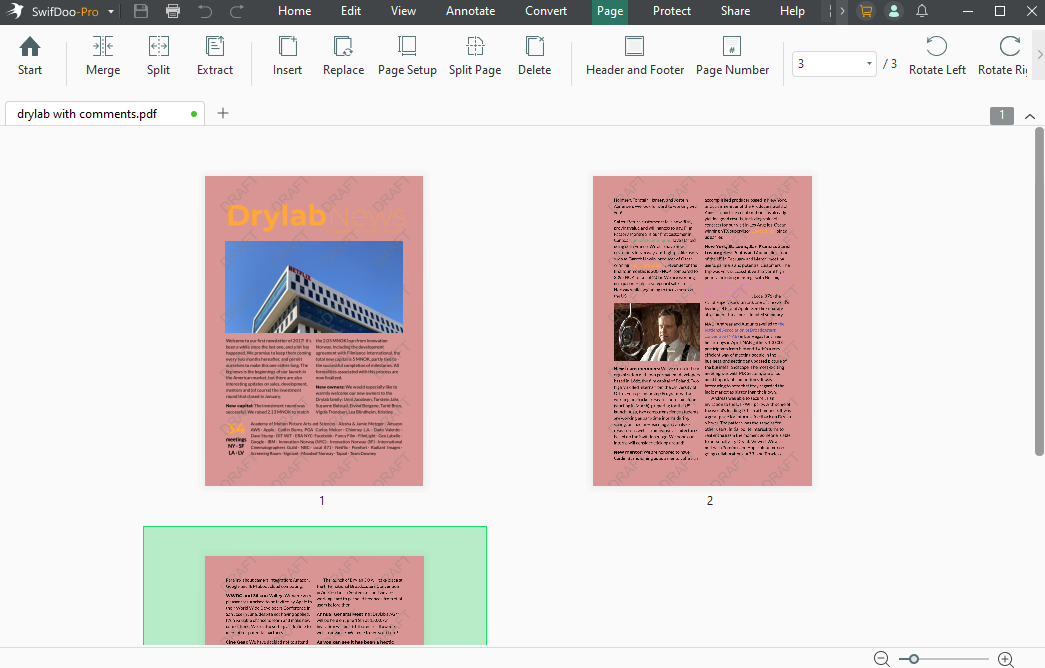
Here are some other main features of SwifDoo PDF.
- Modify existing text, change font colors and sizes, add text boxes, and insert images.
- Convert files between PDF and Microsoft Office formats (Word, Excel, PowerPoint), as well as images (PNG, JPG) and CAD files.
- Highlight, underline, add sticky notes, and use different reading modes, including full-screen and automatic page turning.
- Apply passwords, set permissions, and add legally binding electronic signatures.
- Merge multiple files, split PDFs, and reorganize pages.
- Summarize, translate, rewrite, and chat with PDF documents using AI.
- Reduce file sizes without compromising quality.
Conclusion
Working with large PDFs becomes easier when you learn how to split PDF by size. With the right tools, you can stay within file size limits and share files easily. From web-based tools to desktop programs, there’s a solution that fits your needs. Select your approach and start splitting PDFs by size today for quicker sharing and improved document management.



