Why Is My PDF Not Recognizing Text
Before learning any fixes, it’s important to understand why your PDF isn’t recognizing text. Here, let’s check the most common reasons.
- The PDF is a scanned image: Your PDF file is a collection of scanned images instead of a text-based file. To handle scanned PDFs, you need to use OCR software.
- OCR was never applied: Without OCR, you can’t search for PDF text, copy and paste text, or edit the scanned PDFs. Because no actual text exists within the file.
- The PDF has security restrictions: Some PDFs are protected by permission passwords, which restrict you from copying or editing PDFs.
- The PDF is corrupted: Corrupted PDFs can also interfere with text recognition. Corrupted PDFs may have missing text, garbled characters, or blank pages.
- The text is embedded as an image: Some PDFs intentionally embed text as images, making it difficult to select, copy, or edit.
How to Fix a PDF That Isn’t Recognizing Text
Now that we have learned the potential causes. Let’s learn the 8 proven ways to fix a PDF that isn’t recognizing text.
Fix 1: Run OCR on the PDF (Best Solution)
If your PDF is image-based, OCR is the most effective solution. OCR analyzes the text in scanned images and creates a searchable text layer. Hence, you can search, copy, select, and edit the document. SwifDoo PDF is an excellent PDF editor with OCR, which can quickly convert scanned PDFs into searchable documents. How to OCR a PDF in SwifDoo PDF? Below are the exact steps:
Step 1. Click the button below to download SwifDoo PDF and install it on your Windows PC.
Step 2. Launch this OCR software and click Open to import the image-based or scanned PDF file.
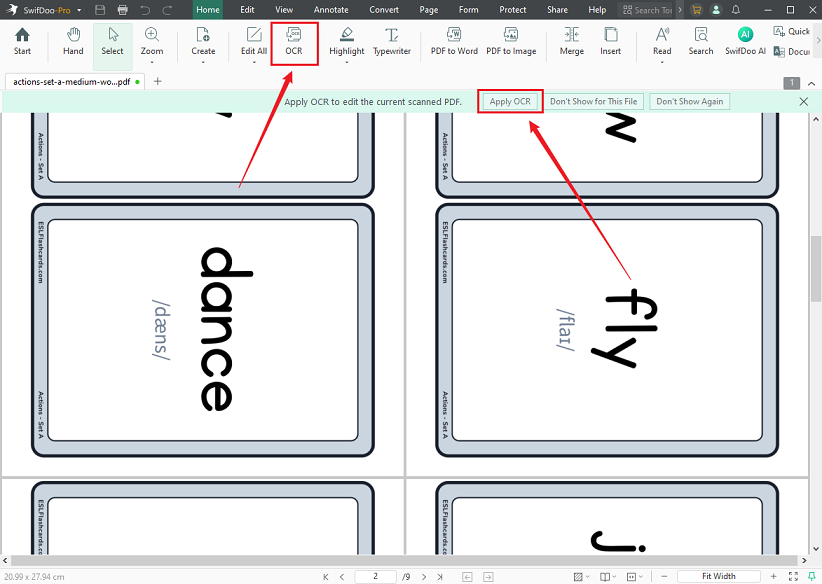
Step 3. SwifDoo PDF will automatically detect that the PDF is scanned and prompt a banner to apply OCR. Click the Apply OCR button in the top banner or click the OCR option in the toolbar.
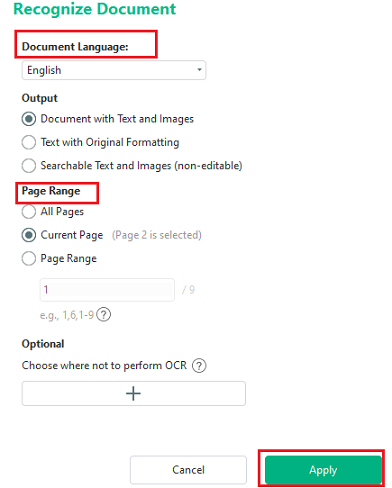
Step 4. In the Recognize Document window, specify the document language, select the page range you want to OCR, and adjust other settings as needed. Then, click Apply to start recognizing text in the PDF.
Step 5. Optionally, you can edit the PDF, select and copy the text, or extract information from the PDF in SwifDoo PDF. Finally, go to File > Save as to save the newly created searchable PDF.
Fix 2: Use Adobe Acrobat OCR
In addition to SwifDoo PDF, you can also use Adobe Acrobat Pro. This is one of the most professional PDF tools. You can make a PDF searchable using its OCR feature. How to OCR a PDF in Adobe Acrobat Pro? Below is how:
Step 1. Launch Adobe Acrobat Pro and open your scanned PDF.
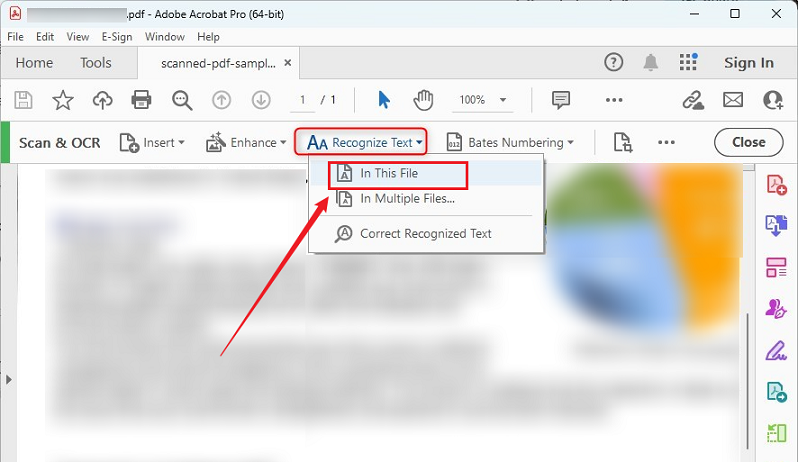
Step 2. Then, click All tools, select Scan & OCR, click Recognize Text, and choose the In This File option.
Step 3. Next, in the dialog box, select the document language and adjust other settings. Click Recognize Text to start OCR. Finally, save the file to preserve the changes.
If Adobe fails to recognize the PDF, try SwifDoo PDF, a cost-effective alternative to Adobe Acrobat.
Fix 3: Re-scan the Original Document
The poor scan quality can significantly reduce OCR accuracy, even causing OCR to fail on PDFs. A clean, high-resolution scan gives OCR software a much better chance to recognize every character correctly. In that case, you can try to re-scan the original document. For better OCR performance:
- Scan at 300 DPI or higher.
- Place pages flat on the scanner.
- Avoid shadows and wrinkles.
- Use high contrast.
Fix 4: Check PDF Permissions
Sometimes, the PDF contains searchable text, but it is protected by passwords from selecting, copying, or editing. In that case, you need to ask the document owner for approval. Or, you can use a tool to unlock the PDF. SwifDoo PDF is a good tool that can help you remove passwords from PDFs. Here’s a simple guide for you:
Step 1. Launch SwifDoo PDF and click Open to import the locked PDF file.
Step 2. Go to Protect and select Decryption.
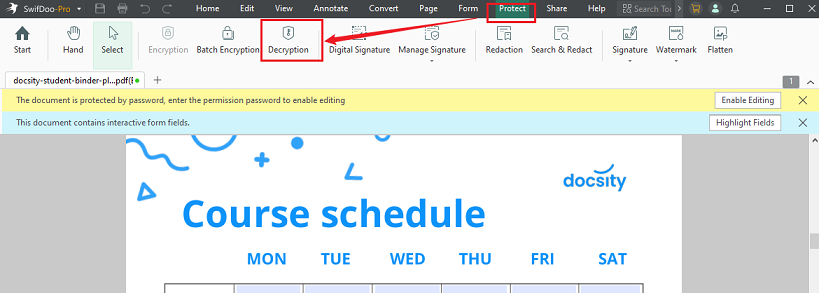
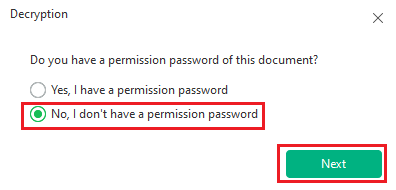
Step 3. Then, tick “No, I don’t have a permission password”, click Next, and click Remove to confirm the operation.
Fix 5: Update Your PDF Reader
Additionally, an outdated or incompatible PDF reader may fail to display an existing OCR text layer correctly. Try updating your PDF reader to the latest version and reopen the PDF after the update. If the PDF still can’t recognize text, keep trying the following solutions.
Fix 6: Repair or Re-download the PDF
Damaged PDFs often cause unexpected problems, including missing text, failed searches, or incomplete rendering. If the “PDF not recognizing text” error is caused by damaged PDFs, try downloading the PDF again or restoring the original file if available. Additionally, you can request a new copy from the sender.
Fix 7: Convert an Image PDF to a Searchable PDF
Some PDF files are created directly from images rather than scanned documents. These files also require OCR before the text becomes searchable. To recognize text in an image PDF, use a PDF converter to convert it to a searchable PDF. Both SwifDoo PDF and Adobe Acrobat Pro are good choices. Taking SwifDoo PDF as an example, below are the exact steps for your reference:
Step 1. Launch SwifDoo PDF on your Windows PC.
Step 2. Go to Convert, click “To Searchable PDF”, and click Add Files to import the image PDF file.
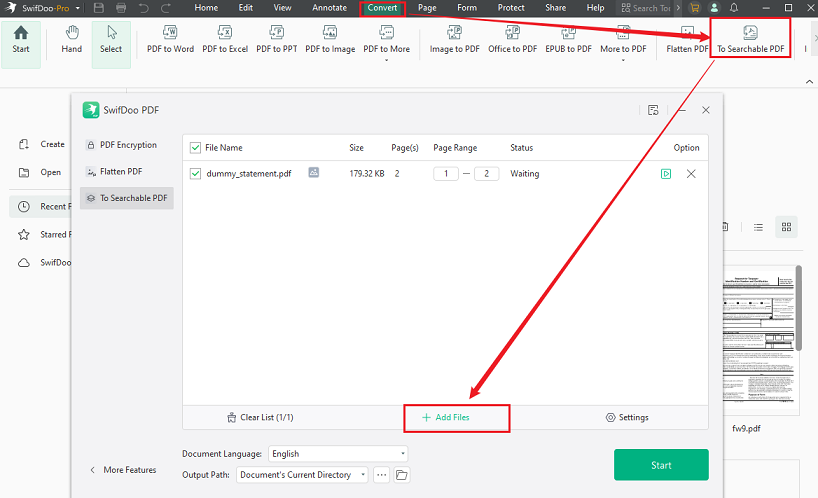
Step 3. Specify the document language for OCR accuracy and click Start to perform the conversion process. After that, you can search text, copy information, and highlight content.
Fix 8: Try Another PDF Viewer
Not every PDF viewer handles text recognition the same way. Hence, if one application can’t recognize the text, try opening the same PDF in another PDF reader, such as:
- Adobe Acrobat Reader
- SwifDoo PDF
- JOPDF
- Foxit PDF Editor
- Preview
Best OCR Software for PDFs
If you frequently work with scanned documents, selecting the right OCR software can save time and improve accuracy. A reliable OCR software can convert image-based or scanned PDFs into searchable and selectable PDFs effectively. Below is a comparison table of some popular OCR software.
|
Tool |
OCR Support |
Offline |
Best For |
|
SwifDoo PDF |
✔ |
✔ |
OCR, searchable PDFs, editing scanned documents |
|
Adobe Acrobat Pro |
✔ |
✔ |
Professional OCR and advanced PDF workflows |
|
PDFgear |
✔ |
✔ |
Free OCR for occasional use |
|
Google Drive |
✔ |
✘ |
Quick OCR in the browser |
|
Microsoft OneNote |
Limited |
✔ |
Extracting text from images |
How to Prevent PDFs from Losing Text Recognition
At the end of the article, I also prepared some tips to prevent PDFs from losing text recognition. You can follow these tips when creating or scanning PDFs.
- Scan at 300 DPI or higher
- Run OCR immediately after scanning
- Keep pages flat and clear
- Avoid low-quality or over-compressed scans
- Create PDFs directly from source files
Conclusion
If your PDF is not recognizing text, the good news is that the problem is often easy to resolve. In most cases, reliable OCR software can resolve the problem. SwifDoo PDF is a good PDF solution that can not only OCR PDFs but also convert scanned or image-based PDFs to searchable PDFs. If OCR doesn’t work, review the PDF’s permissions, update your PDF reader, or repair or redownload the file. Hopefully, this article can be helpful to you.