


1. How to Print a PDF Resume with SwifDoo PDF
SwifDoo PDF is a professional PDF printer that offers versatile printing features, allowing users to adjust layout, paper size, orientation, and print in color for a professional-looking resume.
Apart from printing, SwifDoo PDF enables text edits, page adjustments, annotations, and optimization of your resume layout. That's to say, you can easily edit your PDF resume before printing. These tools help you polish your resume, maintain a professional look, and print high-quality copies ready for interviews, applications, and career events.
Find out how to print a resume with the help of SwifDoo PDF in a few clicks.
Step 1. Download and install SwifDoo PDF on your Windows computer. Once done, launch the program.
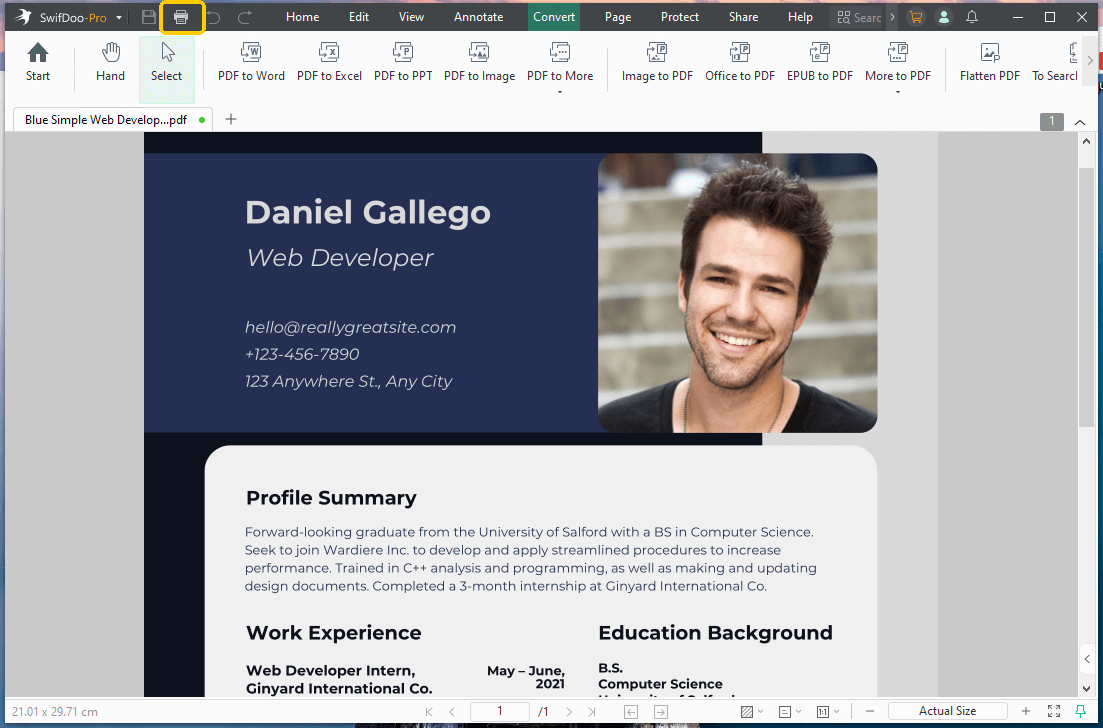
Step 2. Open your PDF resume in this program. Once imported, click the Print icon in the top-left corner. Alternatively, press the Ctrl + P keys.
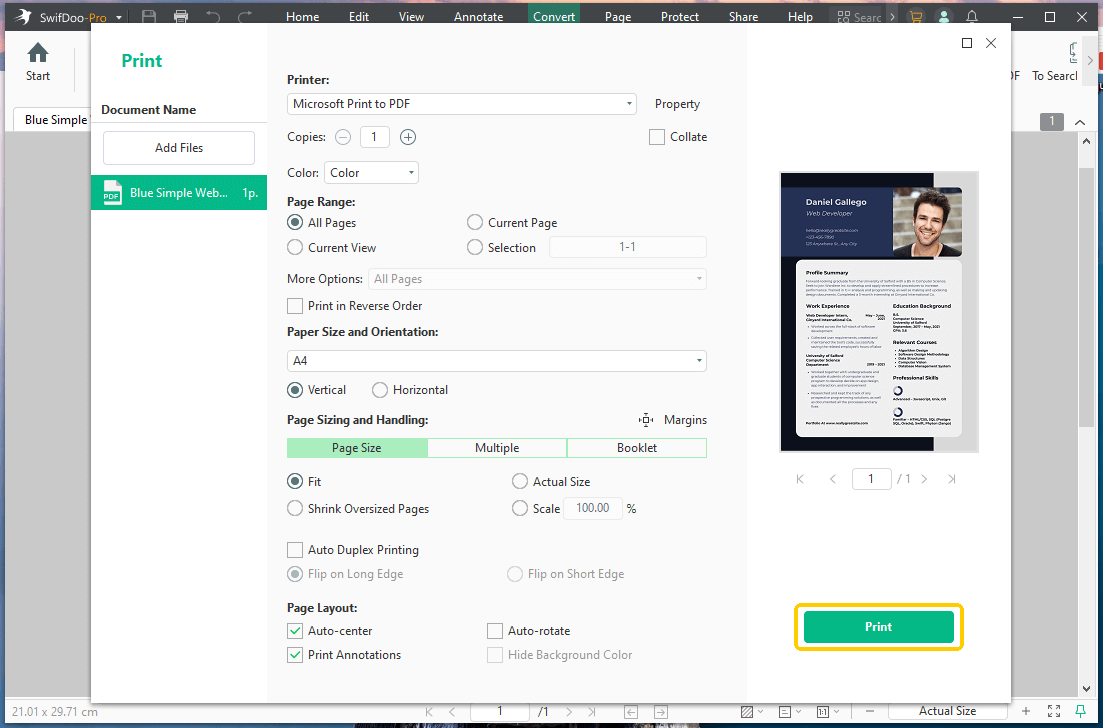
Step 3. In the Print window that opens, select Color, Page Range, Paper Size, and Orientation, and other necessary settings.
Step 4. After configuring all the print settings, click the Print button.
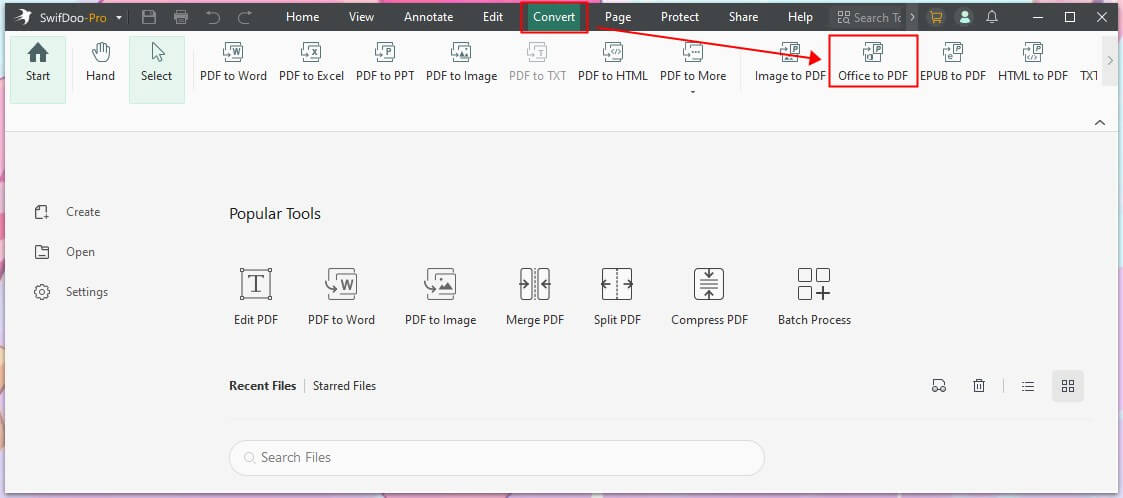
SwifDoo PDF can help you convert a Word resume to a PDF. Therefore, if you have a Word file, you can go to Convert > Office to PDF to do the conversion for printing.
2. How to Print a Resume from LinkedIn
LinkedIn allows you to download and print your resume using your profile information quickly. You can save your profile as a PDF, review the formatting, and print it for interviews or networking events. This option is especially helpful when you need a resume fast using your updated LinkedIn details. By the way, if needed, you can use LinkedIn to help you create a link for your resume and share it easily.
Find out how to print a resume from LinkedIn in a few clicks.
Step 1. Use a web browser to log into your LinkedIn account instead of the mobile app.
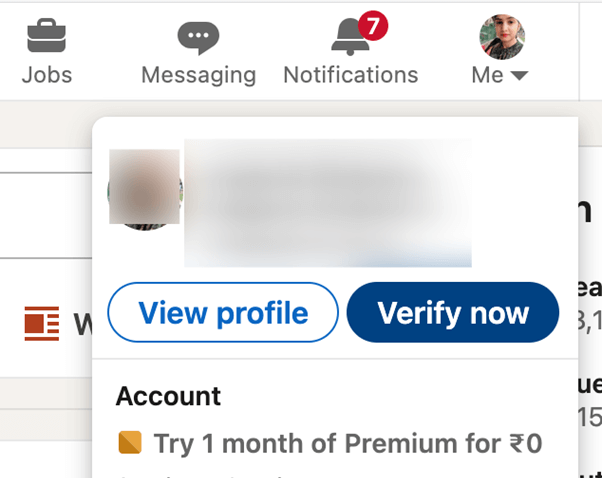
Step 2. Click the "Me" icon (your profile picture) in the top right corner to access your LinkedIn Profile. Once done, choose the View profile button.
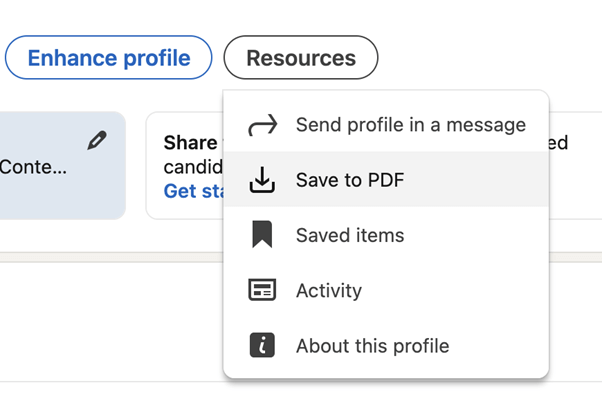
Step 3. On your profile page, under your name and photo, click the More… or Resources button.
Step 4. Pick Save to PDF from the dropdown menu options. The profile PDF (e.g., YourName_Resume.pdf) will appear in your downloads folder without any extra steps.
Step 5. Now you can open the downloaded PDF in a PDF printer, such as SwifDoo PDF, to print it.
3. How to Print a Resume from Indeed
Accessing and printing your resume is effortless directly from your Indeed account. You can download your resume and prepare it for printing. This method is helpful for quick applications, interviews, or sharing a polished resume offline when applying through Indeed or external employers.
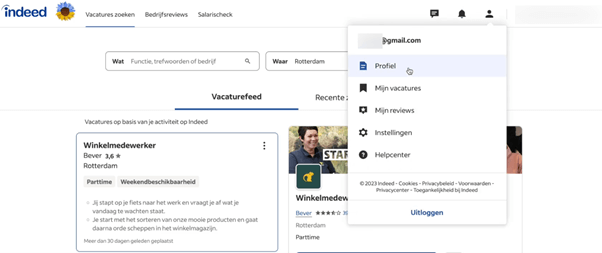
Step 1. Log in to your Indeed account. Head to your Profile in the upper-right corner and click on Resume.
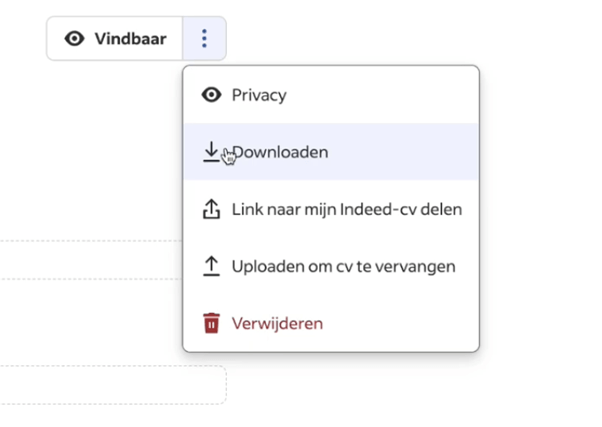
Step 2. Click the Download Resume button or the … menu adjacent to your resume.
Step 3. Click Download, then select the PDF format for best results. Next, save the file.
Step 4. Open the downloaded PDF file in SwifDoo PDF, then navigate to Print, select your printer, and print.
4. How to Print a Resume Without a Printer
If your home doesn't have a printer, you can store your resume on a USB drive or in the cloud, and then go to a place with a printer to print it.
A. Public & Community Options
✅ Public Libraries
Most locations give access to computers and printers, often charging a small fee or offering a few free prints. You can log in to your email, upload your resume, or use a thumb drive/USB drive to print.
✅ Community Centers and Job Centers
Job seekers can easily print resumes at community and job centers that provide dedicated printing services.
✅ Local/Community Churches or Educational Institutions
If you request it courteously, some churches and schools may allow you to print resumes or educational documents.
B. Other Convenient Locations
✅ Pharmacies or Grocery Stores (CVS, Walgreens, Walmart)
CVS, Walgreens, Walmart, Staples, FedEx, and UPS frequently offer printing at their business or photo centers. You can take your resume on a USB thumb drive or upload it online for quick printing.
✅ Use Your Office or a Friend’s Office
If appropriate, you can print your resume at your office or a friend’s workplace (if you have access), using office printers.
A Quick Wrap Up
Making a printed copy of your resume is a quick yet important step for job seekers. Being familiar with how to print a resume guarantees you can quickly provide it for interviews or career events. Whether printing at home, a local shop, office resources, or via PDF tools, these four easy ways ensure you produce a professional, polished resume with confidence and ease.
By the way, it is better to save your resume as a PDF and print it. Why? Because PDF can retain all the formatting. Before printing, you can use SwifDoo PDF to edit the PDF resume to make it even better!



