


1. How to Add a Link to Your Resume in Google Drive
Many people use Google Drive every day and trust it. You can try it to create a link for a resume for free by following the steps below:
Step 1: Start this step by putting your resume in your Google Drive account.
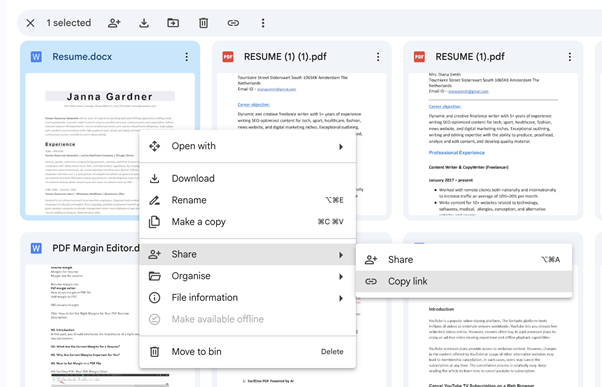
Step 2: When you right-click on the file, a menu will drop down. You can now click "Get link" or "Share."
Step 3: You can change who can see "Anyone with the link" in the Share settings. You can also make the role "Viewer" here.
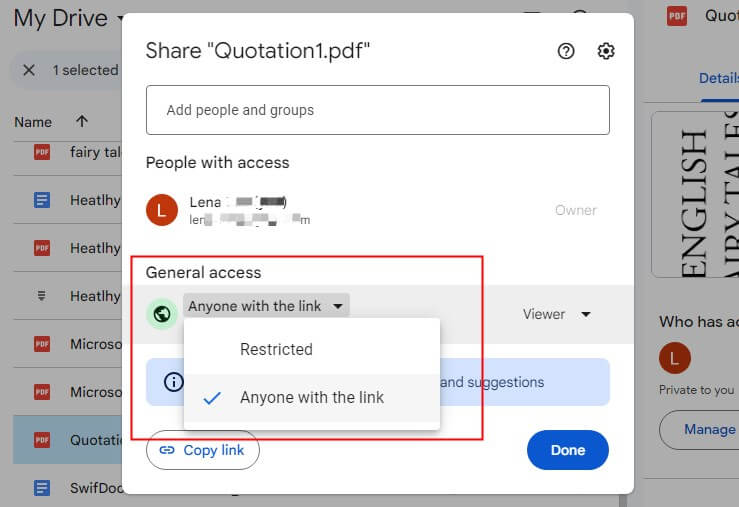
Step 4: In the last step, click "Copy Link." This URL can be pasted into your job applications and emails.
2. How to Make a LinkedIn Link for Your Resume
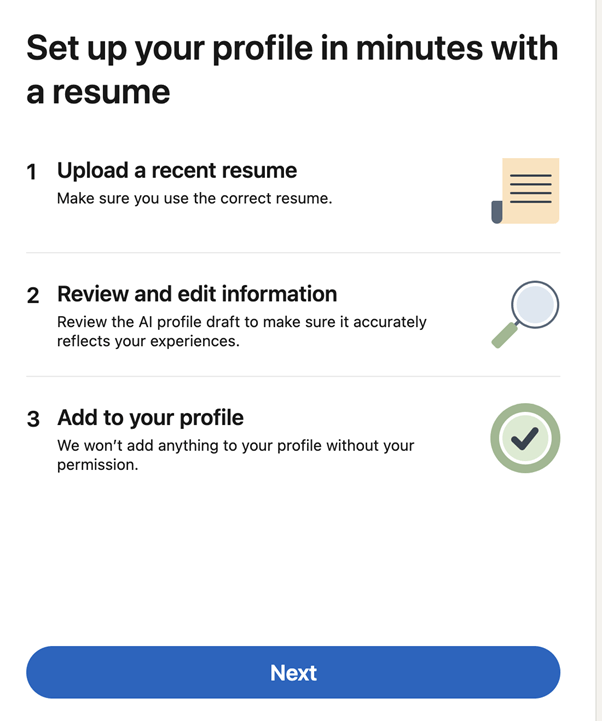
Recruiters look for job candidates on LinkedIn first. A LinkedIn profile can help you show off your most recent skills. Here are the full instructions for creating a LinkedIn link for your resume and attracting more attention in your job search.
Step 1: Click "Add Profile section" below your headline on your LinkedIn profile. To upload your resume file from here, click "Featured," then "Media."

Step 2: Give your resume a title, then write a compelling description that highlights your most important skills, experience, and achievements.
Step 3: Finally, click "Save." Your resume is now in the Featured section, where potential employers can see it. They can click the link to view or download it.
3. How to Create a Link for a Resume Using Tiiny.Host
You can easily create a free, shareable resume link with Tiiny Host. The best thing about Tiiny is that it doesn’t add watermarks to PDFs. Let’s take a look at the steps of how to create a link for a resume using Tiiny.Host:
Step 1: Navigate to Tiiny.host and upload your PDF resume, which is less than 50MB. No sign-up is required for using Tiiny. Host.
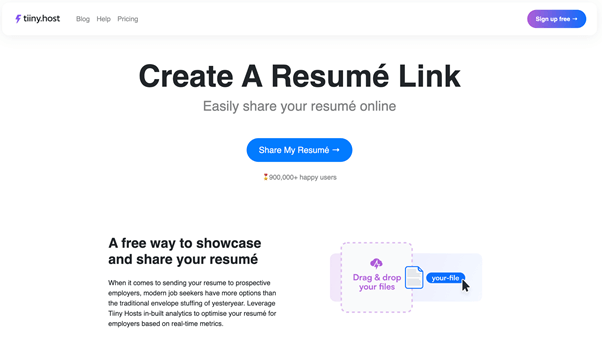
Step 2: Tiiny Host can either auto-generate the URL name or you can customize it as required.
Step 3: Take a preview to see whether the formatting is correct.
Step 4: Finally, click Launch, and you can now copy the unique resume URL to paste in job applications.
One of the biggest problems with PDFs is that they are difficult to modify. However, professional tools like SwifDoo PDF can help edit a resume in PDF. As a result, you can add multiple links in a PDF that point to different content on the same web page, such as text, images, email addresses, and more. Keep reading to learn more about this dynamic tool and how to edit a PDF using it.
Additional Tip: How to Insert a Link in a PDF Resume With SwifDoo PDF
SwifDoo PDF is your ultimate ally for creating, viewing, editing, converting, and managing PDFs under one roof. This lightweight tool is available for Windows, Mac, iOS, and Android users who wish to undertake everything from PDF creation to management. Let’s take a look at its features in detail:
What Makes SwifDoo PDF Unique
- You can use SwifDoo PDF to edit PDFs by adding or removing text. You can also change the font's style, size, and color.
- It's easy to convert a PDF to a URL with SwifDoo PDF. It is also compatible with other formats such as JPG, TIFF, PNG, BMP, CAD, etc.
- You can toggle how PDFs are displayed. SwifDoo PDF helps make browsing easier. You can even find and replace specific text in a PDF and translate the whole thing.
- You can choose from three levels of compression to reduce file size without sacrificing quality. There is also an option to merge multiple PDFs into a single PDF.
- SwifDoo PDF offers an option to merge multiple PDFs into a single file, making file management easier. You can also split a single PDF into multiple smaller files.
How to Use SwifDoo PDF to Edit Your PDF
Step 1: First, download and install SwifDoo PDF on your computer. We'll talk about how to use this small tool on your Windows system for today's example.
Step 2: Now launch the program and hit the “Edit” button followed by “Link.” From here, you can either "Add or Edit Link."
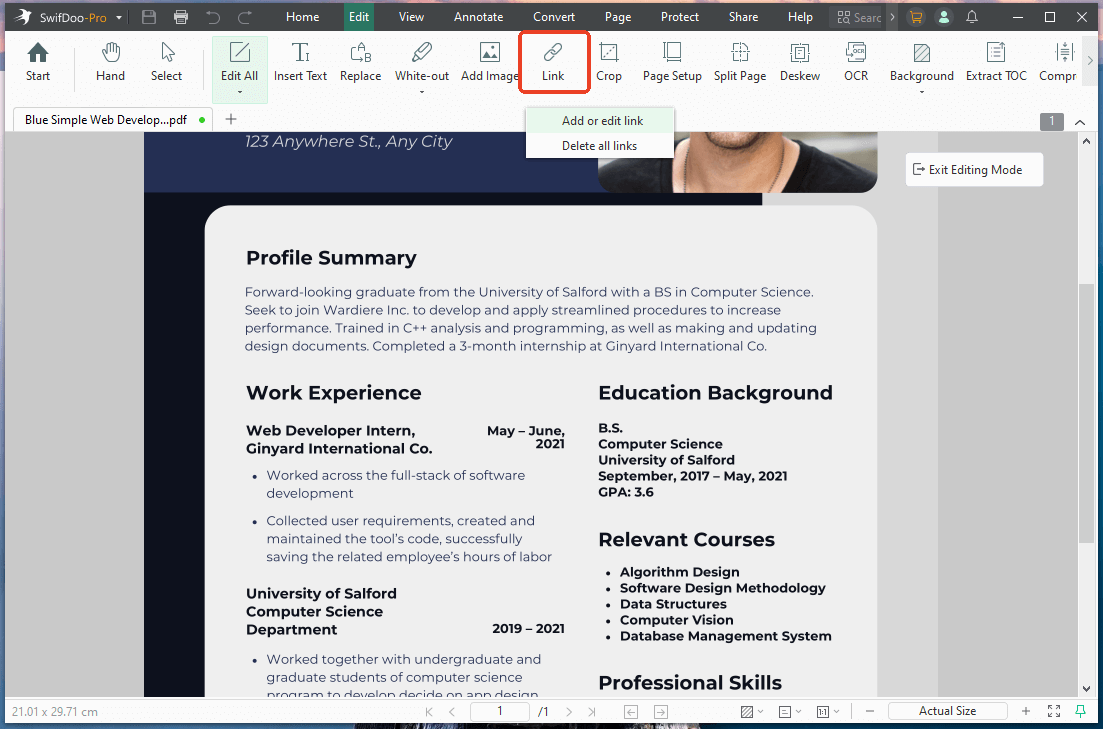
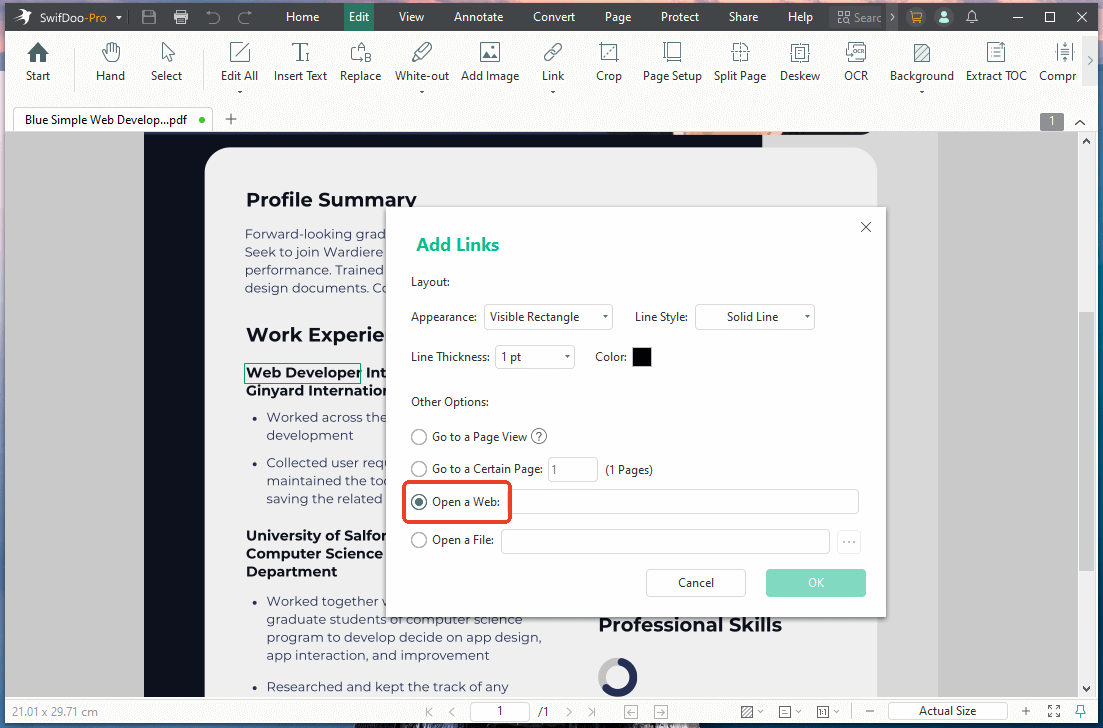
Step 3: The link you can embed in your document can now be used to navigate to a different page, open a website, or even jump to a certain spot. You can share a PDF as a link once you're done.
Conclusion
Get ready to take the job market by storm with your highly professional resume. Whether you are planning on sharing your resume over LinkedIn, via Google Drive, or on other resume-building platforms, the above-mentioned methods can assist you in creating a link for your resume without any hassle.



