Can You Convert a Scanned Document to Word
Yes, you can convert a scanned document to Word. Unlike a normal Word document, a scanned file doesn’t contain actual text. Instead, it contains a digital image of the original page. Your computer sees the words as pixels rather than editable characters. In that case, OCR is the key technology that converts them into searchable, editable Word documents.
What’s OCR? It is a technology that analyzes images of text and converts them into machine-readable characters. In other words, you can make scanned files editable and searchable using OCR.
Then, do you know what types of scanned documents can be converted to Word? Generally, you can convert scanned images, handwritten documents, and scanned PDFs to Word. In the following content, I’ll introduce you to 3 practical methods to convert a scanned document to Word.
Method 1: Convert a Scanned Document to Word Using Microsoft Word
Surprisingly, Microsoft Word, especially in Microsoft 365 or recent versions, can open many PDF files and convert them into editable Word documents. In other words, you can use the basic PDF conversion in Microsoft Word to convert some scanned documents into editable Word files.
Compared to professional OCR tools, Microsoft Word may not be very good. It works best only when the scanned PDF already contains recognizable text or has been processed with OCR.
It is a convenient option because you do not need to install additional software if you already have Microsoft Office. Here, let’s learn how to convert a scanned PDF to Word with Microsoft Word.
Step 1. Launch Microsoft Word, go to File, select Open to locate and select your target scanned PDF file.
Step 2. Then, Word will display a message explaining that it will convert the PDF into an editable Word document. Click OK to continue, and Word will process the file.

Step 3. Now, you can review the converted document and make any necessary edits. Once finished, click File and select Save As to save the Word document.
Method 2: Use OCR PDF Software to Convert Scanned PDF to Word
For better accuracy and preservation of formatting, a dedicated OCR PDF editor is usually the best choice. Among various choices, I strongly recommend SwifDoo PDF, which is a lightweight and easy-to-use PDF editor for Windows.
SwifDoo PDF includes OCR technology that can recognize text in scanned PDFs, enabling you to convert image-based documents into editable Word files. What’s more, it is an excellent PDF converter that can convert PDFs to DOCX, XLSX, CAD, HTML, XPS, and more. Additionally, as a full-featured PDF editor, SwifDoo PDF allows you to edit PDFs and offers a wide range of editing features.
How to convert a scanned PDF to Word using SwifDoo PDF? Below are the exact steps:
Step 1. Click the button below to download and install the SwifDoo PDF converter on your Windows PC.
Step 2. Launch SwifDoo PDF and click Open to import the scanned PDF file.
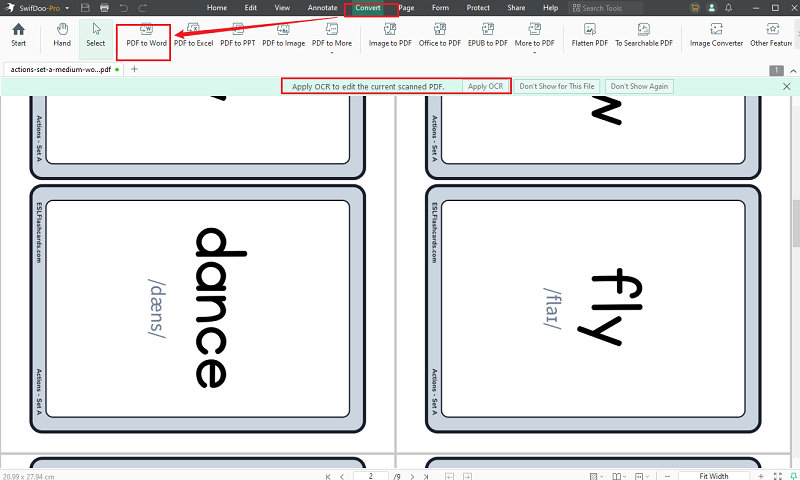
Step 3. Here, you can see a banner above the file to prompt you to apply OCR. Switch to the Convert tab and click the PDF to Word option.
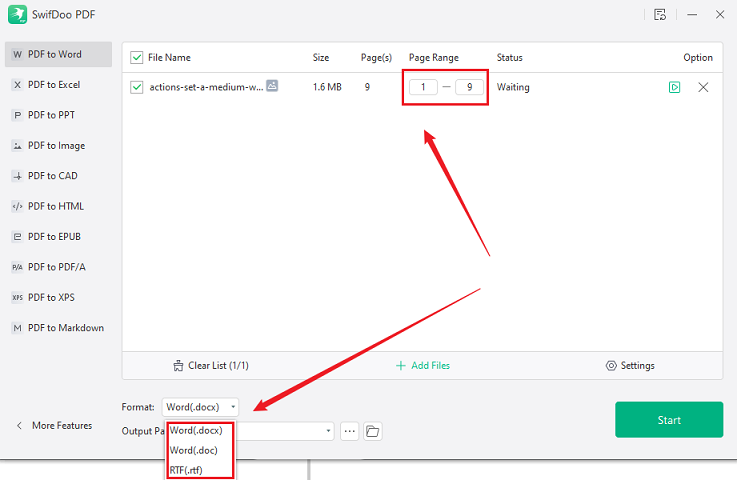
Step 4. Here, expand the Format dropdown and select the needed Word format. Also, customize the page range you want converted.
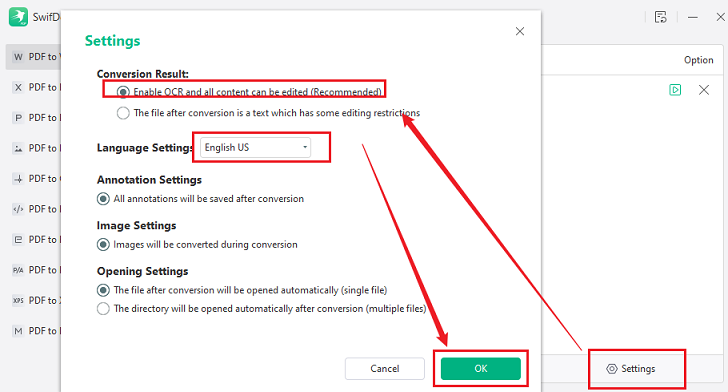
What’s more, click the Settings option, ensure the “Enable OCR and all content can be edited” checkbox is selected, and select the right language. Meanwhile, adjust other settings as needed. Then, don’t forget to click OK to save the changes.
Step 5. Finally, click Start to enable the conversion.
Method 3: Use Google Drive OCR to Convert a Scanned Document to Word
Google Drive is known as a free cloud storage and file management service that lets you store, organize, and access files from almost any device. What’s more, it works closely with Google Docs, which means you can open scanned PDFs and images directly in a browser and use built-in OCR to extract text. All in all, Google Drive can help you convert scanned PDFs or images to Word for free.
Below are steps to convert a scanned document using Google Drive:
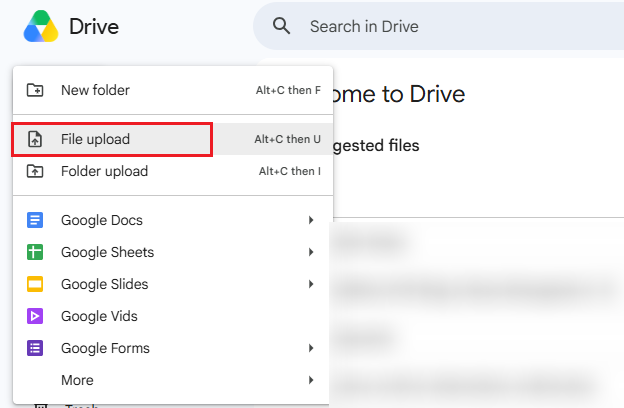
Step 1. Go to Google Drive and sign in with your Google account. Then, click + New and select File upload to import your scanned PDF or image file.
Step 2. Once uploaded, locate the file in your Drive, right-click it, move to Open with, and select Google Docs. Then, Google Docs will automatically convert the scanned image or text into an editable Google document.
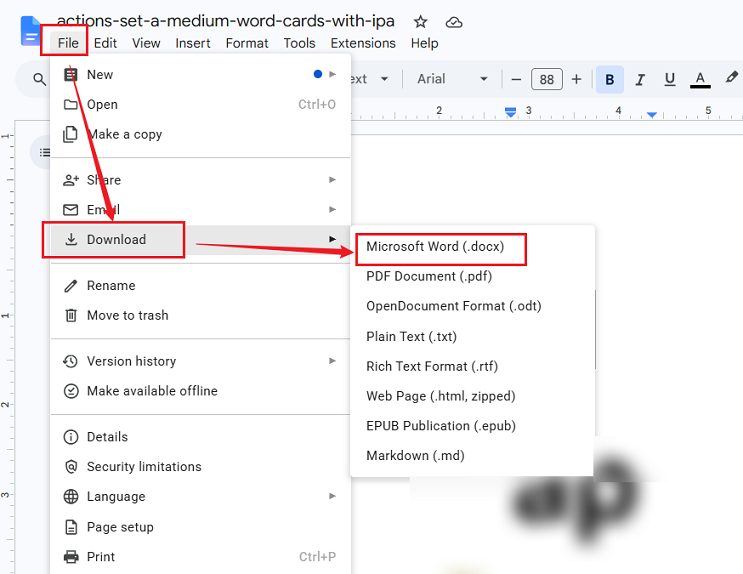
Step 3. In Google Docs, you can review and edit the file as needed. Next, click File, move to Download, and select the Microsoft Word (.docx) option to save the Word file.
Best Tools to Convert Scanned Documents to Word
Among the 3 methods above, which one is the best method to get a scanned document into Word? In my opinion, the best way should depend on your priorities. Here, I prepare a simple comparison table for your reference:
|
Method |
Ease of Use |
Accuracy |
Best For |
|
Microsoft Word |
Easy |
Moderate |
Simple scanned documents |
|
SwifDoo PDF |
Easy |
High |
Professional documents |
|
Google Drive OCR |
Moderate |
Moderate |
Free conversion |
If you only need to convert a short scanned document, Microsoft Word or Google Drive may be enough. For important documents where formatting and accuracy matter, SwifDoo PDF provides better results.
How to Improve Scanned Document Conversion Accuracy
Even the best OCR software cannot guarantee perfect results in every situation. So, how to improve scanned document conversion accuracy? Below are some useful tips for your reference:
- Use high-quality scans: a clear source document can help OCR software recognize text more accurately.
- Select the correct OCR language: selecting the correct language helps the software recognize accented characters, special symbols, and other characters.
- Keep the original formatting simple.
- Review the converted Word document after OCR conversion
Conclusion
It can be easy to convert a scanned document to Word when you use the right conversion method. How to get a scanned document to Word? For important documents that require greater accuracy and better preservation of formatting, an OCR-enabled PDF converter like SwifDoo PDF is usually the best choice. For simple scans, you can also use Microsoft Word and Google Drive.