


Generally, we can divide signatures into electronic signatures and digital signatures. Electronic signatures are widely used for routine agreements, forms, or low-risk transactions, which require no encryption. On the contrary, digital signatures are commonly used for sensitive or regulated documents, needing strong authentication.
Adobe Acrobat Reader only supports adding electronic signatures. If you need to add digital signatures to a PDF, you have to pay for Adobe Acrobat Pro. Owing to its high cost, most of you are looking for alternative ways. Please read on to get effective ways!
Best Way to Add a Signature to a PDF Without Adobe
I have tried and tested multiple PDF editors. Among them, I strongly recommend SwifDoo PDF, a cost-effective alternative to Adobe Acrobat. You can use it to add both electronic and digital signatures. Additionally, SwifDoo PDF supports creating digital signatures in PDFs.
What’s more, if you encounter the “PDF signature invalid” error in Adobe Acrobat, you can also use SwifDoo PDF to validate signatures. How to add a signature to a PDF without Adobe in SwifDoo PDF? Check the exact steps below.
Step 1. Click the download button below to download SwifDoo PDF, and then install it on your PC. Next, launch the best PDF editor.
Step 2. Click the button to locate and import the PDF you want to add a signature to. Then, click the Protect tab from the top menu. Here, I will show you how to add both digital and electronic signatures.
Option 1. Add a digital signature. Click the Digital Signature option and click where you want to place the digital signature. If you have your own digital ID, click the folder icon to select it. Then, enter the password and click Next.
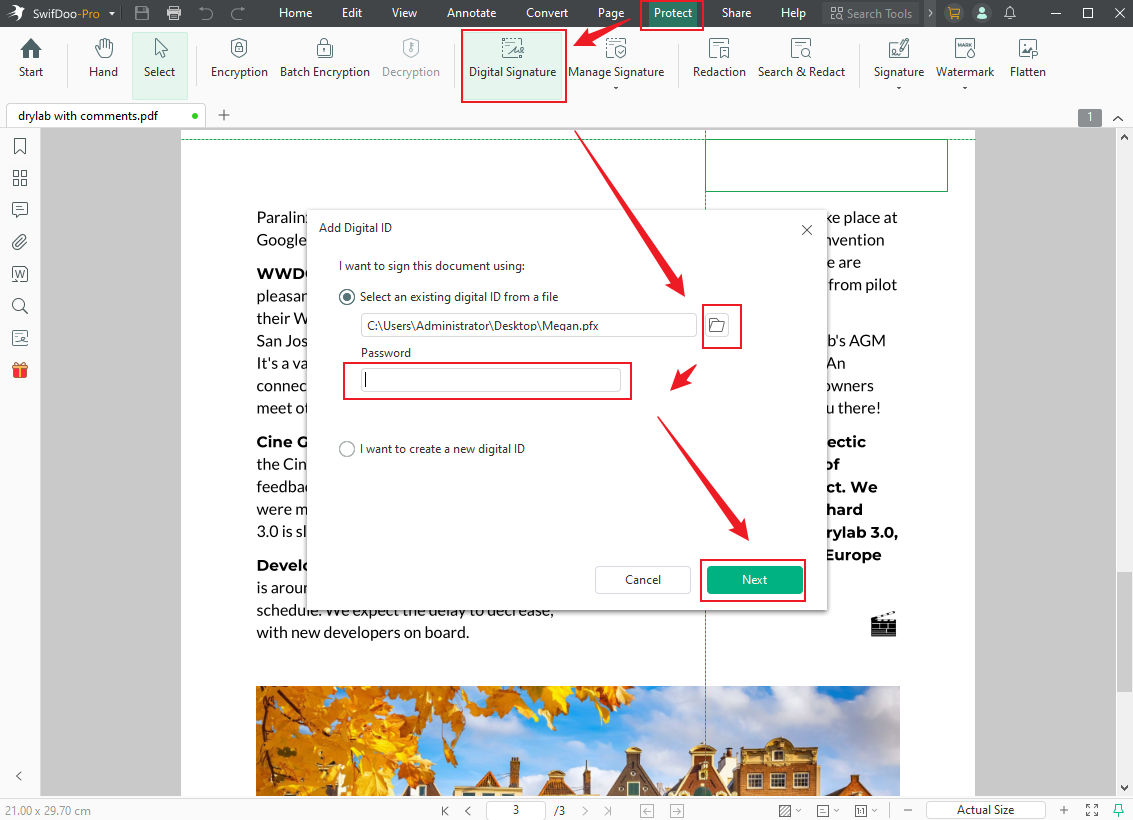
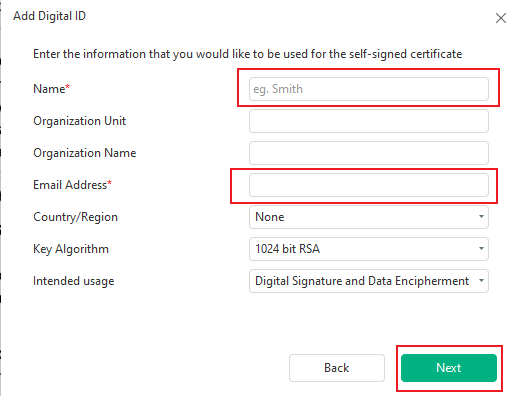
If you don’t have a digital ID, select the “I want to create a new digital ID” option and click Next. Then, select where you want to save the newly created digital ID and click Next. A new window will pop up. Complete the relevant information. Later, set the password and click Done.
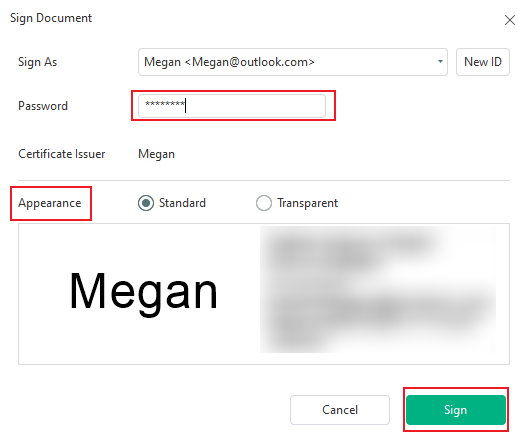
Then, the Sign Document window will appear. Enter the password, select the appearance you like, and click the Sign button.
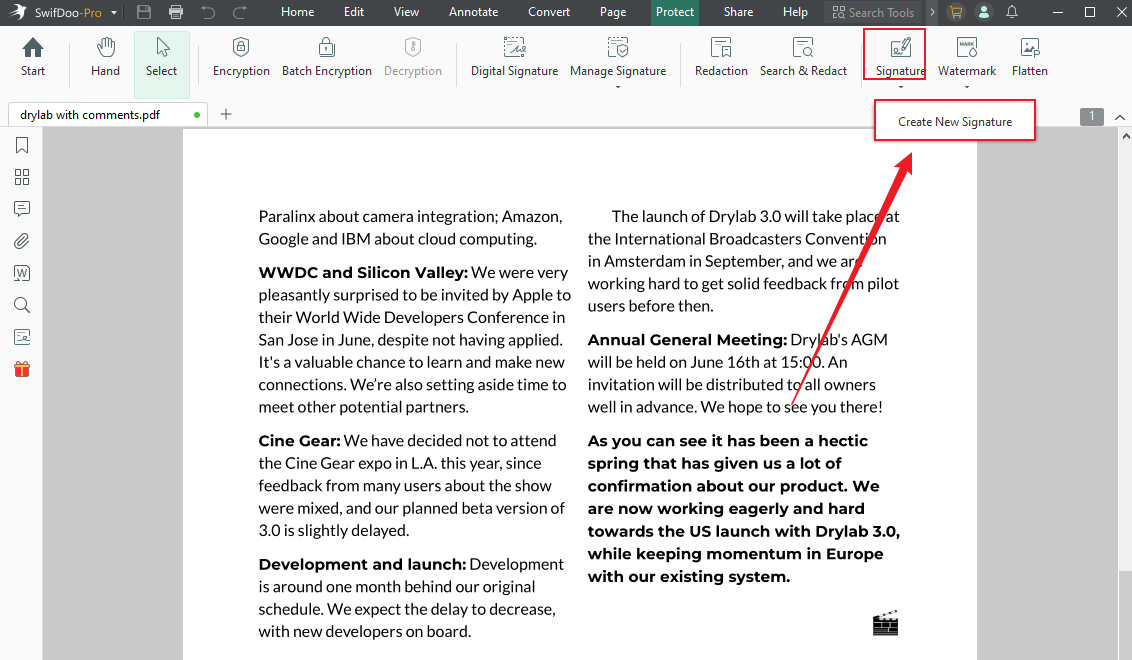
Option 2. Add an electronic signature. Click the Signature option to hit Create New Signature.
Here are 4 methods for you to choose from: Draw, Type, Image, and Camera. Choose one as needed and customize certain settings to create the new electronic signature. Finally, click Apply to add the electronic signatures to the PDF.
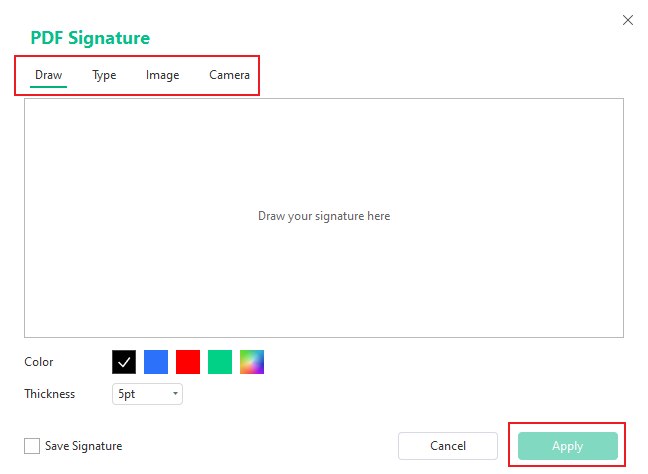
Step 3. The signature will be added to the PDF. Finally, click the Save icon to save the signed PDF.
Other Useful Ways to Add Signatures to a PDF Without Adobe
To give you more choices, this section is written. In the following section, I’ll walk you through 2 more options for signing a PDF on Mac and online.
Option 1. Using Mac Preview
For Mac users, Preview is a good choice to add signatures to PDFs. This built-in program enables you to view, edit, annotate, and print PDFs and images on Mac with ease. How can you sign a PDF on Mac without Adobe Acrobat? Give Preview a try! Below are detailed steps for your reference.
Step 1. If you have set Preview as the default app for PDFs, double-click the PDF file to open it in Preview. If not, right-click the PDF, go to Open With, and choose Preview.
Step 2. Click the Markup icon, click the Signature option, and hit Create Signature. Here are 3 methods for you, including Trackpad, Camera, and iPhone/iPad. Choose one to create your signature and click Done.
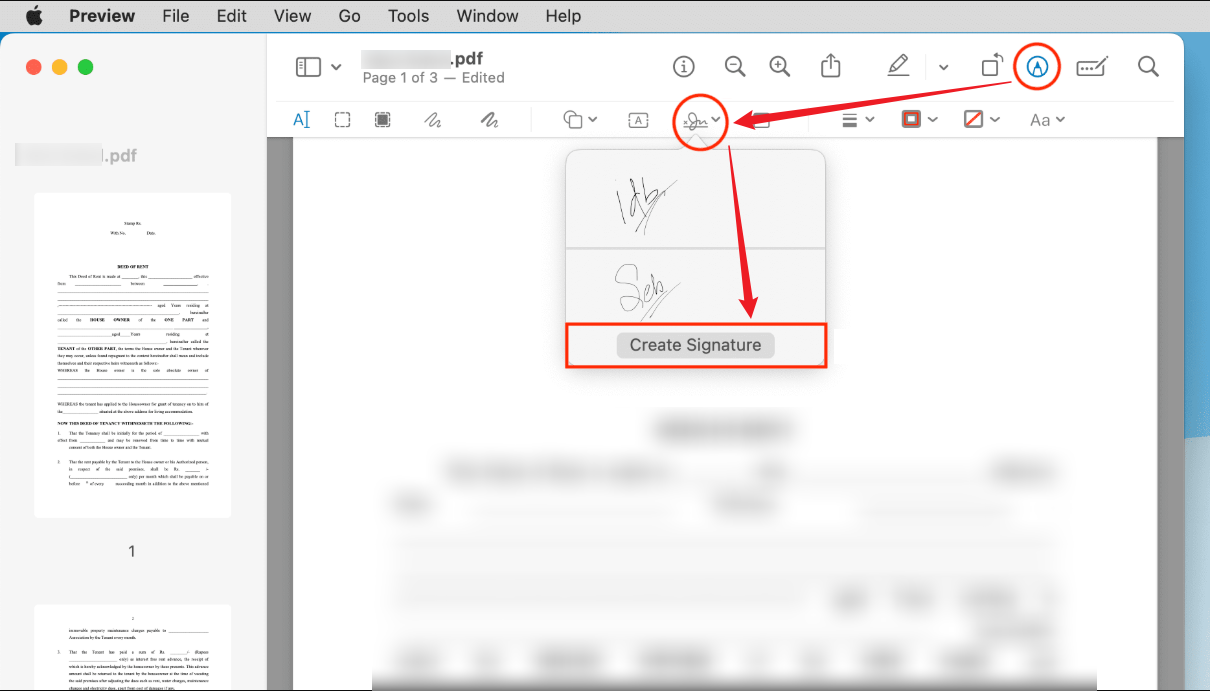
Step 3. Click the Signature icon again and choose your newly created signature from the dropdown. Then, drop and position the signature.
Step 4. At last, click File and Save to save the signed PDF file.
Option 2. Using iLovePDF Online
If you want to use an online PDF editor without installing software, consider iLovePDF, a feature-rich PDF tool. As a professional online PDF editor, iLovePDF supports both electronic and digital signatures. Unlike Adobe Acrobat, iLovePDF has an intuitive and user-friendly interface, which enables users of all levels to master how to use it quickly. Let’s learn how to add a signature to a PDF online with iLovePDF.
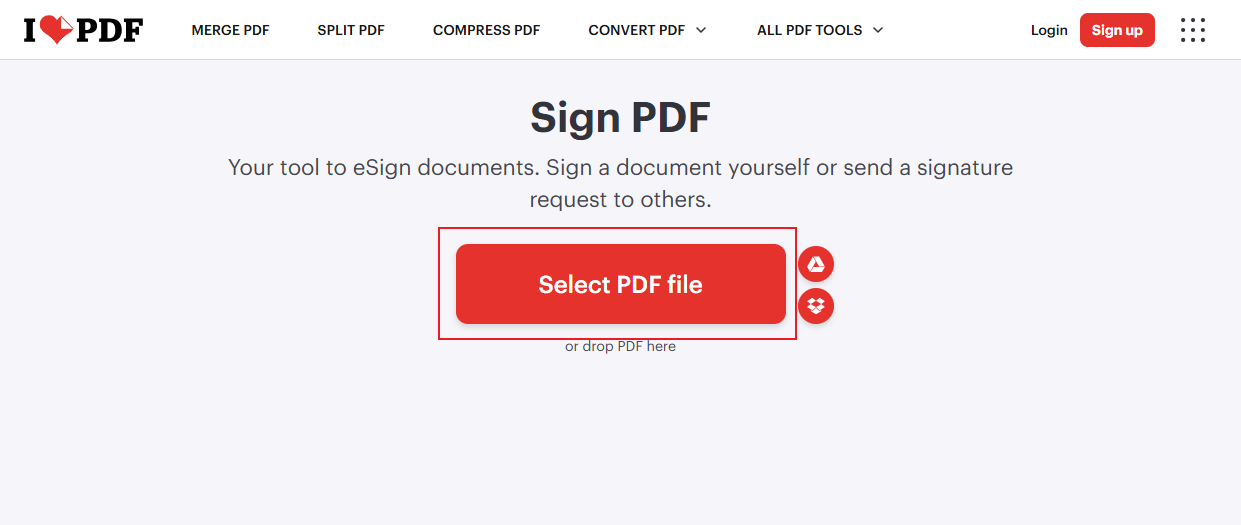
Step 1. Visit the iLovePDF website in your browser and click the Sign PDF tool. Then, click Select PDF file to upload your target PDF document.
Step 2. Select who will sign the PDF: Only me or Several people. Then, set your signature details and click Apply.
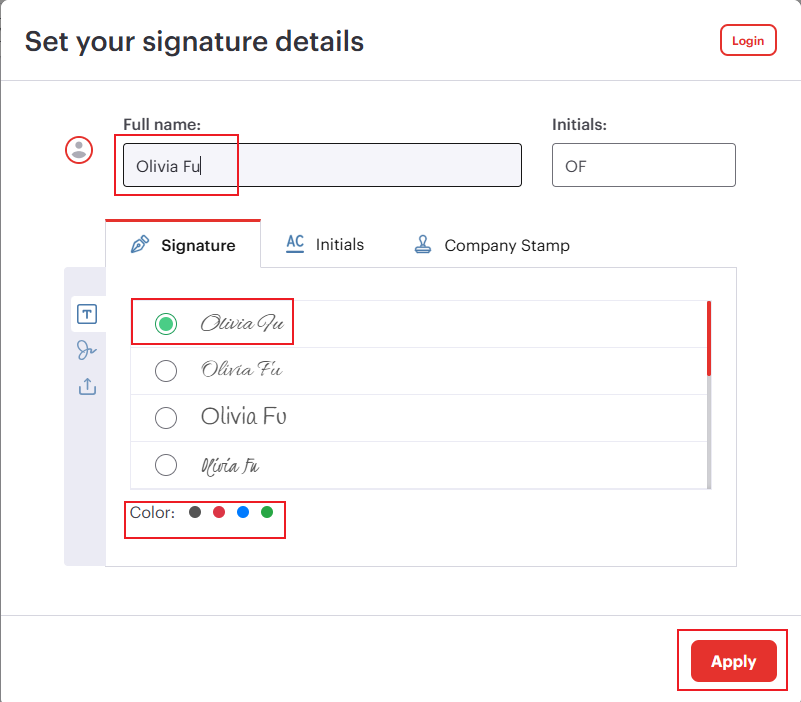
Next, drag and drop the signature to the location where you want to add it. If you need to add a digital signature, you need to get the Premium version of iLovePDF.
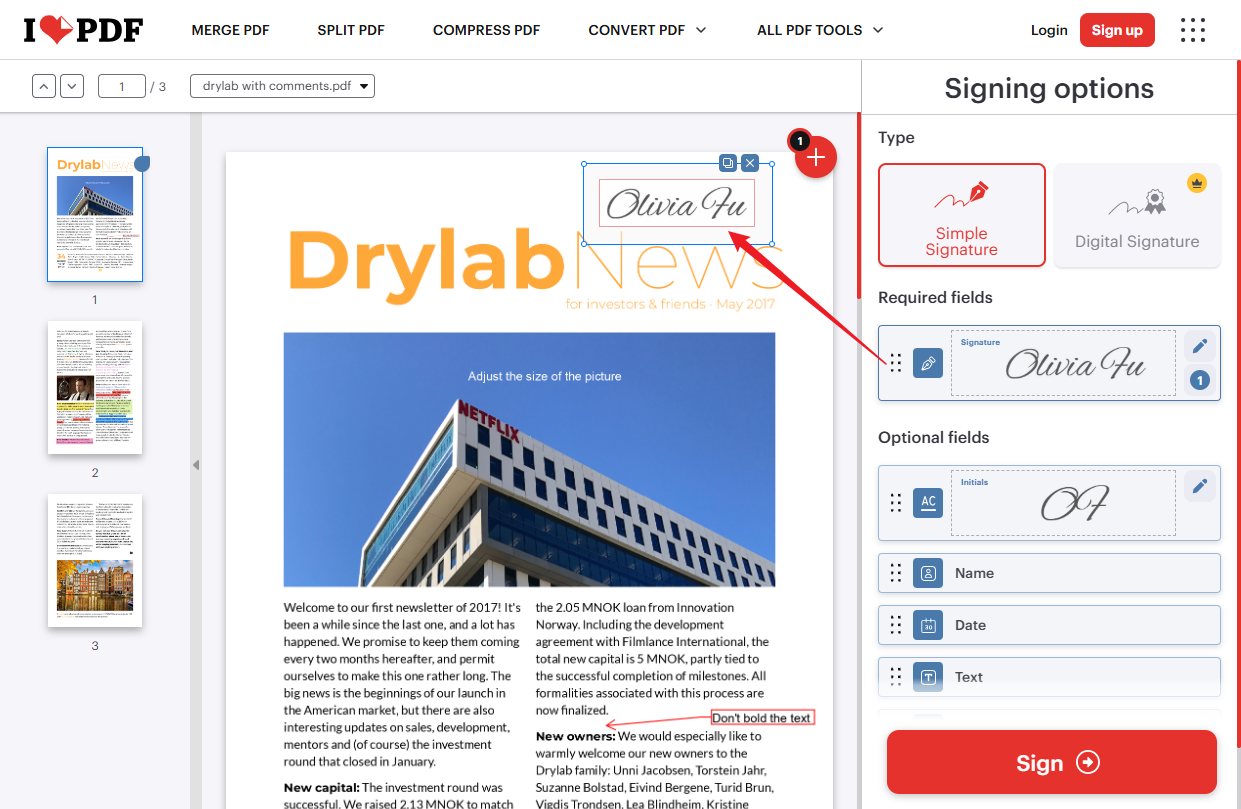
Step 3. Click the Sign button. Finally, click Download to save the signed PDF.
Final Words
Though Adobe Acrobat is a good and professional choice to sign PDFs, it only allows adding e-signatures to a PDF if you use its free Acrobat Reader version. If you want to add certificate-based digital signatures, you need to use Adobe Acrobat Pro. In that case, most of us don’t want to pay that expensive fee. How to add a signature to a PDF without Adobe? Try SwifDoo PDF, Preview, or iLovePDF. The above shows detailed steps.



