


Adobe Acrobat ranks among the leading PDF tools for both professional and personal tasks. It offers built-in tools to extract PDF pages without damaging the original file. Using this tool makes it easy to manage files, minimize storage space, and send only the relevant content.
How to Extract Pages from PDF in Adobe Acrobat (Desktop)
Extracting pages from a PDF is easy with Adobe’s desktop software. Using this approach, you can extract PDF pages in Adobe Acrobat Pro by choosing the pages you need and saving them as a separate file. It’s a reliable option for users who need precise control and professional-grade PDF editing tools.
Learn how to extract PDF pages on Windows and Mac using Adobe Acrobat Pro.
Step 1. Download and install Adobe Acrobat’s newer version. Launch it on your computer and import your PDF file.
To check whether your PDF has any restrictions, select Menu on a PC in the top-left corner of the screen. Or click File in the main menu at the top left corner of your Mac.
Then, click Document Properties… in the dropdown menu. In the dialog box that opens, select the Security tab and ensure that No Security is selected in the Security Method menu. Click OK.
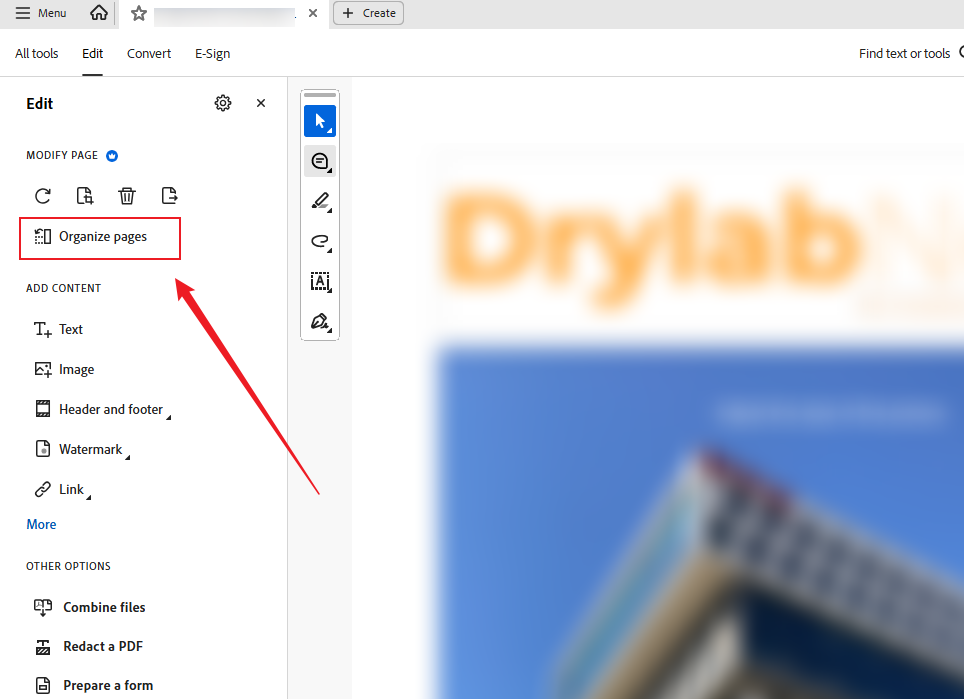
Step 2. Select Edit in the main toolbar. When the Edit pane appears, select Organize Pages in the left side bar.
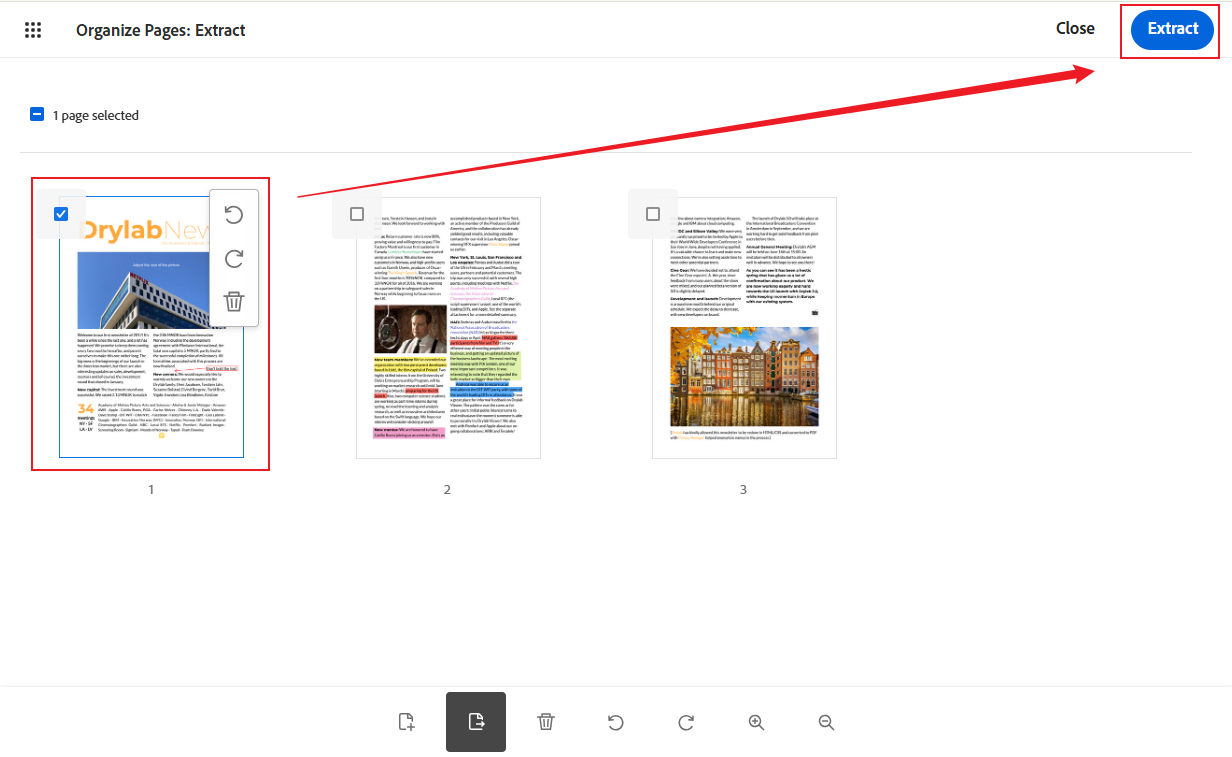
Step 3. Then, select the thumbnail for the page you want to extract on the Organize Page screen.
Note. To extract multiple pages, check the Enable multi-page selection option in the left bar. Or simply fill in the Pages Selected text box with the pages or ranges you want.
Alternatively, choose from the Pages Selected dropdown, such as All, Even, or Odd pages.

Step 4. Next, select the Extract Pages button. Select Delete pages after extracting in the submenu to remove those pages from the source PDF.
Or select "Extract pages as separate files" to save each extracted page as a separate PDF.

Then, select the blue Extract button. Your extraction will open in a new tab or window as a new PDF named “Pages from” and the original file name.
Select Menu (Windows) or File (Mac), then choose Save As to save your new PDF with a new name, following your normal save process.
How to Extract Pages from PDF Using Adobe Acrobat Online
Using Adobe’s web platform, you can manage your PDFs smoothly without installing extra software. By using this tool, you can easily extract pages from PDF Adobe online right from your browser, which is great for speedy edits and mobile use.
Learn the steps to extract pages from PDF files using the Adobe online PDF extractor.
Step 1. Access the Adobe Acrobat webpage directly from your browser. On the homepage, click Edit and select Extract pages.
Step 2. Choose Select Files on the main screen. Then browse your device to upload the PDF you want to extract the pages from.

Step 3. Select the specific pages you need to extract from the PDF file.
Step 4. After making your selection, click Extract. The extracted pages are instantly saved to Adobe Cloud storage as a new file.
While simple and user-friendly, Adobe Acrobat Online works best for basic tasks. However, Adobe Acrobat Online has file-size limits and a limited set of advanced features. As a result, it may not suit the needs of large or complex PDF editing.
Can You Extract Pages from a PDF Using Adobe Acrobat Reader
No. You cannot extract pages from a PDF using Adobe Acrobat Reader. It mostly works as a free PDF viewer for reading, marking up, and printing PDFs. However, it does not provide tools to make changes or edit the PDF content.
Adobe Acrobat, on the other hand, is a paid application that supports advanced features like page extraction, editing, and file management. In short, Acrobat is built for editing PDFs, while Acrobat Reader is designed only for viewing and basic interaction.
Best Alternatives to Adobe for Extracting PDF Pages
Many users look for easier or more affordable ways to manage PDFs without relying on Adobe tools. Some want to extract pages from a PDF without Adobe due to cost, complexity, or device limitations. Consequently, dependable Adobe Acrobat alternatives have gained popularity for efficiently extracting PDF pages.
Recommended Alternatives to Adobe for Extracting PDF Pages:
- SwifDoo PDF
- JOPDF
- Preview
- iLovePDF
- Online2PDF
- Google Chrome (browser)
- Sejda
As an example, SwifDoo PDF is a simple yet effective PDF tool designed for routine document tasks. Users can conveniently remove pages from a PDF using just a handful of clicks. The tool also makes it simple to split PDFs into smaller files for better organization. Featuring a clean interface and speedy performance, SwifDoo PDF is perfect for both beginners and experienced users.
Learn how to extract pages from a PDF using SwifDoo PDF in a few clicks.
Step 1. Download and install the newest version of SwifDoo PDF on your computer. Click Open to upload your PDF file.
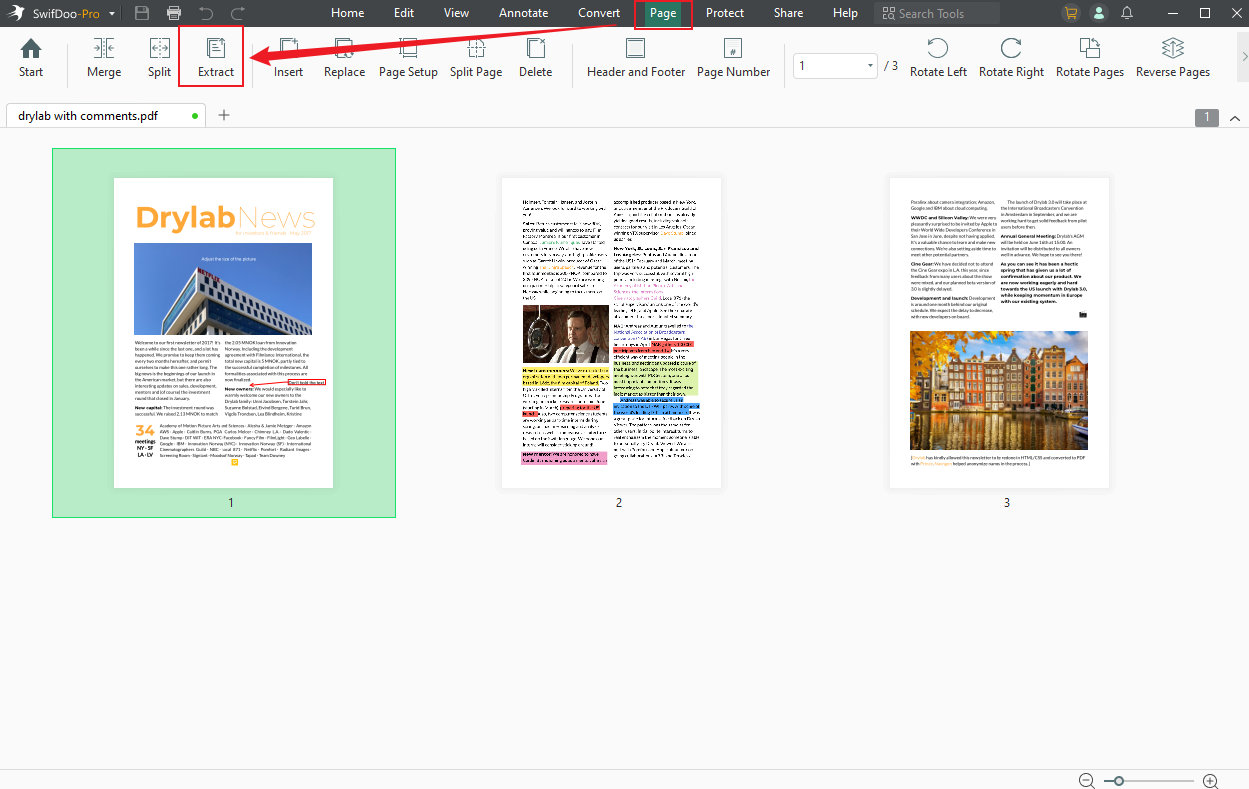
Step 2. Tap Page on the main menu and select Extract.
Step 3. In the pop-up screen, select the Extract selected pages as one PDF or Extract each page as a PDF option, and indicate the page range.
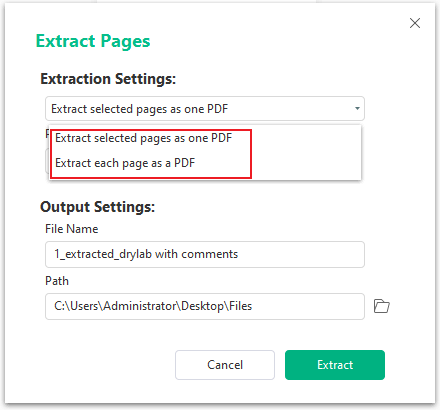
Step 4. Click Choose Directory to set a different destination folder. When everything is set up, tap the Start button to continue.
A Quick Wrap Up
Learning how to extract pages from a PDF in Adobe Acrobat makes document organization faster and far more efficient. Whether using the desktop app's powerful tools or Adobe’s online tool for quick changes, these methods make page extraction easier. For users exploring alternatives, several dependable tools can help improve PDF management. However, SwifDoo PDF serves as the best PDF management program.



