


What Does "Failed to Load Its Core DLL" Mean?
Before we fix it, let's understand the problem.
What is a DLL file?
In simple terms, a DLL (Dynamic Link Library) file is a shared instruction book. Many programs on your computer use these "books" to know how to perform common tasks, like opening a window or printing. Acrobat has its own "core" DLLs that contain all the essential instructions it needs to start up and function.
What does the error mean?
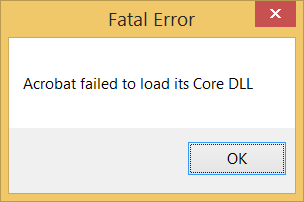
When you see "Acrobat failed to load its core DLL," it means that when Acrobat tried to open its "instruction book," the file was missing, corrupted, or blocked.
- Missing: It was accidentally deleted or quarantined.
- Corrupted: The file is damaged and cannot be read.
- Blocked: Your security settings or antivirus software are preventing Acrobat from accessing it.
The most common causes
- A failed update: A recent Adobe Acrobat update may have installed incorrectly, corrupting a file.
- Protected Mode: Acrobat's own security "sandbox" is malfunctioning and blocking its own files.
- Antivirus False Positive: Your security software (like Windows Defender, Avast, or McAfee) incorrectly flagged a safe Acrobat file as a virus.
- File System Errors: A minor error on your hard drive could have damaged the file.
How to Fix Acrobat Failed to Load Its Core DLL on Windows
Let's walk through the solutions from easiest to most complex. Start with Method 1, as it's the fastest to test. For most users, Method 2 will solve the problem.
Want to check or edit a PDF document right away? Then you can use an alternative to Acrobat: SwifDoo PDF. Like Acrobat, it provides various reading modes and editing tools to help you handle PDF documents.
Method 1. Disable "Protected Mode at Startup"
This is the quickest fix to try first. Adobe Acrobat has a built-in security feature called "Protected Mode" that runs the program in a "sandbox" to prevent malicious PDFs from harming your computer.
However, sometimes, this sandbox can malfunction and itself be the reason Acrobat can't access its own core files. Since you can't open Acrobat, you have to disable this feature using the Windows Registry.
Warning: Editing the Windows Registry can be risky if done incorrectly. Follow these steps precisely.
- Press the Windows key + R to open the "Run" dialog.
- Type regedit and press Enter. Click "Yes" to allow permissions.
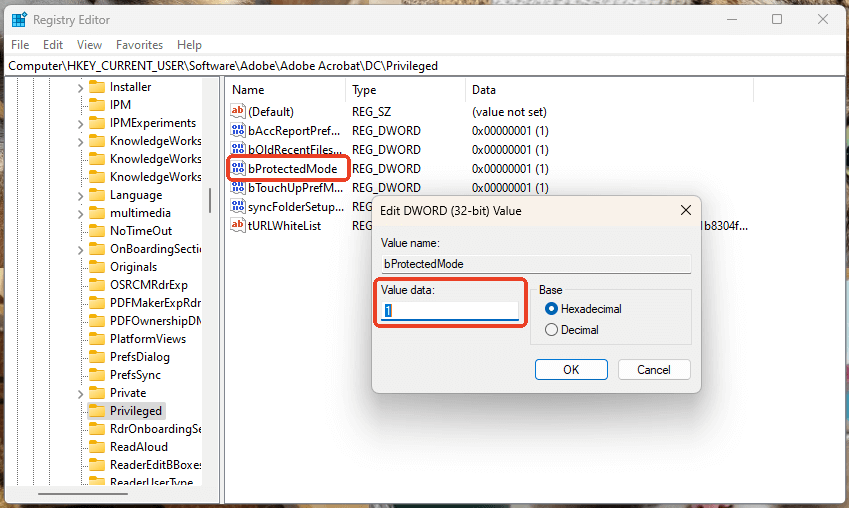
- Carefully navigate to the following key in the left-hand pane (for Acrobat Reader): HKEY_CURRENT_USER\SOFTWARE\Adobe\Acrobat Reader\DC\Privileged. (For Acrobat Pro, the path is similar: HKEY_CURRENT_USER\SOFTWARE\Adobe\Acrobat\DC\Privileged)
- Look for a value named bProtectedMode.
- Double-click bProtectedMode and change its "Value data" from 1 (on) to 0 (off).
- Click "OK" and close the Registry Editor. Then, try to launch Acrobat. If it opens, this was the problem.
Method 2. Repair the Adobe Acrobat Installation
If Method 1 doesn't work, you can try the repair tool. This tool scans the entire Acrobat installation directory, locates any missing or corrupted files (such as core DLL files), and replaces them with fresh copies. This is the most effective way to fix the “Adobe failed to load its core DLL” error.
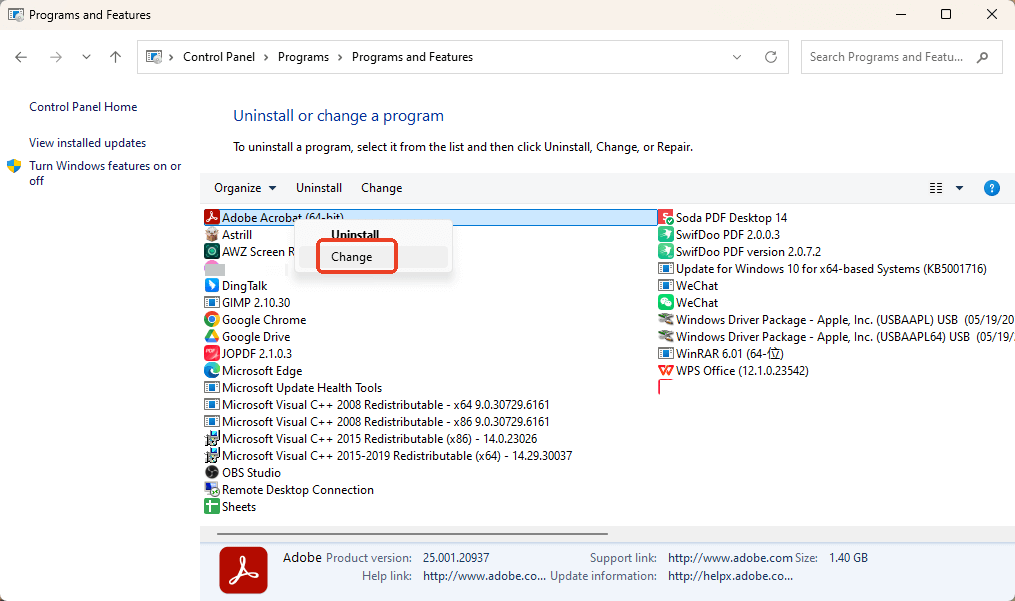
- Close all open Adobe programs. Go to the Windows "Control Panel".
- Click on "Programs and Features" (or "Add or Remove Programs").
- Scroll down the list and find your Adobe application.
- Click it once to select it, then click the "Change" button.
- A new setup window will appear. Please click "Next".
- The tool will automatically scan and replace bad files. This may take a few minutes.
- When done, restart your computer and try opening Acrobat again.
Method 3. Manually Check for Updates
It's possible your error is a known bug from a recent, broken update. Adobe may have already released a patch to fix it. Since you can't open Acrobat, you can't use the built-in "Check for Updates" button, so you'll have to do it manually.
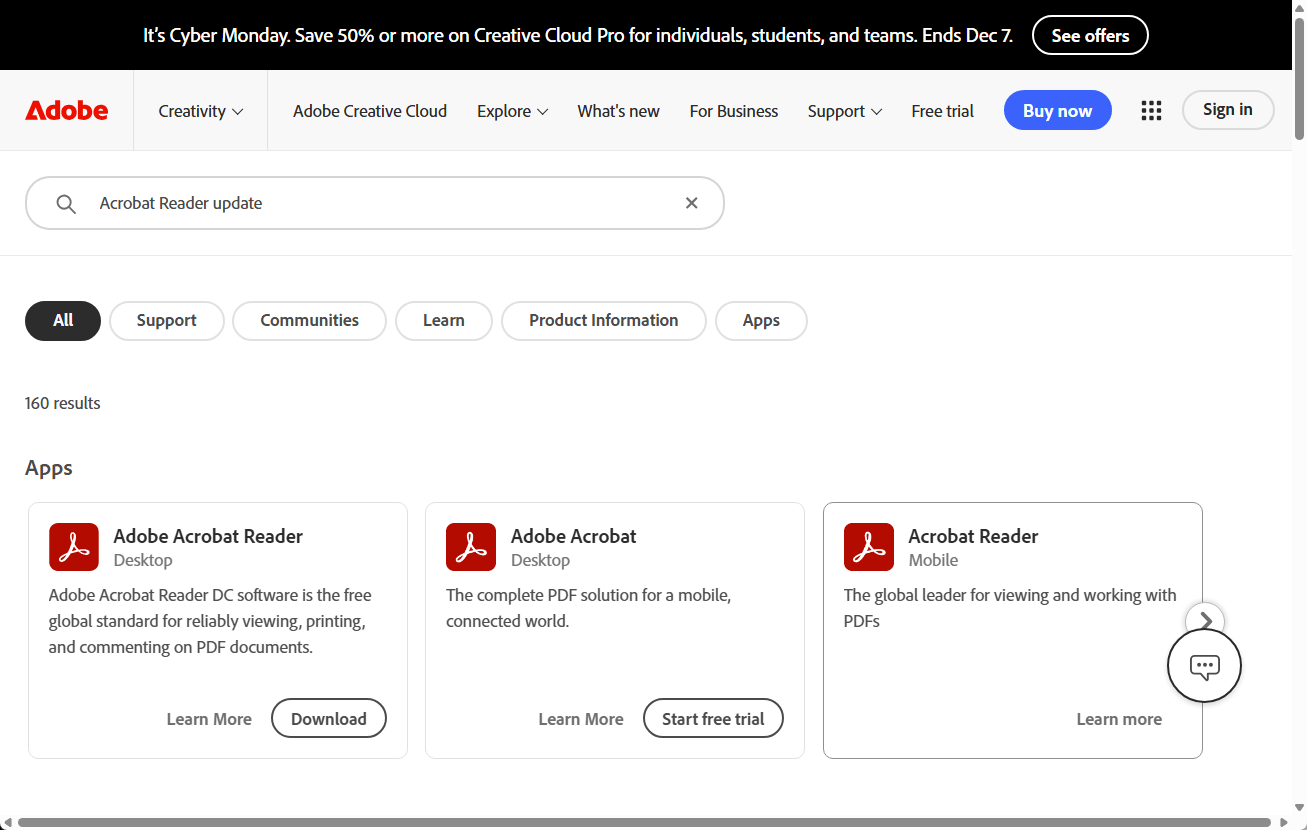
- Open your web browser and go to the official Adobe support website.
- Search for "Acrobat Reader update" or "Acrobat Pro DC update".
- Find the official "Release Notes" or "Downloads" page.
- Download the latest update installer (it will be an .exe or .msp file).
- Run the installer. It will patch your existing installation and hopefully replace the faulty DLL.
- Restart your computer and test Acrobat.
Method 4. Scan for Malware & Check Antivirus Quarantine
Perhaps a virus is interfering with your system, or your antivirus software is mistakenly flagging Acrobat as a threat. So, here are the actions you can take.
Step 1. Run a Full System Scan
Use your primary antivirus to run a "Full Scan" of your computer. This will find and remove any active malware that might be causing the DLL error.
Step 2. Check Your Antivirus Quarantine
- After the scan, open your antivirus program.
- Look for a section called "Quarantine," "Protection History," or "Virus Chest."
- Browse the list of quarantined files. Look for any file named "Adobe" or a path that leads to the Acrobat installation folder (you might see AcroRd32.dll or similar).
- If you find one, select it and choose "Restore" or "Allow on device."
Method 5. Uninstall and Cleanly Reinstall Acrobat
This is the "last resort" but also the most definitive fix. Uninstall the software from Settings or Control Panel, then download a brand-new version to ensure. However, before installing, please ensure no residual files remain at the installation location.
Bonus Tip: A Quick Workaround When You're in a Hurry
You've tried a few fixes, but they're taking time, and you need to open that PDF right now. When Acrobat won't open or is corrupted, the fastest solution is to avoid using it.
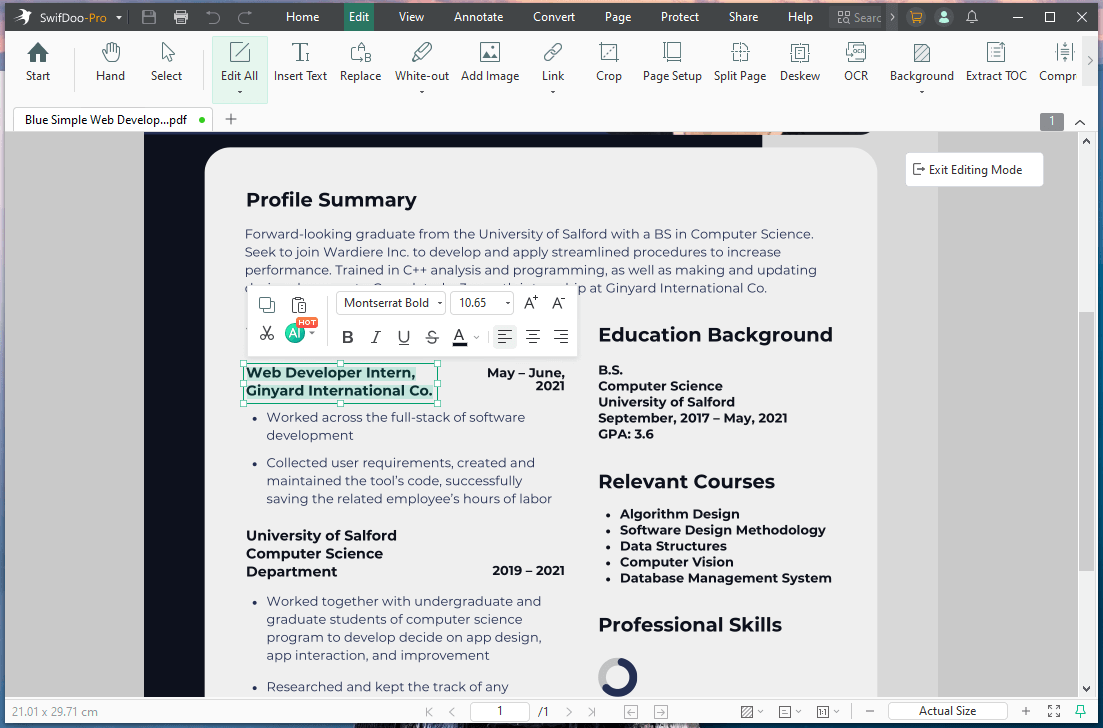
While you're troubleshooting Acrobat, you can use a lightweight and fast alternative like SwifDoo PDF to get your work done. Because it's a completely separate program, it is not affected by Acrobat's DLL error.
You can download it for free, open your PDF instantly, and perform most of the tasks you need. SwifDoo PDF can help you view, edit, annotate, convert, and password-protect PDFs. It's an excellent workaround to use while you permanently fix your main Adobe installation.
Conclusion
That’s all about how to fix Acrobat failed to load its core DLL on Windows. The error indicates that a key file is missing, corrupt, or blocked. Usually, you can fix the error by repairing the installation. Or, reinstall Acrobat to get a new version. If all methods fail, please contact Adobe Support for further assistance.



