


PDFs without page numbers can quickly become confusing, making them difficult to reference, print, or share— especially in long or professional documents. Readers struggle to locate sections, and printed pages are easy to misplace. This is why online PDF page number tools are so popular. They don’t need to be installed; they can be run directly in any browser and can be used on all devices and operating systems.
Method 1. Add Page Number to PDF Free Online via Smallpdf
Smallpdf makes it simple and easy to add page numbers to a PDF online for free, offering a quick and user-friendly solution for editing documents. As a full-featured online PDF editor, it also supports compression, conversion, and file merging. You can even rearrange PDF pages easily before finalizing your document. However, the free version has daily usage limits and fewer customization options.
Follow these steps to explore how to add page numbers to a PDF online in just a few clicks.
Step 1. Visit the official website of Smallpdf on your web browser. Then, under Tools, navigate to the Number Pages tool.
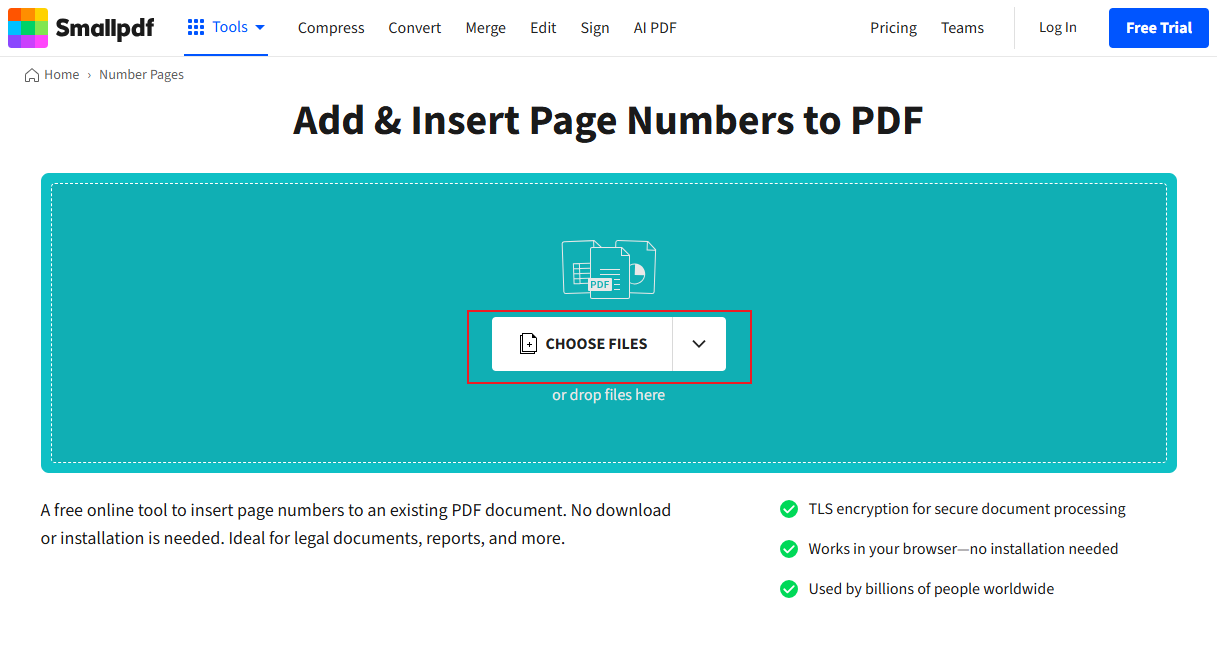
Step 2. Click Choose Files to add your preferred PDF file.
Step 3. Set the Position to determine where the numbers will show up. Additionally, set your preferred margins and define the value in the “Start numbering at” option.
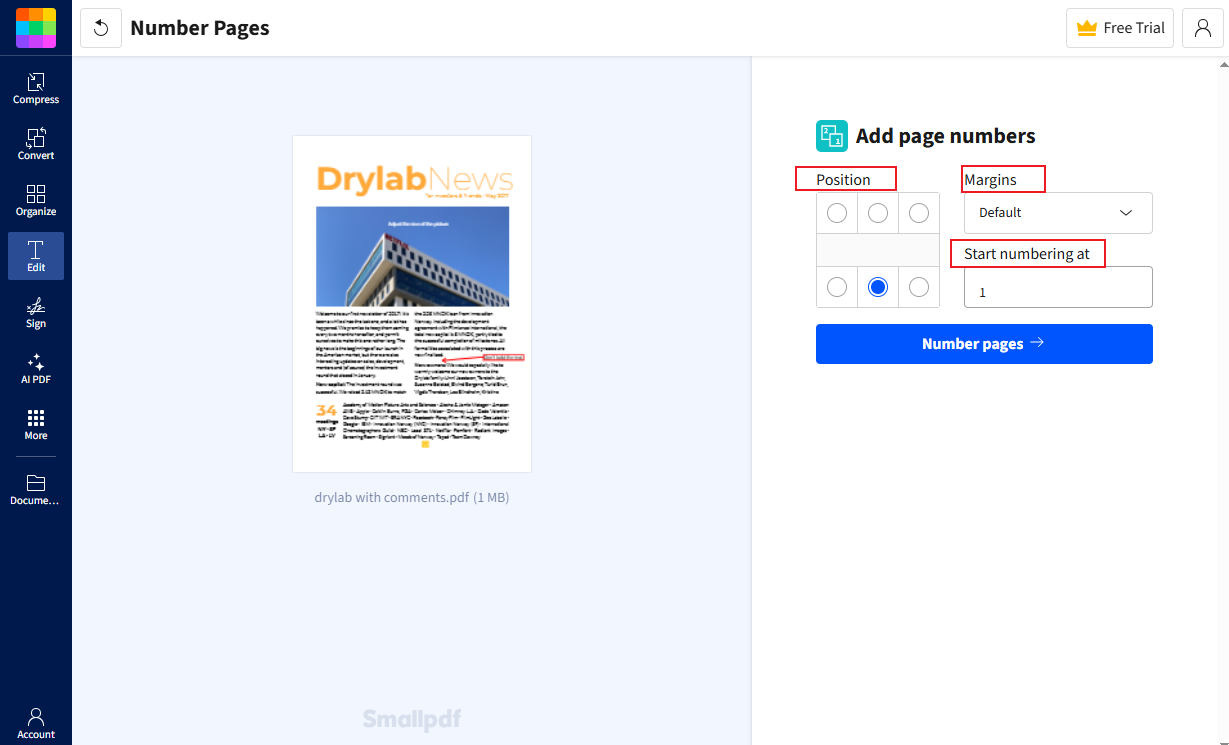
Step 4. Click the Number pages after configuring all the settings to finalize numbering.
Once uploaded, Smallpdf will quickly process the file and apply the page numbers for you. After numbering, select Download to keep a copy of your PDF on your local storage.
Method 2. How to Add Page Numbers to a PDF Online Using iLovePDF
You can also use iLovePDF to add page numbers if you want a fast and simple solution. It runs seamlessly in any browser, allowing you to edit PDFs in Chrome without needing to install software. With its clean interface and multiple PDF tools, iLovePDF is suitable for both beginners and frequent users. However, the free version applies limits and may add watermarks to some outputs.
Check out how to add number pages in PDF online using iLovePDF in a few clicks.
Step 1. Launch iLovePDF on your web browser. Then navigate to the Page numbers tool on the main interface.
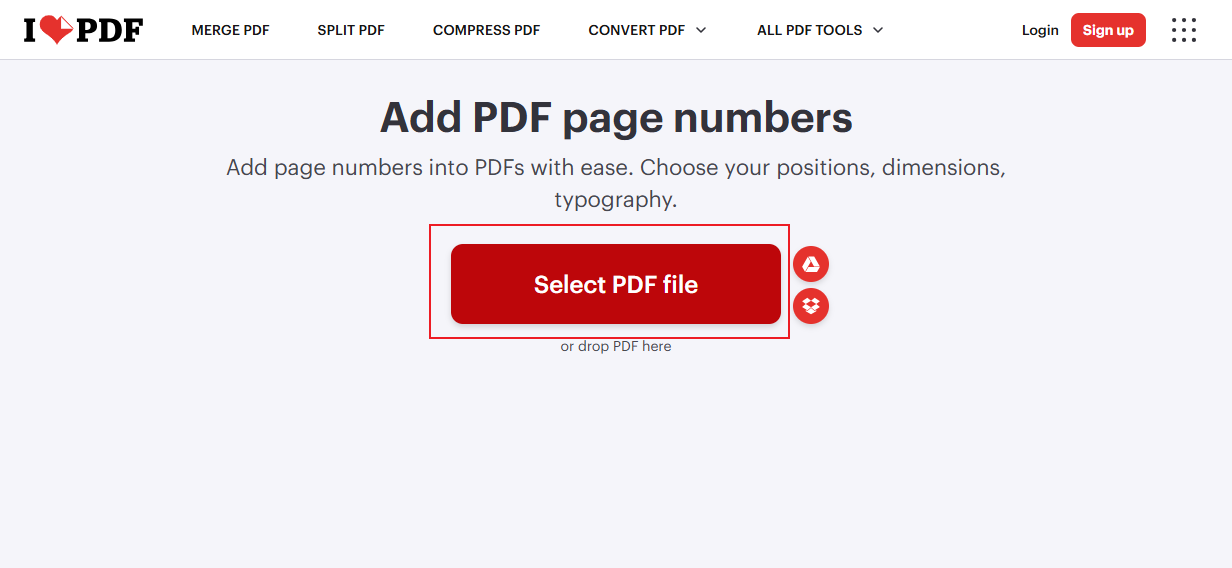
Step 2. Click Select PDF file to add your preferred PDF file. As another method, you can place your PDFs into the program by dropping them in.
Step 3. Once your PDF is imported, you’ll be directed to the Page Number options window. Here. you must select the Page mode, Position, Margin, and Pages. Adjust other necessary parameters to meet your requirements.
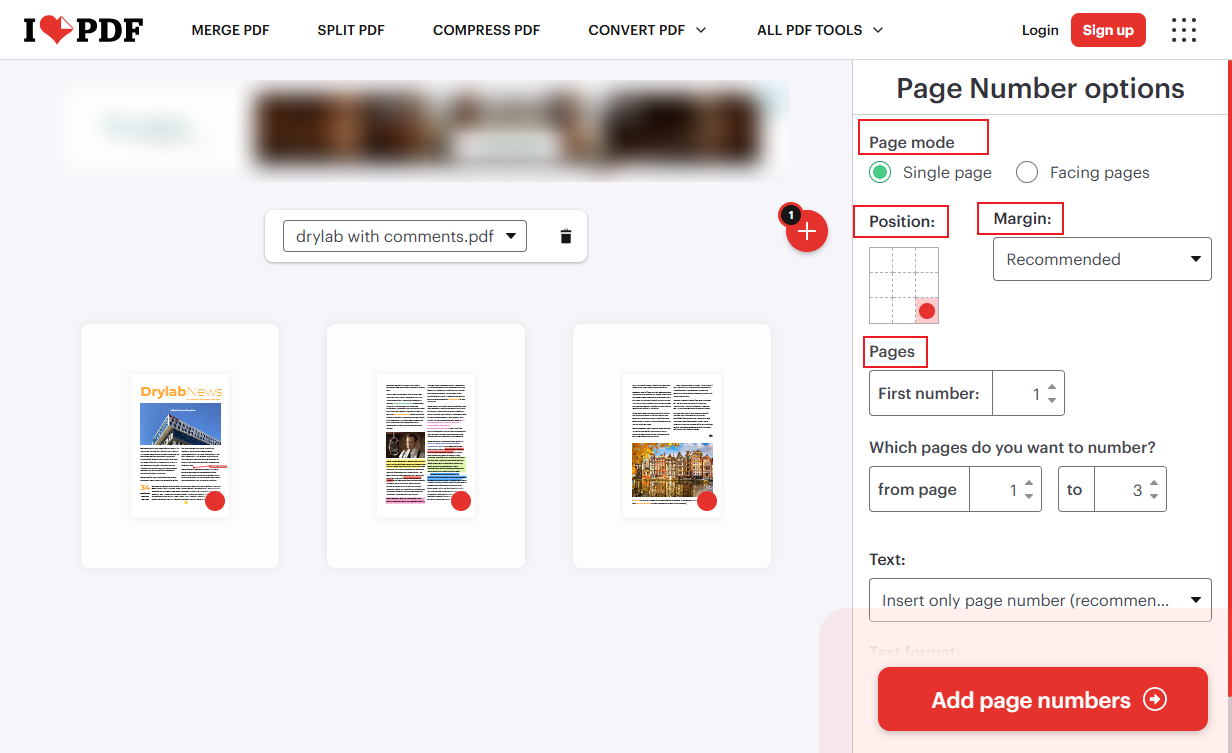
Step 4. Once done, tap Add page numbers. iLovePDF will process your request in no time. After numbering, tap Download PDF numbered to save the file to your computer.
Method 3. Add Page Numbers to a PDF in Adobe Acrobat Online
For accurate and controlled page numbering, Adobe Acrobat Online is a trusted choice. This makes it a professional PDF page number tool for business and academic use. Beyond page numbering, it supports professional features like PDF editing, commenting, and file format conversion. Keep in mind, full access to page numbering and editing tools comes with a paid plan after the trial ends.
Follow these detailed steps to explore how to add page numbers quickly to your PDF file with Adobe Acrobat Online.
Step 1. Launch Adobe Acrobat online and sign in with your login credentials. And under Tools, select Edit, and choose Number PDF pages.
Step 2. Tap Select a file to import your desired PDF file.
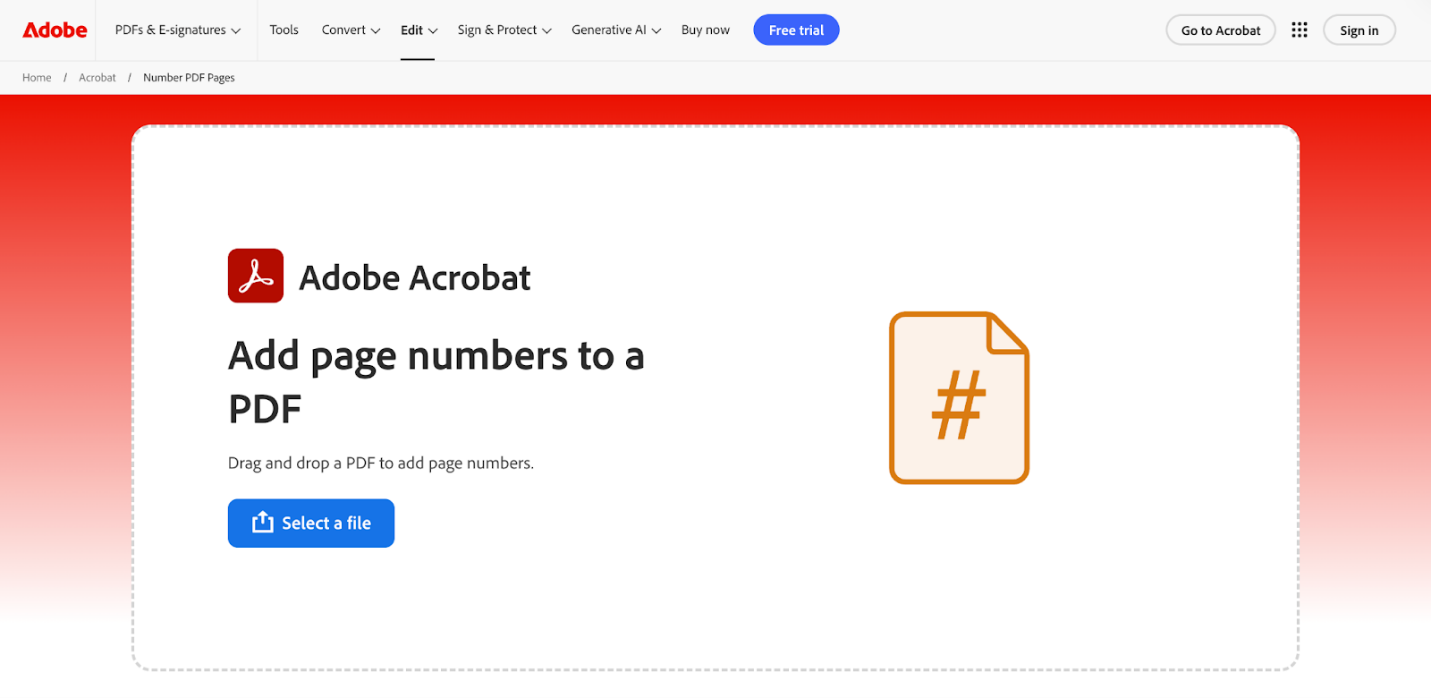
Step 3. In the Number Pages window, choose the Position on Page and set the Page Range. Also, define the number you want to begin with in the Start numbering at setting.
After adjusting all the necessary parameters, click Save.
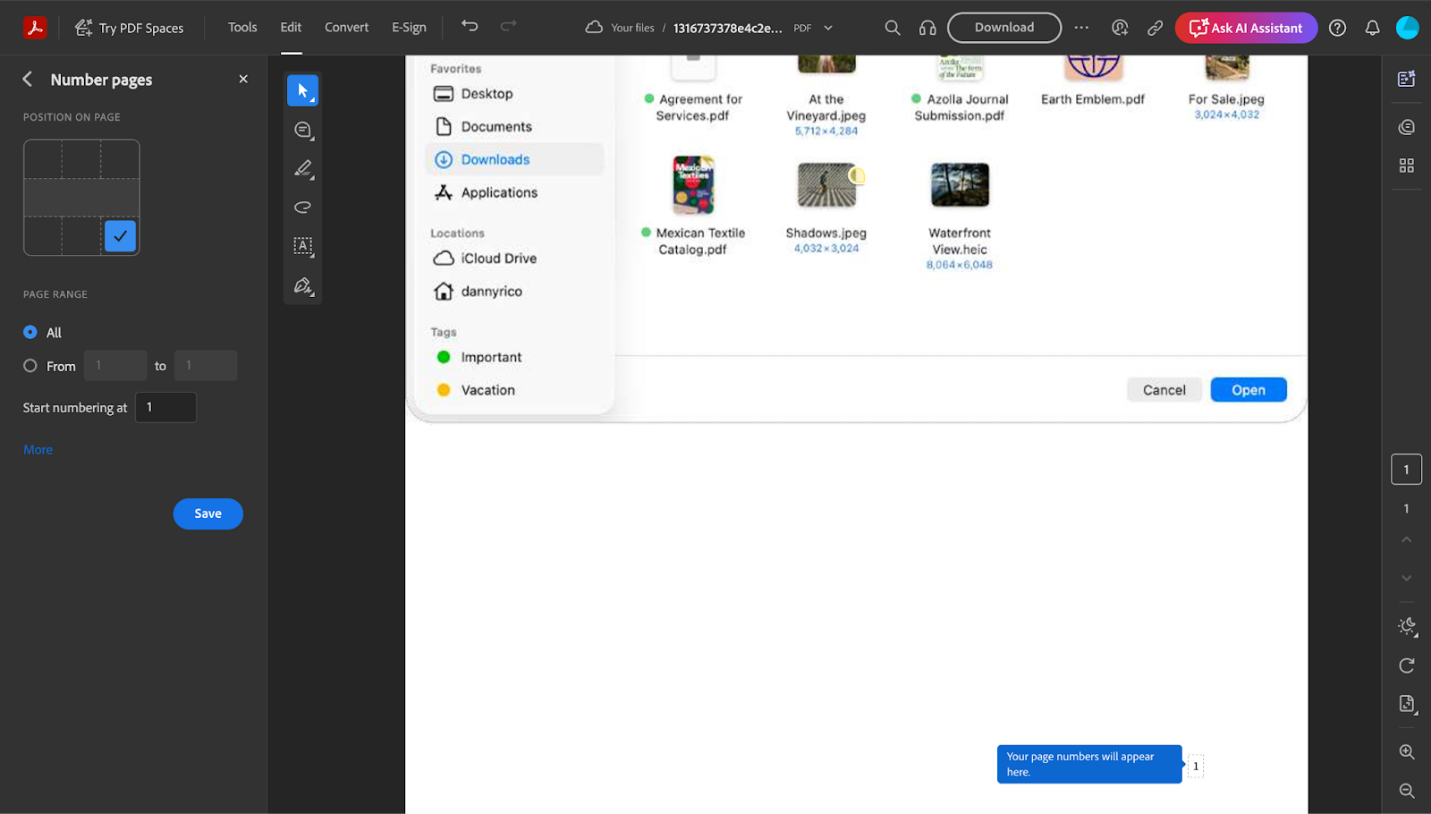
Step 4. Hit the Download tab at the top and click Download PDF to save your numbered PDF file.
Method 4. Add Page Number to a PDF Online Using PDF24 Tools
Known for its versatility, PDF24 Tools is one of the top online PDF converters. Many people prefer to add page numbers to a PDF online in PDF24 because it’s quick and secure. By offering merging, compressing, converting, and editing options, it functions as a versatile free PDF page number tool. On the downside, it offers a simpler interface with fewer options for personalization than premium editors.
Learn how to add page numbers to a PDF file online using PDF24Tools.
Step 1. Open PDF24Tools on your web browser. Choose the Add page numbers tool on the start page.
Step 2. Click Choose files to add your preferred PDF files to the program. Alternatively, you can drop your files directly into the tool.
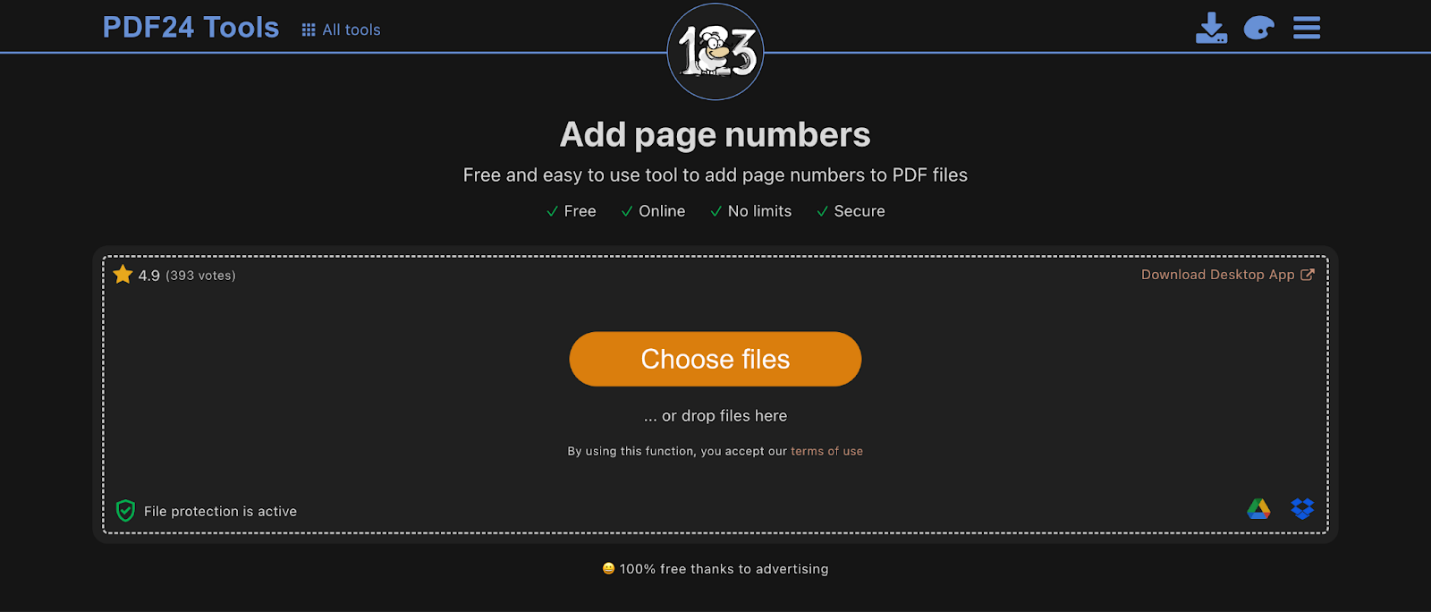
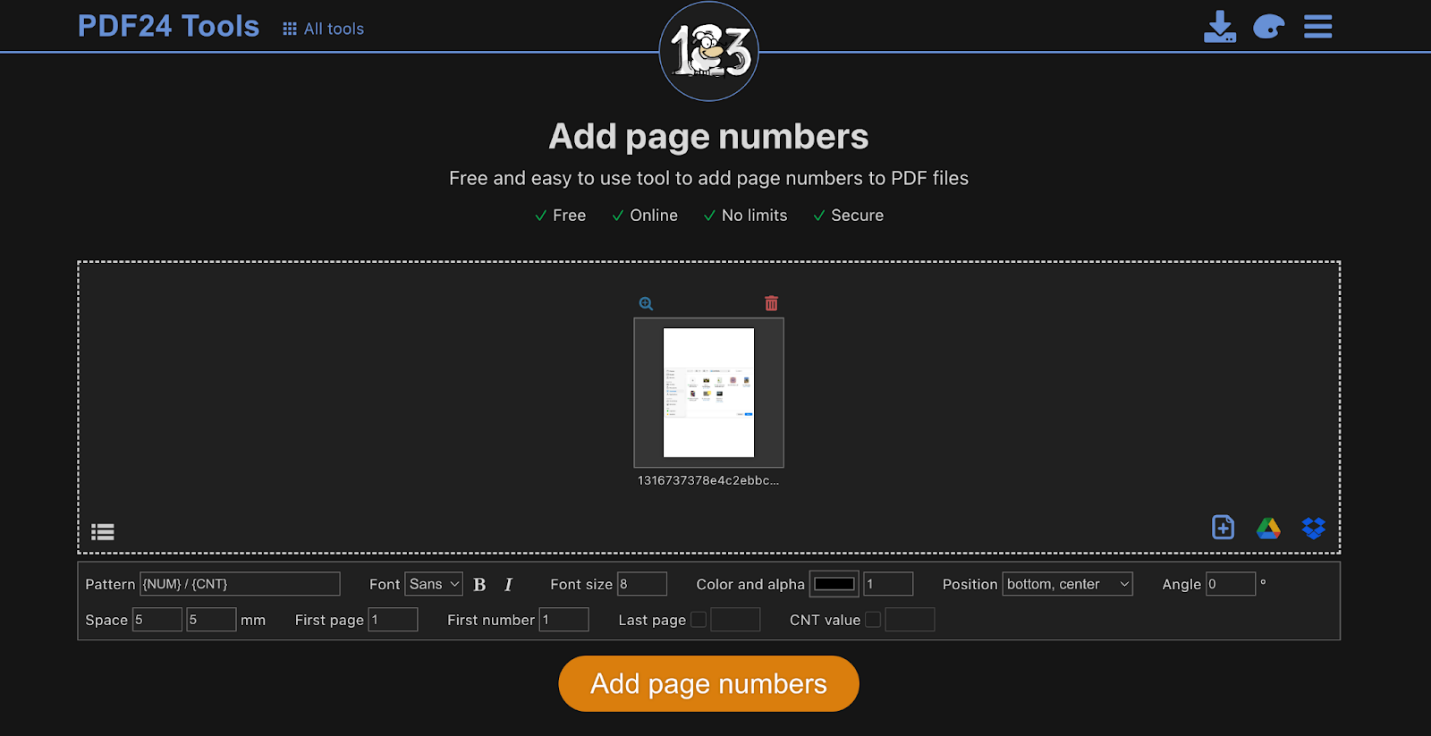
Step 3. Once added, adjust the necessary parameters such as position, space, font size, etc., to meet your requirements.
Step 4. Once done, click Add page numbers. PDF24Tools will automatically process your request. After finishing, tap Download to store the updated PDF in your local storage.
A Comparison Table: Which Online Tool Is Better for Adding PDF Page Numbers
Now that you’ve learned how these tools add page numbers to PDFs, let’s see how they perform in a head-to-head comparison. Let’s compare PDF page numbering tools to determine which one stands out as the best online PDF page number tool.
|
Tool Name |
Free Usage |
Page Number Customization |
Account Required |
Watermark |
Best For |
|
Smallpdf |
Yes. Limited (daily usage cap) |
Moderate (position & style options) |
Optional |
No |
Quick, easy page numbering for occasional users |
|
iLovePDF |
Yes. Generous, but with limits |
Basic (simple numbering options) |
Optional |
No |
Simple, browser-based edits |
|
Adobe Acrobat Online |
Yes. Minimal (mostly trial) |
Advanced (professional controls) |
Yes |
No |
Business users needing precision |
|
PDF24 Tools |
Yes. Free with generous access |
Basic to moderate |
Optional |
No |
Free, straightforward tool for everyday use |
In short, all four tools help you add page numbers to PDFs online, but each is designed for slightly different purposes. Smallpdf and iLovePDF make rapid, browser-friendly edits easy, but Adobe Acrobat Online is ideal when more precise, professional controls are needed. PDF24 Tools stands out as a free, reliable option for everyday tasks. Selecting the right tool comes down to how often you handle PDFs and how much control you want over numbering.
To Wrap Things Up
Adding page numbers to PDFs makes documents easier to navigate and reference. We’ve explored the top methods with clear steps to add page numbers to PDF online. Certain tools are designed for quick, simple edits, whereas others provide more detailed customization and accuracy. Picking the right platform makes printing, sharing, and collaborating on PDFs easier and more efficient. Select the best way to add page numbers to a PDF to enhance organization and readability.



