


Causes of Adobe Fill and Sign Not Working
Knowing the potential causes of the Fill and Sign feature not being available in Adobe is helpful. If you don’t want to know the potential causes, just skip this part and enter the key point of this post. Let’s check the possible causes now.
- The PDF file is in PDF/A or other unsupported formats.
- The PDF file is not interactive.
- The PDF document is protected by passwords.
- The PDF is set to read-only or with other security restrictions.
- Your Adobe Acrobat is outdated.
- You run Adobe Acrobat in Protected Mode.
- Adobe Acrobat is incompatible with your operating system.
- The PDF file has been marked as read-only by the system.
Fix 1. Restart Adobe or Reopen PDF
Why fail to fill and sign a PDF in Adobe? It's normal for software to occasionally encounter bugs. It’s possible Adobe is experiencing a temporary glitch. You can try reopening Adobe or closing the PDF and reopening it.
Fix 2. Update Adobe Acrobat
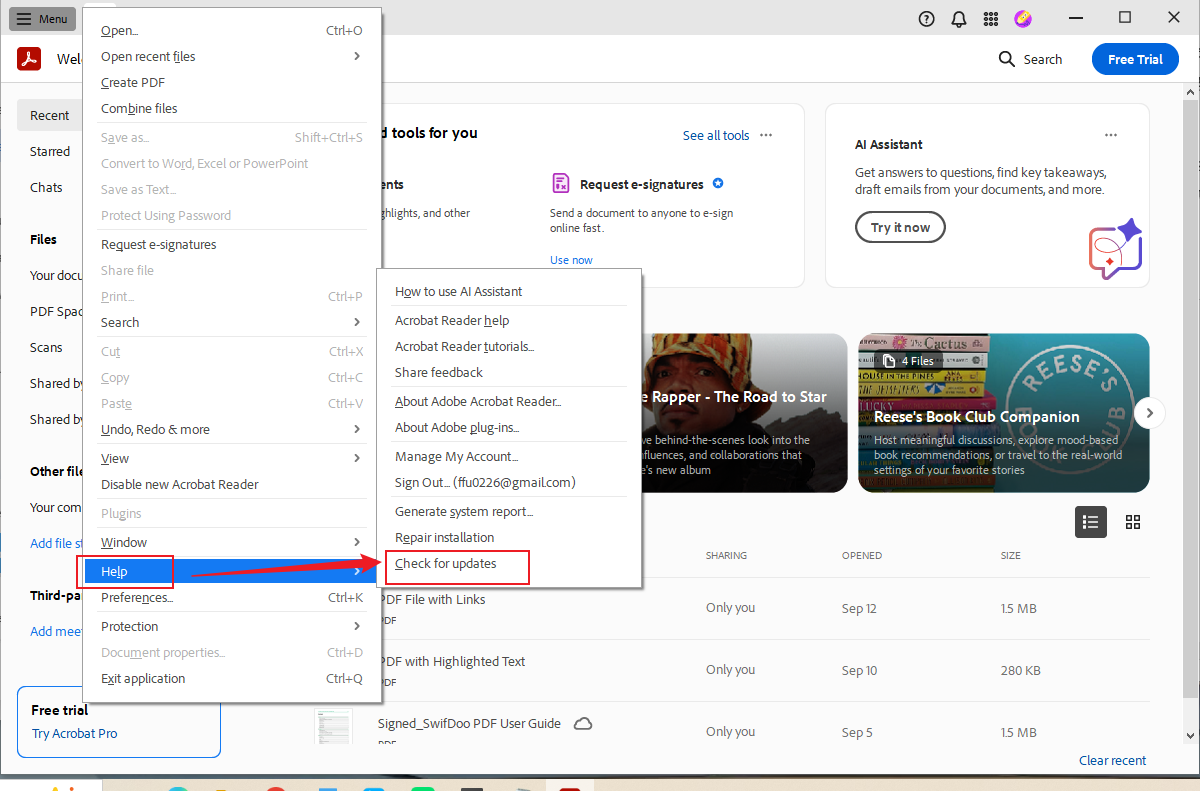
If your Adobe version is outdated, certain bugs in older versions may cause issues with electronic signatures and form filling. Therefore, you need to check whether you have updated Adobe to the latest version. To check for updates, go to Menu > Help > Check for updates.
Fix 3. Check the File Permission
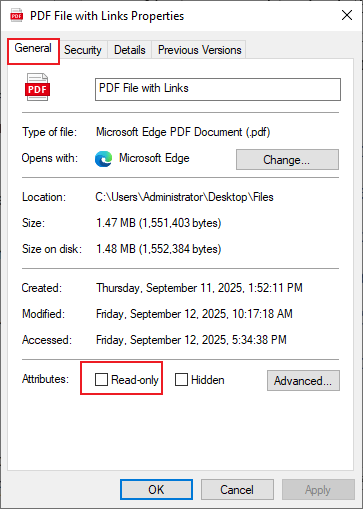
Next, you need to check the PDF file permissions. In other words, you need to verify that the PDF file is not set to read-only mode. For Windows users, right-click on the target PDF file and hit the Properties option. Under the General tab, untick the Read-only checkbox if it is activated.
If you are a Mac user, choose the PDF file, select File, and click the Info option. Next, under the Sharing & Permissions tab, set Read & Write as your username.
Fix 4. Avoid PDF/A and Other Unsupported Formats
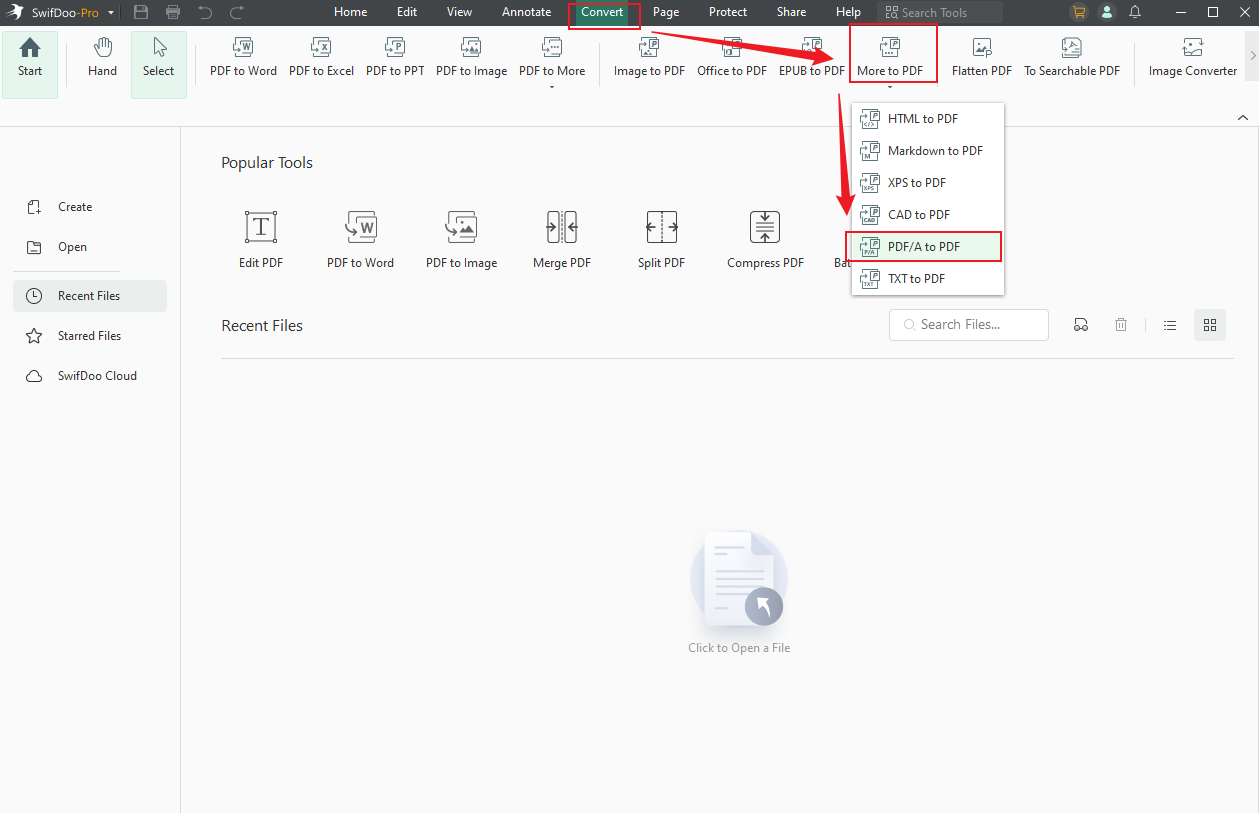
Not all formats are supported by Adobe. In Adobe, PDF/A files are not supported for editing. To avoid saving the file in PDF/A format, you can convert it to a normal PDF file. SwifDoo PDF can give you a hand. Go to Convert, open the More to PDF list, and select the PDF/A to PDF option. Open the PDF/A file and click the Start button. Additionally, SwifDoo PDF enables you to convert PDF to PDF/A.
Fix 5. Disable Protected Mode
Disabling Protected Mode can solve some compatibility issues caused by Protected Mode. How to do that? Below are detailed steps:
Press Win + R to enable the Run dialog, type in Regedit, and press Enter to open the Registry Editor.
On the top address bar, enter the following path address: Computer\HKEY_CURRENT_USER\SOFTWARE\Adobe\Adobe Acrobat\DC\Privileged
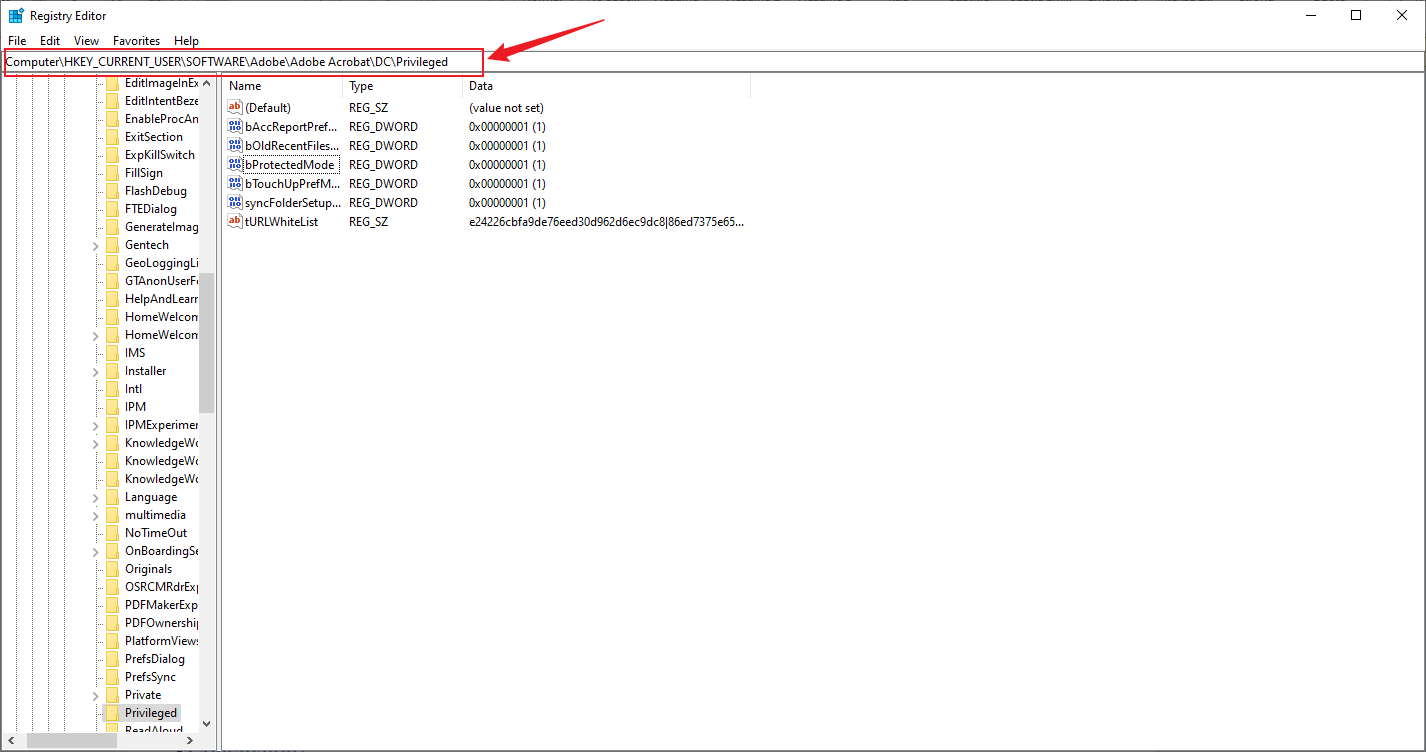
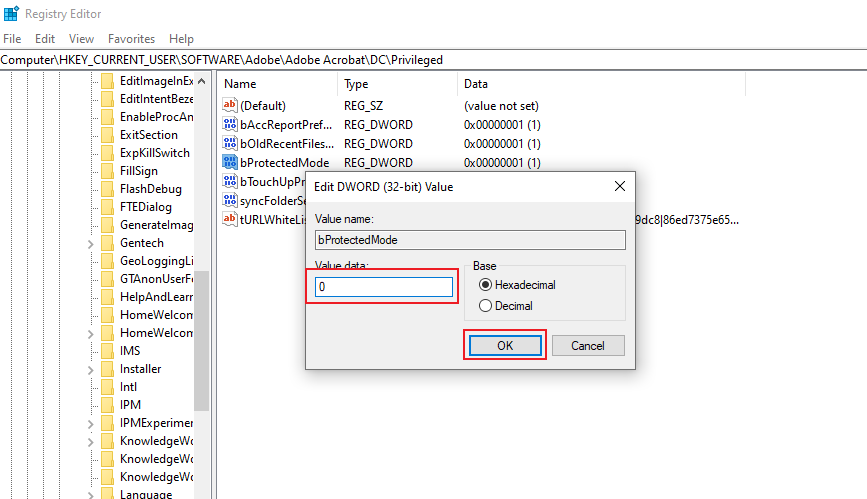
Right-click on the bProtectedMode, hit the Modify option, and set the Value data to 0. Finally, click OK.
Fix 6. Check the Security Certificate of the PDF
The Fill and Sign feature may not be available due to security settings. The security settings on the PDFs may prevent you from signing them out. You can use your PDF editor to check whether the PDF file has a security option. If it has, you need to ask the PDF owner to provide an unlocked version.
Fix 7. Using Adobe Tools to Make the PDF Fillable
If the PDF file is not interactive, you can use Adobe’s Prepare Form feature to make the PDF fillable. Here are detailed steps for your reference.
Open your PDF file in Adobe Acrobat first.
Then, go to Tools and choose the Fill & Sign option. Alternatively, you can select the Prepare Form option directly under the Tools section.
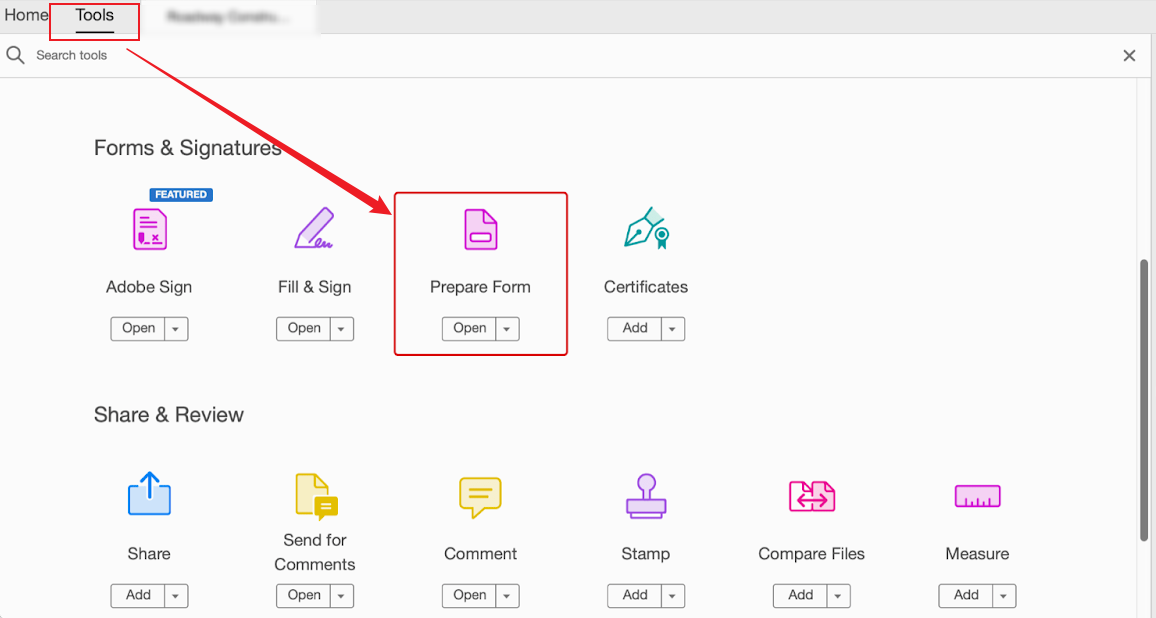
Next, the Prepare Form feature will automatically recognize the potential form fields. Meanwhile, you can also add form fields manually. For instance, you can add fields, like check boxes, text fields, radio buttons, drop-downs, or signature fields.
Once finished, go to File and choose Save to save the fillable PDF file.
Fix 8. Run Adobe in Compatibility Mode
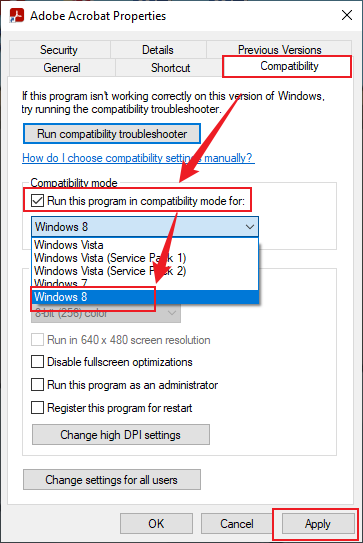
If Adobe Acrobat is not compatible with your operating system, the Fill and Sign feature can also not work. Hence, you need to run Adobe in Compatibility Mode. How to do that? Right-click on the Adobe Acrobat application, choose Properties, and go to the Compatibility tab. Next, under the Compatibility mode section, tick the “Run this program in compatibility mode for” checkbox and select the Windows 8 option. Finally, click Apply to save the changes.
Fix 9. Use Adobe Acrobat Alternative
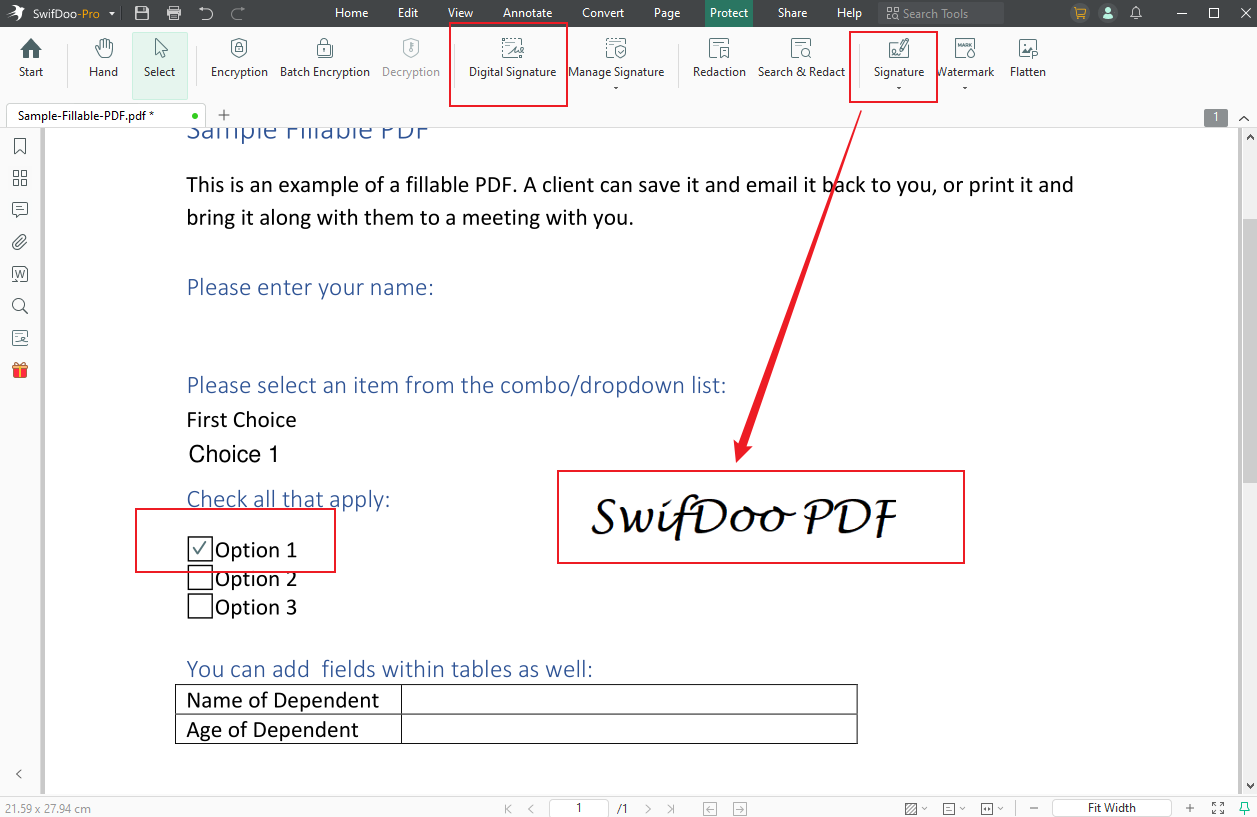
If none of the above fixes work, the last solution you can try is to use an Adobe Acrobat alternative. SwifDoo PDF is a good choice. It enables you to fill out PDF forms and add signatures to PDFs efficiently. Additionally, it offers numerous other features for PDFs that are identical to those in Adobe Acrobat. Moreover, SwifDoo PDF provides a more cost-effective subscription plan. You can download and use it to fill and sign PDFs.
Conclusion
All in all, the “Adobe Fill and Sign not working” issue can be caused by various factors, including the PDF file, Adobe Acrobat, and the PC system. To effectively resolve the issue, we need to identify feasible solutions by addressing the root causes of the issue. In the content, we have learned 9 feasible fixes. There is always a solution to this issue. I hope this post can be helpful to you.



