


How to Translate a Google Doc Using the Built-in Feature
If you are already working inside a shared cloud file, you can utilize the native features to translate your text immediately. It is the quickest way to translate a document in Google Docs when you need a basic translation.
Steps to translate a Google Doc with the built-in tool:
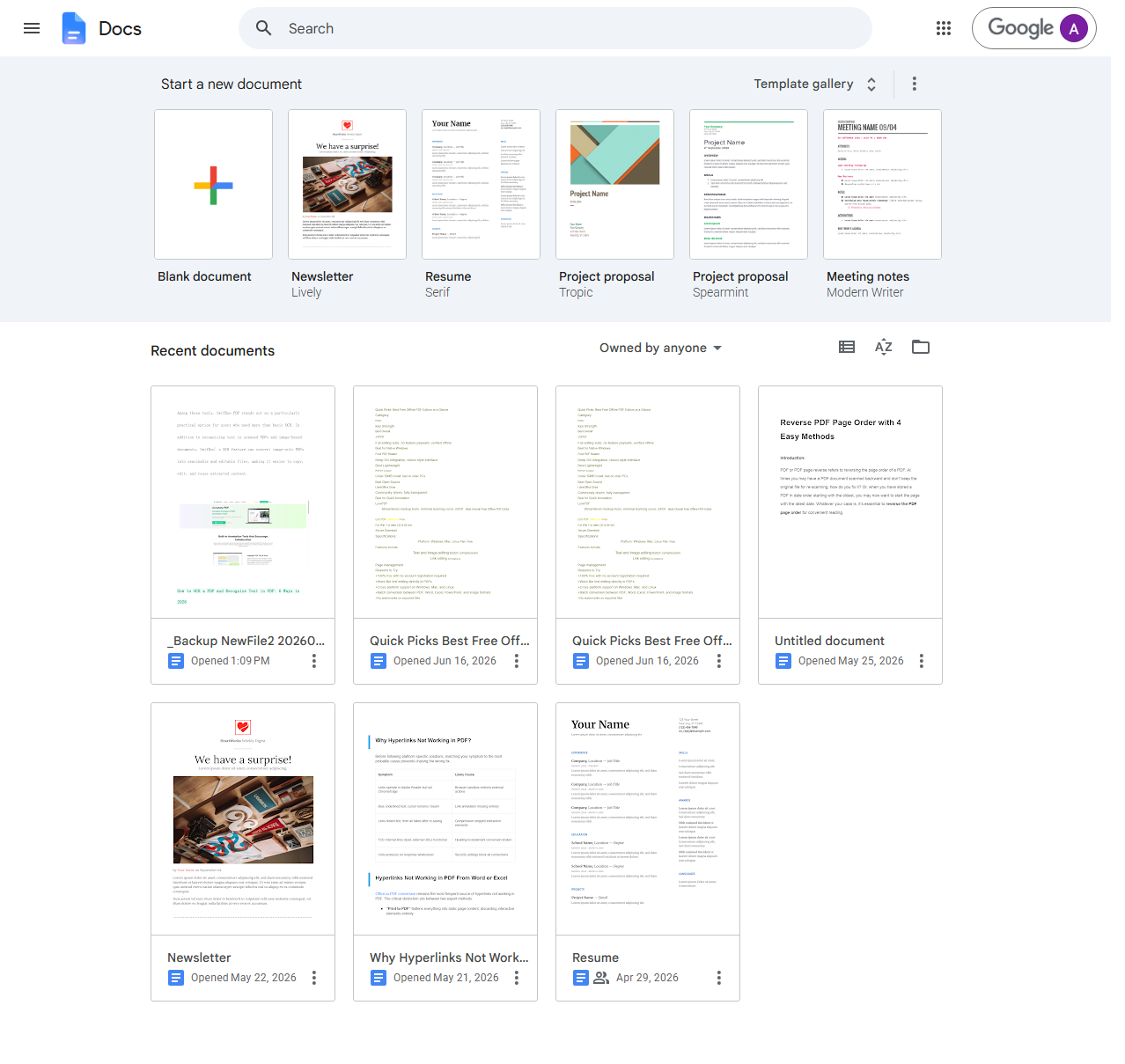
Step 1: Open the Google Doc you want to translate.
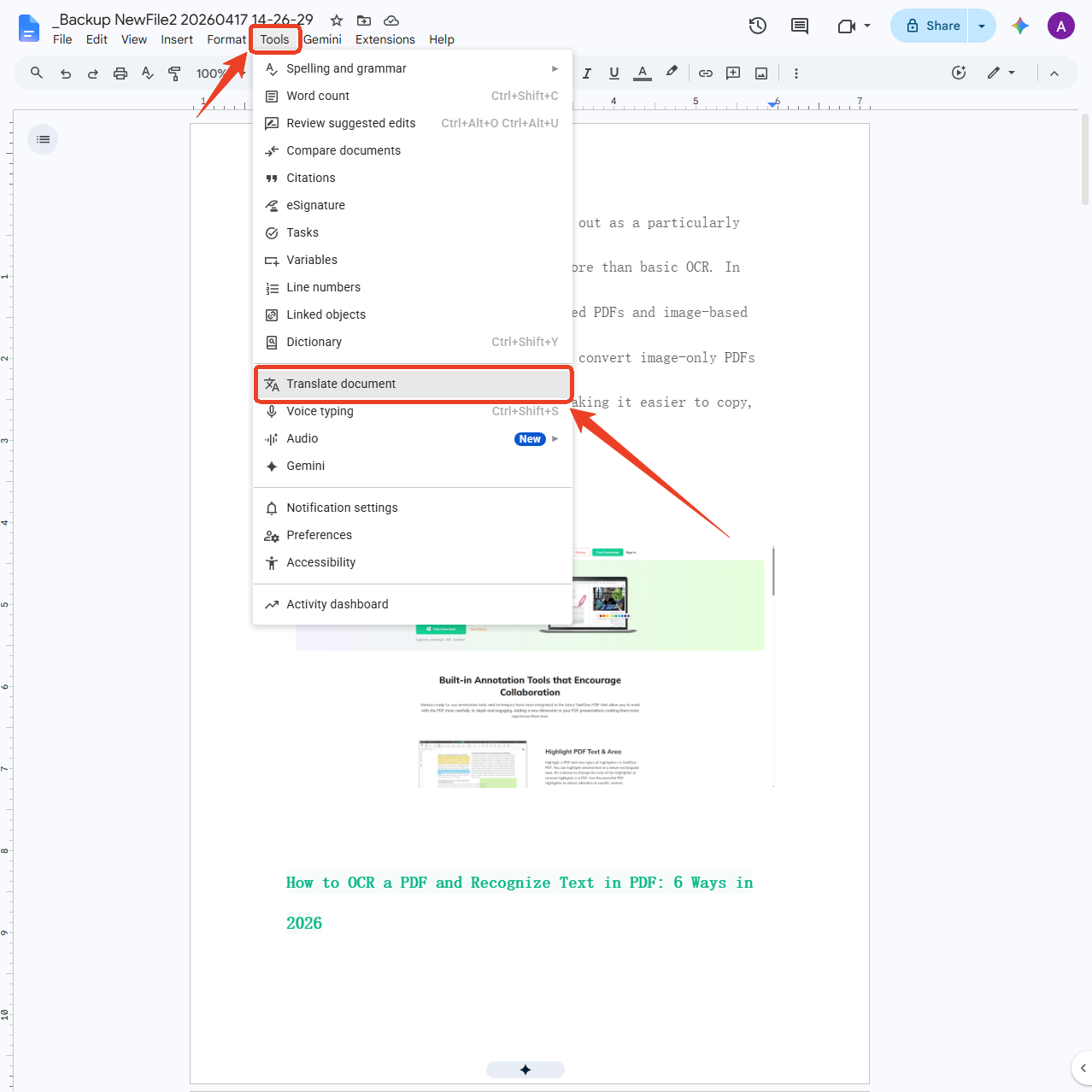
Step 2: Click Tools in the top menu and select Translate document from the dropdown menu.
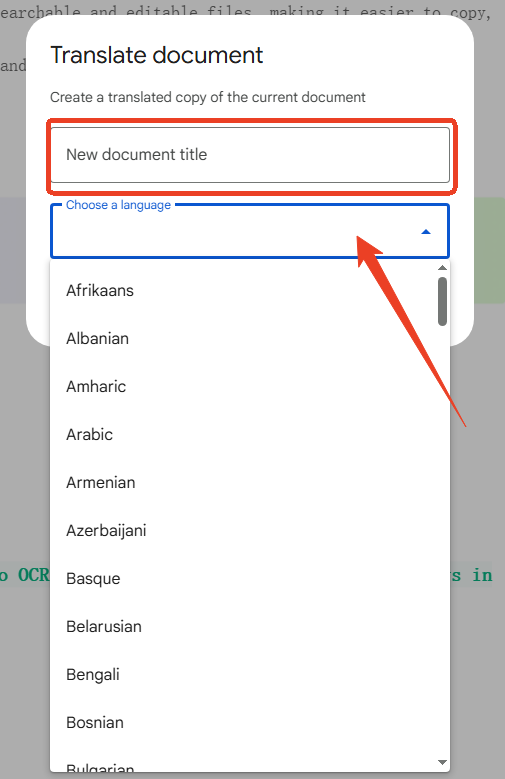
Step 3: A pop-up window will appear. Enter a name for the translated copy and choose your target language.
Step 4: Click Translate.
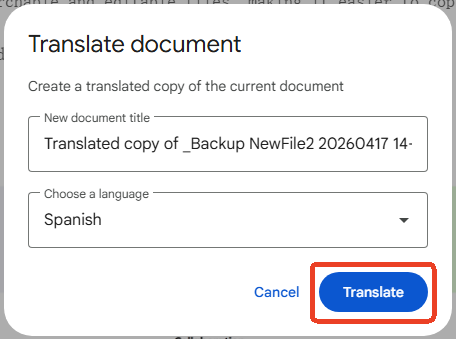
Google will create a new translated version of your document. It opens in a new tab and is saved to your Google Drive.
How to Flip an Image in Google Docs and Slides on Desktop and Mobile
Learn how to flip an image in Google Docs on desktop and mobile. Step-by-step methods for mirroring, rotating, and flipping images horizontally or vertically.
READ MORE >What Are the Limitations of Google Docs Translation?
The built-in Google Docs translate feature is convenient, but it has several limitations. Understanding these helps you decide when to use an alternative.
-
Formatting Loss: Google often resets fonts, alignment, tables, images, page breaks, headers, and footers. This can create a lot of extra work.
-
File Size Limits: Google Docs struggles with documents over 10MB. It may only translate part of a large file or fail entirely.
-
Accuracy Issues: Machine translation sometimes misses context, idioms, and professional terminology. You may need to spend time editing the output.
-
Privacy Concerns: Your content is processed through Google's servers and stored in your Google Drive. For sensitive work documents, this may not meet internal compliance requirements.
-
All-or-Nothing Translation: You cannot choose which parts to translate. It is the whole document or nothing.
In this way, the built-in Google Doc translate feature is not always the perfect choice. Here are other methods to translate Google Docs, and you can choose them based on your condition.
How to Translate Google Docs Using an Add-on
Another way to translate Google Docs is to use an add-on from the Google Workspace Marketplace. These tools work directly within Google Docs and preserve formatting better than the native feature.
How to translate a Google Doc with an add-on:
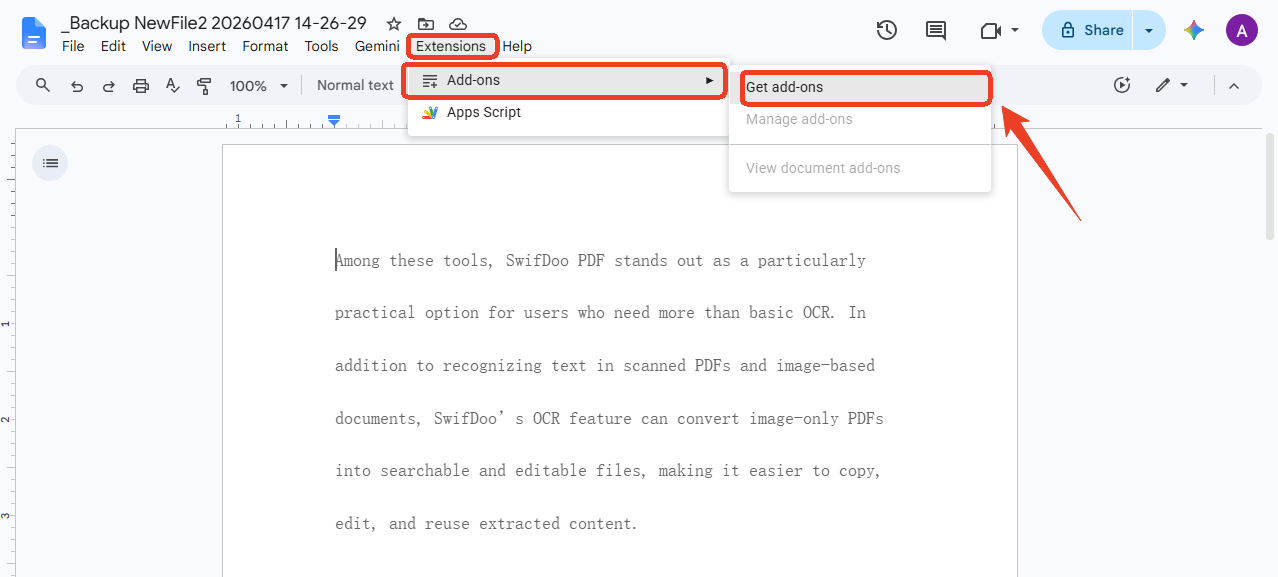
Step 1: Open your Google Doc and click Extensions > Add-ons > Get add-ons.
Step 2: Search for a translation add-on and select a suitable one.
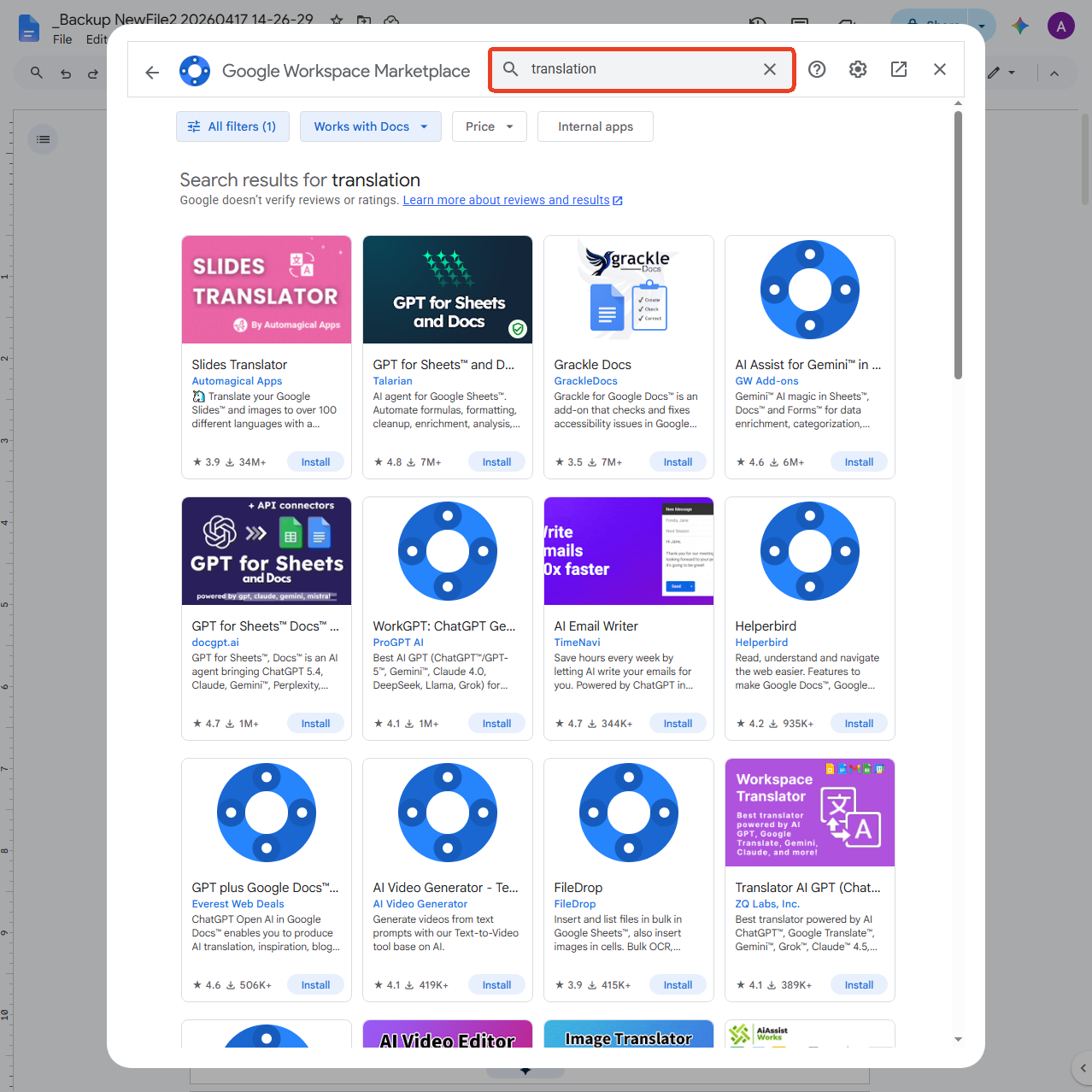
Step 3: Install the add-on and grant the necessary permissions.
Step 4: Open the add-on from the Extensions menu and follow its instructions to translate your document.
Some add-ons offer additional features like choosing translation modes (standard, technical, creative, formal) and preserving comments and suggestions. They also let you translate only selected parts of a document.
When you upload data into public web tools or run an unverified Google Docs online translation service, your private corporate details pass through remote servers. If you are handling confidential legal agreements or personal records, using a public Google Docs translation tool might expose your text to online tracking networks. Here, we recommend another method to translate Google Docs - exporting to PDF.
![How to Convert Word to PDF in Google Drive [PC & Phone]](https://img.swifdoo.com/image/convert-word-to-pdf-in-google-drive.png)
How to Convert Word to PDF in Google Drive [PC & Phone]
This guide will tell you how to convert Word to PDF in Google Drive. You can download the PDF to computer or save it to Google Drive.
READ MORE >How to Translate Google Docs by Exporting to PDF
If you need to translate Google Docs to English or another language while preserving formatting, try exporting first. This method is more reliable for professional documents.
How to translate a Google Doc by exporting:
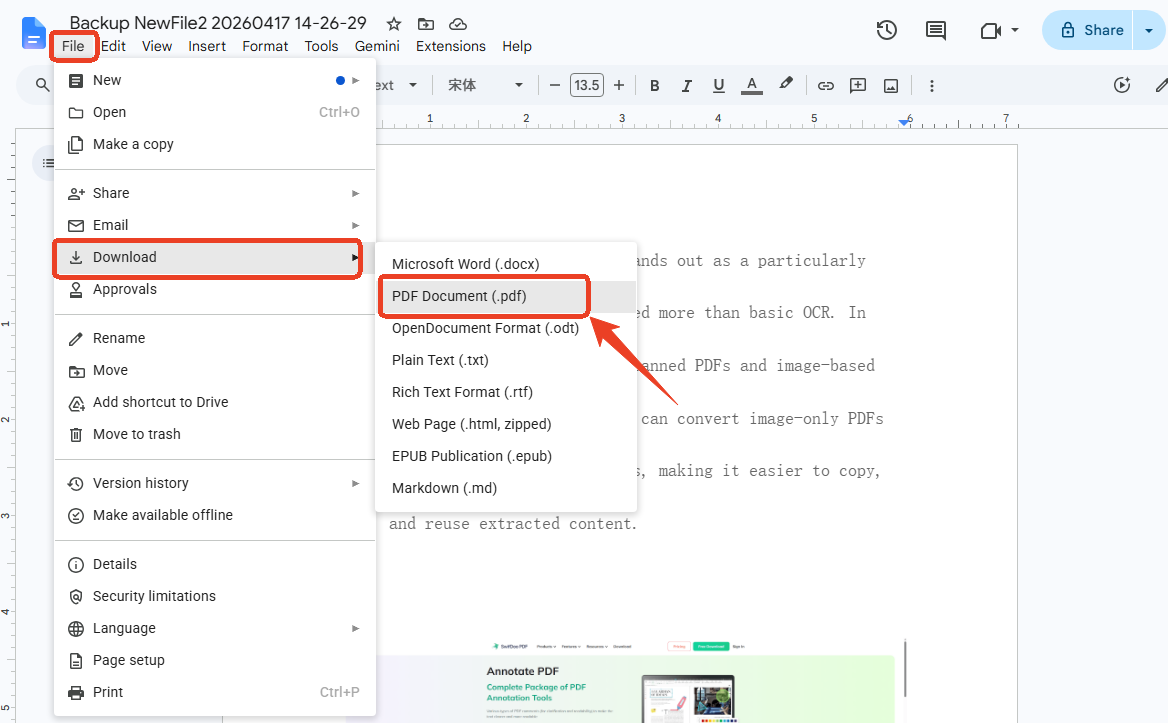
Step 1: Open your Google Doc.
Step 2: Click File > Download > PDF Document (.pdf).
Step 3: Open a translation tool that supports your file format.
Step 4: Upload your file and select the target language.
Step 5: Download the translated document.
How to Save Google Doc as PDF on Phone: iPhone, iPad & Android Guide
How to save a Google Doc as a PDF on phone and tablet. Here are step-by-step methods using Share & Export and Print to PDF.
READ MORE >Here is a better way to translate your exported Google Docs. SwifDoo PDF, is a professional PDF editor and converter available for Windows and Mac. It offers translation features that work with PDFs. If your translated document is a scanned PDF, SwifDoo PDF can use OCR to recognize the text before translating.
Step 1: Download, install, and launch SwifDoo PDF.
Step 2: Click Open to open the exported Google Doc PDF.
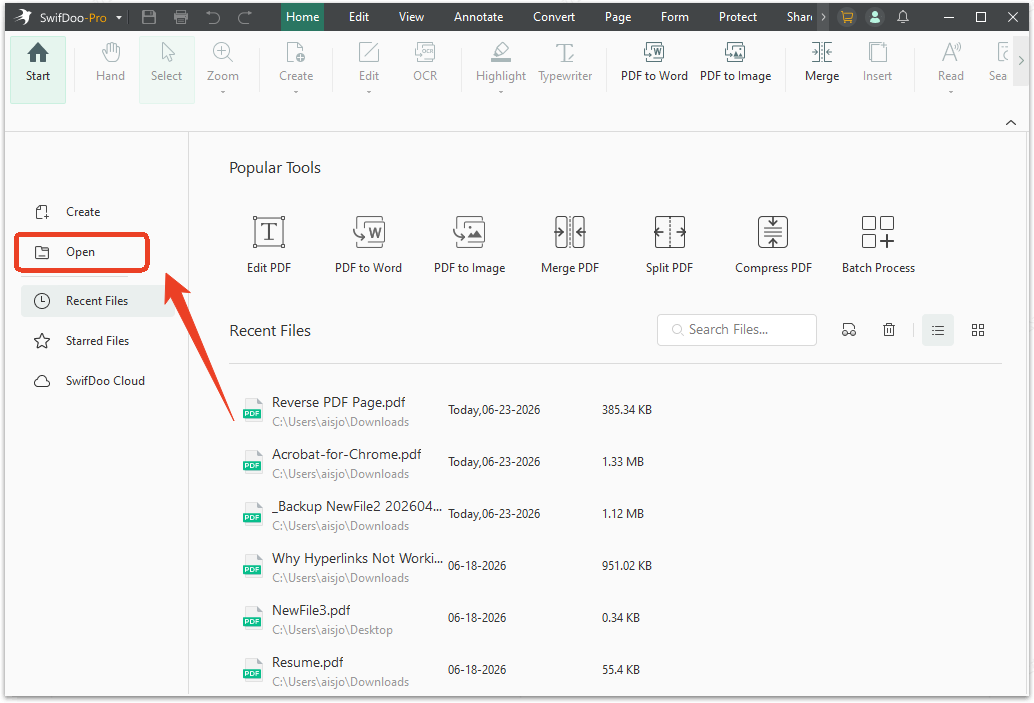
Step 3: In the Home tab, click the "right arrow" option to show more features. SwifDoo PDF offers three ways to translate your content.
-
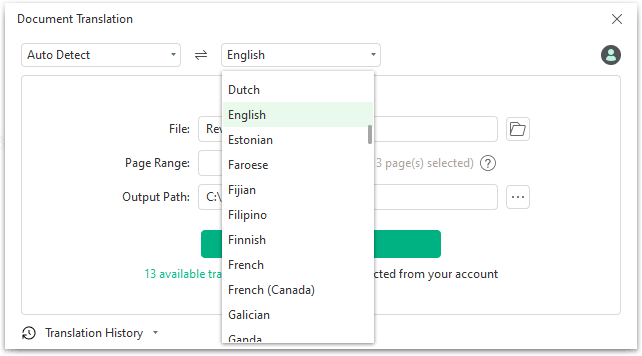
Document Translation: You can translate a PDF document into over 100 languages. The formatting stays intact.
-
Quick Translation: You can select specific text in a PDF and translate it instantly.
-
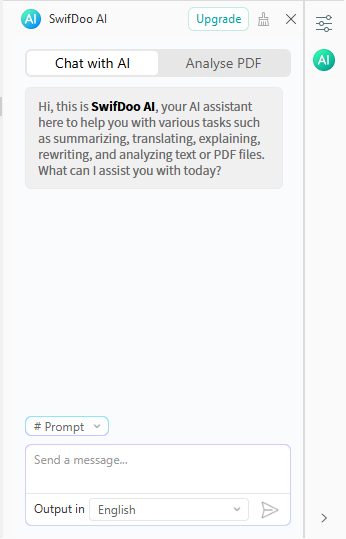
SwifDoo AI: You can use the AI chatbot to ask questions about your document or request translations in a conversational way.
Translate Scanned PDF to English: 2 Proven Methods
Learn how to translate scanned PDF to English with this step-by-step guide. You can use Google Drive or SwifDoo PDF to complete the task.
READ MORE >Google Docs Translation vs. Third-Party Tools: Which Should You Choose?
Here is a comparison to help you decide which method works best for your needs.
|
Feature |
Google Docs Built-in |
Add-on Tool |
Export + Translation Tool |
|---|---|---|---|
|
Formatting Preserved |
No |
Yes |
Yes |
|
File Size Limit |
10MB |
Varies |
Higher |
|
Accuracy |
Moderate |
Good |
Good |
|
Privacy |
Stored in Drive |
Varies |
Varies |
|
Cost |
Free |
Free or Paid |
Free or Paid |
|
Best For |
Quick drafts |
Professional documents |
Professional documents |
Final Thoughts
So, how to translate Google Docs effectively? The answer depends on your needs.
-
Use the built-in feature for quick, informal translations where formatting does not matter.
-
Use add-ons for professional documents where formatting preservation is important.
-
Use export + translation tools for the most control and to work with PDFs.
After you receive your translated document, you might need to manage it further. A tool like SwifDoo PDF can help you edit, annotate, or convert the translated PDF.
We hope this guide has answered your questions about Google Docs translation. Choose the method that fits your task, and you will have your translated document ready in no time.


