


Why is My Outlook Not Syncing with Gmail?
Users regularly question, “Why is my Outlook not syncing with Gmail?” Identifying the problem lays the foundation for restoring uninterrupted email synchronization. After finding the root cause, the appropriate fixes can quickly bring your email flow back to normal.
Here’s a list of possible causes that can disrupt Outlook and prevent it from syncing with Gmail.
️❌ Incorrect Account Settings. Gmail may fail to sync properly if Outlook’s IMAP/SMTP settings are misconfigured.
️❌ Authentication and Security Barriers. Two-factor authentication or outdated permissions may prevent Outlook from accessing Gmail.
️❌ Weak Network Connection. Unstable internet connections can disrupt synchronization between Outlook and Gmail.
️❌ Faulty Windows Update. Specific Windows updates can prevent Outlook from syncing properly with Gmail.
️❌ Outdated Google Sync Services. Using an older Google Sync may cause problems with email synchronization.
How to Fix Outlook Not Syncing with Gmail
Now that you’ve seen the possible causes, it’s easier to apply the right fix for the new Outlook not syncing with Gmail. Here, we’ll walk you through effective fixes to get your emails syncing properly and keep your workflow on track.
Fix #1. Enable IMAP in Gmail
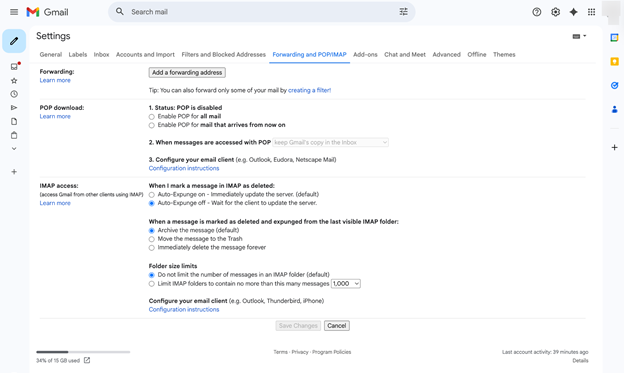
Outlook can only sync emails properly if IMAP is enabled in your Gmail settings. This enables Outlook to sync your emails in real time, keeping all folders and messages updated across devices and fixing many common syncing problems. Follow these steps to enable IMAP in Gmail.
Step 1. Access Gmail in a browser.
Step 2. Move to Settings (gear icon).
Step 3. Click See all settings and press Forwarding and POP/IMAP.
Step 4. Select Enable IMAP and save changes.
Fix #2. Re-Authenticate via Browser
There are instances when Outlook loses connection authorization with Gmail, halting sync. To correct the issue, access your Gmail account through a browser and check your credentials. By updating credentials and restoring a secure link, Outlook can correctly sync emails, contacts, and folders.
Fix #3. Subscribe to Premium Google Sync
Some advanced syncing options may be restricted if you’re on a free Gmail account. Subscribing to Premium Google Sync guarantees full IMAP/Exchange functionality, faster email updates, and enhanced Outlook reliability.
This helps fix ongoing sync problems, particularly for business accounts needing seamless email access and real-time updates across devices.
Fix #4. Verify Folder Subscriptions
Outlook only syncs the Gmail folders you’re subscribed to. Verifying your subscriptions guarantees that all relevant emails appear in Outlook and none are overlooked. Here’s how to verify folder subscriptions.
Step 1. Right-click your Gmail inbox in Outlook.
Step 2. Select IMAP Folders.
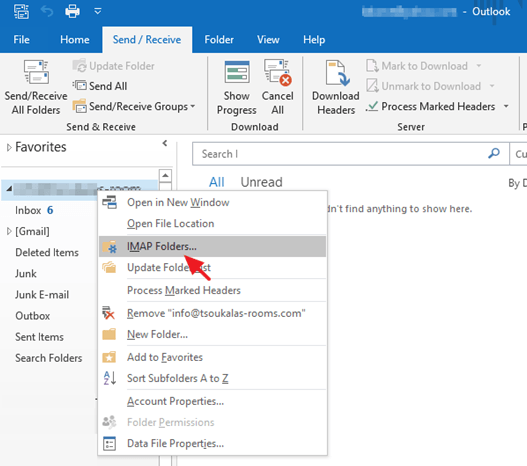
Step 3. Click Query.
Step 4. Confirm that the necessary folders are selected for subscription.
Fix #5. Clear App Cache
When dealing with Outlook not syncing with Gmail on Android, removing the app cache often restores syncing. Try clearing the app cache. This clears temporary data that could be causing sync problems and often restores smooth email updates without changing your account settings. Clear the app cache by following these instructions.
Step 1. Navigate to Settings on your Android device and choose Apps.
Step 2. Click Outlook and press Storage.
Step 3. Select Clear Cache.
Fix #6. Reset Your Outlook Account
Resetting your Outlook account can resolve persistent synchronization issues if other methods fail. Removing and then re-adding your Gmail account in Outlook refreshes settings and permissions.
It corrects authentication problems, configuration errors, and hidden bugs, making sure emails sync correctly and workflow is uninterrupted. Here’s how to reset your Outlook account.
Step 1. Go to your Outlook account. And tap the File option.
Step 2. Press Add Account. And enter your login credentials in the sign-in window. Then, click the Sign-in button.
Step 3. Next, add a Gmail account to your Outlook.
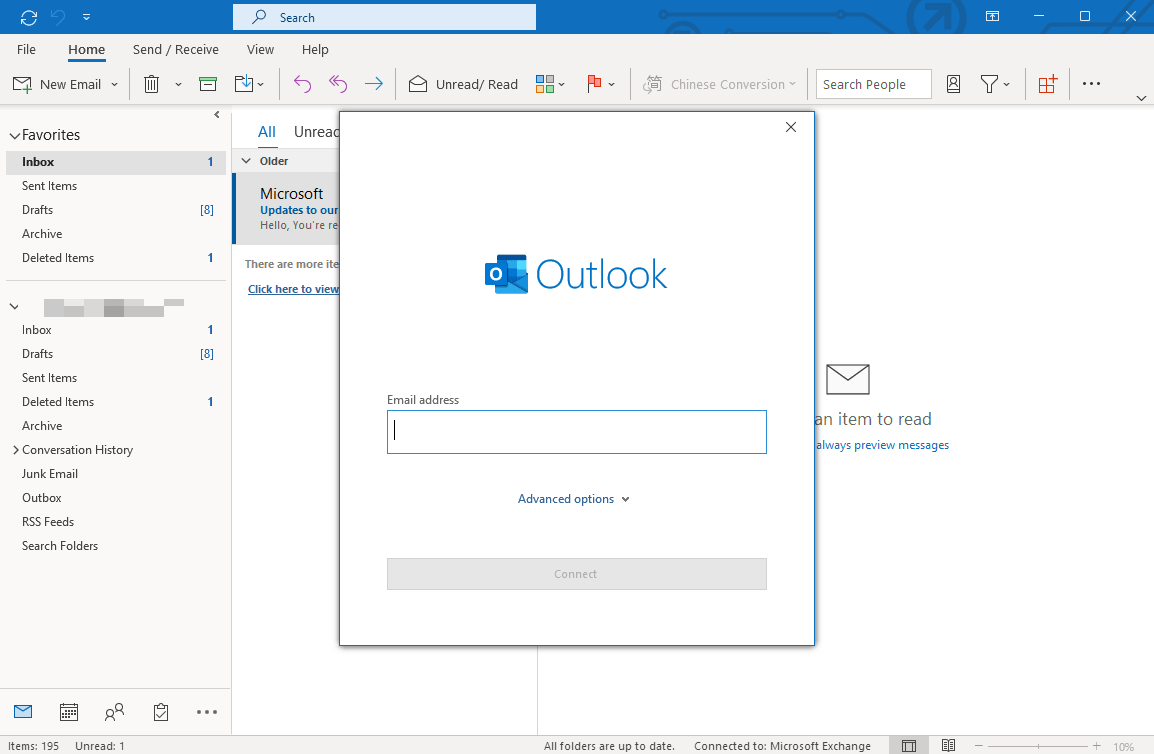
Step 4. Click Connect to sync with ease.
Fix #7. Update Outlook
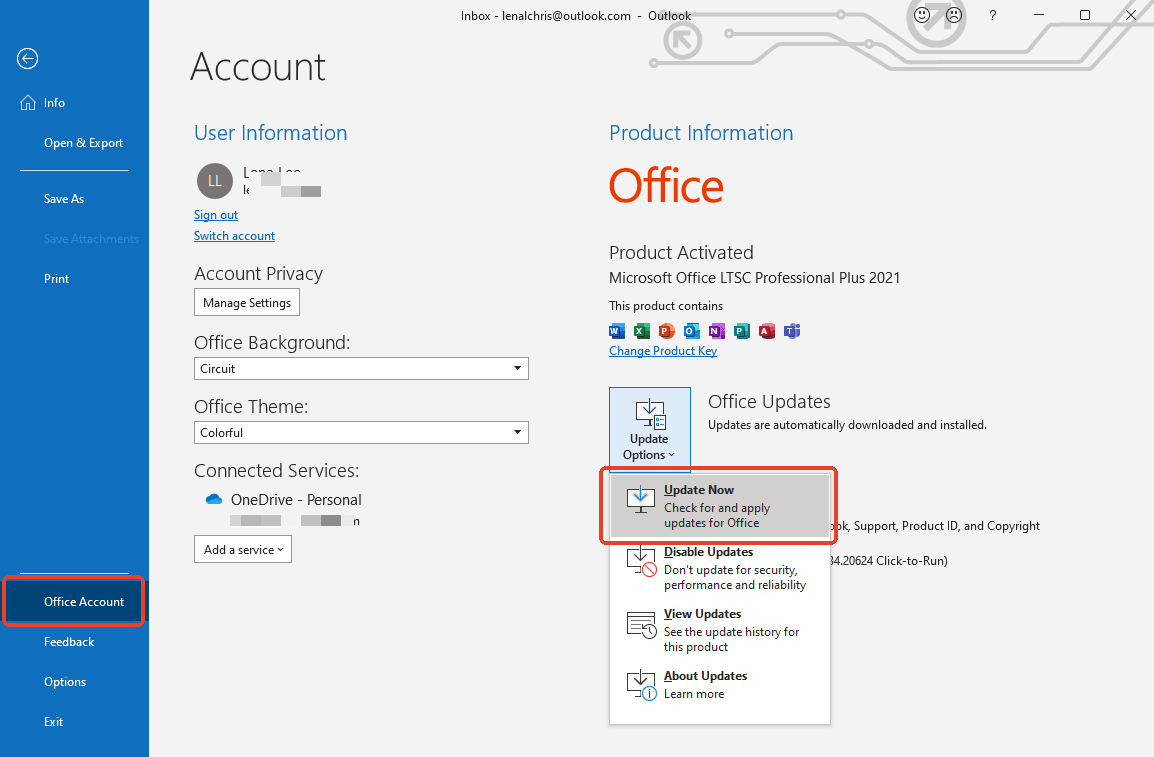
Running an outdated version of Outlook can prevent proper Gmail synchronization and cause sync failures. Make sure your Outlook is updated to the latest version. This guarantees access to the latest features, security updates, and enhanced stability for seamless email syncing. Follow these steps to update Outlook.
Step 1. Open File, then click on Office Account.
Step 2. Open Update Options. Then press Update Now.
Also Read:
Fix Google Calendar Not Syncing with iPhone/Android/Outlook
Is your Google Calendar not syncing? Learn the top ways to fix the issue and sync it with iPhone, Android, Outlook, and Apple Calendar in a few clicks.
READ MORE >Bonus Tip: How to Back Up Important Emails
Now that you know the causes and solutions for Gmail not syncing with Outlook, remember to back up your important emails. Backing up files routinely protects against data loss and keeps your work uninterrupted.
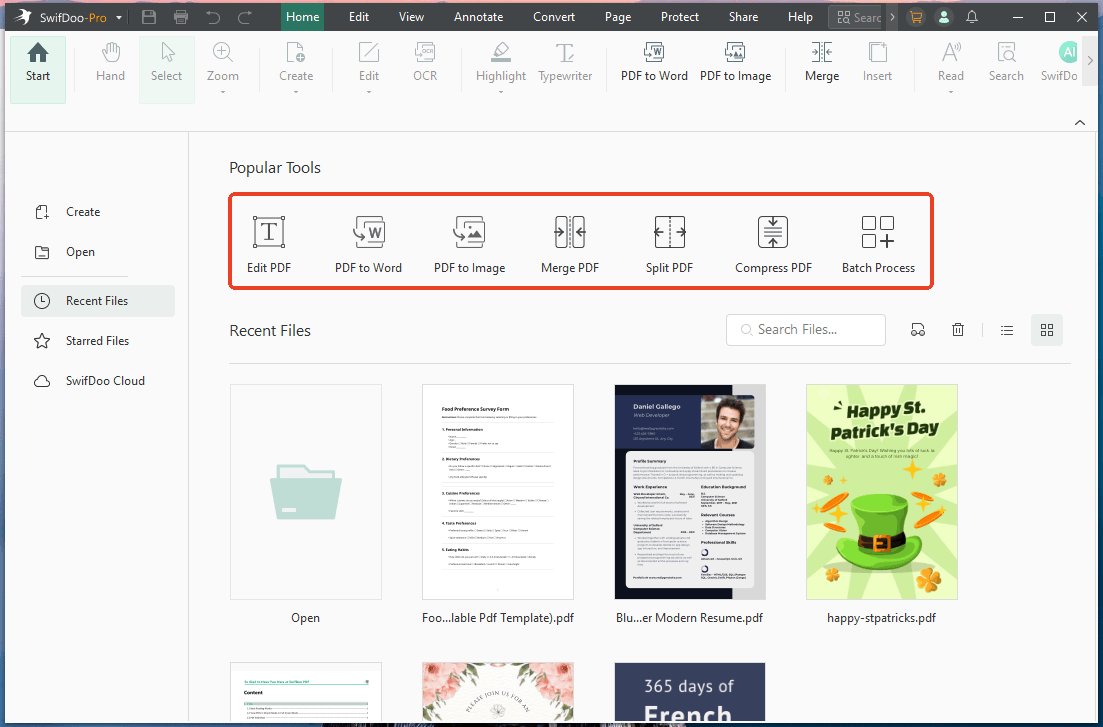
You can also use effective tools to merge PDFs, bringing multiple saved emails together into a single organized document for easier management. This lets you keep, share, and manage all your essential emails conveniently in one location.
SwifDoo PDF is a powerful tool for efficiently managing all your PDF files. As an effective PDF compressor, it reduces PDF sizes, merges multiple files, and simplifies backup organization. This makes managing extensive email or document collections simple and convenient.
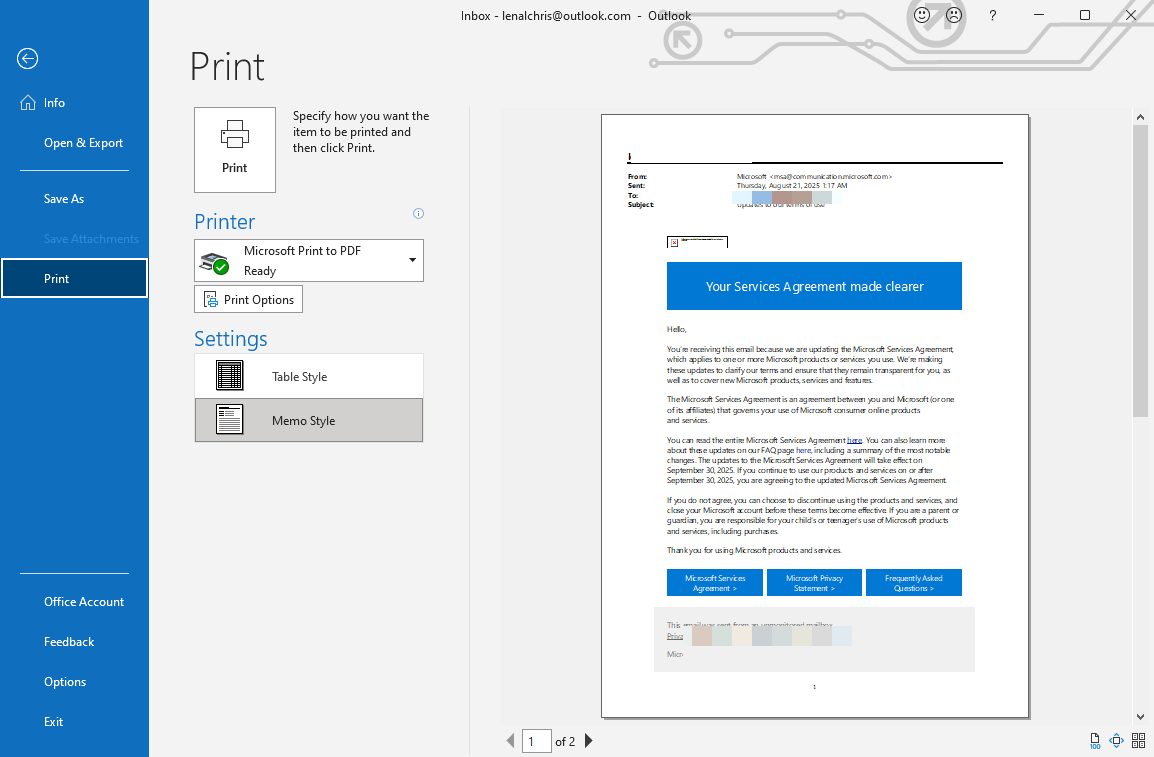
One straightforward method to back up emails is to use the Print feature to save Outlook email as PDF. With this, you can make a safe, easily retrievable copy of essential messages to store or share as needed, protecting your important information from being lost.
To keep your files secure, you can even encrypt a PDF with a password using SwifDoo PDF. Try SwifDoo PDF today to make managing PDFs simple, secure your data, and boost workflow efficiency.
Final Thoughts
Experiencing Outlook not syncing with Gmail can be frustrating. Most Outlook sync problems can be addressed by identifying their cause and applying the correct fixes.
These methods— from enabling IMAP and updating Outlook to clearing cache or re-authenticating accounts— help restore continuous email flow. Regular backups and PDF management help keep your important emails safe and easy to access.



